Xamarin.FormsTabbedPage包含索引標籤清單和較大的詳細資料區域,每個索引標籤都會將內容載入詳細數據區域。 下列螢幕快照顯示 TabbedPage iOS 和 Android 上的 :
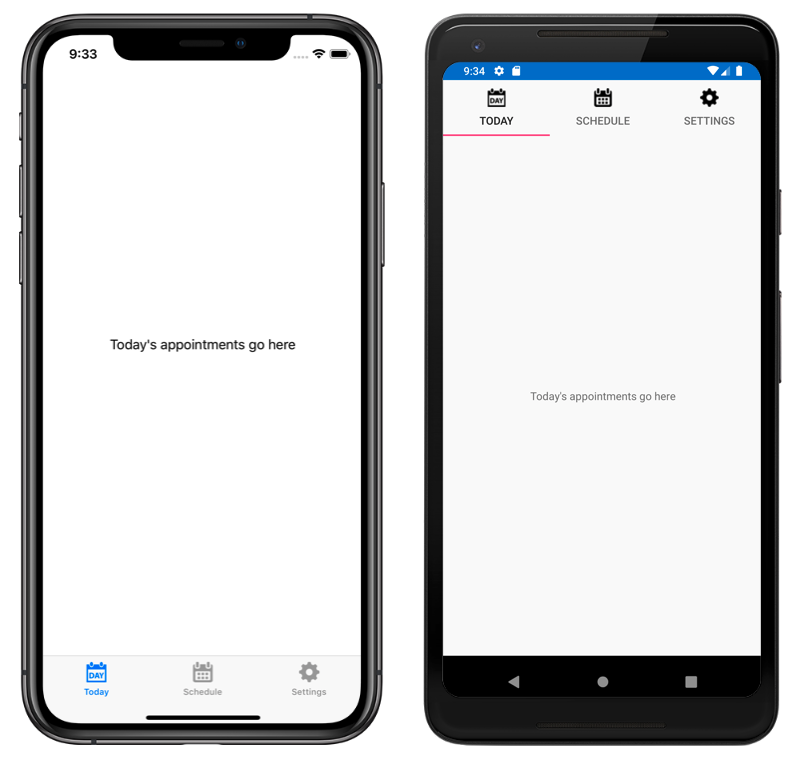
在 iOS 上,索引標籤清單會出現在畫面的底部,詳細資料區域則出現在上方。 每個索引標籤都包含標題和圖示,其應該是具有Alpha色板的 PNG 檔案。 在直向方向中,Tab 列圖示會出現在索引標籤題上方。 在橫向方向中,圖示和標題會並排顯示。 此外,視裝置和方向而定,可能會顯示一般或精簡的索引卷標列。 若有超過五個索引標籤,則會出現 [更多] 索引標籤,可用於存取其他索引標籤。
在Android上,索引標籤清單會出現在畫面頂端,詳細數據區域如下。 每個索引標籤都包含標題和圖示,其應該是具有Alpha色板的 PNG 檔案。 不過,索引標籤可以移至具有平臺特定畫面底部的索引標籤。 如果有五個以上的索引標籤,而索引標籤清單位於畫面底部, 則會顯示 [更多 ] 索引標籤,可用來存取其他索引卷標。 如需圖示需求的相關信息,請參閱 material.io 上的索引標籤,以及在 developer.android.com 上支援不同的圖元密度。 如需將索引標籤移至畫面底部的資訊,請參閱 設定TabbedPage工具列位置和色彩。
在 通用 Windows 平台 (UWP)上,索引標籤清單會出現在畫面頂端,詳細數據區域如下。 每個索引標籤都包含標題。 不過,圖示可以新增至每個具有平臺特定功能的索引標籤。 如需詳細資訊,請參閱 Windows 上的 TabbedPage 圖示。
提示
可調整向量圖形 (SVG) 檔案可以顯示為 上的 TabbedPage索引標籤:
- iOS
TabbedRenderer類別具有可GetIcon覆寫的方法,可用來從指定的來源載入索引標籤圖示。 此外,如有需要,可以提供已選取和未選取的圖示版本。 - Android AppCompat
TabbedPageRenderer類別具有可SetTabIconImageSource覆寫的方法,可用來從自定義Drawable載入索引卷標圖示。 或者,SVG 檔案可以轉換成向量可繪製的資源,這會自動由 Xamarin.Forms顯示。 如需將 SVG 檔案轉換成向量可繪製資源的詳細資訊,請參閱 在 developer.android.com 上新增多重密度向量圖形 。
建立 TabbedPage
有兩種方法可用來建立 TabbedPage:
- 使用子
Page物件的集合填入TabbedPage,例如物件的集合ContentPage。 如需詳細資訊,請參閱 使用Page集合填入TabbedPage。 - 將集合指派給 屬性,
ItemsSource並將指派DataTemplate給ItemTemplate屬性,以傳回集合中對象的頁面。 如需詳細資訊,請參閱 使用範本填入TabbedPage。
使用這兩種方法,TabbedPage 即會在使用者選取每個索引標籤時顯示每個頁面。
重要
建議僅以 NavigationPage 和 ContentPage 執行個體來填入 TabbedPage。 這有助於跨所有平台確保一致的使用者體驗。
此外, TabbedPage 定義下列屬性:
BarBackgroundColor,類型Color為 ,索引標籤的背景色彩。BarTextColor,類型Color為 ,索引標籤上的文字色彩。SelectedTabColor,類型Color為 ,選取索引標籤時的色彩。UnselectedTabColor,類型Color為 ,當索引標籤未選取時,其色彩。
所有這些屬性都是由 BindableProperty 物件提供,也就是說其樣式可以自訂,且這些屬性可以是資料繫結的目標。
警告
在 中TabbedPage,建構 時TabbedPage會建立每個 Page 物件。 這可能會導致用戶體驗不佳,特別是如果 TabbedPage 是應用程式的根頁面。 不過, Xamarin.Forms Shell 可讓透過索引標籤列存取的頁面視需要建立,以響應流覽。 如需詳細資訊,請參閱 Xamarin.Forms 殼層。
使用 Page 集合填入 TabbedPage
TabbedPage可以填入子Page物件的集合,例如物件的集合ContentPage。 這可藉由將 Page 物件新增至 TabbedPage.Children 集合來達成。 這會在 XAML 中完成,如下所示:
<TabbedPage xmlns="http://xamarin.com/schemas/2014/forms"
            xmlns:x="http://schemas.microsoft.com/winfx/2009/xaml"
            xmlns:local="clr-namespace:TabbedPageWithNavigationPage;assembly=TabbedPageWithNavigationPage"
            x:Class="TabbedPageWithNavigationPage.MainPage">
    <local:TodayPage />
    <NavigationPage Title="Schedule" IconImageSource="schedule.png">
        <x:Arguments>
            <local:SchedulePage />
        </x:Arguments>
    </NavigationPage>
</TabbedPage>
注意
衍生 Children 自類別 MultiPage<T> TabbedPage 屬性是 ContentProperty 的 MultiPage<T>。 因此,在 XAML 中,不需要將對象明確指派 Page 給 Children 屬性。
對等的 C# 程式碼為:
public class MainPageCS : TabbedPage
{
  public MainPageCS ()
  {
    NavigationPage navigationPage = new NavigationPage (new SchedulePageCS ());
    navigationPage.IconImageSource = "schedule.png";
    navigationPage.Title = "Schedule";

    Children.Add (new TodayPageCS ());
    Children.Add (navigationPage);
  }
}
在此範例中,會 TabbedPage 填入兩個 Page 物件。 第一個ContentPage子系是 物件,而第二個ContentPage子系是NavigationPage包含 物件的 。
下列螢幕快照顯示 ContentPage 中的 TabbedPage物件:
選取另一個索引標籤標會顯示 ContentPage 代表索引標籤的物件:
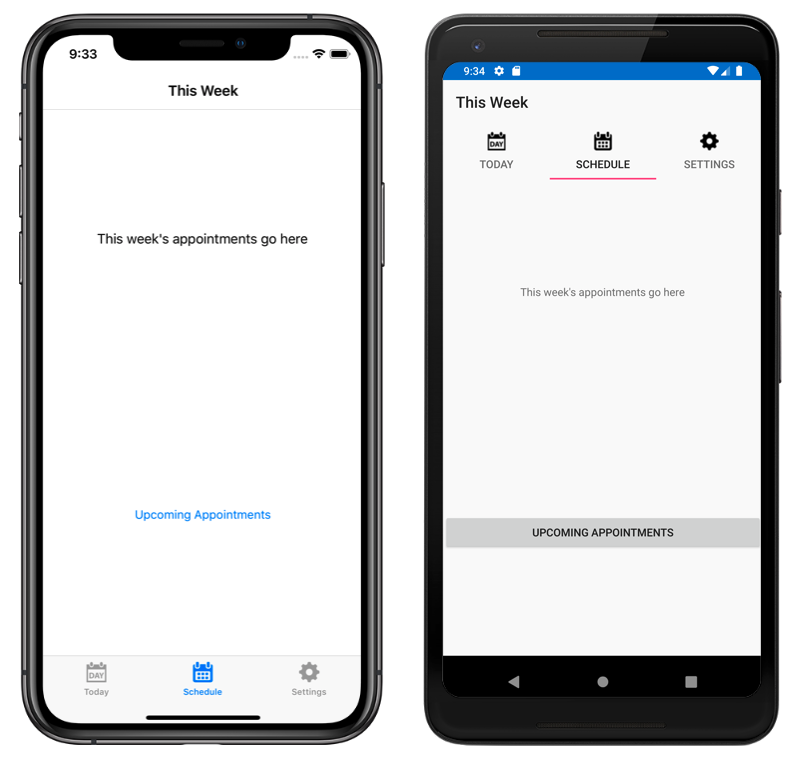
在 [ 排程] 索引標籤上 ContentPage ,物件會包裝在 物件中 NavigationPage 。
警告
NavigationPage雖然 可以放在 中TabbedPage,但不建議將 放入 TabbedPage NavigationPage。 這是因為在 iOS 上,UITabBarController 一律會作為 UINavigationController 的包裝函式。 如需詳細資訊,請參閱 iOS Developer Library 中的 Combined View Controller Interfaces (合併檢視控制器介面)。
在索引標籤內流覽
只要對象包裝在物件中, ContentPage 即可在索引標籤內 NavigationPage 執行導覽。 這可藉由PushAsync在 物件的 屬性ContentPage上Navigation叫用 方法來完成:
await Navigation.PushAsync (new UpcomingAppointmentsPage ());
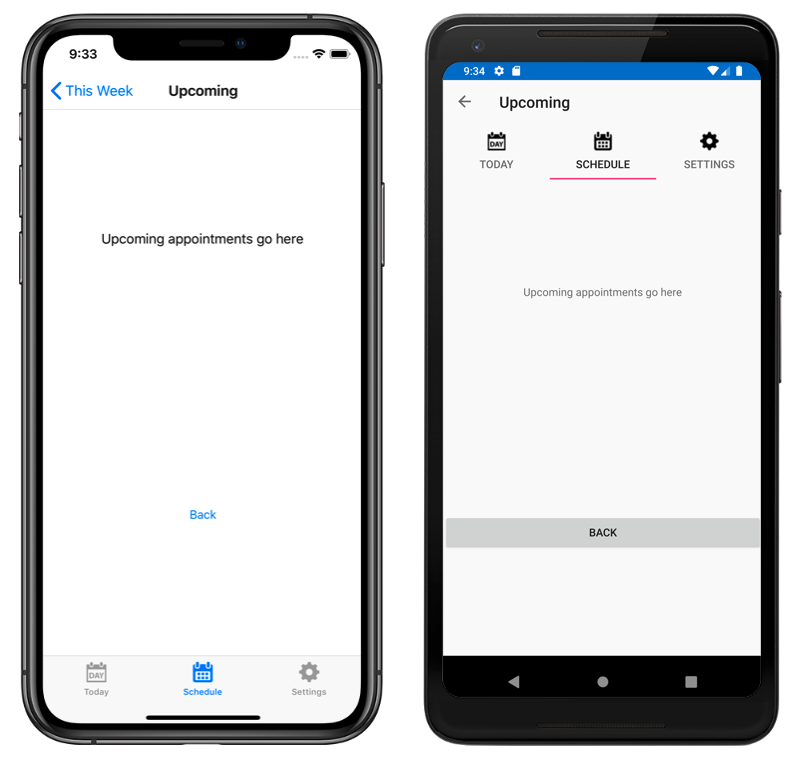
巡覽至的頁面會指定為 方法的 PushAsync 自變數。 在此範例中 UpcomingAppointmentsPage ,頁面會推送至瀏覽堆疊,其中會變成使用中的頁面:
如需使用 NavigationPage 類別執行導覽的詳細資訊,請參閱階層式導覽。
使用範本填入TabbedPage
TabbedPage可以藉由將數據集合指派給 屬性,以及將數據當做Page物件範本的屬性指派DataTemplate給 ItemsSource ItemTemplate 屬性,以填入頁面。 這會在 XAML 中完成,如下所示:
<TabbedPage xmlns="http://xamarin.com/schemas/2014/forms"
            xmlns:x="http://schemas.microsoft.com/winfx/2006/xaml"
            xmlns:local="clr-namespace:TabbedPageDemo;assembly=TabbedPageDemo"
            x:Class="TabbedPageDemo.TabbedPageDemoPage"
            ItemsSource="{x:Static local:MonkeyDataModel.All}">
  <TabbedPage.Resources>
    <ResourceDictionary>
      <local:NonNullToBooleanConverter x:Key="booleanConverter" />
    </ResourceDictionary>
  </TabbedPage.Resources>
  <TabbedPage.ItemTemplate>
    <DataTemplate>
      <ContentPage Title="{Binding Name}" IconImageSource="monkeyicon.png">
        <StackLayout Padding="5, 25">
          <Label Text="{Binding Name}" Font="Bold,Large" HorizontalOptions="Center" />
          <Image Source="{Binding PhotoUrl}" WidthRequest="200" HeightRequest="200" />
          <StackLayout Padding="50, 10">
            <StackLayout Orientation="Horizontal">
              <Label Text="Family:" HorizontalOptions="FillAndExpand" />
              <Label Text="{Binding Family}" Font="Bold,Medium" />
            </StackLayout>
            ...
          </StackLayout>
        </StackLayout>
      </ContentPage>
    </DataTemplate>
  </TabbedPage.ItemTemplate>
</TabbedPage>
對等的 C# 程式碼為:
public class TabbedPageDemoPageCS : TabbedPage
{
  public TabbedPageDemoPageCS ()
  {
    var booleanConverter = new NonNullToBooleanConverter ();

    ItemTemplate = new DataTemplate (() =>
    {
      var nameLabel = new Label
      {
        FontSize = Device.GetNamedSize (NamedSize.Large, typeof(Label)),
        FontAttributes = FontAttributes.Bold,
        HorizontalOptions = LayoutOptions.Center
      };
      nameLabel.SetBinding (Label.TextProperty, "Name");

      var image = new Image { WidthRequest = 200, HeightRequest = 200 };
      image.SetBinding (Image.SourceProperty, "PhotoUrl");

      var familyLabel = new Label
      {
        FontSize = Device.GetNamedSize (NamedSize.Medium, typeof(Label)),
        FontAttributes = FontAttributes.Bold
      };
      familyLabel.SetBinding (Label.TextProperty, "Family");
      ...

      var contentPage = new ContentPage
      {
        IconImageSource = "monkeyicon.png",
        Content = new StackLayout {
          Padding = new Thickness (5, 25),
          Children =
          {
            nameLabel,
            image,
            new StackLayout
            {
              Padding = new Thickness (50, 10),
              Children =
              {
                new StackLayout
                {
                  Orientation = StackOrientation.Horizontal,
                  Children =
                  {
                    new Label { Text = "Family:", HorizontalOptions = LayoutOptions.FillAndExpand },
                    familyLabel
                  }
                },
                // ...
              }
            }
          }
        }
      };
      contentPage.SetBinding (TitleProperty, "Name");
      return contentPage;
    });
    ItemsSource = MonkeyDataModel.All;
  }
}
在這裡範例中,每個索引標籤都包含使用 ContentPage 和 Label 物件來顯示索引標籤資料的物件Image:
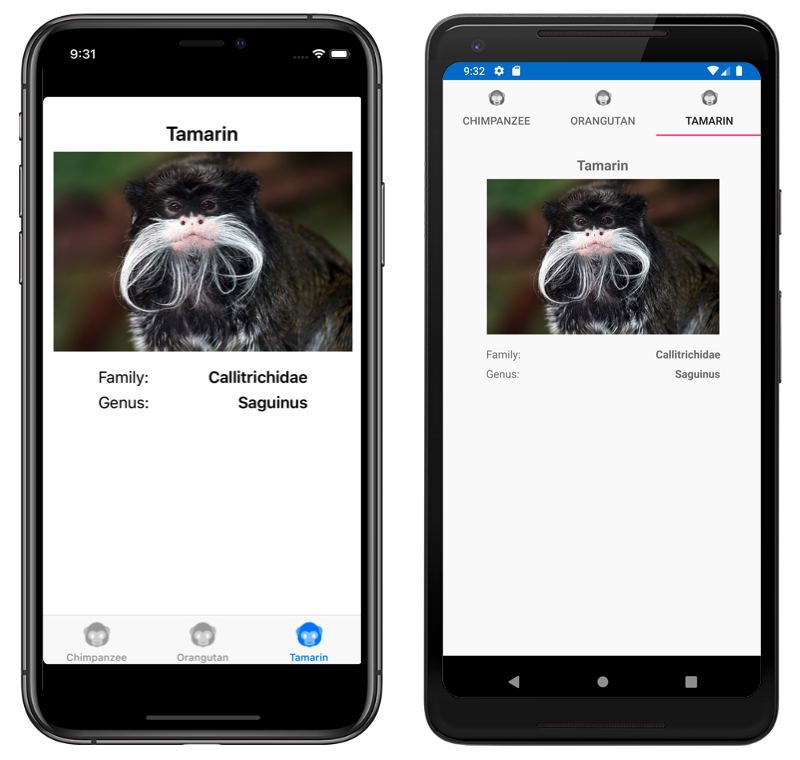
選取另一個索引標籤會顯示 ContentPage 代表索引標籤的物件。