ImageButton 會顯示影像,並回應點選或按下以指示應用程式執行特定工作。
檢視 ImageButton 會 Button 結合檢視和 Image 檢視,以建立內容為影像的按鈕。 使用者用手指按下 ImageButton ,或用滑鼠按下它,以指示應用程式執行特定工作。 不過,與檢視不同 Button , ImageButton 檢視沒有文字和文字外觀的概念。
設定影像來源
ImageButtonSource定義應該設定為要在按鈕中顯示的影像的屬性,影像來源為檔案、URI、資源或數據流。 如需從不同來源載入影像的詳細資訊,請參閱 中的 Xamarin.Forms影像。
下列範例示範如何在 XAML 中具現化 ImageButton :
<ContentPage xmlns="http://xamarin.com/schemas/2014/forms"
             xmlns:x="http://schemas.microsoft.com/winfx/2009/xaml"
             x:Class="FormsGallery.XamlExamples.ImageButtonDemoPage"
             Title="ImageButton Demo">
    <StackLayout>
        <Label Text="ImageButton"
               FontSize="50"
               FontAttributes="Bold"
               HorizontalOptions="Center" />

       <ImageButton Source="XamarinLogo.png"
                    HorizontalOptions="Center"
                    VerticalOptions="CenterAndExpand" />
    </StackLayout>
</ContentPage>
屬性 Source 會指定 出現在中的 ImageButton影像。 在此範例中,它會設定為將從每個平台專案載入的本機檔案,併產生下列螢幕快照:

根據預設, ImageButton 是矩形,但您可以使用 屬性為圓角 CornerRadius 。 如需外觀的詳細資訊 ImageButton ,請參閱 ImageButton 外觀。
注意
ImageButton雖然 可以載入動畫 GIF,但它只會顯示 GIF 的第一個畫面。
下列範例示範如何建立功能相當於上一個 XAML 範例但完全在 C# 中的頁面:
public class ImageButtonDemoPage : ContentPage
{
    public ImageButtonDemoPage()
    {
        Label header = new Label
        {
            Text = "ImageButton",
            FontSize = 50,
            FontAttributes = FontAttributes.Bold,
            HorizontalOptions = LayoutOptions.Center
        };

        ImageButton imageButton = new ImageButton
        {
            Source = "XamarinLogo.png",
            HorizontalOptions = LayoutOptions.Center,
            VerticalOptions = LayoutOptions.CenterAndExpand
        };

        // Build the page.
        Title = "ImageButton Demo";
        Content = new StackLayout
        {
            Children = { header, imageButton }
        };
    }
}
處理 ImageButton 點選
ImageButton 定義 Clicked 當用戶點選 ImageButton 手指或滑鼠指標時所引發的事件。 當手指或滑鼠按鈕從 表面 ImageButton放開時,就會引發 事件。 ImageButton必須將其 IsEnabled 屬性設定為 true ,才能回應點選。
下列範例示範如何在 XAML 中具現化 ImageButton ,並處理其 Clicked 事件:
<ContentPage xmlns="http://xamarin.com/schemas/2014/forms"
             xmlns:x="http://schemas.microsoft.com/winfx/2009/xaml"
             x:Class="FormsGallery.XamlExamples.ImageButtonDemoPage"
             Title="ImageButton Demo">
    <StackLayout>
        <Label Text="ImageButton"
               FontSize="50"
               FontAttributes="Bold"
               HorizontalOptions="Center" />

       <ImageButton Source="XamarinLogo.png"
                    HorizontalOptions="Center"
                    VerticalOptions="CenterAndExpand"
                    Clicked="OnImageButtonClicked" />

        <Label x:Name="label"
               Text="0 ImageButton clicks"
               FontSize="Large"
               HorizontalOptions="Center"
               VerticalOptions="CenterAndExpand" />
    </StackLayout>
</ContentPage>
事件 Clicked 會設定為名為 OnImageButtonClicked 的事件處理程式,其位於程式代碼後置檔案中:
public partial class ImageButtonDemoPage : ContentPage
{
    int clickTotal;

    public ImageButtonDemoPage()
    {
        InitializeComponent();
    }

    void OnImageButtonClicked(object sender, EventArgs e)
    {
        clickTotal += 1;
        label.Text = $"{clickTotal} ImageButton click{(clickTotal == 1 ? "" : "s")}";
    }
}
OnImageButtonClicked方法會在點選 ImageButton 時執行。 自 sender 變數負責 ImageButton 此事件。 您可以使用這個來存取ImageButton物件,或區分共用相同Clicked事件的多個ImageButton物件。
這個特定 Clicked 處理程式會遞增計數器,並在 中 Label顯示計數器值:
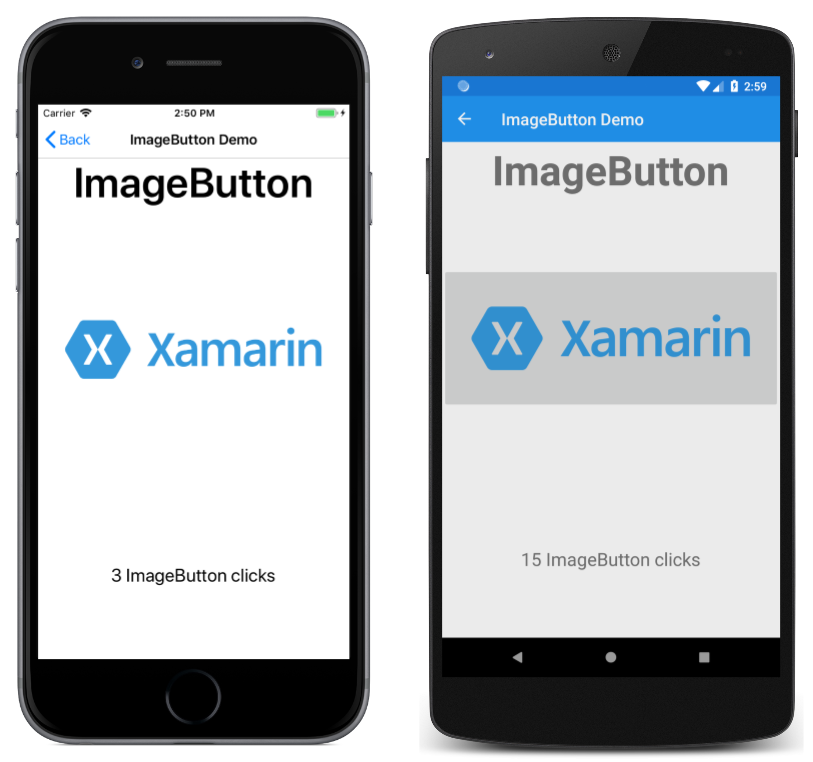
下列範例示範如何建立功能相當於上一個 XAML 範例但完全在 C# 中的頁面:
public class ImageButtonDemoPage : ContentPage
{
    Label label;
    int clickTotal = 0;

    public ImageButtonDemoPage()
    {
        Label header = new Label
        {
            Text = "ImageButton",
            FontSize = 50,
            FontAttributes = FontAttributes.Bold,
            HorizontalOptions = LayoutOptions.Center
        };

        ImageButton imageButton = new ImageButton
        {
            Source = "XamarinLogo.png",
            HorizontalOptions = LayoutOptions.Center,
            VerticalOptions = LayoutOptions.CenterAndExpand
        };
        imageButton.Clicked += OnImageButtonClicked;

        label = new Label
        {
            Text = "0 ImageButton clicks",
            FontSize = Device.GetNamedSize(NamedSize.Large, typeof(Label)),
            HorizontalOptions = LayoutOptions.Center,
            VerticalOptions = LayoutOptions.CenterAndExpand
        };

        // Build the page.
        Title = "ImageButton Demo";
        Content = new StackLayout
        {
            Children =
            {
                header,
                imageButton,
                label
            }
        };
    }

    void OnImageButtonClicked(object sender, EventArgs e)
    {
        clickTotal += 1;
        label.Text = $"{clickTotal} ImageButton click{(clickTotal == 1 ? "" : "s")}";
    }
}
停用 ImageButton
有時候,應用程式處於特定 ImageButton 按兩下不是有效作業的特定狀態。 在這些情況下, ImageButton 應該藉由將其 IsEnabled 屬性設定為 false來停用 。
使用命令介面
應用程式可以在不處理Clicked事件的情況下回應ImageButton點選。 會 ImageButton 實作稱為 命令 或 命令介面的 替代通知機制。 這包含兩個屬性:
Command型ICommand別 為 ,這是命名空間中System.Windows.Input定義的介面。CommandParameter類型的Object屬性。
此方法適用於與數據系結的連線,特別是在實作Model-View-ViewModel(MVVM) 架構時。
如需使用命令介面的詳細資訊,請參閱按鈕指南中的使用命令介面。
按下和釋放 ImageButton
除了 Clicked 事件,ImageButton 也會定義 Pressed 和 Released 事件。 當 Pressed 手指按下 ImageButton,或按下滑鼠按鈕時,會按下位於 上方的 ImageButton指標時發生此事件。 放 Released 開手指或滑鼠按鈕時,就會發生此事件。 一般而言, Clicked 事件也會與 Released 事件同時引發,但如果手指或滑鼠指標在放開之前從表面 ImageButton 滑出,則 Clicked 可能不會發生此事件。
如需這些事件的詳細資訊,請參閱按鈕指南中的按和放開按鈕。
ImageButton 外觀
除了繼承自 類別的屬性ImageButton之外,ImageButton也會定義影響其外觀的View數個屬性:
Aspect會如何調整影像以符合顯示區域。BorderColor是 周圍ImageButton區域的色彩。BorderWidth是框線的寬度。CornerRadius是的ImageButton圓角半徑。
屬性 Aspect 可以設定為列舉的 Aspect 其中一個成員:
Fill- 縮放影像以完整且完全填滿ImageButton。 這可能會導致影像扭曲。AspectFill- 裁剪影像,使其填滿ImageButton,同時保留外觀比例。AspectFit- 信箱影像(如有必要),讓整個影像符合ImageButton,並將空白空間新增至頂端/底部或側邊,視影像寬或高而定。 這是列舉的Aspect預設值。
ImageButton 視覺狀態
ImageButtonPressed VisualState具有 ,可在使用者按下時起始視覺效果變更ImageButton,前提是已啟用。
下列 XAML 範例示範如何定義狀態的 Pressed 視覺狀態:
<ImageButton Source="XamarinLogo.png"
             ...>
    <VisualStateManager.VisualStateGroups>
        <VisualStateGroup x:Name="CommonStates">
            <VisualState x:Name="Normal">
                <VisualState.Setters>
                    <Setter Property="Scale"
                            Value="1" />
                </VisualState.Setters>
            </VisualState>

            <VisualState x:Name="Pressed">
                <VisualState.Setters>
                    <Setter Property="Scale"
                            Value="0.8" />
                </VisualState.Setters>
            </VisualState>

        </VisualStateGroup>
    </VisualStateManager.VisualStateGroups>
</ImageButton>
Pressed VisualState指定按下 時ImageButton,其 Scale 屬性會從預設值 1 變更為 0.8。 Normal VisualState指定 當 處於正常狀態時ImageButton,其 Scale 屬性會設定為 1。 因此,整體效果是按下 時 ImageButton ,會重新調整為稍微小一點,而釋放 時 ImageButton ,它會重新調整為其預設大小。
如需視覺狀態的詳細資訊,請參閱 Xamarin.Forms Visual State Manager。