
卸載 Reporting Services 不會移除你所建立的內容或你修改的設定。 不過,如果你在卸載後還需要這些內容,請在開始卸載前先備份。
解除安裝 SharePoint 模式
當你卸載Reporting Services SharePoint模式時,以下元件會被移除:
Reporting Services 服務及服務代理程式。
用於安裝 Reporting Services 的檔案。
卸載過程不會移除 Reporting Services 服務應用程式。 如果您不再需要服務應用程式,可以使用 Windows PowerShell 或 SharePoint 管理中心刪除它們。
卸載過程不會移除報告項目和相關的元資料。 此資訊包含在與 Reporting Services 服務應用程式相關的內容和設定資料庫中。 資料庫不會被移除,而且您可以手動將資料庫移轉到另一個以 SharePoint 模式執行的 Reporting Services 安裝。 如果您不再需要資訊,請刪除資料庫。 如需詳細資訊,請參閱 升級與遷移 Reporting Services。
以下是三個未被移除的 Reporting Services 資料庫範例名稱:
報表伺服器資料庫: ReportingService_7f616e2d253040e8ab5653b3c09a065e
報表伺服器暫存資料庫: ReportingService_7f616e2d253040e8ab5653b3c09a065eTempDB
報表伺服器警示資料庫: ReportingService_7f616e2d253040e8ab5653b3c09a065e_Alerting
卸載 SharePoint Products 的外掛
當您在電腦上解除安裝增益集時,可以選擇只解除安裝檔案,或同時從伺服器陣列移除 Reporting Services 功能。 關於解除安裝 SharePoint 產品 Reporting Services 外掛的資訊,請參見「安裝或卸載 Reporting Services 外掛 for SharePoint (SSRS)」。
卸載原生模式
當你解除安裝 Reporting Services 的原生模式時,安裝程式會保留你在安裝後所建立或修改的所有內容。 例如,卸載程式會保留資料庫檔案、日誌檔案、Reporting Services 設定檔,以及報告和資料來源檔案等內容項目。
Reporting Services 是一個實例功能,因此不會出現在Windows 控制台、程式與功能中。 若要解除安裝 Reporting Services 原生模式:
在Windows 控制台中,選擇「程式與功能」。
在程式與功能中,選擇 Microsoft SQL Server 2016。
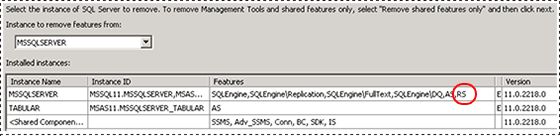
在解除安裝精靈中,選取包含 Reporting Services 執行個體功能 RS 的執行個體。
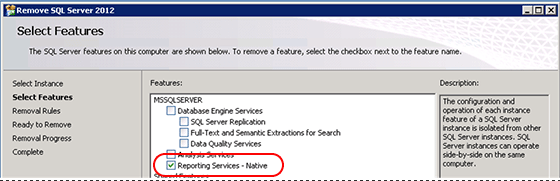
選取執行個體之後,請選取 Reporting Services 功能。
完成精靈程式。
