Experience MakeCode Python coding in Minecraft
In the Minecraft Education computer science progression, all Computer Science (CS) content has a standardized format and provides a consistent experience for educators. Educators can use the materials and resources to support student learning with any of the CS content.
All computer science content has:
- Curriculum overview: This document provides insight about the curriculum and what is taught in the curriculum.
- Educator’s guides (EDU guides): The educator’s guide for each of the lessons provides a high-level overview of the lesson, learning goals, standards addressed, required preparation for the activities, the lesson plans for the activities, any additional materials needed, and the formative assessments that correspond with the lesson.
- Classroom presentations: A PowerPoint presentation supports each lesson (except for the summative task) to provide structure and guide the educator through the activities for the lesson.
- Formative assessments: After each lesson in the EDU guide, there's an opportunity to check for student understanding of the lesson's concept. These formative assessments are 2-4 questions directly related to the learning that just took place.
- Summative assessment: At the end of the entire lesson sequence, a performance-based task demonstrates students' new knowledge and skills learned in the computer science unit, Computing with Minecraft. This performance-based task includes a rubric.
These materials are accessed from the Minecraft Education website. Familiarize yourself with these resources before starting the lesson experience.
Activity
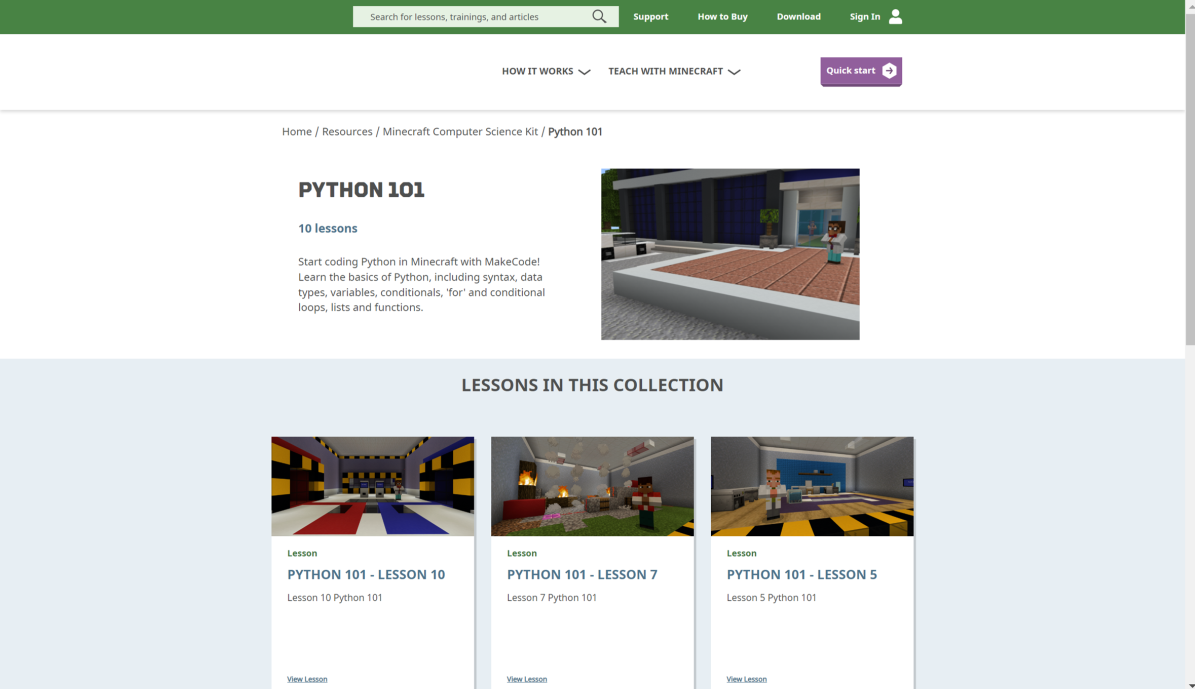
Using the Python 101 resources, walk through a lesson experience. Try the lesson Location, Location, Location.
To load the Python 101 lesson, select it from the Python section of the computer science subject kit.
Start the game play experience by speaking to the CEO of CodingMine. Move into the first room to begin the activity. Create Python code to place the grass blocks and brick blocks.
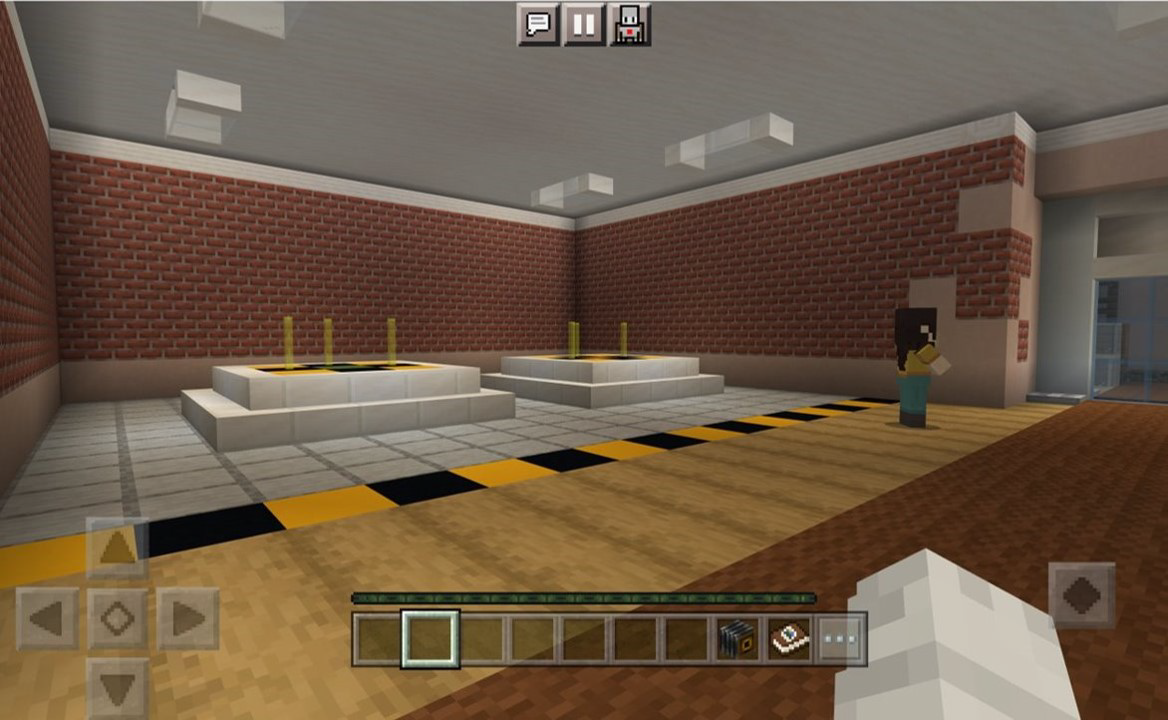
Use the place block at position command to place blocks in the designated areas. You must be in relative position—which means you must be standing on the block in order for it to be placed correctly. Relative position is an important part of understanding coordinates, the coding concept and focus of this lesson.
Relative position is the distance from the player to whatever they want to interact with. Relative positions are denoted by a ~ (tilde) symbol before each of the three numbers that make up the three-coordinate (~X, ~Y, ~Z) position.
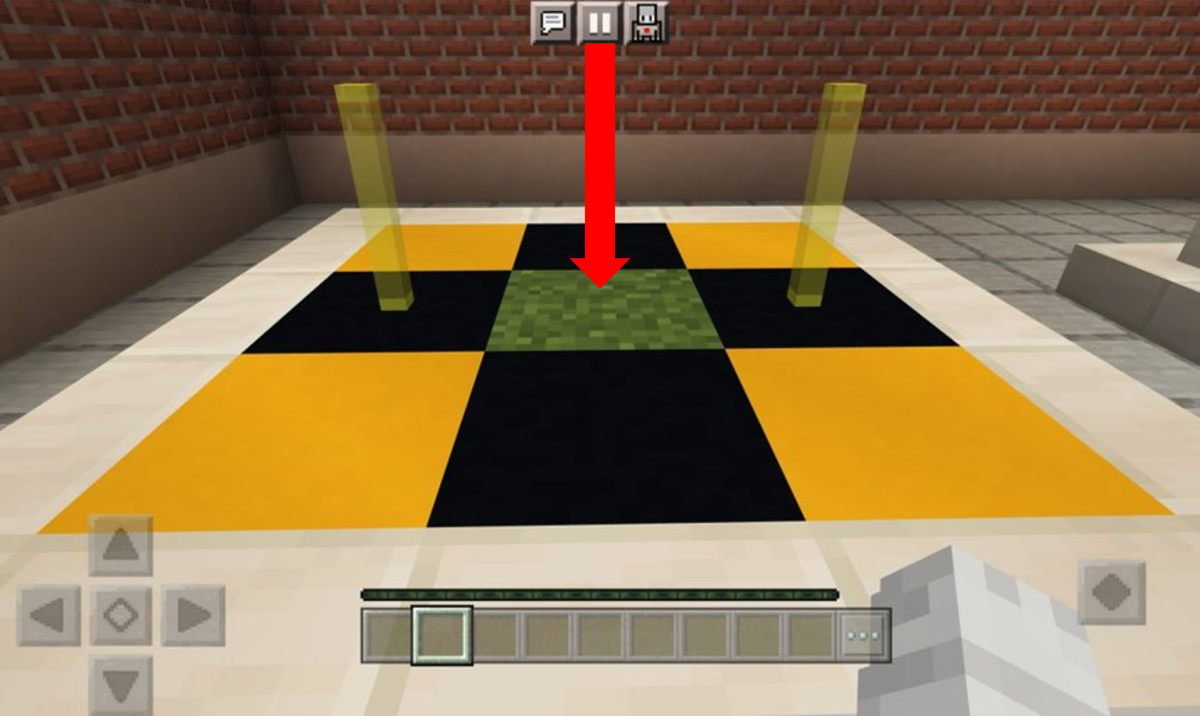
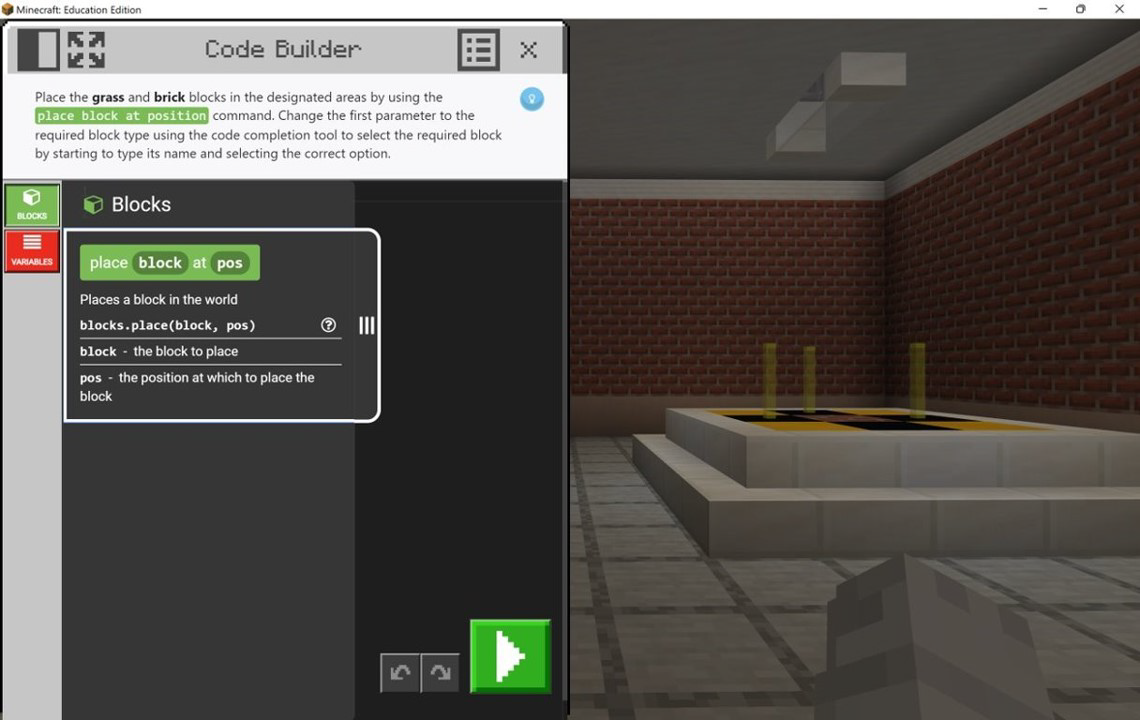
Open Code Builder to launch the coding tutorial. Use the place block at position command. Change the first parameter to the required block type using the code completion tool. Start by entering its name and selecting the correct option.
Complete and run the code. If the code is correct, the block is placed on the existing grass block. Continue to the second part of the coding task.
Reflection
Consider:
- What age range of students should use Python 101 with?
- How should you support struggling students?
- How should you support students who finish faster than planned?