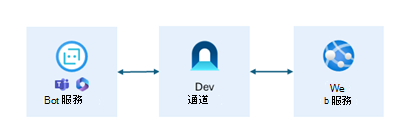
建立訊息擴充功能
在此單元中,您將瞭解如何建立訊息擴充功能。 您也會瞭解如何使用Teams工具組,在 Microsoft Teams 中執行訊息擴充功能並進行偵錯。
若要建立訊息擴充功能,您需要下列元件:
- 使用 Bot Framework 將 Web 服務註冊為 Bot 的 Azure Bot 資源
- 用來處理使用者與訊息擴充功能互動的 Web 服務
- 在 Microsoft Teams 中定義訊息擴充功能的應用程式指令清單
設定 Azure Bot 資源
Azure Bot 資源可用來向 Bot Framework 將您的 Web 服務註冊為 Bot。 需要 Microsoft Entra 應用程式註冊,才能建立 Azure Bot 資源。 應用程式註冊提供安全的方式來驗證和授權您的 Bot。 Web 服務會使用 Microsoft Entra 應用程式註冊認證向 Bot 服務進行驗證。
下列代碼段示範如何使用 Bicep 建立 Azure Bot 資源:
resource botService 'Microsoft.BotService/botServices@2021-03-01' = {
  kind: 'azurebot'
  location: 'global'
  name: 'botService'
  properties: {
    displayName: 'Bot Service'
    endpoint: 'https://webservice.contoso.com/api/messages'
    msaAppId: '00000000-0000-0000-0000-000000000000'
  }
  sku: {
    name: botServiceSku
  }
}
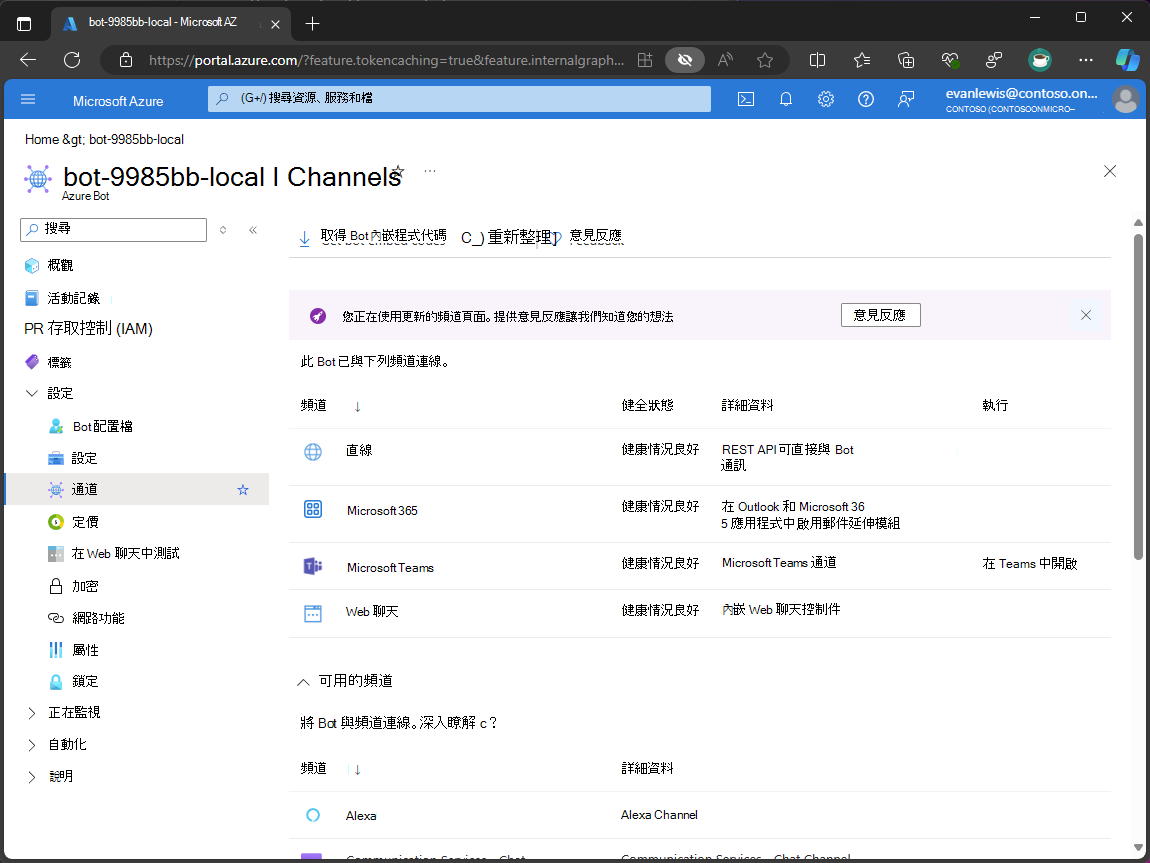
端點屬性會指定在 Web 服務上公開的傳訊端點,Bot 服務會在使用者與訊息擴充功能互動時,用來傳送要求。 msaAppId 屬性會指定用來向 Web 服務驗證 Bot 服務的 Microsoft Entra 應用程式註冊識別碼。
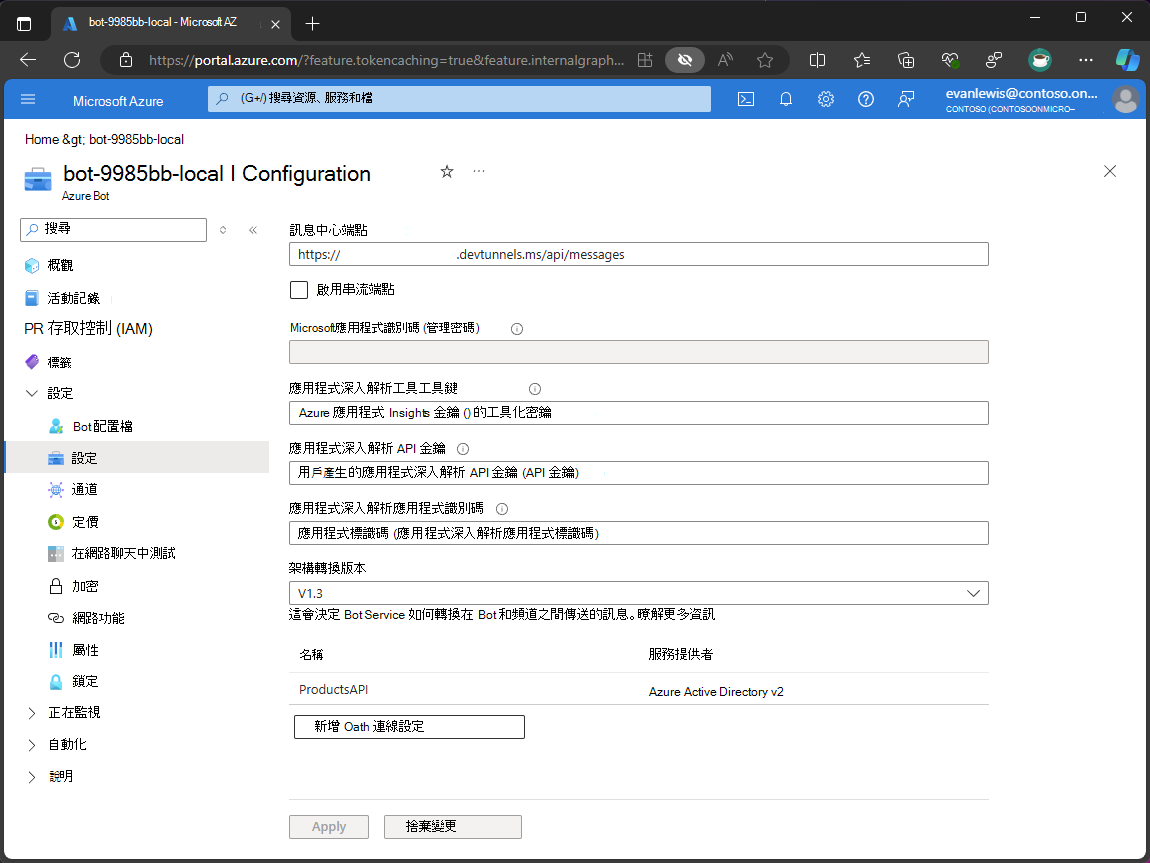
通道可用來將 Bot 服務與傳訊平台連線,例如 Microsoft Teams、Slack、Facebook Messenger 等等。
下列代碼段示範如何在 Azure Bot 資源上設定 Microsoft Teams 和 Microsoft 365 (Outlook 和 Microsoft 365 Copilot) 頻道:
resource botServiceMsTeamsChannel 'Microsoft.BotService/botServices/channels@2021-03-01' = {
  parent: botService
  location: 'global'
  name: 'MsTeamsChannel'
  properties: {
    channelName: 'MsTeamsChannel'
  }
}

resource botServiceM365ExtensionsChannel 'Microsoft.BotService/botServices/channels@2022-06-15-preview' = {
  parent: botService
  location: 'global'
  name: 'M365Extensions'
  properties: {
    channelName: 'M365Extensions'
  }
}
設定 Web 服務
Web 服務是包含訊息擴充功能程式代碼的 Web 應用程式。 Web 服務負責處理使用者與訊息擴充功能的互動,並使用 Bot Framework SDK 與 Bot 服務通訊。
若要處理使用者互動,您可以實作:
- 傳訊端點
- Bot 配接器
- Bot 活動處理程式
傳訊端點是用來接收來自 Bot 服務的要求。 傳訊端點會在 Web 服務上公開,並將要求傳遞給 Bot 配接器進行處理。
下列代碼段示範如何設定傳訊端點:
[Route("api/messages")]
[ApiController]
public class BotController : ControllerBase
{
    private readonly IBotFrameworkHttpAdapter Adapter;
    private readonly IBot Bot;

    public BotController(IBotFrameworkHttpAdapter adapter, IBot bot)
    {
        Adapter = adapter;
        Bot = bot;
    }

    [HttpPost, HttpGet]
    public async Task PostAsync()
    {
        await Adapter.ProcessAsync(Request, Response, Bot);
    }
}
Bot 配接器可用來將 Bot 服務與 Web 服務連線。 Bot 配接器負責處理來自 Bot 服務的連入要求,以及叫用 Bot 活動處理程式。 Web 服務會使用用來向 Bot Framework 註冊 Azure Bot 資源的 Microsoft Entra 應用程式註冊認證,向 Bot 服務進行驗證。
下列代碼段示範如何在 Web 服務中設定 Bot 配接器:
// Create the Bot Framework Authentication to be used with the Bot Adapter.
var config = builder.Configuration.Get<ConfigOptions>();
builder.Configuration["MicrosoftAppType"] = "MultiTenant";
builder.Configuration["MicrosoftAppId"] = config.BOT_ID;
builder.Configuration["MicrosoftAppPassword"] = config.BOT_PASSWORD;
builder.Services.AddSingleton<BotFrameworkAuthentication, ConfigurationBotFrameworkAuthentication>();

// Create the Bot Framework Adapter with error handling enabled.
builder.Services.AddSingleton<IBotFrameworkHttpAdapter, AdapterWithErrorHandler>();

// Create the bot as a transient. In this case the ASP Controller is expecting an IBot.
builder.Services.AddTransient<IBot, SearchApp>();
若要處理使用者搜尋查詢並傳回搜尋結果,請實作繼承自 Bot Framework SDK 所提供 之 TeamsActivityHandler 類別的 Bot 活動處理程式,並覆寫 OnTeamsMessagingExtensionQueryAsync 方法。
下列代碼段示範如何在 Web 服務中設定 Bot 活動處理程式:
public class SearchApp : TeamsActivityHandler
{
    protected override async Task<MessagingExtensionResponse> OnTeamsMessagingExtensionQueryAsync(ITurnContext<IInvokeActivity> turnContext, MessagingExtensionQuery query, CancellationToken cancellationToken)
    {
        var text = query?.Parameters?[0]?.Value as string ?? string.Empty;

        var card = await File.ReadAllTextAsync(Path.Combine(".", "Resources", "card.json"), cancellationToken);
        var template = new AdaptiveCards.Templating.AdaptiveCardTemplate(card);

        return new MessagingExtensionResponse
        {
            ComposeExtension = new MessagingExtensionResult
            {
                Type = "result",
                AttachmentLayout = "list",
                Attachments = [
                    new MessagingExtensionAttachment
                        {
                            ContentType = AdaptiveCard.ContentType,
                            Content = JsonConvert.DeserializeObject(template.Expand(new { text })),
                            Preview = new ThumbnailCard { Title = text }.ToAttachment()
                        }
                ]
            }
        };
    }
}
設定搜尋命令
應用程式指令清單是定義應用程式元數據和組態的 JSON 檔案。 它會定義應用程式提供的功能,例如訊息擴充功能。 應用程式指令清單包含在應用程式套件中。 應用程式套件是您上傳至 Microsoft Teams 以安裝應用程式的 ZIP 檔案。
下列代碼段顯示如何在應用程式指令清單中定義搜尋命令:
"composeExtensions": [
  {
    "botId": "4cc3ac43-d581-403d-8bbf-ff9c0fbf3fb2",
    "commands": [
      {
        "id": "Search",
        "type": "query",
        "title": "Products",
        "description": "Find products by name",
        "initialRun": true,
        "fetchTask": false,
        "context": [
          "commandBox",
          "compose",
          "message"
        ],
        "parameters": [
          {
            "name": "ProductName",
            "title": "Product name",
            "description": "The name of the product as a keyword",
            "inputType": "text"
          }
        ]
      }
    ]
  }
]
命令可以包含一或多個參數。 參數是顯示在使用者介面中的欄位。 在此範例中,命令具有名為 ProductName 的單一參數。 參數是一個文字欄位,用戶會填入他們要搜尋的產品名稱。
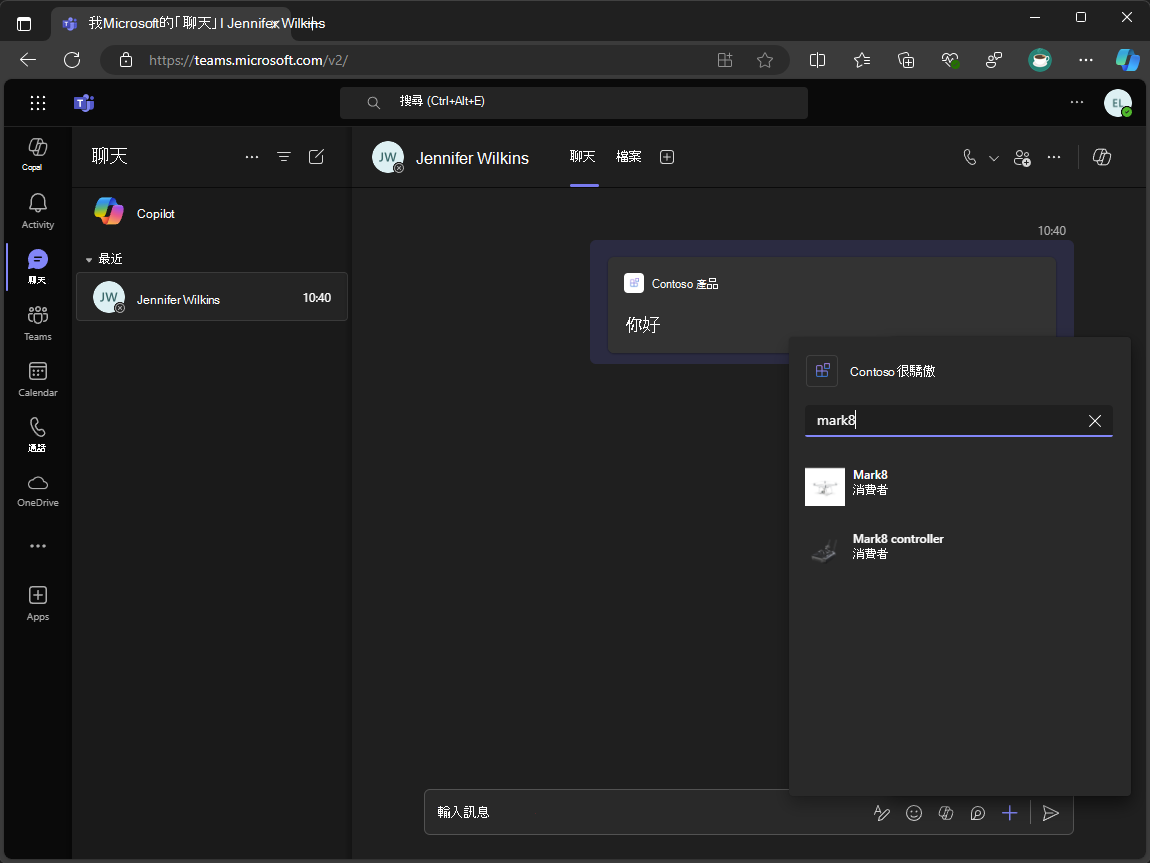
適用於 Visual Studio 的 Teams 工具組
適用於 Visual Studio 的 Teams 工具組是擴充功能,可提供工具來建立、偵錯及部署Microsoft Teams 應用程式。 Teams 工具組與 Visual Studio 整合,以簡化開發程式,並提供建置Microsoft Teams 應用程式的順暢體驗。
Teams 工具組會建構包含兩個項目的解決方案:Web 服務專案和 Teams 應用程式專案。 Web 服務專案包含訊息延伸模組程式代碼,而應用程式專案包含應用程式指令清單,以及在 Microsoft Teams 中執行應用程式所需的其他資源。
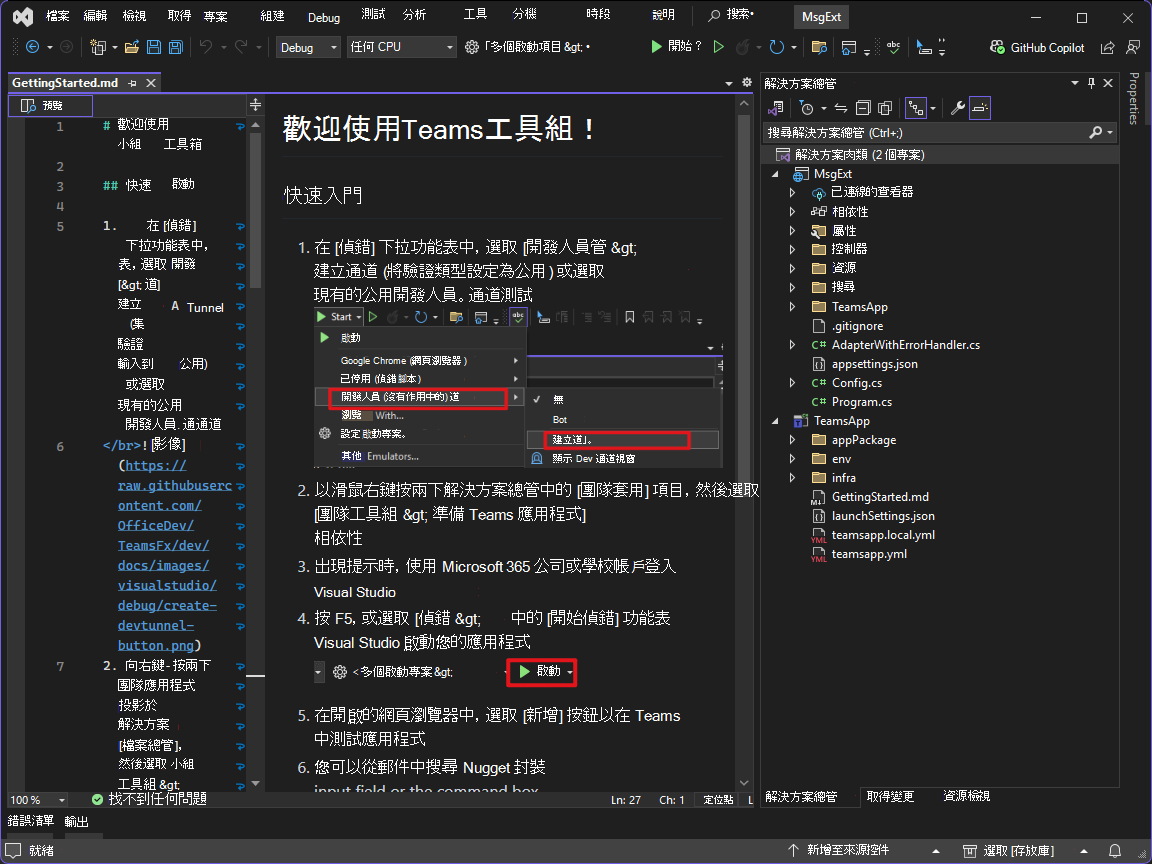
Teams 工具組與 Visual Studio 中的開發人員通道功能整合,以啟用 Bot 服務與本機執行 Web 服務之間的通訊。 開發人員通道會將 Web 服務公開到您的電腦之外,以允許 Bot 服務連線。