練習:在 MR 中測量並在 Power Apps 中進行篩選
在此單元中,您將使用 Power Apps的一些重要功能元件。 這包括「在 MR 中測量」與「篩選方式」。 使用者可以使用 POWER Apps 在 MR 元件中的 量值 ,測量真實世界中的距離、區域和音量。
使用 MR 中的量值進行空間篩選
MR 中的測量功能可用來根據透過測量會話獲得的量值,在空間上篩選能夠輕鬆放置於真實世界中的產品。 某些基本公式可用來執行篩選。
流覽至 首頁。 在 [ 插入] 索引標籤上,展開 [混合實境 ] 下拉式清單,然後選取 [MR 中的量值]。
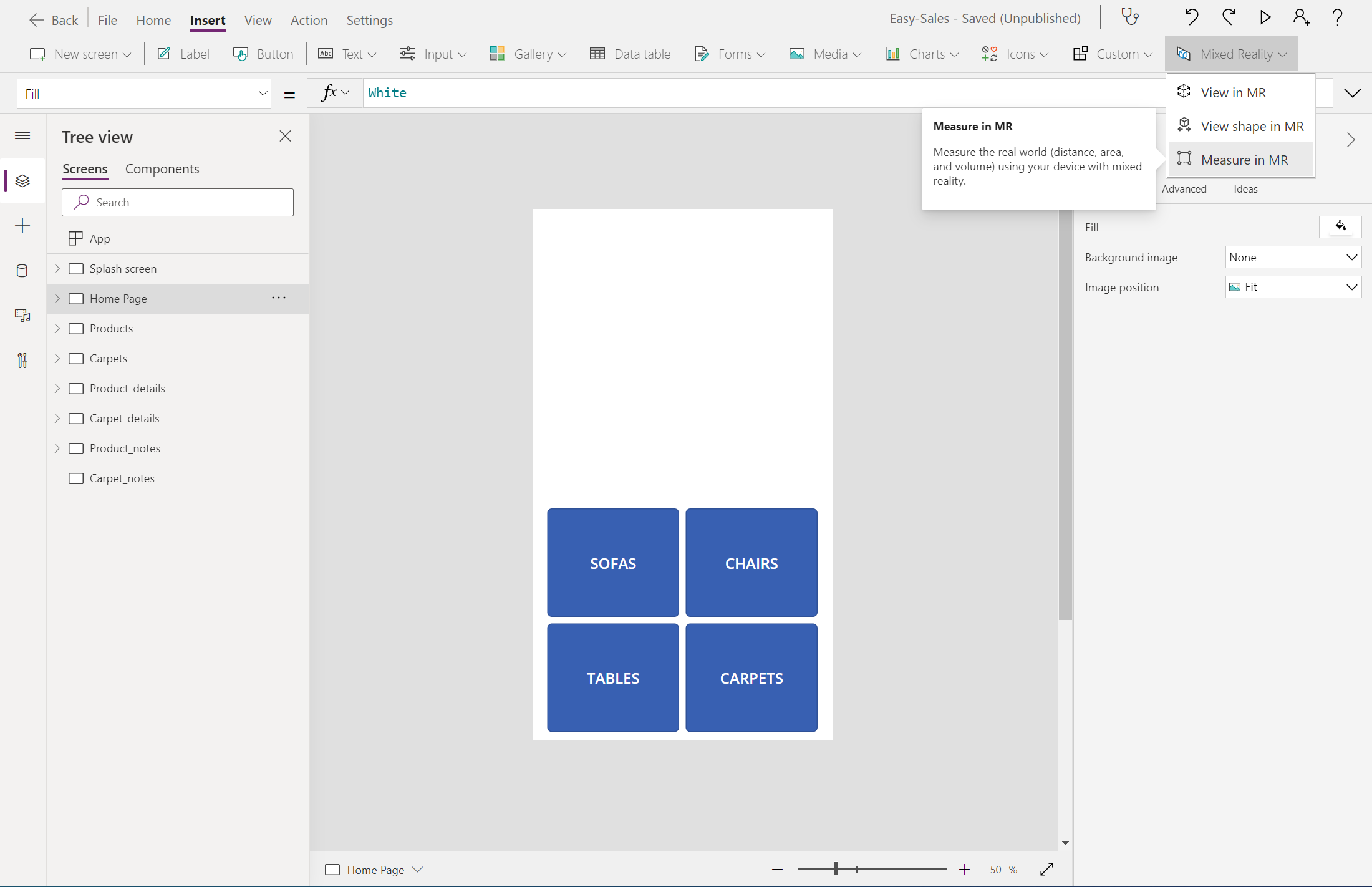
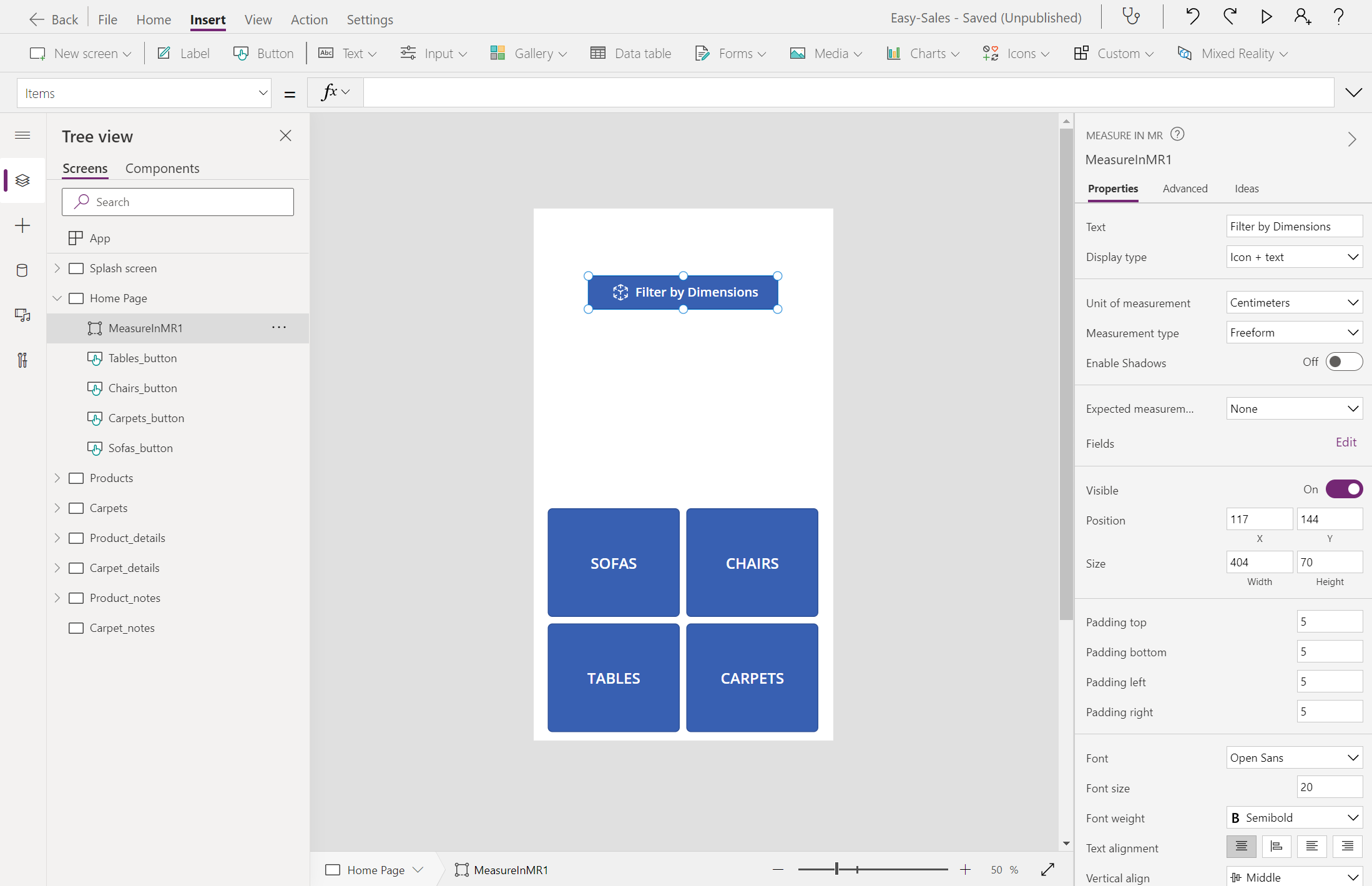
將 [量值] 放在 MR 按鈕上,如下圖所示,並設定下列屬性:
- 文字:依維度篩選
- 度量單位:公分
- 度量類型:自由形式
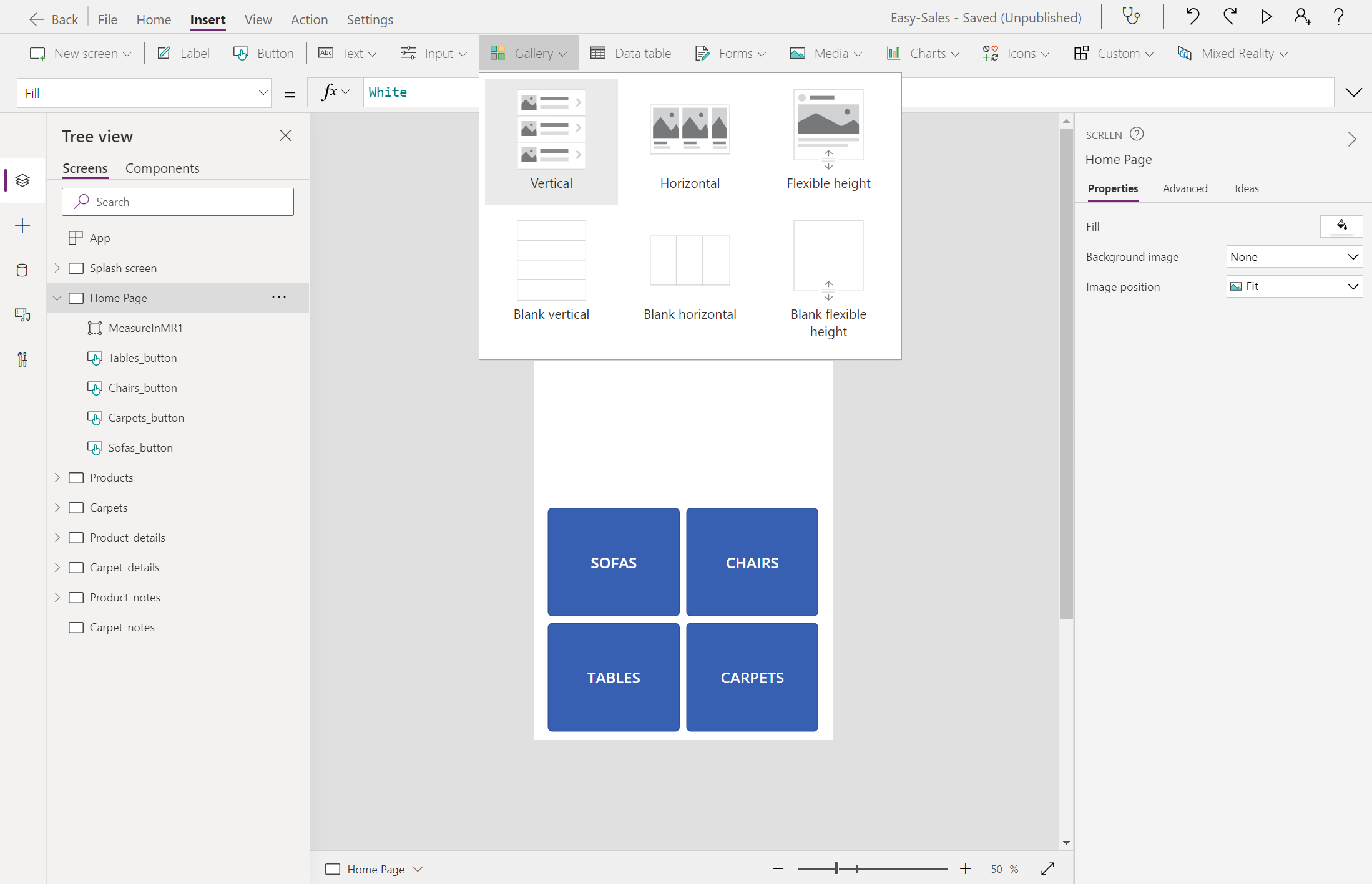
在 [首頁] 上,選取 [資源庫] [垂直]> 來新增 [資源庫]。 將 畫廊 的名稱變更為 Measure_gallery。
將 垂直資源庫 放在 [ 依維度篩選 ] 按鈕下方。 設定 [版面配置] 屬性後,選取 [標題]、[子標題] 和 [本文]。
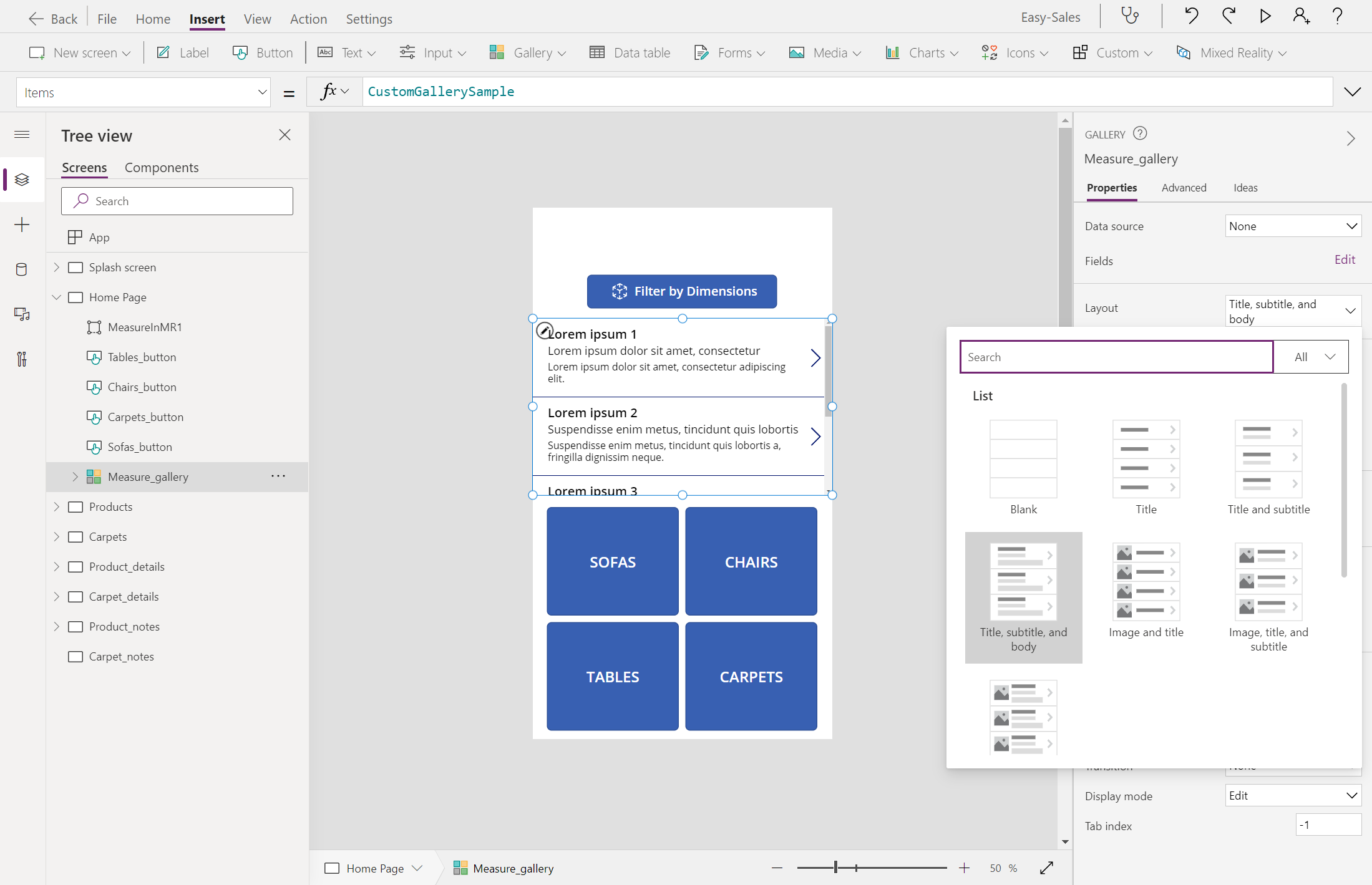
新增下列這一行,以設定Measure_gallery的 Items 屬性:
MeasureInMR1.Measurements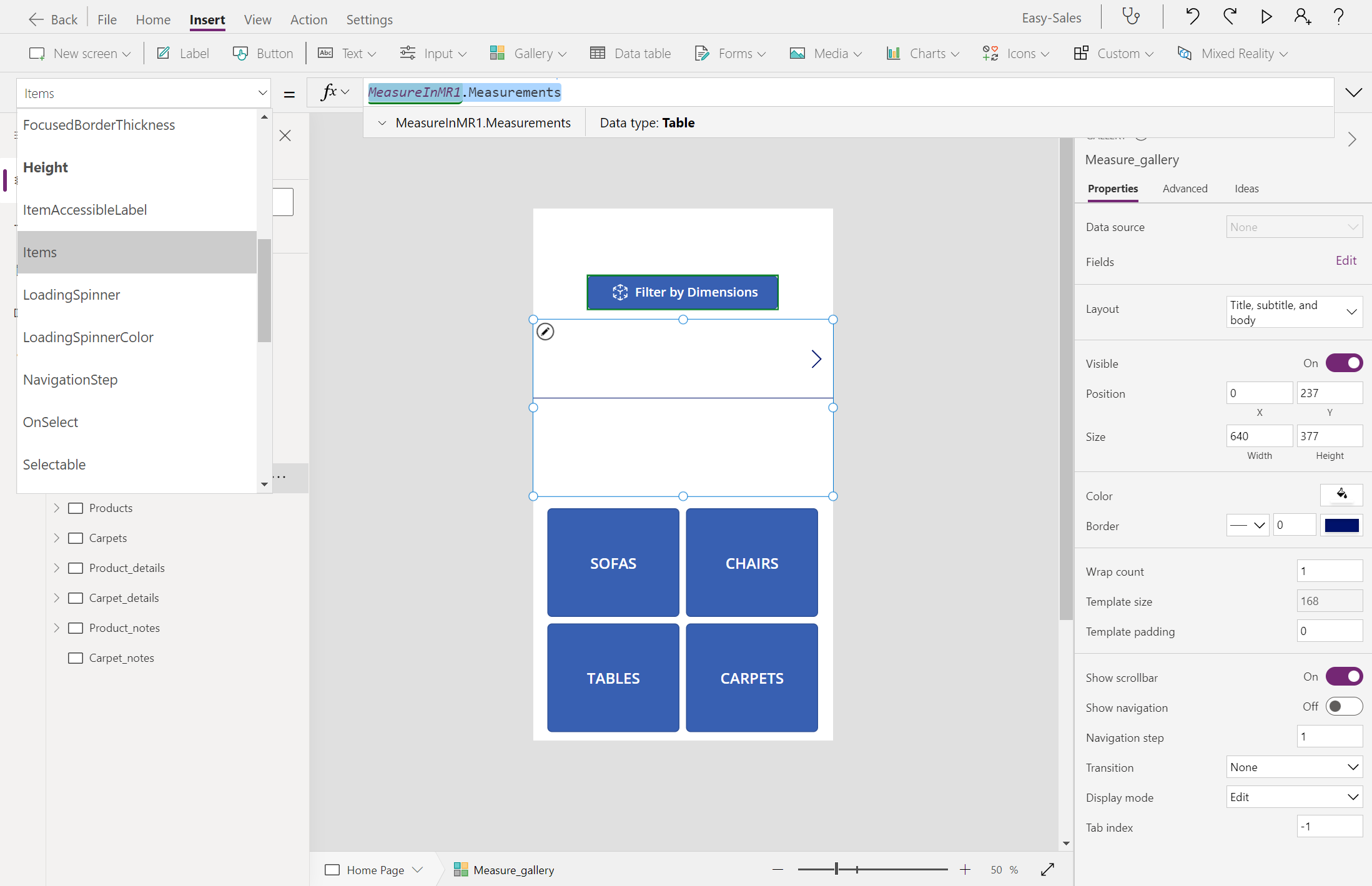
拿掉 分隔符 和 NextArrow。 將 標題、子標題 和 內文 等距排列,如下圖所示。
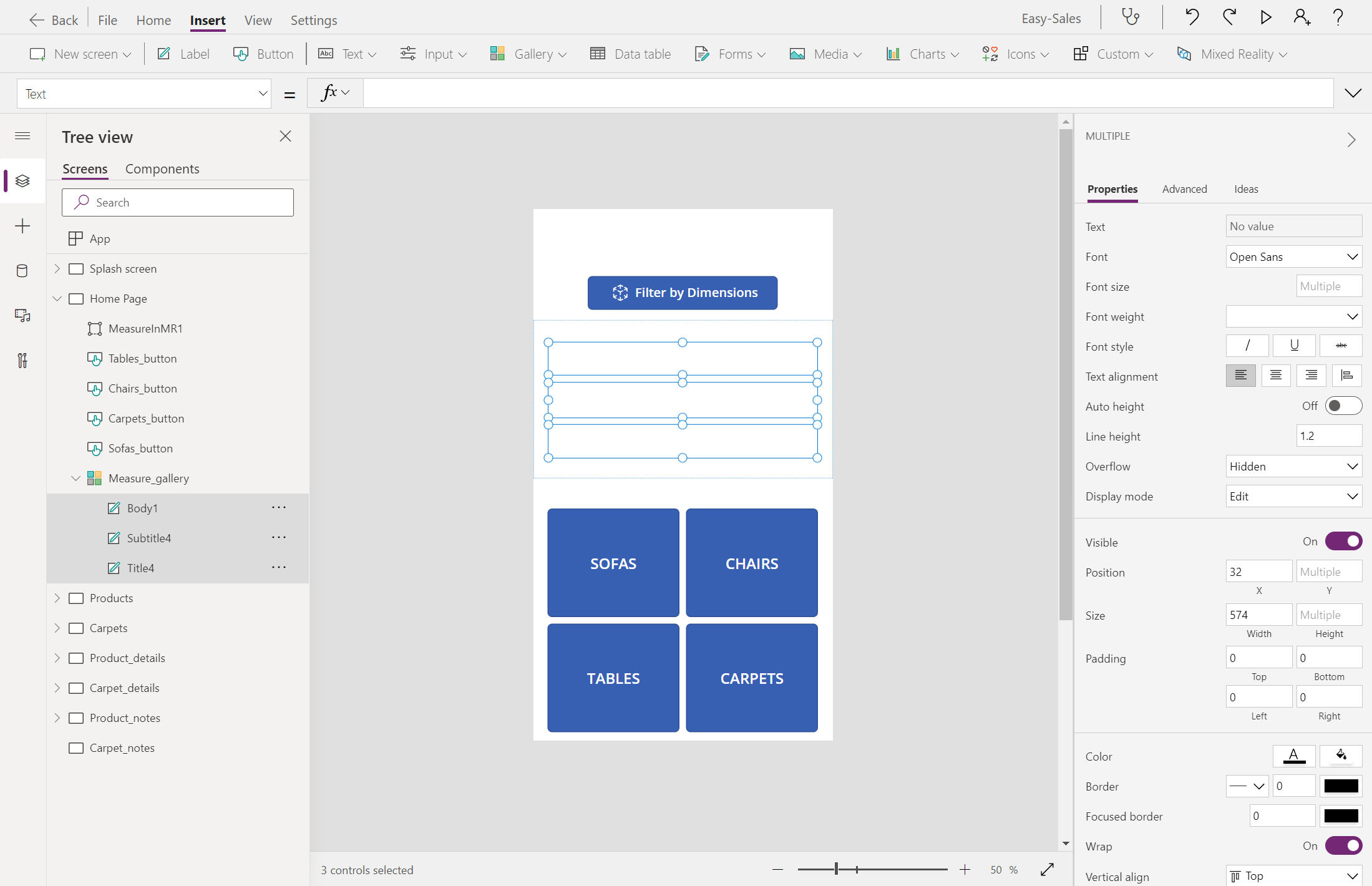
設定三個標籤的 Text 屬性,如下所示:
標題:
"Unit: "&ThisItem.Unit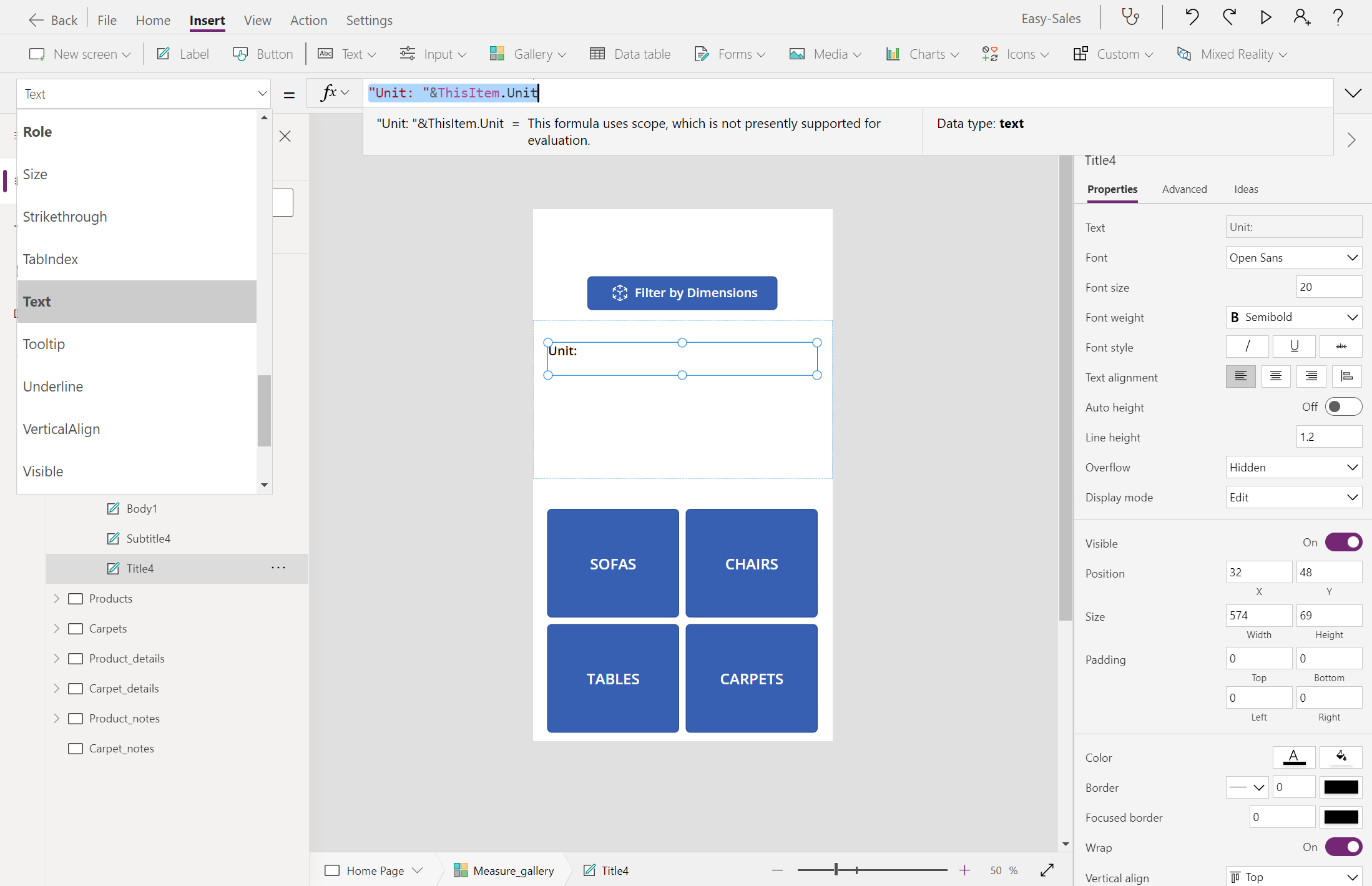
副標題:
"Area: "&ThisItem.Area&"cm²"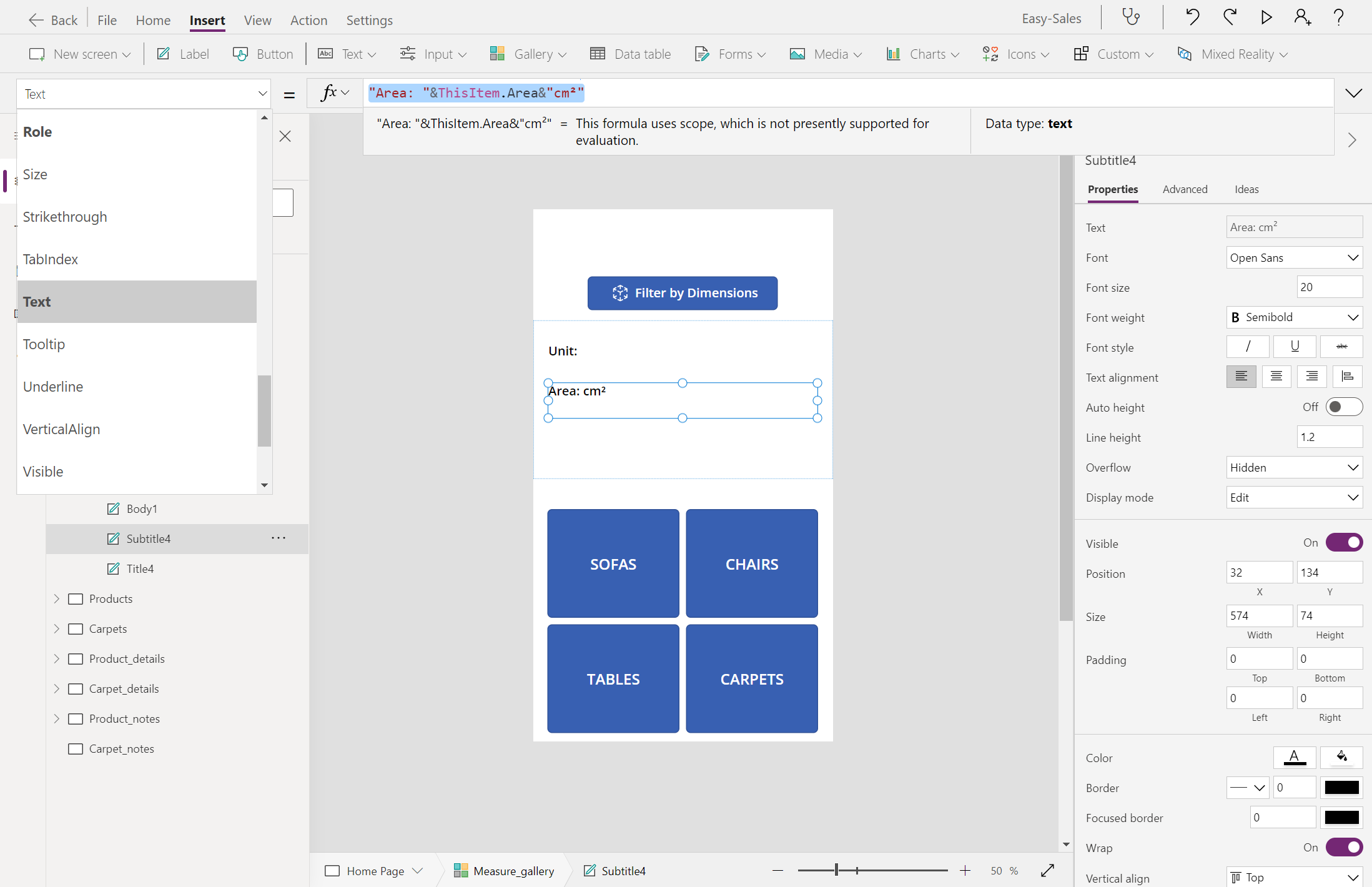
本文:
"Height: "&ThisItem.Height&"cm"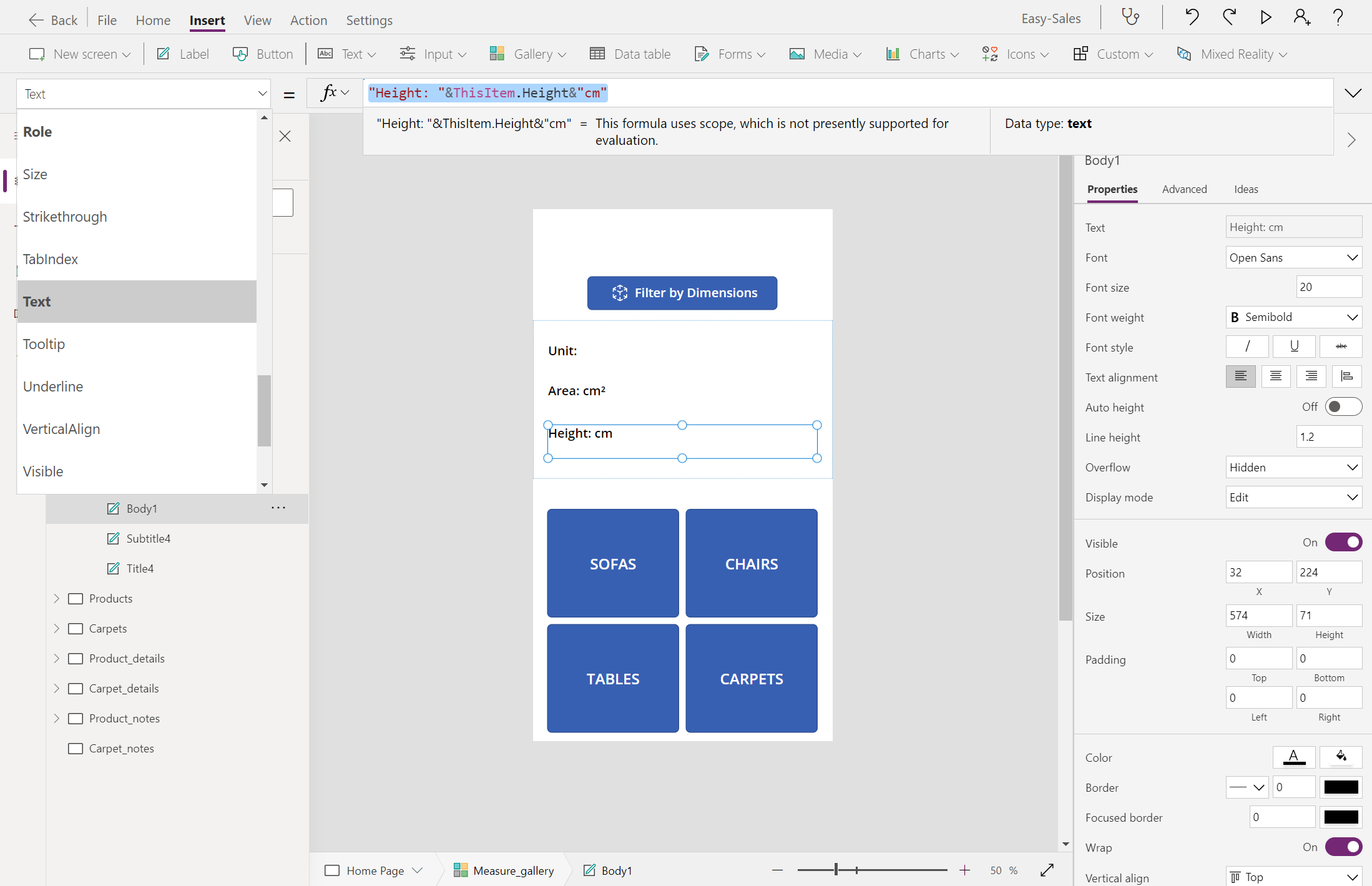
讓我們新增 重載 圖示,讓使用者在不滿意時重做測量。 在 [ 插入] 索引標籤上,展開 [ 圖示 ] 下拉式清單,然後選取 [ 重載 ] 圖示。

將圖示置於影像中,並設定 OnSelect 屬性,如下所示:
UpdateContext({galleryvisible:false});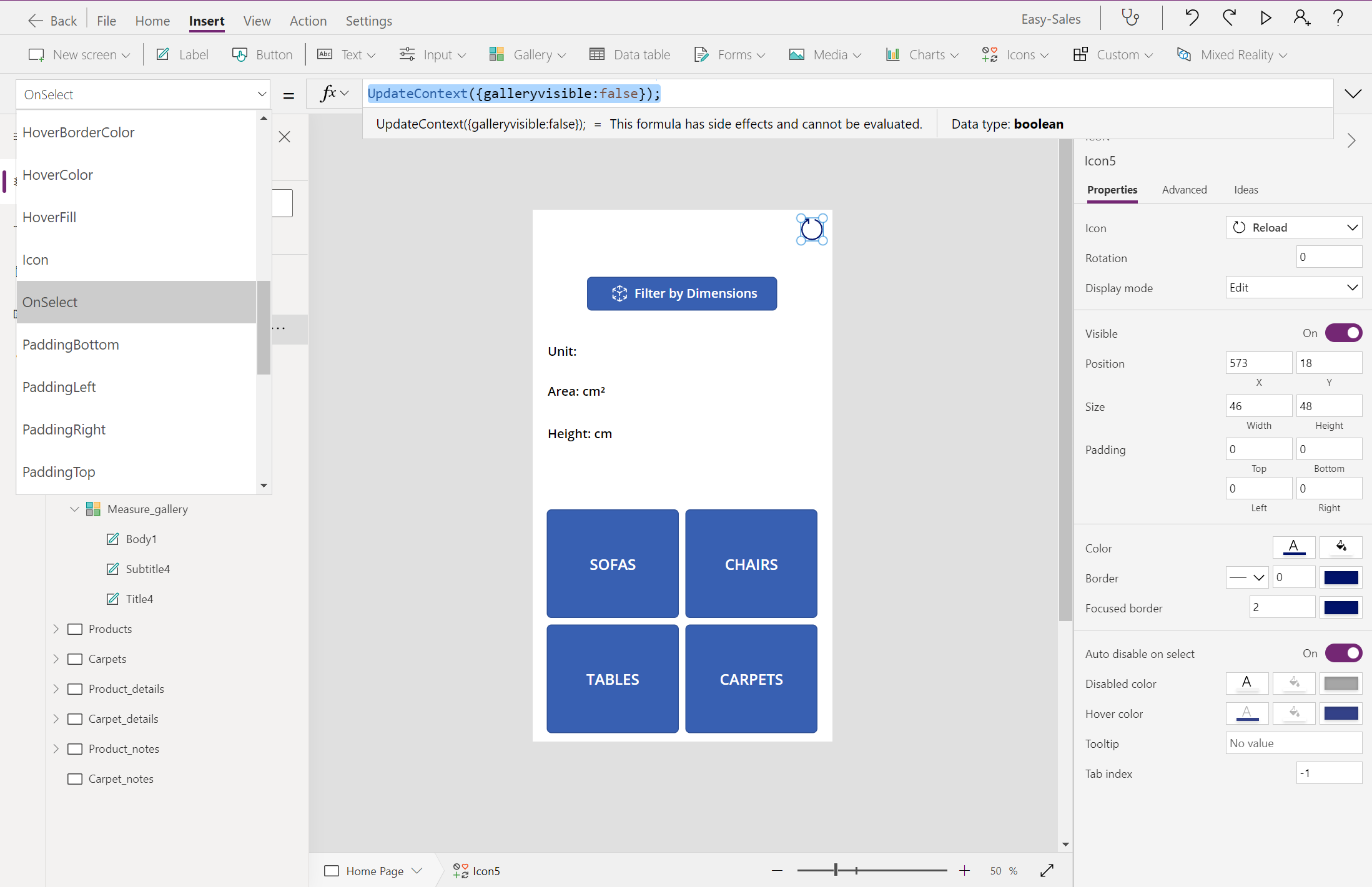
小提示
您可以自定義字型、字型大小和字型樣式,以符合應用程式的設計。 不過,為了獲得更好的用戶體驗,請在整個應用程式中維持一致的字型。
一旦 MR 元件中的量值 已完整設定,我們就會移至 空間篩選。 在這裡,我們會根據在MR 會話的 Measure 中收到的寬度、深度和高度值,依空間篩選產品。
流覽至 [產品] 頁面,然後設定Gallery_products的 Items 屬性,如下所示:
If( ID = 1 And Measure_gallery.Selected.Height = 0, (Filter('Easy Sales',(ProductCategory = "Sofa") And ((Depth < Measure_gallery.Selected.BoundingDepth And Width < Measure_gallery.Selected.BoundingWidth) Or (Depth < Measure_gallery.Selected.BoundingWidth And Width < Measure_gallery.Selected.BoundingDepth)))), ID = 1 And Measure_gallery.Selected.Height > 0, (Filter('Easy Sales',(ProductCategory = "Sofa") And ((Depth < Measure_gallery.Selected.BoundingDepth And Width < Measure_gallery.Selected.BoundingWidth And Height <= Measure_gallery.Selected.Height) Or (Depth < Measure_gallery.Selected.BoundingWidth And Width < Measure_gallery.Selected.BoundingDepth And Height <= Measure_gallery.Selected.Height)))), ID = 1, Filter('Easy Sales',ProductCategory = "Sofa"), ID = 2, Filter('Easy Sales',ProductCategory = "Chair"), ID = 2 And Measure_gallery.Selected.Height = 0, (Filter('Easy Sales',(ProductCategory = "Chair") And ((Depth < Measure_gallery.Selected.BoundingDepth And Width < Measure_gallery.Selected.BoundingWidth) Or (Depth < Measure_gallery.Selected.BoundingWidth And Width < Measure_gallery.Selected.BoundingDepth)))), ID = 2 And Measure_gallery.Selected.Height > 0, (Filter('Easy Sales',(ProductCategory = "Chair") And ((Depth < Measure_gallery.Selected.BoundingDepth And Width < Measure_gallery.Selected.BoundingWidth And Height <= Measure_gallery.Selected.Height) Or (Depth < Measure_gallery.Selected.BoundingWidth And Width < Measure_gallery.Selected.BoundingDepth And Height <= Measure_gallery.Selected.Height)))), ID = 3, Filter('Easy Sales',ProductCategory = "Table"), ID = 3 And Measure_gallery.Selected.Height = 0, (Filter('Easy Sales',(ProductCategory = "Table") And ((Depth < Measure_gallery.Selected.BoundingDepth And Width < Measure_gallery.Selected.BoundingWidth) Or (Depth < Measure_gallery.Selected.BoundingWidth And Width < Measure_gallery.Selected.BoundingDepth)))), ID = 3 And Measure_gallery.Selected.Height > 0, (Filter('Easy Sales',(ProductCategory = "Table") And ((Depth < Measure_gallery.Selected.BoundingDepth And Width < Measure_gallery.Selected.BoundingWidth And Height <= Measure_gallery.Selected.Height) Or (Depth < Measure_gallery.Selected.BoundingWidth And Width < Measure_gallery.Selected.BoundingDepth And Height <= Measure_gallery.Selected.Height)))) )![在 [沙發] 中設定項目的螢幕快照。](media/configure-item-sofas.png)
這很重要
為 SharePoint 清單和資源 庫 提供適當的名稱,以避免未來發生錯誤。 維護公式中的元件名稱,以避免混淆。
備註
[地毯] 頁面不包含空間篩選,因為已新增產品特定的其他功能。 在MR 量測工作階段中測量得到的區域將用來估計所選地毯價格。
小提示
選取頂端的 [ 檔案 ] 索引標籤,然後選取 [ 儲存 ] 選項,經常儲存您的應用程式。 如果出現提示,請選取 [ 雲端 ] 選項,然後選取 [ 儲存]。

![在 [沙發] 中設定項目的螢幕快照。](media/configure-item-sofas.png#lightbox)
根據區域計算價格
移至 [Carpet_details] 頁面,然後新增 標籤,然後將它重新命名 Area_carpets。

在Area_carpets標籤旁邊新增另一個空白標籤,然後設定空白標籤的 Text 屬性,如下所示顯示計算的區域:
Measure_gallery.Selected.Area&"cm²"
設定 [價格] 標籤旁的標籤,如下所示,以顯示計算價格:
"$"&Measure_gallery.Selected.Area * content_carpets.'Price/cm2'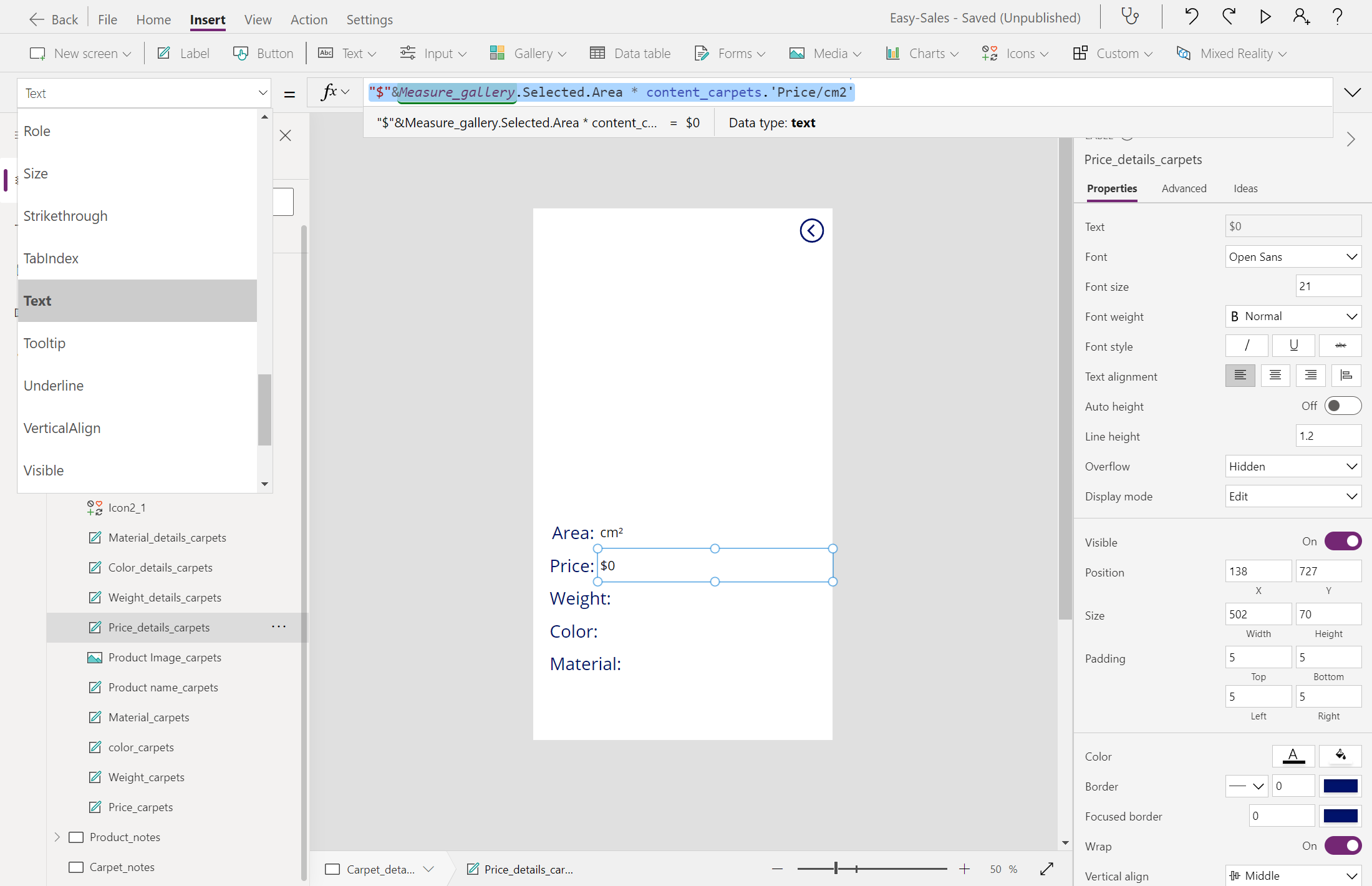


在實作上述步驟之後,您的應用程式會以空間方式篩選出產品,並根據真實世界度量計算地毯的準確價格。