使用單一 擷取並套用 Windows 映像。WIM 檔案
擷取 Windows 映像 (。WIM) 檔案,並用它來將 Windows 部署到新的裝置。
您可以從 Windows 散發 ISO 的 install.wim 檔案開始,也可以將執行中的 Windows 映像一般化並擷取到 。WIM 檔案。
WIM 檔案只會擷取單一分割區。 您通常只要擷取 Windows 磁碟分割,然後使用該映射中的檔案來設定磁片磁碟機上的其餘磁碟分割。 如果您已建立自訂分割區設定,請參閱 擷取和套用 Windows、系統和復原分割區。
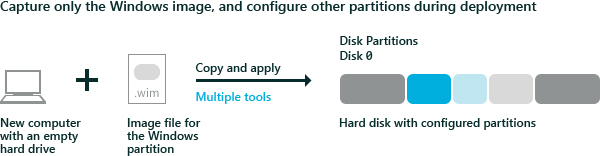
擷取映像
如果您已開機進入 Windows,請將映射一般化,以便將其部署到其他裝置。 如需詳細資訊,請參閱 Sysprep (一般化) Windows 安裝。
使用 Windows PE開機裝置。
選 將映射優化,以減少套用映射之後裝置開機所需的時間。 優化映射特別有助於您在建置要部署到許多機器的映射時,例如建置到庫存案例中。
DISM /image:C:\ /optimize-image /boot擷取 Windows 磁碟分割。 例如:
Dism /Capture-Image /ImageFile:"D:\Images\Fabrikam.wim" /CaptureDir:C:\ /Name:Fabrikam其中 D:是 USB 快閃磁片磁碟機或其他檔案儲存位置。
套用映射
使用 Windows PE開機裝置。
抹除硬碟,並使用 腳本設定新的硬碟磁碟分割。 使用 舊 版、舊版 BIOS 裝置)CreatePartitions-UEFI.txt(或 CreatePartitions-BIOS.txt 。
diskpart /s CreatePartitions-UEFI.txt使用 腳本套用影像。
D:\ApplyImage.bat D:\Images\Fabrikam.wim
範例指令碼
以下是簡單的範例腳本,可將映射套用至使用步驟 2 的其中一個硬碟分割腳本進行分割的磁片。
rem == ApplyImage.bat ==

rem == These commands deploy a specified Windows
rem    image file to the Windows partition, and configure
rem    the system partition.

rem    Usage:   ApplyImage WimFileName
rem    Example: ApplyImage E:\Images\ThinImage.wim ==

rem == Set high-performance power scheme to speed deployment ==
call powercfg /s 8c5e7fda-e8bf-4a96-9a85-a6e23a8c635c

rem == Apply the image to the Windows partition ==
dism /Apply-Image /ImageFile:%1 /Index:1 /ApplyDir:W:\

rem == Copy boot files to the System partition ==
W:\Windows\System32\bcdboot W:\Windows /s S:

:rem == Copy the Windows RE image to the
:rem    Windows RE Tools partition ==
md R:\Recovery\WindowsRE
xcopy /h W:\Windows\System32\Recovery\Winre.wim R:\Recovery\WindowsRE\

:rem == Register the location of the recovery tools ==
W:\Windows\System32\Reagentc /Setreimage /Path R:\Recovery\WindowsRE /Target W:\Windows

:rem == Verify the configuration status of the images. ==
W:\Windows\System32\Reagentc /Info /Target W:\Windows