本文說明如何使用 WinUI XAML ScrollViewer 與 ExpressionAnimations 來創造動態輸入驅動的動態動態體驗。
先決條件
在這裡,我們假設你已經熟悉這些文章中討論的概念:
為什麼要建立在 ScrollViewer 之上?
通常,你會使用現有的 XAML ScrollViewer 來建立一個可捲動且可縮放的桌面,來呈現應用程式內容。 隨著 Fluent Design 語言的引入,你現在也應該專注於如何利用滾動或縮放表面來推動其他動態體驗。 例如,利用捲動來驅動背景的模糊動畫,或控制「黏性標頭」的位置。
在這些情境下,你利用像是捲動和縮放這類行為或操作體驗,讓應用程式的其他部分更具動態性。 這些反過來也讓應用程式感覺更連貫,讓使用者的體驗更加難忘。 透過讓應用程式介面更具記憶性,終端使用者將更頻繁且持續更長時間地與應用程式互動。
你可以在 ScrollViewer 之上建構什麼?
你可以利用 ScrollViewer 的定位來打造多種動態體驗:
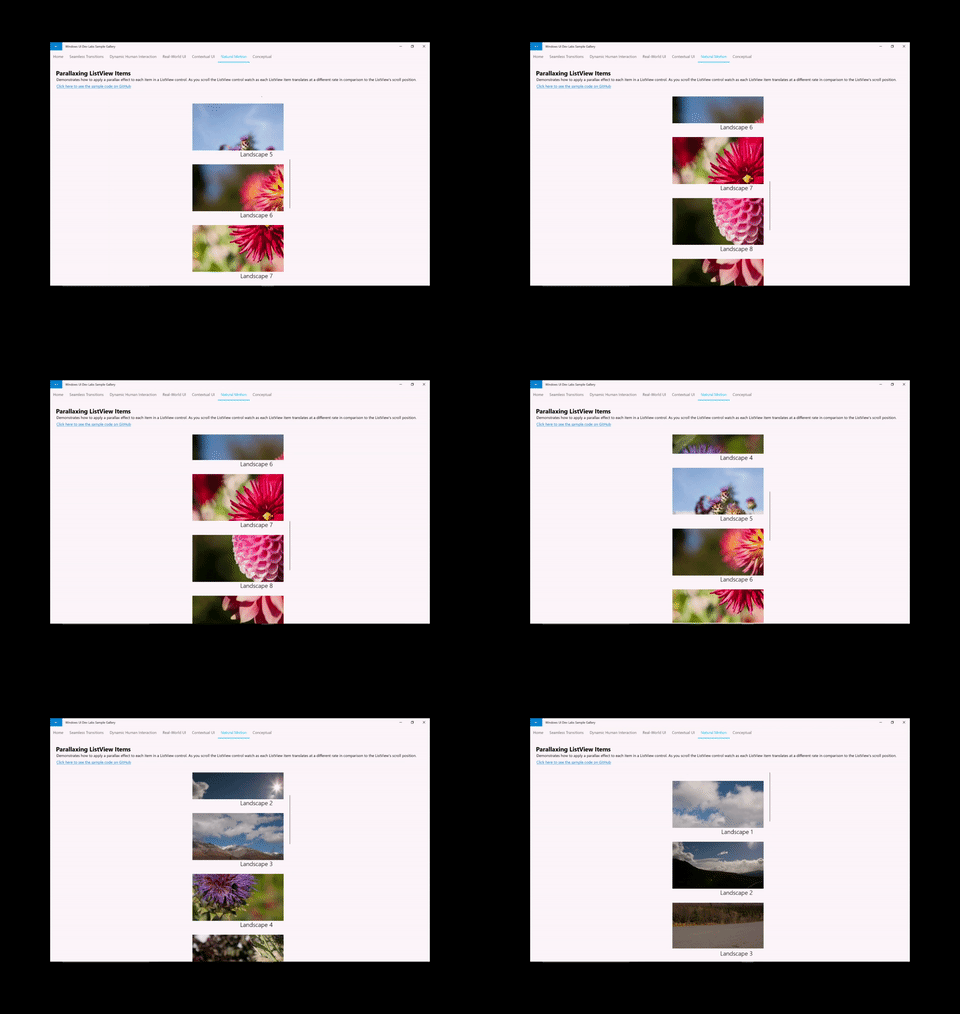
- 視差 – 利用 ScrollViewer 的位置,以相對於捲動位置的速度移動背景或前景內容。
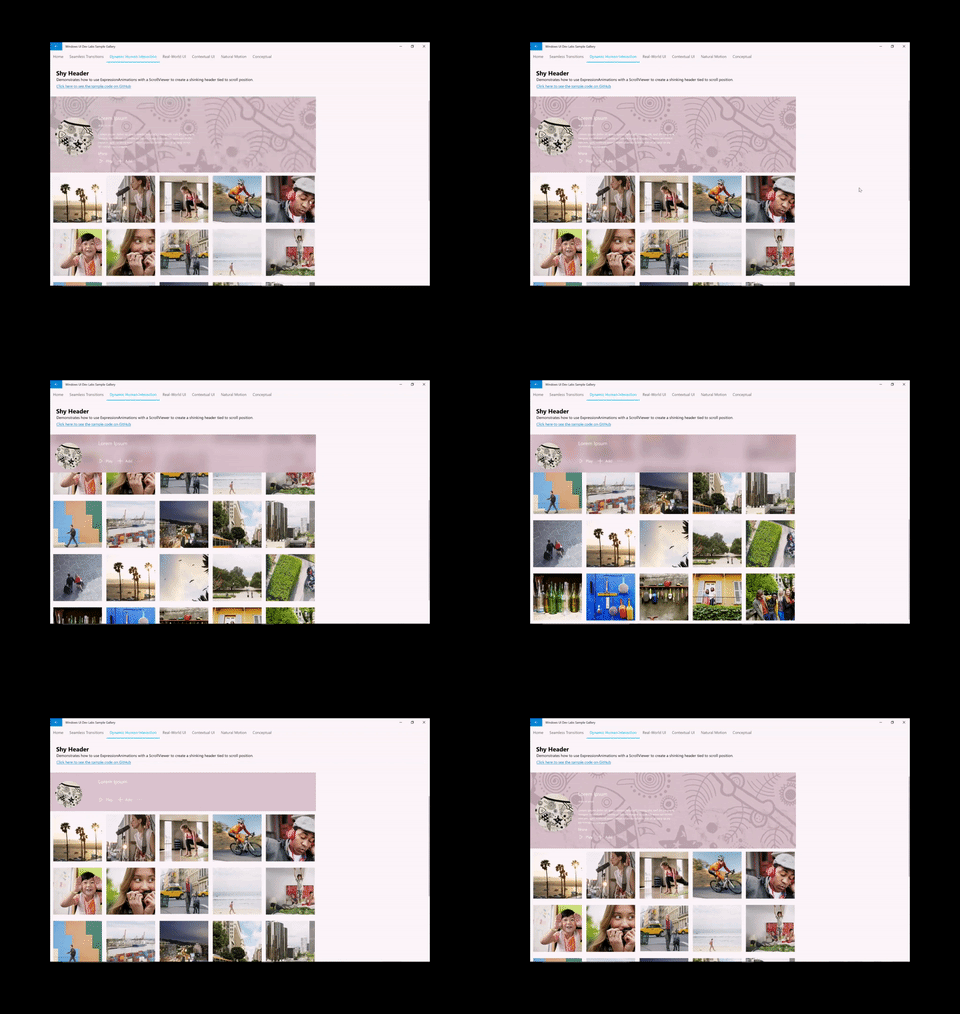
- StickyHeaders – 利用 ScrollViewer 的位置來動畫化並「黏貼」標頭到某個位置
- Input-Driven 效果 – 利用 Scrollviewer 的位置來動畫化構圖效果,例如模糊。
一般來說,透過參考 RollViewer 與 ExpressionAnimation 的位置,你可以創造出相對於捲動量動態變化的動畫。
使用 ScrollViewerManipulationPropertySet
要使用 XAML ScrollViewer 創造這些動態體驗,你必須能夠在動畫中參考捲動位置。 這是透過從 XAML ScrollViewer 存取一個名為 ScrollViewerManipulationPropertySet 的 CompositionPropertySet 來完成的。 ScrollViewerManipulationPropertySet 包含一個名為 Translation 的 Vector3 屬性,提供存取 ScrollViewer 的捲動位置。 你就可以像在 ExpressionAnimation 裡的其他 CompositionPropertySet 一樣引用這個。
一般開始步驟:
- 透過 ElementCompositionPreview 存取 ScrollViewerManipulationPropertySet。
ElementCompositionPreview.GetScrollViewerManipulationPropertySet(ScrollViewer scroller)
- 建立一個 ExpressionAnimation,參考 PropertySet 中的 Translation 屬性。
- 別忘了設定參考參數!
- 用 ExpressionAnimation 鎖定 CompositionObject 的屬性。
備註
建議您將 GetScrollViewerManipulationPropertySet 方法回傳的 PropertySet 指派到類別變數。 這確保屬性集合不會被垃圾回收,因此對它所引用的 ExpressionAnimation 沒有影響。 ExpressionAnimations 並不會保持對方程式中任何物件的強式參考。
範例
讓我們來看看上面所示的視差樣本是如何組合起來的。 ParallaxingListItems 範例包含了這個體驗的原始碼。
第一步是獲取 ScrollViewerManipulationPropertySet 的引用。
_scrollProperties =
    ElementCompositionPreview.GetScrollViewerManipulationPropertySet(myScrollViewer);
下一步是建立 ExpressionAnimation,定義一個利用 ScrollViewer 的滾動位置的方程式。
_parallaxExpression = compositor.CreateExpressionAnimation();
_parallaxExpression.SetScalarParameter("StartOffset", 0.0f);
_parallaxExpression.SetScalarParameter("ParallaxValue", 0.5f);
_parallaxExpression.SetScalarParameter("ItemHeight", 0.0f);
_parallaxExpression.SetReferenceParameter("ScrollManipulation", _scrollProperties);
_parallaxExpression.Expression = "(ScrollManipulation.Translation.Y + StartOffset - (0.5 * ItemHeight)) * ParallaxValue - (ScrollManipulation.Translation.Y + StartOffset - (0.5 * ItemHeight))";
備註
你也可以利用 ExpressionBuilder 的輔助類別來建構這個相同的表達式,而不需要字串:
var scrollPropSet = _scrollProperties.GetSpecializedReference<ManipulationPropertySetReferenceNode>();
var parallaxValue = 0.5f;
var parallax = (scrollPropSet.Translation.Y + startOffset);
_parallaxExpression = parallax * parallaxValue - parallax;
最後,你將這個 ExpressionAnimation 應用到你希望產生視差效果的 Visual。 在這種情況下,它是列表中每個項目的影像。
Visual visual = ElementCompositionPreview.GetElementVisual(image);
visual.StartAnimation("Offset.Y", _parallaxExpression);
