這篇文章說明如何在 WinUI 中使用 Spring NaturalMotionAnimations。
先決條件
在這裡,我們假設你已經熟悉這些文章中討論的概念:
為什麼是彈簧?
彈簧是我們每個人在人生中某個時刻都經歷過的常見運動體驗;從彈簧玩具到物理教室裡的彈簧綁磚體驗應有盡有。 彈簧的擺動常常會引發觀察者輕鬆愉快的情感反應。 因此,彈簧的運動能很好地轉化為應用程式介面,適合那些想要打造更生動的動作體驗的開發者,這種體驗比傳統的立方貝塞爾曲線更能吸引終端使用者。 在這些情況下,彈簧運動不僅能帶來更生動的動態體驗,也能吸引人們對新動畫或正在動畫內容的注意。 根據應用程式的品牌或動作語言,振盪會更明顯且可見,但在其他情況下則較為微妙。
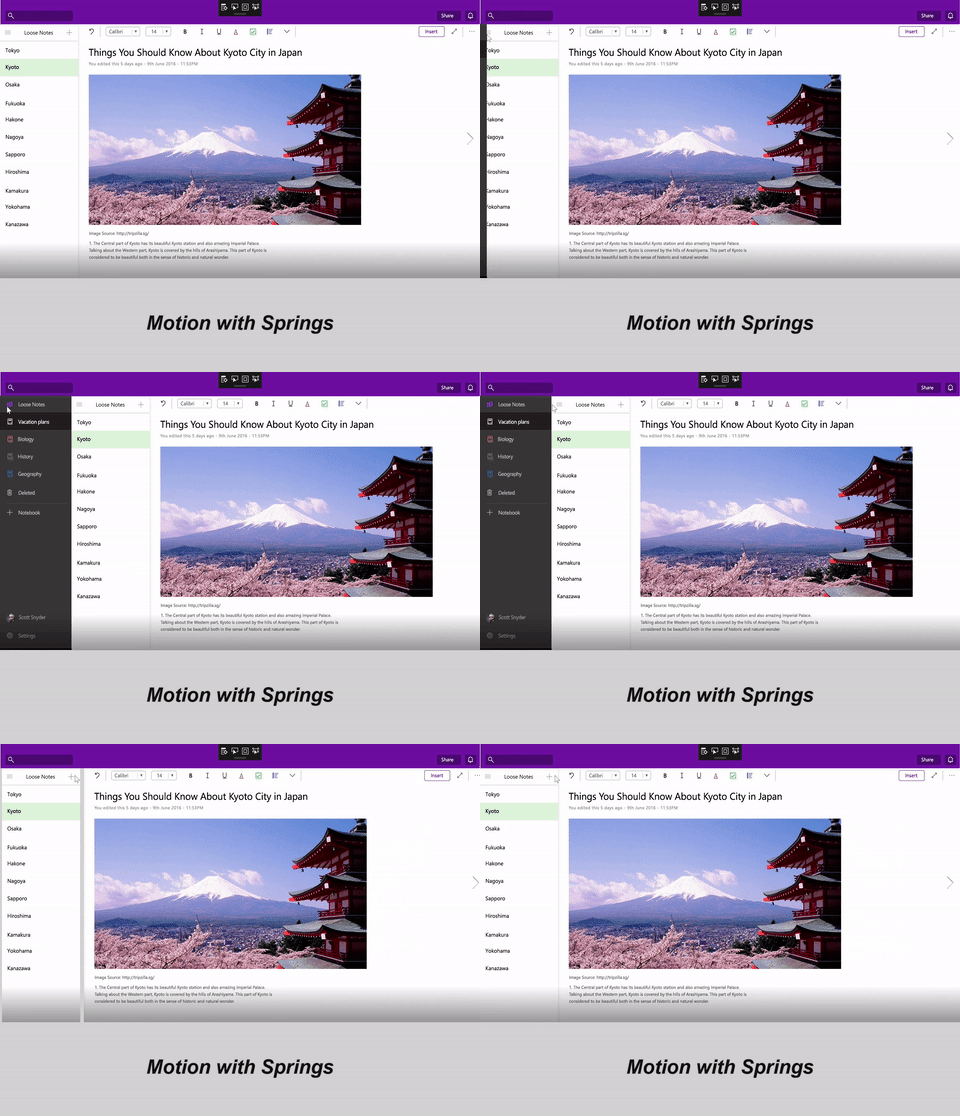
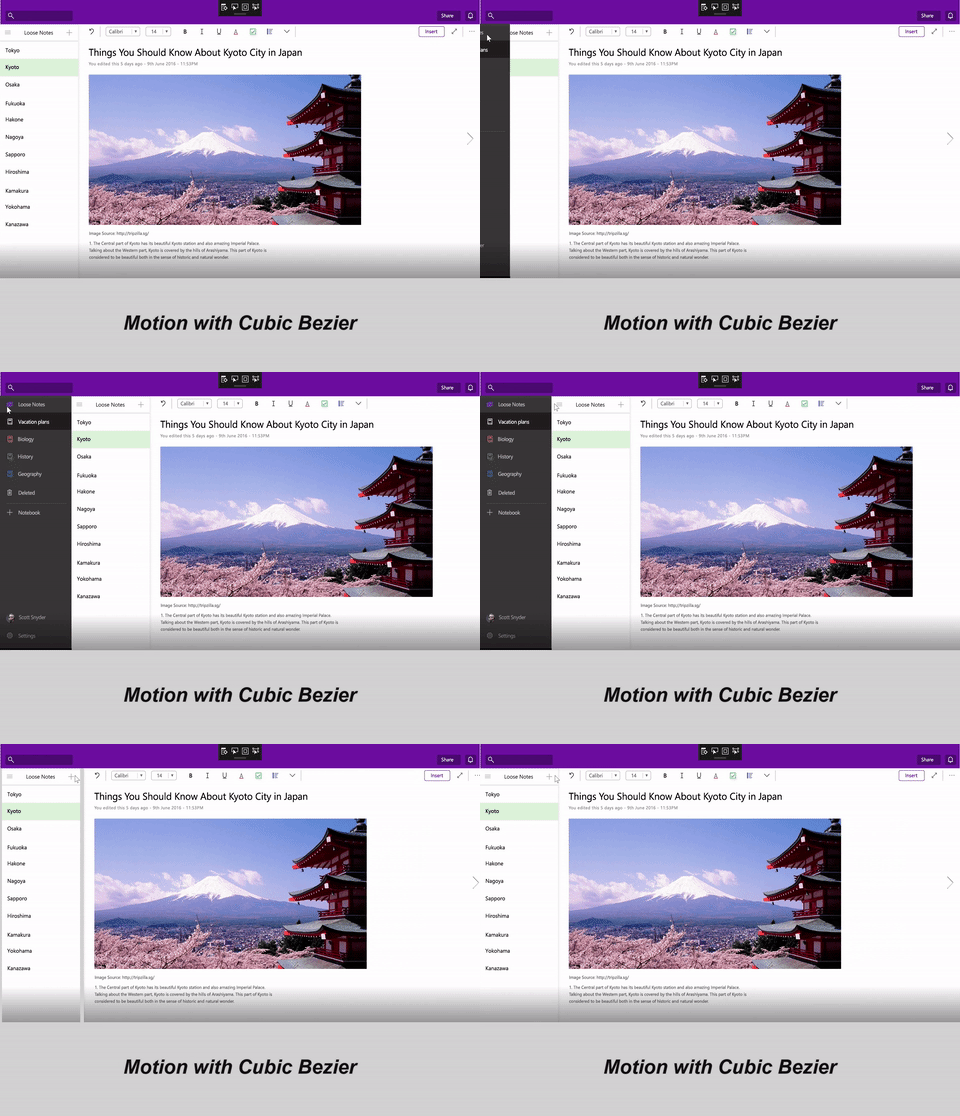
在你的 UI 中使用彈簧
如前所述,彈簧是整合進 WinUI 應用程式的好用動作,能帶來非常熟悉且充滿趣味的 UI 體驗。 彈簧在 UI 中常見的用途包括:
| 彈簧使用說明 | 視覺範例 |
|---|---|
| 讓動態體驗「鮮明」且看起來更有活力。 (動畫音階) |
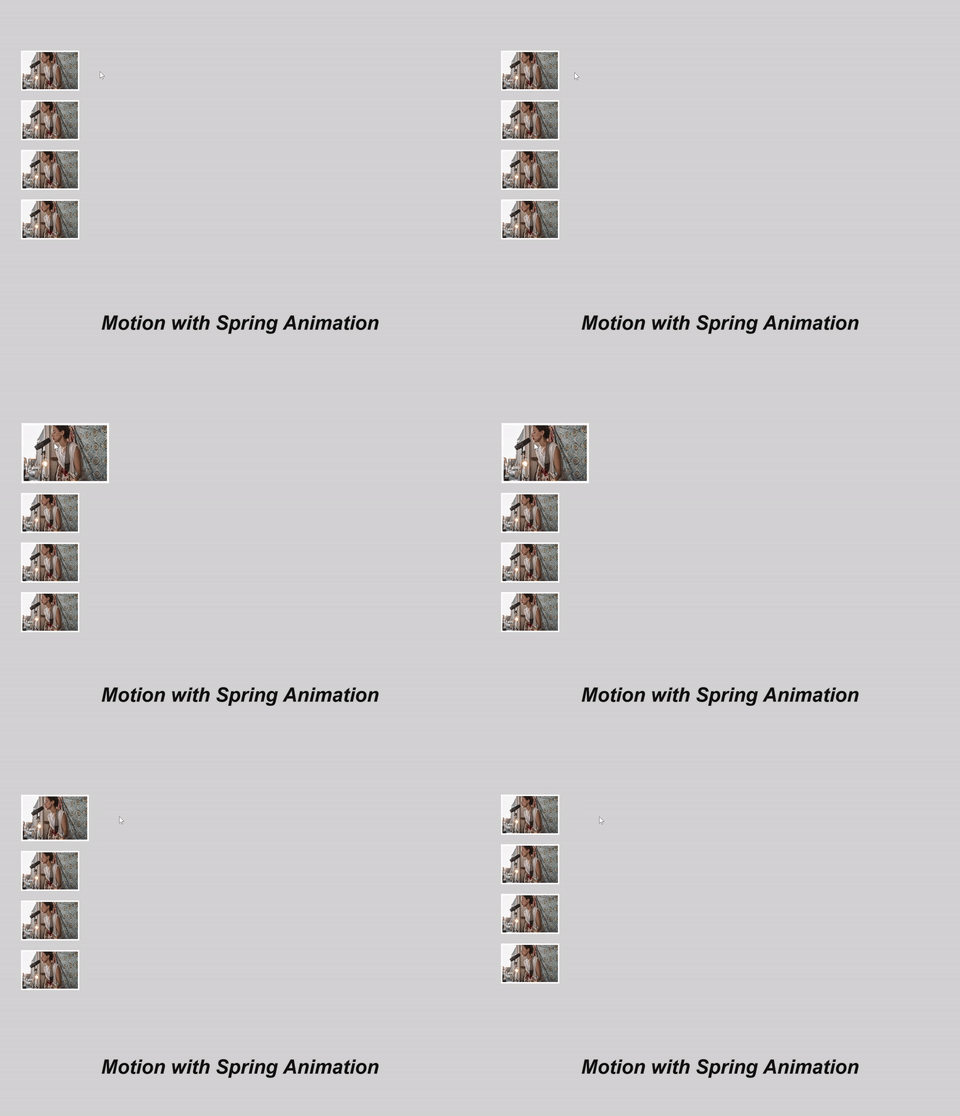
|
| 讓視覺動態體驗更加細膩且充滿活力(動態偏移) |
|
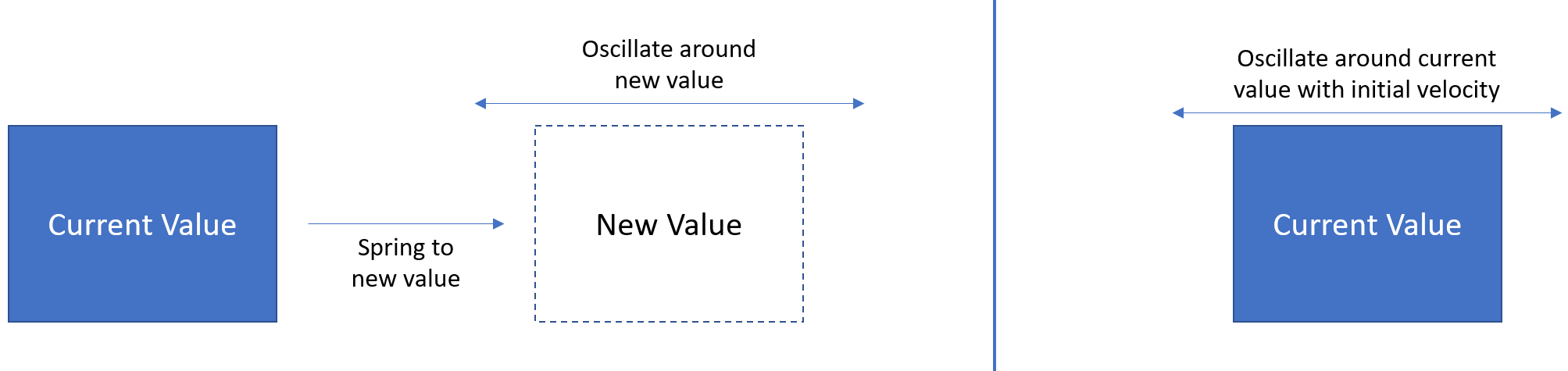
在這些情況下,彈簧運動可以透過「彈跳到」並繞著新值振盪,或以初始速度繞著當前值振盪來觸發。
定義你的彈簧運動
你可以透過使用 NaturalMotionAnimation API 來建立 Spring 體驗。 具體來說,你要用合成器裡的 Create* 方法來建立 SpringNaturalMotionAnimation。 接著你可以定義運動的以下性質:
- DampingRatio – 表達動畫中使用彈簧運動的阻尼程度。
| 阻尼比值 | 說明 |
|---|---|
| 阻尼比 = 0 | 未阻尼時,彈簧會長時間擺動 |
| 0 < 阻尼比 < 1 | 阻尼不足的情況下,彈簧會從小幅度到大幅度地振蕩。 |
| 阻尼比 = 1 | 極度阻尼時,彈簧不會產生振盪。 |
| 阻尼比 > 1 | 過阻尼——彈簧會迅速以突然減速且無振盪的方式抵達目的地 |
- 週期——彈簧完成一次振盪所需的時間。
- 最終值/起始值——定義彈簧運動的起始與結束位置(若未定義,起始值及/或最終值為當前值)。
- 初始速度——動作的程式化初始速度。
你也可以定義一組與 KeyFrameAnimations 相同的動作屬性:
- 延遲時間 / 延遲操作方式
- 停止行為
在常見的偏移量與比例/尺寸動畫中,Windows 設計團隊建議針對不同類型彈簧使用以下數值作為阻尼比與週期:
| 房產 | 普通春天 | 潮濕的春天 | 較少濕潤的春天 |
|---|---|---|---|
| Offset | 阻尼比 = 0.8 週期 = 50毫秒 |
阻尼比 = 0.85 週期 = 50毫秒 |
阻尼比 = 0.65 週期 = 60毫秒 |
| 比例/尺寸 | 阻尼比 = 0.7 週期 = 50毫秒 |
阻尼比 = 0.8 週期 = 50毫秒 |
阻尼比 = 0.6 週期 = 60毫秒 |
一旦您定義完屬性,便可以將 spring NaturalMotionAnimation 傳遞到 CompositionObject 的 StartAnimation 方法中,或是傳遞到 InteractionTracker InertiaModifier 的 Motion 屬性中。
範例
在這個範例中,你建立一個導航與畫布介面體驗,當使用者點擊展開按鈕時,導覽窗格會以彈簧般的振盪動作呈現。
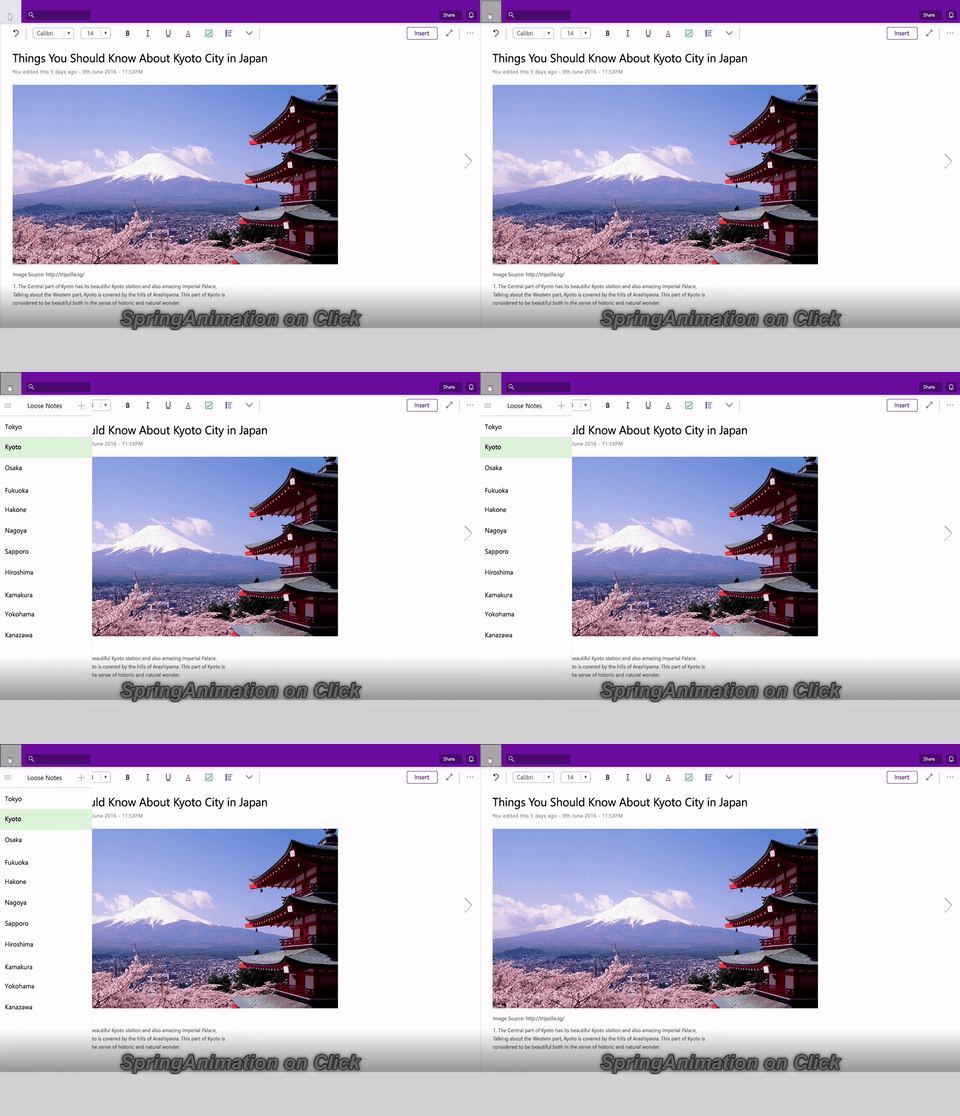
首先在點擊事件中定義彈簧動畫,表示導航面板出現時的效果。 接著你用 InitialValueExpression 功能定義動畫屬性,再用 Expression 來定義 FinalValue。 你也會記錄窗格是否開啟,準備好後開始動畫。
private void Button_Clicked(object sender, RoutedEventArgs e)
{
    _springAnimation = _compositor.CreateSpringScalarAnimation();
    _springAnimation.DampingRatio = 0.75f;
    _springAnimation.Period = TimeSpan.FromSeconds(0.5);

    if (!_expanded)
    {
        _expanded = true;
        _propSet.InsertBoolean("expanded", true);
        _springAnimation.InitialValueExpression["FinalValue"] = "this.StartingValue + 250";
    }
    else
    {
        _expanded = false;
        _propSet.InsertBoolean("expanded", false);
        _springAnimation.InitialValueExpression["FinalValue"] = "this.StartingValue - 250";
    }

    _naviPane.StartAnimation("Offset.X", _springAnimation);
}
那如果你想把這個動作和輸入連結呢? 所以如果使用者滑走,窗格會以彈跳效果移出? 更重要的是,如果使用者滑動得更用力或更快,動作會根據使用者的速度來調整。
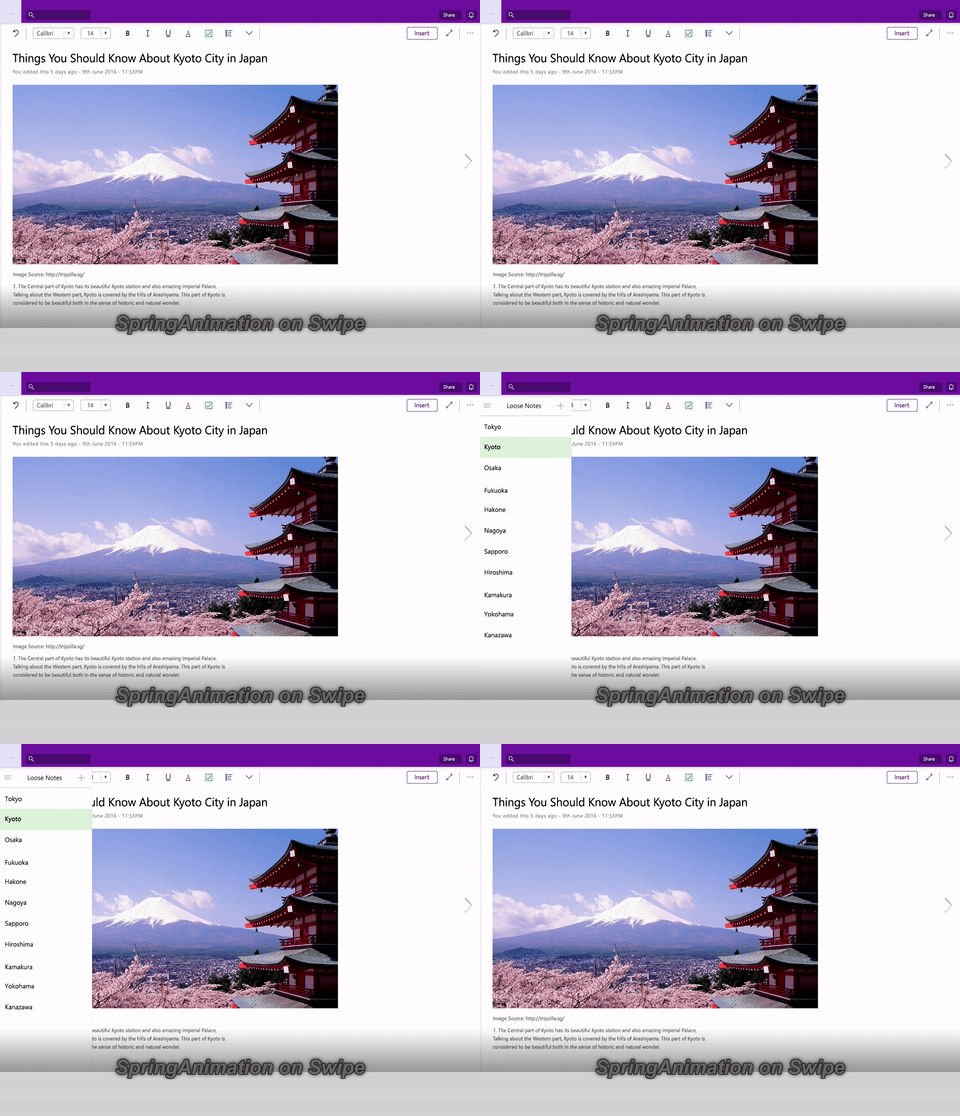
為此,你可以將相同的彈簧動畫傳入 InertiaModifier,並與 InteractionTracker 一起使用。 欲了解更多關於 InputAnimations 與 InteractionTracker 的資訊,請參閱 InteractionTracker 的自訂操作體驗。 假設這個程式碼範例中,你已經設定好 InteractionTracker 和 VisualInteractionSource。 我們將專注於建立能接收 NaturalMotionAnimation(彈簧)的慣性修正器。
// InteractionTracker and the VisualInteractionSource were previously set up.
// The open and close ScalarSpringAnimations were defined earlier.
private void SetupInput()
{
    // Define the InertiaModifier to manage the open motion.
    var openMotionModifier = InteractionTrackerInertiaNaturalMotion.Create(_compositor);

    // Use the open animation if the pane is not expanded.
    openMotionModifier.Condition = _compositor.CreateExpressionAnimation(
        "propSet.expanded == false");
    openMotionModifier.Condition.SetReferenceParameter("propSet", _propSet);
    openMotionModifier.NaturalMotion = _openSpringAnimation;

    // Define the InertiaModifier to manage the close motion.
    var closeMotionModifier = InteractionTrackerInertiaNaturalMotion.Create(_compositor);

    // Use the close animation if the pane is expanded.
    closeMotionModifier.Condition = _compositor.CreateExpressionAnimation(
        "propSet.expanded == true");
    closeMotionModifier.Condition.SetReferenceParameter("propSet", _propSet);
    closeMotionModifier.NaturalMotion = _closeSpringAnimation;

    _tracker.ConfigurePositionXInertiaModifiers(new InteractionTrackerInertiaNaturalMotion[]
    {
        openMotionModifier,
        closeMotionModifier,
    });

    // Take the InteractionTracker output and assign it to the pane.
    var exp = _compositor.CreateExpressionAnimation("-tracker.Position.X");
    exp.SetReferenceParameter("tracker", _tracker);

    ElementCompositionPreview.GetElementVisual(pageNavigation)
        .StartAnimation("Translation.X", exp);
}
這樣你的 UI 裡就同時有程式化和輸入驅動的彈簧動畫了!
總結來說,在你的應用程式中使用彈簧動畫的步驟如下:
- 從合成器建立你的 SpringAnimation。
- 如果你想要非預設值,請定義 SpringAnimation 的屬性:
- 阻尼比
- Period
- 最終價值
- 初始值
- 初始速度
- 指派到目標對象。
- 如果您正在為 CompositionObject 的屬性設置動畫,請將 SpringAnimation 作為參數傳遞給 StartAnimation。
- 如果你想搭配輸入使用,可以將 InertiaModifier 的 NaturalMotion 屬性設定為 SpringAnimation。
