語言
使用 Windows 應用程式 SDK 的檔案與資料夾選擇器,讓使用者在 WinUI 應用程式中瀏覽並選擇檔案或資料夾。 選擇器 API 提供熟悉的 Windows 體驗,幫助使用者瀏覽裝置與雲端儲存位置。 本文說明如何實作檔案開啟選擇器和資料夾選擇器、自訂其行為,以及處理應用程式中選取的結果。
Windows 應用程式 SDK FileOpenPicker 和 FileSavePicker 類別會建立一個選擇器對話框,讓使用者指定要開啟或儲存檔案的名稱與位置。 FolderPicker 類別可讓您選取資料夾。
想了解如何使用選擇器來儲存檔案,請參考 用Windows 應用程式 SDK選擇器儲存檔案。
Prerequisites
- Windows 應用程式 SDK 1.8 或更新版本。
Microsoft.Windows.Storage.Pickers本文所使用的 API 是在 Windows 應用程式 SDK 1.8 中引入的。 如果您的專案以較早版本為目標,請參閱 Use WinRT pickers with HWND interop,了解傳統作法。
重要 API
本文使用下列 API:

WinUI 3 圖庫應用程式包含互動式的 WinUI 控制項與功能範例。 你可以從 Microsoft Store 下載應用程式,或瀏覽 GitHub 的原始碼。
檔案選擇器 UI
檔案選擇器會顯示資訊以引導使用者,並在開啟或儲存檔案時提供一致的體驗。
該信息包括:
- 目前位置
- 使用者挑選的一或多個項目
- 使用者可以瀏覽到的位置樹狀結構。 這些位置包括檔案系統位置——例如音樂或下載資料夾——以及實作檔案選擇合約的應用程式(如相機、照片和 Microsoft OneDrive)。
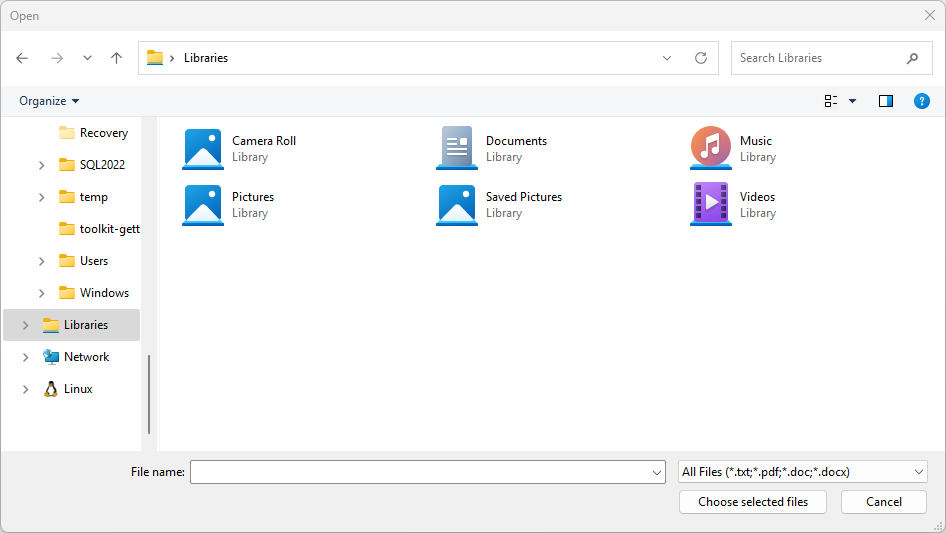
您可能有一個應用程式可讓使用者開啟或儲存檔案。 當使用者起始該動作時,您的應用程式會呼叫檔案選擇器,以顯示檔案選擇器 UI:
選擇器如何與您的應用程式搭配使用
透過選擇器,您的應用程式可以存取、瀏覽及儲存使用者系統上的檔案和資料夾。 您的應用程式會以輕量型 PickFileResult 和 PickFolderResult 物件的形式接收這些選擇,以提供所選檔案或資料夾的路徑。
選擇器使用單一統一介面,讓使用者從檔案系統或其他應用程式中挑選檔案和資料夾。 從其他應用程式挑選的檔案就像檔案系統中的檔案一樣。 一般而言,您的應用程式可以與其他物件相同的方式對它們進行操作。 其他應用程式會透過參與檔案選擇器合約來提供檔案。
舉例來說,您可以在應用程式中呼叫檔案選擇器,讓使用者可以開啟檔案。 此動作會讓您的應用程式成為呼叫應用程式。 檔案選擇器會與系統和其他應用程式互動,讓使用者瀏覽並挑選檔案。 當您的使用者選擇檔案時,檔案選擇器會傳回該檔案的應用程式路徑。
挑選要開啟的檔案範例
下列程式碼示範如何使用 FileOpenPicker 類別,讓使用者挑選單一檔案,例如相片。 程式碼會在選擇器上設定屬性,以自訂其外觀和行為,然後使用 PickSingleFileAsync 方法向使用者顯示選擇器。 如果使用者挑選檔案,應用程式會讀取檔案的內容,並將其儲存在變數中。
using Microsoft.Windows.Storage.Pickers;

var openPicker = new FileOpenPicker(this.AppWindow.Id)
{
    // (Optional) Specify the initial location for the picker.
    //     If the specified location doesn't exist on the user's machine, it falls back to the DocumentsLibrary.
    //     If not set, it defaults to PickerLocationId.Unspecified, and the system will use its default location.
    SuggestedStartLocation = PickerLocationId.DocumentsLibrary,

    // (Optional) specify the text displayed on the commit button.
    //     If not specified, the system uses a default label of "Open" (suitably translated).
    CommitButtonText = "Choose selected files",

    // (Optional) specify file extension filters. If not specified, defaults to all files (*.*).
    FileTypeFilter = { ".txt", ".pdf", ".doc", ".docx" },

    // (Optional) specify the view mode of the picker dialog. If not specified, defaults to List.
    ViewMode = PickerViewMode.List,
};

var result = await openPicker.PickSingleFileAsync();
if (result is not null)
{
    var content = System.IO.File.ReadAllText(result.Path);
}
else
{
    // Add your error handling here.
}
#include <winrt/Microsoft.Windows.Storage.Pickers.h>
#include <fstream>
#include <string>

using namespace winrt::Microsoft::Windows::Storage::Pickers;

FileOpenPicker openPicker(this->AppWindow().Id());

// (Optional) Specify the initial location for the picker.
//     If the specified location doesn't exist on the user's machine, it falls back to the DocumentsLibrary.
//     If not set, it defaults to PickerLocationId.Unspecified, and the system will use its default location.
openPicker.SuggestedStartLocation(PickerLocationId::DocumentsLibrary);

// (Optional) specify the text displayed on the commit button.
//     If not specified, the system uses a default label of "Open" (suitably translated).
openPicker.CommitButtonText(L"Choose selected files");

// (Optional) specify file extension filters. If not specified, defaults to all files (*.*).
openPicker.FileTypeFilter().ReplaceAll({ L".txt", L".pdf", L".doc", L".docx" });

// (Optional) specify the view mode of the picker dialog. If not specified, defaults to List.
openPicker.ViewMode(PickerViewMode::List);

auto result{ co_await openPicker.PickSingleFileAsync() };
if (result)
{
    std::ifstream fileReader(result.Path().c_str());
    std::string text((std::istreambuf_iterator<char>(fileReader)), std::istreambuf_iterator<char>());
    winrt::hstring hText = winrt::to_hstring(text);
}
else
{
    // Add your error handling here.
}
挑選多個檔案以開啟範例
您也可以讓使用者挑選多個檔案。 下列程式碼示範如何使用 FileOpenPicker 類別,讓使用者挑選多個檔案,例如相片。 流程相同,但 PickMultipleFilesAsync 方法會回傳一組 PickFileResult 物件。 每個結果都會暴露一個 Path 屬性,當你需要原始檔案路徑時。
using Microsoft.Windows.Storage.Pickers;

var openPicker = new FileOpenPicker(this.AppWindow.Id);

var results = await openPicker.PickMultipleFilesAsync();
if (results.Count > 0)
{
    var pickedFilePaths = results.Select(f => f.Path);
    foreach (var path in pickedFilePaths)
    {
        var content = System.IO.File.ReadAllText(path);
    }
}
else
{
    // Add your error handling here.
}
#include <winrt/Microsoft.Windows.Storage.Pickers.h>
#include <fstream>
#include <string>

using namespace winrt::Microsoft::Windows::Storage::Pickers;

FileOpenPicker openPicker(this->AppWindow().Id());
auto results{ co_await openPicker.PickMultipleFilesAsync() };
if (results.Size() > 0)
{
    for (auto const& result : results)
    {
        std::ifstream fileReader(result.Path().c_str());
        std::string text((std::istreambuf_iterator<char>(fileReader)), std::istreambuf_iterator<char>());
        winrt::hstring hText = winrt::to_hstring(text);
    }
}
else
{
    // Add your error handling here.
}
挑選資料夾範例
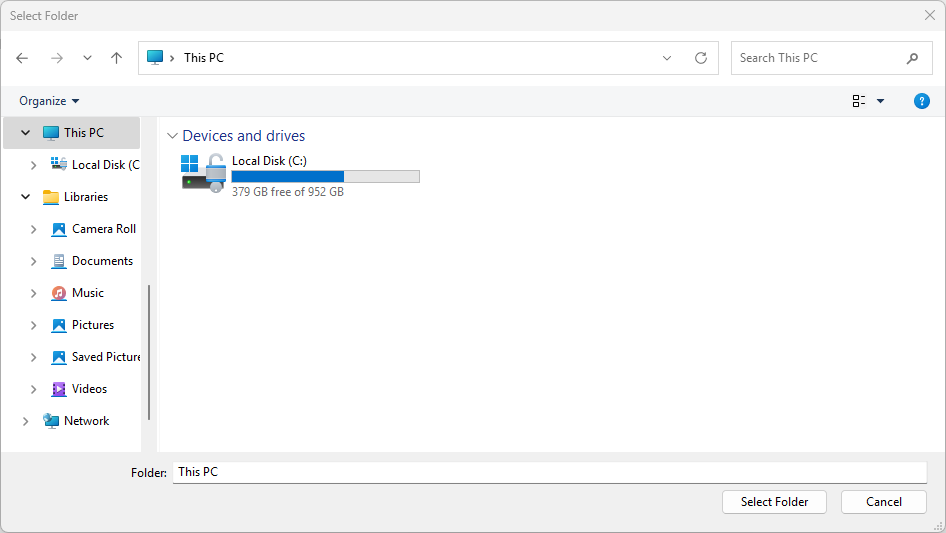
若要使用 FolderPicker 類別挑選資料夾,請使用下列程式碼。 此程式碼會建立資料夾選擇器,使用 PickSingleFolderAsync 方法向使用者顯示它,並在 PickFolderResult 物件中擷取所選資料夾的路徑。 如果使用者挑選資料夾,應用程式會擷取資料夾的路徑,並將其儲存在變數中以供日後使用。
using Microsoft.Windows.Storage.Pickers;

var folderPicker = new FolderPicker(this.AppWindow.Id)
{
    // (Optional) Specify the initial location for the picker.
    //     If the specified location doesn't exist on the user's machine, it falls back to the DocumentsLibrary.
    //     If not set, it defaults to PickerLocationId.Unspecified, and the system will use its default location.
    SuggestedStartLocation = PickerLocationId.DocumentsLibrary,

    // (Optional) specify the text displayed on the commit button.
    //     If not specified, the system uses a default label of "Open" (suitably translated).
    CommitButtonText = "Select Folder",

    // (Optional) specify the view mode of the picker dialog. If not specified, default to List.
    ViewMode = PickerViewMode.List,
};

var result = await folderPicker.PickSingleFolderAsync();

if (result is not null)
{
    var path = result.Path;
}
else
{
    // Add your error handling here.
}
#include <winrt/Microsoft.Windows.Storage.Pickers.h>

using namespace winrt::Microsoft::Windows::Storage::Pickers;

FolderPicker folderPicker(this->AppWindow().Id());

// (Optional) Specify the initial location for the picker.
//     If the specified location doesn't exist on the user's machine, it falls back to the DocumentsLibrary.
//     If not set, it defaults to PickerLocationId.Unspecified, and the system will use its default location.
folderPicker.SuggestedStartLocation(PickerLocationId::DocumentsLibrary);

// (Optional) specify the text displayed on the commit button.
//     If not specified, the system uses a default label of "Open" (suitably translated).
folderPicker.CommitButtonText(L"Select Folder");

// (Optional) specify the view mode of the picker dialog. If not specified, default to List.
folderPicker.ViewMode(PickerViewMode::List);

auto result{ co_await folderPicker.PickSingleFolderAsync() };
if (result)
{
    auto path{ result.Path() };
}
else
{
    // Add your error handling here.
}
小提示
每當你的應用程式透過選擇器存取檔案或資料夾時,請將它加入應用程式的 FutureAccessList 或 MostRecentlyUsedList,透過 Windows 執行階段(WinRT)API 來追蹤它。 欲了解更多資訊,請參閱 追蹤近期使用的檔案與資料夾。
資料夾選擇器 UI 如下所示:
使用 WinRT 選擇器搭配 HWND 互通
如果你的專案目標是 Windows 應用程式 SDK 1.7 或更早版本,或是你使用的是舊版 Windows,Storage.Pickers API(例如從 UWP 遷移時),你必須先用視窗句柄(HWND)初始化選擇器,才能顯示它。 若沒有此步驟,選擇器會在桌面(WinUI 3)應用程式中拋出例外或無聲失敗。
Important
WinUI 3 桌面應用程式沒有 CoreWindow. 你必須先呼叫 WinRT.Interop.InitializeWithWindow.Initialize(C#)或 IInitializeWithWindow::Initialize(C++/WinRT),將選擇器與應用程式視窗建立關聯,然後才能進行任何 Pick*Async 呼叫。
C# 範例(舊版 WinRT 選擇器)
// This example assumes you have a reference to your app's main window.
// In a Window class, use 'this'. In a Page, use a stored reference like App.MainWindow.

var picker = new Windows.Storage.Pickers.FileOpenPicker();
picker.FileTypeFilter.Add(".png");
picker.FileTypeFilter.Add(".jpg");

// Get the window handle (HWND) for the current WinUI 3 window.
var hwnd = WinRT.Interop.WindowNative.GetWindowHandle(App.MainWindow);

// Associate the picker with the window.
WinRT.Interop.InitializeWithWindow.Initialize(picker, hwnd);

var file = await picker.PickSingleFileAsync();
if (file is null)
{
    // The user cancelled the picker.
}
C++/WinRT 範例(舊有 WinRT 選擇器)
// pch.h
#include <winrt/Windows.Storage.Pickers.h>
#include <microsoft.ui.xaml.window.h>
#include <shobjidl_core.h>

// MainWindow.xaml.cpp — inside a MainWindow member function
Windows::Storage::Pickers::FileOpenPicker picker;
picker.FileTypeFilter().Append(L".png");
picker.FileTypeFilter().Append(L".jpg");

// Get the window handle (HWND) of the current WinUI 3 window.
auto windowNative{ this->m_inner.as<::IWindowNative>() };
HWND hwnd{ 0 };
windowNative->get_WindowHandle(&hwnd);

// Associate the picker with the window.
auto initializeWithWindow{ picker.as<::IInitializeWithWindow>() };
initializeWithWindow->Initialize(hwnd);

auto file{ co_await picker.PickSingleFileAsync() };
if (!file)
{
    // The user cancelled the picker.
}
小提示
對於新的應用程式,建議的作法是使用 Windows 應用程式 SDK 的選擇器(Microsoft.Windows.Storage.Pickers);這些選擇器會在建構子中接受 WindowId,且不需要 InitializeWithWindow 模式。 請參考本文前述的範例。
如需更多有關擷取視窗句柄的資訊,請參閱 擷取視窗句柄(HWND)。
