Hi @REY JARD TIOAQUEN,
Thank you for sharing such a clear and thoughtful description of what you’re experiencing. I’m really glad you raised this, because after reading your post, I tested the same scenario on my side and encountered the very same behavior. This makes me believe that what you’re seeing is not related to how your files are set up, but rather a change introduced by a recent Microsoft 365 update that affects how PowerPoint opens linked presentations.
As this is a user to user community forum, I unfortunately don’t have insight into product level changes or the ability to adjust PowerPoint’s default behavior from Microsoft’s end. What I can do, however, is suggest practical workarounds that I’ve seen work well, based on research and experience.
One approach that tends to work very reliably is saving each of your song or response presentations as a PowerPoint Show file instead of a regular PowerPoint file. When a presentation is saved as a PowerPoint Show and then opened either directly or through a hyperlink, PowerPoint automatically launches it straight into full screen slide show mode rather than edit mode.
To do this, you would open each linked presentation, choose File, then Save As, browse to your location, and select PowerPoint Show as the file type before saving.
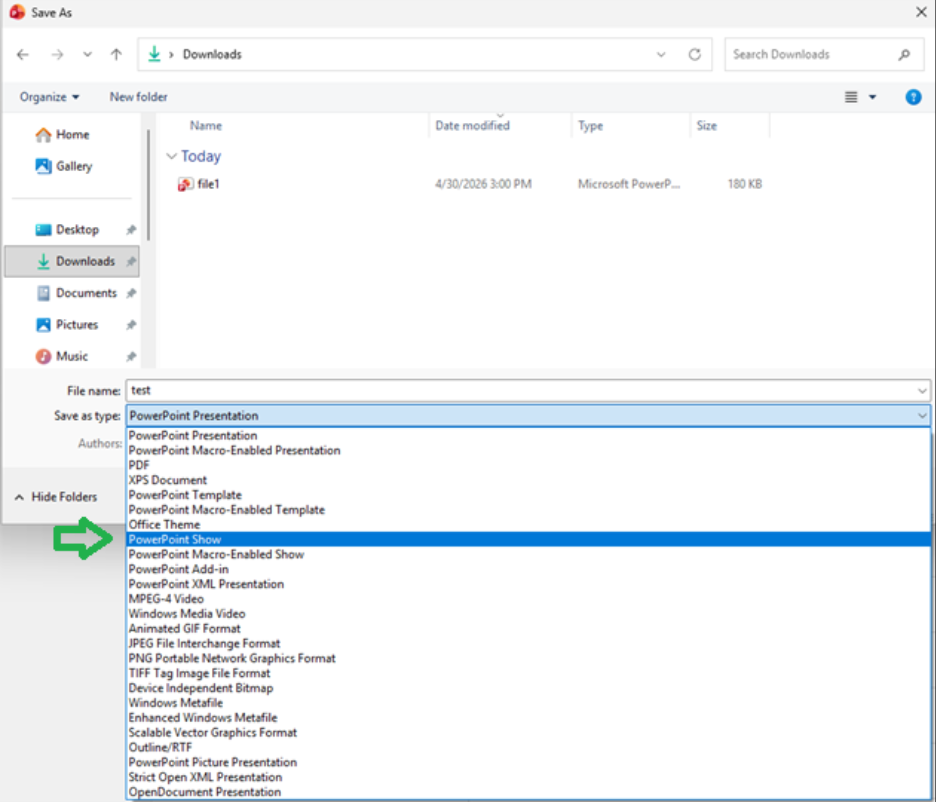
After that, you simply update the hyperlinks in your main Sunday service deck so they point to these PowerPoint Show files instead of the original ones.
Even though they launch directly into presentation mode, these files can still be edited later by opening them from within PowerPoint, so you’re not locking yourself out of future changes. Many presenters keep both an editable version and a show version for exactly this reason.
Another option you may want to consider is keeping everything inside a single PowerPoint file by using Custom Slide Shows, which helps you avoid linking between separate presentations altogether.
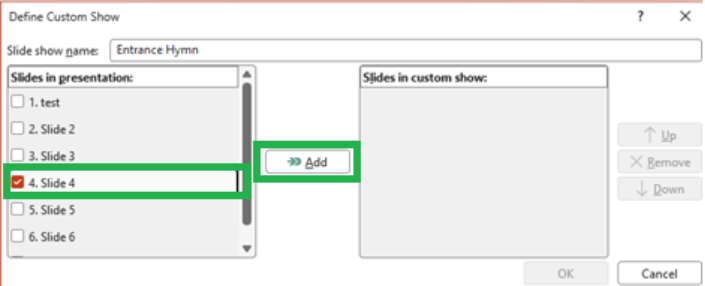
In this approach, you would move all songs and responses into your main PowerPoint file, along with the menu slide. From there, go to the Slide Show tab, choose Custom Slide Show, then Custom Shows, and click New. You can give the custom show a clear name such as “Entrance Hymn”, then select only the slides that belong to that particular song from the list and add them to the custom show. You can repeat this process for each song or response you plan to use.

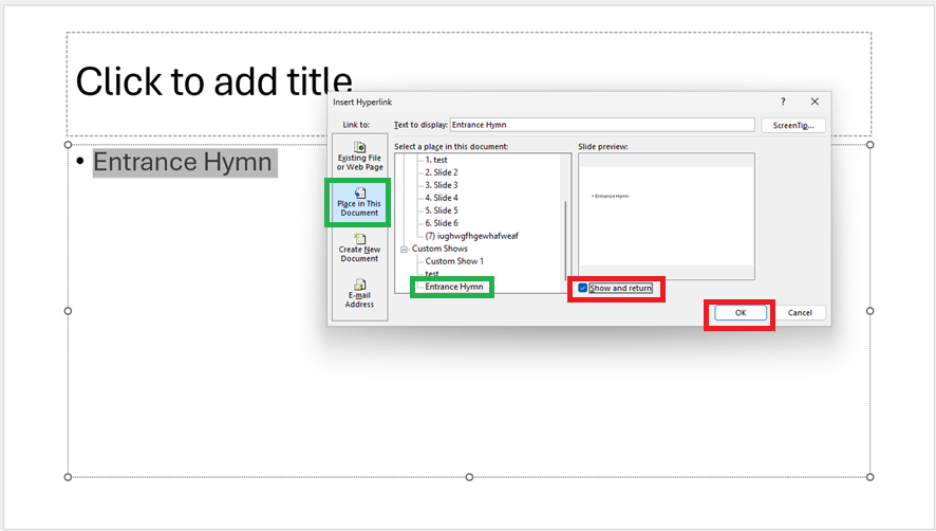
Once the custom shows are created, return to your menu slide where you have the text or buttons for each part of the service. Select the text or shape, go to Insert, and under Link to, choose Place in This Document. From the list that appears, select Custom Shows and choose the appropriate one you created, for example “Entrance Hymn”. It’s important at this step to tick Show and return, as this ensures that once the custom show finishes playing, PowerPoint will automatically return you to the menu slide, keeping everything smooth during the service.
One additional tip that many presenters find helpful is hiding the slides that belong to custom shows so they don’t appear in the main slide flow. You can do this by right‑clicking the slide thumbnail and selecting Hide Slide. The slide will remain fully functional within its custom show but won’t show up when you advance through the main presentation.
You may want to try these steps and see if this setup works well for you. Thank you again for your time. I hope this proves helpful, and I sincerely wish you a smooth, well‑organized, and prayerful celebration this coming Sunday.
If the answer is helpful, please click "Accept Answer" and kindly upvote it. If you have extra questions about this answer, please click "Comment".
Note: Please follow the steps in our documentation to enable e-mail notifications if you want to receive the related email notification for this thread.
' cx='32' cy='32' r='32' /%3E%3Ctext x='50%25' y='55%25' dominant-baseline='middle' text-anchor='middle' fill='%23FFF' %3ERJ%3C/text%3E%3C/svg%3E)

' cx='32' cy='32' r='32' /%3E%3Ctext x='50%25' y='55%25' dominant-baseline='middle' text-anchor='middle' fill='%23FFF' %3EA%3C/text%3E%3C/svg%3E)
' cx='32' cy='32' r='32' /%3E%3Ctext x='50%25' y='55%25' dominant-baseline='middle' text-anchor='middle' fill='%23FFF' %3EJL%3C/text%3E%3C/svg%3E)