إشعار
يتطلب الوصول إلى هذه الصفحة تخويلاً. يمكنك محاولة تسجيل الدخول أو تغيير الدلائل.
يتطلب الوصول إلى هذه الصفحة تخويلاً. يمكنك محاولة تغيير الدلائل.
تقدم هذه المقالة بعض نماذج القصاصات البرمجية التي توضح كيفية التفاعل مع بيانات مستودع Microsoft Sentinel (معاينة) باستخدام دفاتر ملاحظات Jupyter لتحليل بيانات الأمان في مستودع بيانات Microsoft Sentinel. توضح هذه الأمثلة كيفية الوصول إلى البيانات وتحليلها من جداول مختلفة، مثل سجلات تسجيل الدخول إلى معرف Microsoft Entra ومعلومات المجموعة وأحداث شبكة الجهاز. تم تصميم أجزاء التعليمات البرمجية للتشغيل في دفاتر ملاحظات Jupyter داخل Visual Studio Code باستخدام ملحق Microsoft Sentinel.
لتشغيل هذه الأمثلة، يجب أن يكون لديك الأذونات المطلوبة وVisual Studio Code مثبتة مع ملحق Microsoft Sentinel. لمزيد من المعلومات، راجع أذونات مستودع بيانات Microsoft Sentinelواستخدام دفاتر ملاحظات Jupyter مع مستودع بيانات Microsoft Sentinel.
فشل تحليل محاولات تسجيل الدخول
يعرف هذا المثال المستخدمين الذين لديهم محاولات تسجيل دخول فاشلة. للقيام بذلك، يعالج مثال دفتر الملاحظات هذا بيانات تسجيل الدخول من جدولين:
- SigninLogs
- AADNonInteractiveUserSignInLogs
يقوم دفتر الملاحظات بتنفيذ الخطوات التالية:
- إنشاء دالة لمعالجة البيانات من الجداول المحددة، والتي تتضمن:
- تحميل البيانات من الجداول المحددة إلى DataFrames.
- تحليل حقل JSON "الحالة" لاستخراج "errorCode" وتحديد ما إذا كانت كل محاولة تسجيل دخول ناجحة أو فاشلة.
- تجميع البيانات لحساب عدد محاولات تسجيل الدخول الفاشلة والناجحة لكل مستخدم.
- قم بتصفية البيانات لتضمين المستخدمين الذين لديهم أكثر من 100 محاولة تسجيل دخول فاشلة ومحاولة تسجيل دخول ناجحة واحدة على الأقل.
- ترتيب النتائج حسب عدد محاولات تسجيل الدخول الفاشلة.
- استدعاء الدالة لكل من
SigninLogsAADNonInteractiveUserSignInLogsوالجداول. - ادمج النتائج من كلا الجدولين في DataFrame واحد.
- تحويل DataFrame إلى Pandas DataFrame.
- قم بتصفية Pandas DataFrame لإظهار أفضل 20 مستخدما لديهم أكبر عدد من محاولات تسجيل الدخول الفاشلة.
- إنشاء مخطط شريطي لتصور المستخدمين الذين لديهم أكبر عدد من محاولات تسجيل الدخول الفاشلة.
Note
يستغرق دفتر الملاحظات هذا حوالي 10 دقائق للتشغيل على التجمع الكبير اعتمادا على حجم البيانات في جداول السجلات
# Import necessary libraries
import matplotlib.pyplot as plt
from sentinel_lake.providers import MicrosoftSentinelProvider
from pyspark.sql.functions import col, when, count, from_json, desc
from pyspark.sql.types import StructType, StructField, StringType

data_provider = MicrosoftSentinelProvider(spark)

# Function to process data
def process_data(table_name,workspace_name):
    # Load data into DataFrame
    df = data_provider.read_table(table_name, workspace_name)

    # Define schema for parsing the 'Status' JSON field
    status_schema = StructType([StructField("errorCode", StringType(), True)])
    # Parse the 'Status' JSON field to extract 'errorCode'
    df = df.withColumn("Status_json", from_json(col("Status"), status_schema)) \
           .withColumn("ResultType", col("Status_json.errorCode"))
    # Define success codes
    success_codes = ["0", "50125", "50140", "70043", "70044"]

    # Determine FailureOrSuccess based on ResultType
    df = df.withColumn("FailureOrSuccess", when(col("ResultType").isin(success_codes), "Success").otherwise("Failure"))

    # Summarize FailureCount and SuccessCount
    df = df.groupBy("UserPrincipalName", "UserDisplayName", "IPAddress") \
           .agg(count(when(col("FailureOrSuccess") == "Failure", True)).alias("FailureCount"),
                count(when(col("FailureOrSuccess") == "Success", True)).alias("SuccessCount"))

    # Filter where FailureCount > 100 and SuccessCount > 0
    df = df.filter((col("FailureCount") > 100) & (col("SuccessCount") > 0))

    # Order by FailureCount descending
    df = df.orderBy(desc("FailureCount"))

    return df

# Process the tables to a common schema
workspace_name = "your-workspace-name"  # Replace with your actual workspace name
aad_signin = process_data("SigninLogs", workspace_name)
aad_non_int = process_data("AADNonInteractiveUserSignInLogs", workspace_name)

# Union the DataFrames
result_df = aad_signin.unionByName(aad_non_int)

# Show the result
result_df.show()

# Convert the Spark DataFrame to a Pandas DataFrame
result_pd_df = result_df.toPandas()

# Filter to show table with top 20 users with the highest failed sign-ins attempted
top_20_df = result_pd_df.nlargest(20, 'FailureCount')

# Create bar chart to show users by highest failed sign-ins attempted
plt.figure(figsize=(12, 6))
plt.bar(top_20_df['UserDisplayName'], top_20_df['FailureCount'], color='skyblue')
plt.xlabel('Users')
plt.ylabel('Number of Failed sign-ins')
plt.title('Top 20 Users with Failed sign-ins')
plt.xticks(rotation=45, ha='right')
plt.tight_layout()
plt.show()
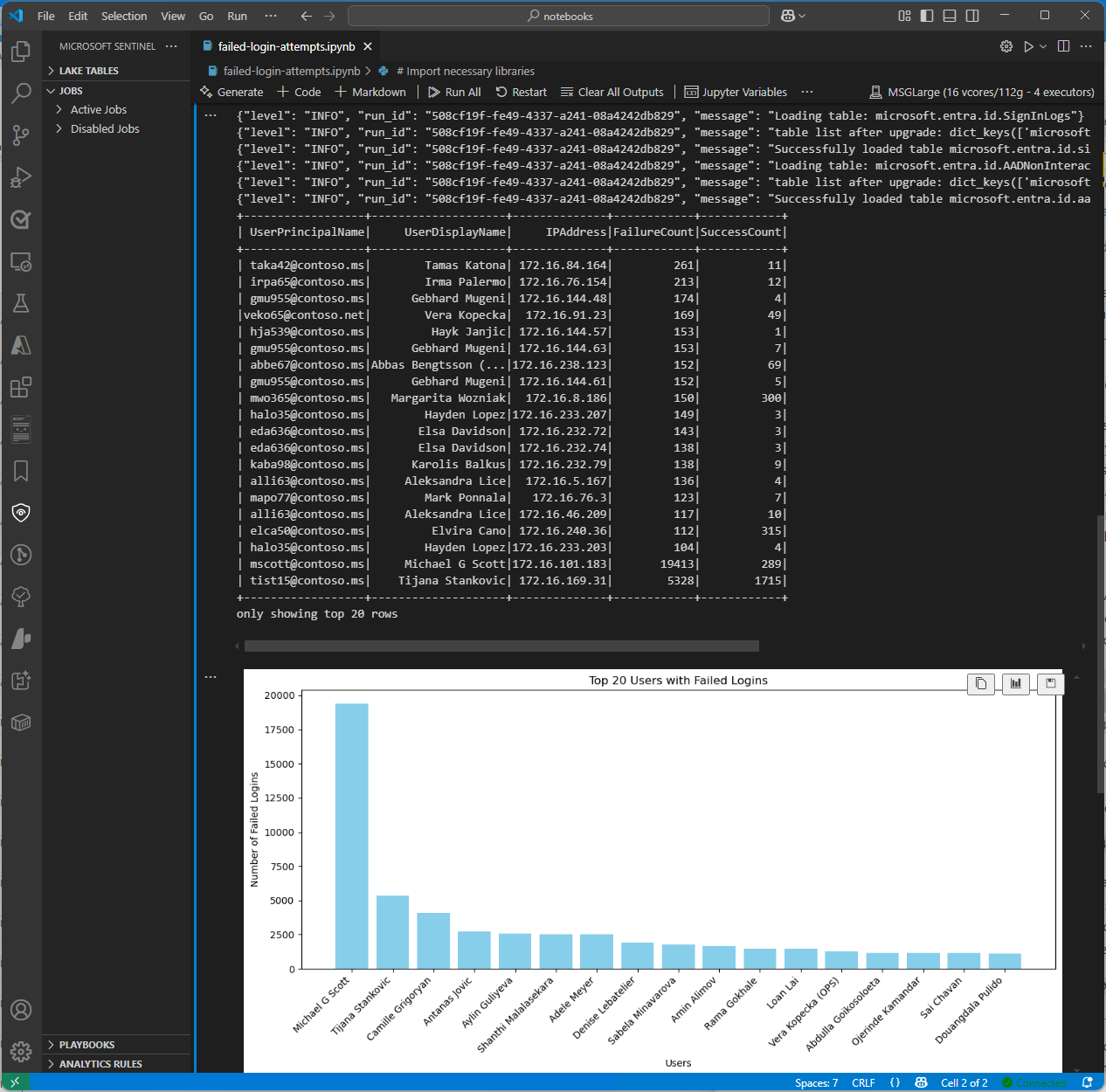
تظهر لقطة الشاشة التالية عينة من إخراج التعليمات البرمجية أعلاه، وتعرض أفضل 20 مستخدما مع أكبر عدد من محاولات تسجيل الدخول الفاشلة بتنسيق مخطط شريطي.
جدول مجموعة معرف Microsoft Entra من مستوى بحيرة Access
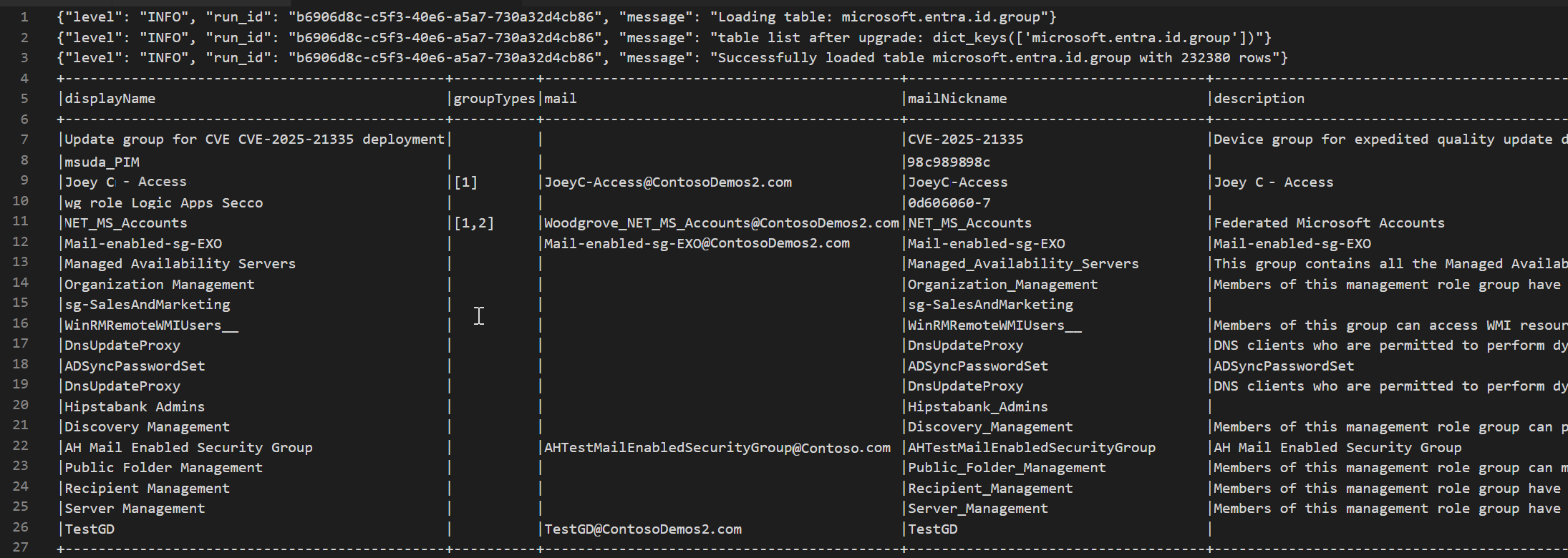
يوضح نموذج التعليمات البرمجية EntraGroups التالي كيفية الوصول إلى الجدول في مستودع بيانات Microsoft Sentinel. يعرض حقولا مختلفة مثل displayNameو groupTypesmailوmailNicknamedescription.tenantId
from sentinel_lake.providers import MicrosoftSentinelProvider
data_provider = MicrosoftSentinelProvider(spark)

table_name = "EntraGroups"
df = data_provider.read_table(table_name)
df.select("displayName", "groupTypes", "mail", "mailNickname", "description", "tenantId").show(100, truncate=False)
تظهر لقطة الشاشة التالية عينة من إخراج التعليمات البرمجية أعلاه، وتعرض معلومات مجموعة معرف Microsoft Entra بتنسيق إطار بيانات.
الوصول إلى سجلات تسجيل الدخول إلى Microsoft Entra ID لمستخدم معين
يوضح نموذج التعليمات البرمجية التالي كيفية الوصول إلى جدول معرف SigninLogs Microsoft Entra وتصفية النتائج لمستخدم معين. يسترد حقولا مختلفة مثل UserDisplayName وUserPrincipalName وUserId والمزيد.
from sentinel_lake.providers import MicrosoftSentinelProvider
data_provider = MicrosoftSentinelProvider(spark)

table_name = "SigninLogs"
workspace_name = "your-workspace-name"  # Replace with your actual workspace name
df = data_provider.read_table(table_name, workspace_name)
df.select("UserDisplayName", "UserPrincipalName", "UserId", "CorrelationId", "UserType",
 "ResourceTenantId", "RiskLevelDuringSignIn", "ResourceProvider", "IPAddress", "AppId", "AADTenantId")\
    .filter(df.UserPrincipalName == "bploni5@contoso.com")\
    .show(100, truncate=False)
فحص مواقع تسجيل الدخول
يوضح نموذج التعليمات البرمجية التالي كيفية استخراج مواقع تسجيل الدخول وعرضها من جدول Microsoft Entra ID SigninLogs. يستخدم الدالة from_json لتحليل بنية LocationDetails JSON للحقل، ما يسمح لك بالوصول إلى سمات موقع معينة مثل المدينة والولاية والبلد أو المنطقة.
from sentinel_lake.providers import MicrosoftSentinelProvider
from pyspark.sql.functions import from_json, col
from pyspark.sql.types import StructType, StructField, StringType

data_provider = MicrosoftSentinelProvider(spark)
workspace_name = "your-workspace-name"  # Replace with your actual workspace name
table_name = "SigninLogs"
df = data_provider.read_table(table_name, workspace_name)

location_schema = StructType([
  StructField("city", StringType(), True),
  StructField("state", StringType(), True),
  StructField("countryOrRegion", StringType(), True)
])

# Extract location details from JSON
df = df.withColumn("LocationDetails", from_json(col("LocationDetails"), location_schema))
df = df.select("UserPrincipalName", "CreatedDateTime", "IPAddress",
 "LocationDetails.city", "LocationDetails.state", "LocationDetails.countryOrRegion")

sign_in_locations_df = df.orderBy("CreatedDateTime", ascending=False)
sign_in_locations_df.show(100, truncate=False)
تسجيل الدخول من بلدان غير عادية
يوضح نموذج التعليمات البرمجية التالي كيفية تحديد عمليات تسجيل الدخول من البلدان التي ليست جزءا من نمط تسجيل الدخول النموذجي للمستخدم.
from sentinel_lake.providers import MicrosoftSentinelProvider
from pyspark.sql.functions import from_json, col
from pyspark.sql.types import StructType, StructField, StringType

data_provider = MicrosoftSentinelProvider(spark)
table_name = "signinlogs"
workspace_name = "your-workspace-name"  # Replace with your actual workspace name
df = data_provider.read_table(table_name, workspace_name)

location_schema = StructType([
    StructField("city", StringType(), True),
    StructField("state", StringType(), True),
    StructField("countryOrRegion", StringType(), True)
])

# Extract location details from JSON
df = df.withColumn("LocationDetails", from_json(col("LocationDetails"), location_schema))
df = df.select(
    "UserPrincipalName",
    "CreatedDateTime",
    "IPAddress",
    "LocationDetails.city",
    "LocationDetails.state",
    "LocationDetails.countryOrRegion"
)

sign_in_locations_df = df.orderBy("CreatedDateTime", ascending=False)
sign_in_locations_df.show(100, truncate=False)
هجوم القوة الغاشمة من عدة عمليات تسجيل دخول فاشلة
حدد هجمات القوة الغاشمة المحتملة من خلال تحليل سجلات تسجيل دخول المستخدم للحسابات ذات العدد الكبير من محاولات تسجيل الدخول الفاشلة.
from sentinel_lake.providers import MicrosoftSentinelProvider
from pyspark.sql.functions import col, when, count, from_json, desc
from pyspark.sql.types import StructType, StructField, StringType

data_provider = MicrosoftSentinelProvider(spark)

def process_data(table_name, workspace_name):
    df = data_provider.read_table(table_name, workspace_name)
    status_schema = StructType([StructField("errorCode", StringType(), True)])
    df = df.withColumn("Status_json", from_json(col("Status"), status_schema)) \
           .withColumn("ResultType", col("Status_json.errorCode"))
    success_codes = ["0", "50125", "50140", "70043", "70044"]
    df = df.withColumn("FailureOrSuccess", when(col("ResultType").isin(success_codes), "Success").otherwise("Failure"))
    df = df.groupBy("UserPrincipalName", "UserDisplayName", "IPAddress") \
           .agg(count(when(col("FailureOrSuccess") == "Failure", True)).alias("FailureCount"),
                count(when(col("FailureOrSuccess") == "Success", True)).alias("SuccessCount"))
    # Lower the brute force threshold to >10 failures and remove the success requirement
    df = df.filter(col("FailureCount") > 10)
    df = df.orderBy(desc("FailureCount"))
    df = df.withColumn("AccountCustomEntity", col("UserPrincipalName")) \
           .withColumn("IPCustomEntity", col("IPAddress"))
    return df
workspace_name = "your-workspace-name"  # Replace with your actual workspace name
aad_signin = process_data("SigninLogs", workspace_name)
aad_non_int = process_data("AADNonInteractiveUserSignInLogs",workspace_name)
result_df = aad_signin.unionByName(aad_non_int)
result_df.show()
الكشف عن محاولات الحركة الجانبية
استخدم DeviceNetworkEvents لتحديد اتصالات IP الداخلية المشبوهة التي قد تشير إلى حركة جانبية، على سبيل المثال، حركة مرور SMB/RDP غير طبيعية بين نقاط النهاية.
from sentinel_lake.providers import MicrosoftSentinelProvider
from pyspark.sql.functions import col, count, countDistinct, desc

deviceNetworkEventTable = "DeviceNetworkEvents"
workspace_name = "<your-workspace-name>"  # Replace with your actual workspace name
data_provider = MicrosoftSentinelProvider(spark)
device_network_events = data_provider.read_table(deviceNetworkEventTable, workspace_name)

# Define internal IP address range (example: 10.x.x.x, 192.168.x.x, 172.16.x.x - 172.31.x.x)
internal_ip_regex = r"^(10\.\d{1,3}\.\d{1,3}\.\d{1,3}|192\.168\.\d{1,3}\.\d{1,3}|172\.(1[6-9]|2[0-9]|3[0-1])\.\d{1,3}\.\d{1,3})$"

# Filter for internal-to-internal connections
internal_connections = device_network_events.filter(
    col("RemoteIP").rlike(internal_ip_regex) &
    col("LocalIP").rlike(internal_ip_regex)
)

# Group by source and destination, count connections
suspicious_lateral = (
    internal_connections.groupBy("LocalIP", "RemoteIP", "InitiatingProcessAccountName")
    .agg(count("*").alias("ConnectionCount"))
    .filter(col("ConnectionCount") > 10)  # Threshold can be adjusted
    .orderBy(desc("ConnectionCount"))
)
suspicious_lateral.show()
الكشف عن أدوات تفريغ بيانات الاعتماد
الاستعلام عن DeviceProcessEvents للعثور على عمليات مثل mimikatz.exe أو التنفيذ غير المتوقع للوصول lsass.exe، ما قد يشير إلى جمع بيانات الاعتماد.
from sentinel_lake.providers import MicrosoftSentinelProvider
from pyspark.sql.functions import col, lower

workspace_id = "<your-workspace-name>"
device_process_table = "DeviceProcessEvents"

data_provider = MicrosoftSentinelProvider(spark)
process_events = data_provider.read_table(device_process_table, workspace_id)

# Look for known credential dumping tools and suspicious access to lsass.exe
suspicious_processes = process_events.filter(
    (lower(col("FileName")).rlike("mimikatz|procdump|lsassy|nanodump|sekurlsa|dumpert")) |
    (
        (lower(col("FileName")) == "lsass.exe") &
        (~lower(col("InitiatingProcessFileName")).isin(["services.exe", "wininit.exe", "taskmgr.exe"]))
    )
)

suspicious_processes.select(
    "Timestamp",
    "DeviceName",
    "AccountName",
    "FileName",
    "FolderPath",
    "InitiatingProcessFileName",
    "InitiatingProcessCommandLine"
).show(50, truncate=False)
ارتباط نشاط USB بالوصول إلى الملفات الحساسة
اجمع بين DeviceEvents وDeviceFileEvents في دفتر ملاحظات لعرض أنماط النقل غير المصرح للبيانات المحتملة. أضف مرئيات لإظهار الأجهزة أو المستخدمين أو الملفات التي تم تضمينها ومتى.
from sentinel_lake.providers import MicrosoftSentinelProvider
from pyspark.sql.functions import col, lower, to_timestamp, expr
import matplotlib.pyplot as plt

data_provider = MicrosoftSentinelProvider(spark)
workspace_id = “<your-workspace-id>”

# Load DeviceEvents and DeviceFileEvents tables
device_events = data_provider.read_table("DeviceEvents", workspace_id)
device_file_events = data_provider.read_table("DeviceFileEvents", workspace_id)
device_info = data_provider.read_table("DeviceInfo", workspace_id)

# Filter for USB device activity (adjust 'ActionType' or 'AdditionalFields' as needed)
usb_events = device_events.filter(
    lower(col("ActionType")).rlike("usb|removable|storage")
)

# Filter for sensitive file access (e.g., files in Documents, Desktop, or with sensitive extensions)
sensitive_file_events = device_file_events.filter(
    lower(col("FolderPath")).rlike("documents|desktop|finance|confidential|secret|sensitive") |
    lower(col("FileName")).rlike(r"\.(docx|xlsx|pdf|csv|zip|7z|rar|pst|bak)$")
)

# Convert timestamps
usb_events = usb_events.withColumn("EventTime", to_timestamp(col("Timestamp")))
sensitive_file_events = sensitive_file_events.withColumn("FileEventTime", to_timestamp(col("Timestamp")))

# Join on DeviceId and time proximity (within 10 minutes) using expr for column operations
joined = usb_events.join(
    sensitive_file_events,
    (usb_events.DeviceId == sensitive_file_events.DeviceId) &
    (expr("abs(unix_timestamp(EventTime) - unix_timestamp(FileEventTime)) <= 600")),
    "inner"
) \
.join(device_info, usb_events.DeviceId == device_info.DeviceId, "inner")


# Select relevant columns
correlated = joined.select(
    device_info.DeviceName,
    usb_events.DeviceId,
    usb_events.AccountName,
    usb_events.EventTime.alias("USBEventTime"),
    sensitive_file_events.FileName,
    sensitive_file_events.FolderPath,
    sensitive_file_events.FileEventTime
)

correlated.show(50, truncate=False)

# Visualization: Number of sensitive file accesses per device
pd_df = correlated.toPandas()
if not pd_df.empty:
    plt.figure(figsize=(12, 6))
    pd_df.groupby('DeviceName').size().sort_values(ascending=False).head(10).plot(kind='bar')
    plt.title('Top Devices with Correlated USB and Sensitive File Access Events')
    plt.xlabel('DeviceName')
    plt.ylabel('Number of Events')
    plt.tight_layout()
    plt.show()
else:
    print("No correlated USB and sensitive file access events found in the selected period.")
الكشف عن سلوك الملحق الملحق للإشارة
الكشف عن الأوامر والتحكم المحتملة عن طريق تجميع الاتصالات الصادرة العادية بوحدات تخزين البايت المنخفضة على مدى مدد طويلة.
# Setup
from pyspark.sql.functions import col, to_timestamp, window, count, avg, stddev, hour, date_trunc
from sentinel_lake.providers import MicrosoftSentinelProvider
import matplotlib.pyplot as plt
import pandas as pd

data_provider = MicrosoftSentinelProvider(spark)
device_net_events = "DeviceNetworkEvents"
workspace_id = "<your-workspace-id>"

network_df = data_provider.read_table(device_net_events, workspace_id)

# Add hour bucket to group by frequency
network_df = network_df.withColumn("HourBucket", date_trunc("hour", col("Timestamp")))

# Group by device and IP to count hourly traffic
hourly_traffic = network_df.groupBy("DeviceName", "RemoteIP", "HourBucket") \
    .agg(count("*").alias("ConnectionCount"))

# Count number of hours this IP talks to device
stats_df = hourly_traffic.groupBy("DeviceName", "RemoteIP") \
    .agg(
        count("*").alias("HoursSeen"),
        avg("ConnectionCount").alias("AvgConnPerHour"),
        stddev("ConnectionCount").alias("StdDevConnPerHour")
    )

# Filter beacon-like traffic: low stddev, repeated presence
beacon_candidates = stats_df.filter(
    (col("HoursSeen") > 10) &
    (col("AvgConnPerHour") < 5) &
    (col("StdDevConnPerHour") < 1.0)
)

beacon_candidates.show(truncate=False)

# Choose one Device + IP pair to plot
example = beacon_candidates.limit(1).collect()[0]
example_device = example["DeviceName"]
example_ip = example["RemoteIP"]

# Filter hourly traffic for that pair
example_df = hourly_traffic.filter(
    (col("DeviceName") == example_device) &
    (col("RemoteIP") == example_ip)
).orderBy("HourBucket")

# Convert to Pandas and plot
example_pd = example_df.toPandas()
example_pd["HourBucket"] = pd.to_datetime(example_pd["HourBucket"])

plt.figure(figsize=(12, 5))
plt.plot(example_pd["HourBucket"], example_pd["ConnectionCount"], marker="o", linestyle="-")
plt.title(f"Outbound Connections – {example_device} to {example_ip}")
plt.xlabel("Time (Hourly)")
plt.ylabel("Connection Count")
plt.grid(True)
plt.tight_layout()
plt.show()