إشعار
يتطلب الوصول إلى هذه الصفحة تخويلاً. يمكنك محاولة تسجيل الدخول أو تغيير الدلائل.
يتطلب الوصول إلى هذه الصفحة تخويلاً. يمكنك محاولة تغيير الدلائل.
Summary
| Property | Value |
|---|---|
| Connector |  PDF PDF |
| Products | Excel Power BI (semantic models) Power Query Online |
| Release state | General availability |
| Authentication kinds | Anonymous (online) Basic (online) Organizational account (online) Windows (online) |
| Function Reference Documentation | Pdf.Tables |
Note
Some capabilities might be present in one product but not others due to deployment schedules and host-specific capabilities.
Note
PDF isn't supported in Power BI Premium.
Note
To import multiple PDF files at once, use a multi-file connector such as the Folder connector or SharePoint Folder connector. For more information, see the Combine files overview.
Prerequisites
None.
Supported capabilities
- Import
Parameters
Entry point: Pdf.Tables
Required parameter count: 1
Returns any tables found in a PDF file.
Returns any tables found in pdf. An optional record parameter, options, may be provided to specify additional properties. The record can contain the following fields:
Implementation: The version of the algorithm to use when identifying tables. Old versions are available only for backwards compatibility, to prevent old queries from being broken by algorithm updates. The newest version should always give the best results. Valid values are "1.3", "1.2", "1.1", or null.StartPage: Specifies the first page in the range of pages to examine. Default: 1.EndPage: Specifies the last page in the range of pages to examine. Default: the last page of the document.MultiPageTables: Controls whether similar tables on consecutive pages will be automatically combined into a single table. Default: true.EnforceBorderLines: Controls whether border lines are always enforced as cell boundaries (when true), or simply used as one hint among many for determining cell boundaries (when false). Default: false.
| Parameter | Required | Type | Nullable |
|---|---|---|---|
| Yes | binary | false | |
| options | No | nullable record | true |
Fields in options
| Field | Required | Type | Description | Nullable | Optional | Additional metadata |
|---|---|---|---|---|---|---|
| options.Implementation | No | nullable text | The version of the algorithm to use when identifying tables. Old versions are available only for backwards compatibility, to prevent old queries from being broken by algorithm updates. The newest version should always give the best results. Valid values are "1.3", "1.2", "1.1", or null. | true | true | {"Documentation.Caption": "Implementation version"} |
| options.StartPage | No | nullable number | Specifies the first page in the range of pages to examine. Default: 1. | true | true | {"Documentation.Caption": "Start page"} |
| options.EndPage | No | nullable number | Specifies the last page in the range of pages to examine. Default: the last page of the document. | true | true | {"Documentation.Caption": "End page"} |
| options.MultiPageTables | No | nullable logical | Controls whether similar tables on consecutive pages will be automatically combined into a single table. Default: true. | true | true | {"Documentation.Caption": "Multi-page tables"} |
| options.EnforceBorderLines | No | nullable logical | Controls whether border lines are always enforced as cell boundaries (when true), or simply used as one hint among many for determining cell boundaries (when false). Default: false. | true | true | {"Documentation.Caption": "Enforce border lines"} |
Connect from Power Query Desktop
To make the connection from Power Query Desktop:
Select the PDF option in the connector selection.
Browse for and select the PDF file you want to load. Then select Open.
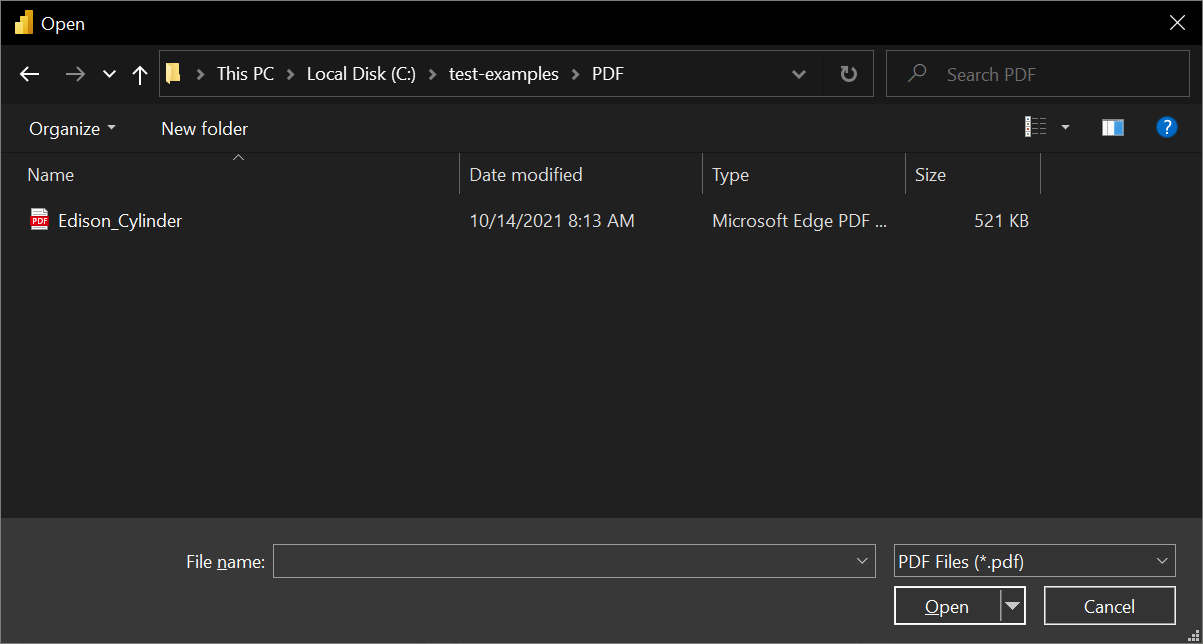
If the PDF file is online, use the Web connector to connect to the file.
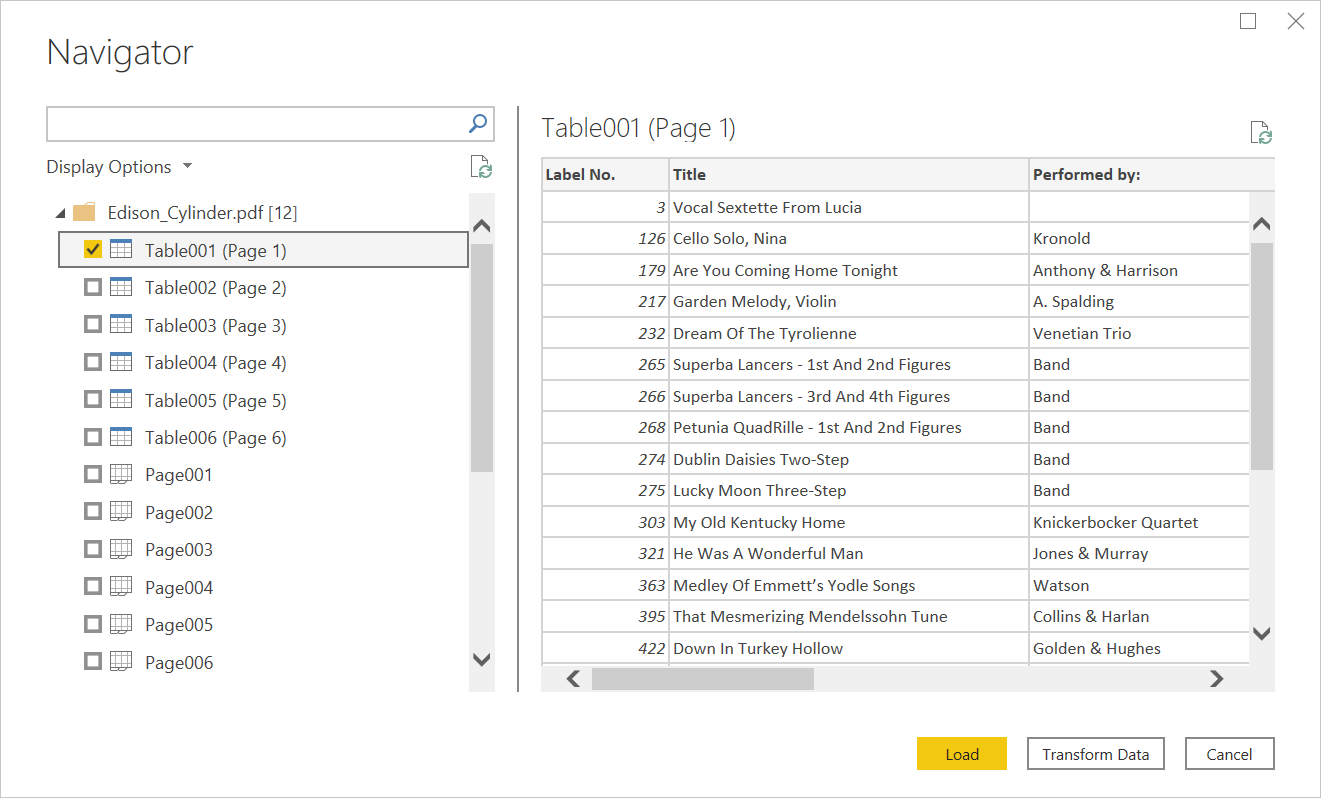
In Navigator, select the file information you want, then either select Load to load the data or Transform Data to continue transforming the data in Power Query Editor.
Connect from Power Query Online
To make the connection from Power Query Online:
Select the PDF option in the connector selection.
In the PDF dialog box that appears, either provide the file path or the URL to the location of the PDF file. If you're loading a local file, you can also select Upload file (Preview) to browse to the local file or drag and drop the file.
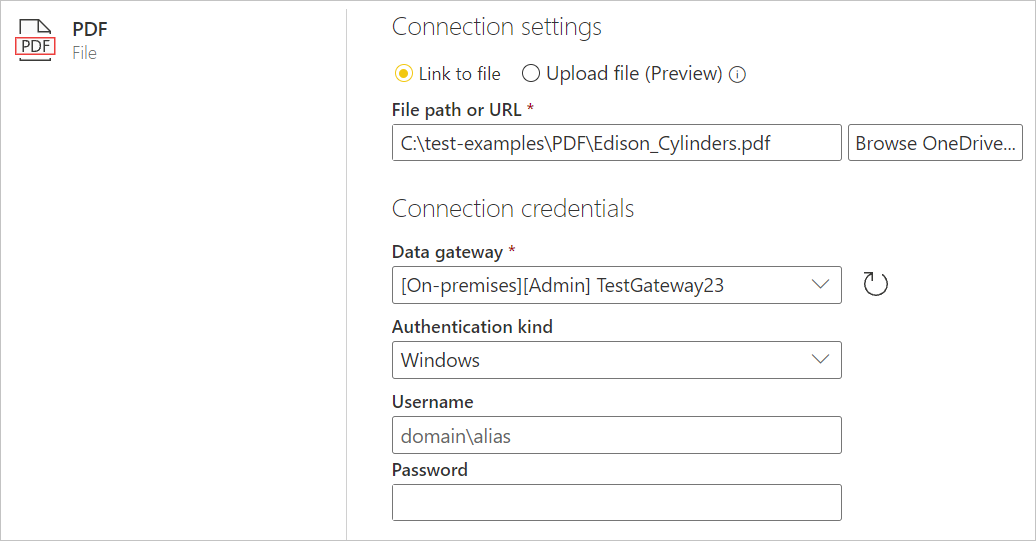
If necessary, select an on-premises data gateway to access the PDF file.
If this is the first time you've accessed this PDF file, select the authentication kind and sign in to your account (if needed).
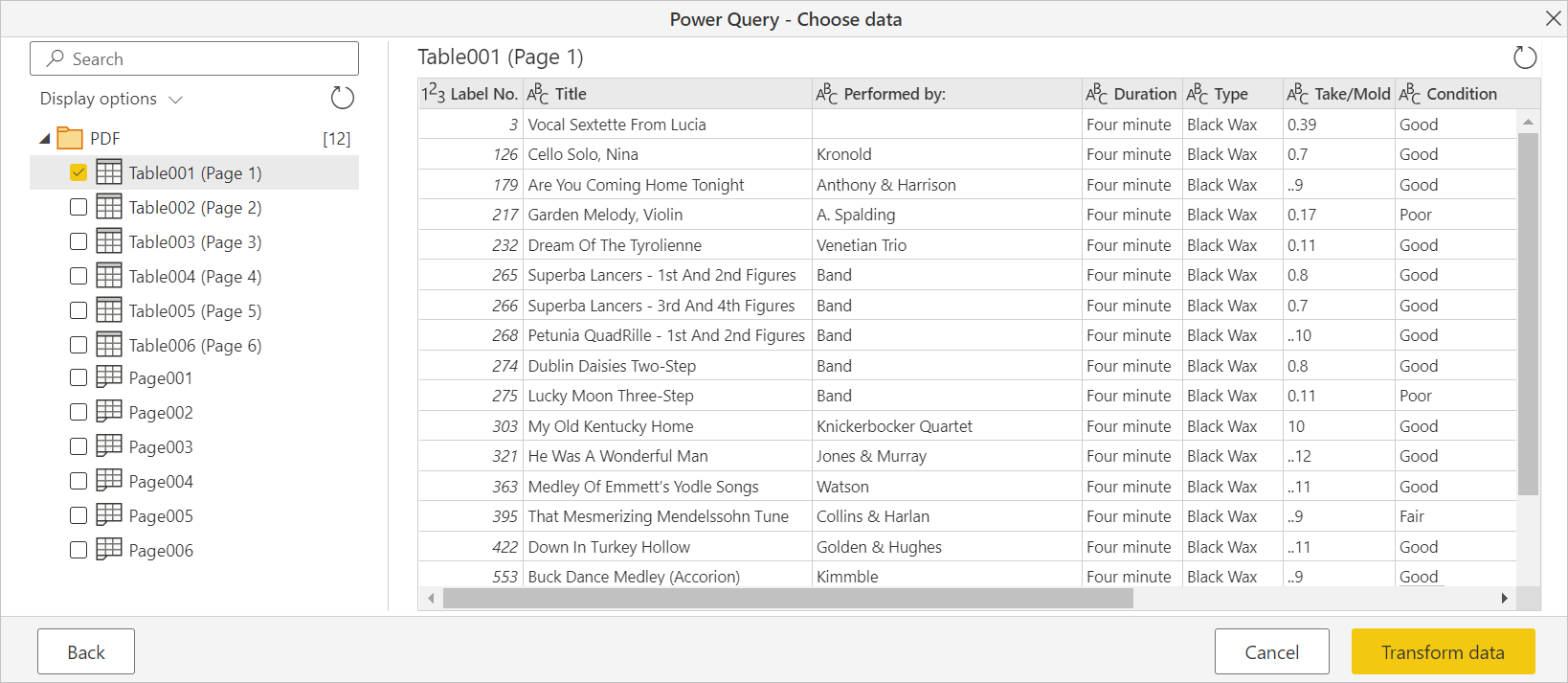
In Navigator, select the file information you want, and then select Transform Data to continue transforming the data in Power Query Editor.
Limitations and considerations
Accessing large PDF files
You can use the following strategies to improve performance and reduce timeouts when you access large PDF files. These strategies require that you edit your usage of the Pdf.Tables function in either the formula bar or advanced editor.
- Try selecting pages one at a time or one small range at a time using the
StartPageorEndPageoptions, iterating over the entire document as needed. - If the PDF document is one single, huge table, the
MultiPageTablesoption can be collecting very large intermediate values, so disabling it might help.
A full list of available options can be found in Pdf.Tables.
Handling multi-line rows
In cases where multi-line rows aren't properly identified, you might be able to clean up the data using UI operations or custom M code. For example, you could copy misaligned data to adjacent rows using Table.FillDown, or group and combine adjacent rows using Table.Group.
Power BI dataflows in a Premium capacity
When working with the PDF connector on dataflows in a Premium capacity, the PDF connector doesn't properly make the connection. To enable the PDF connector to work on dataflows in a Premium capacity, configure that dataflow to use a gateway, and confirm the connection to that dataflow goes through the gateway.