إشعار
يتطلب الوصول إلى هذه الصفحة تخويلاً. يمكنك محاولة تسجيل الدخول أو تغيير الدلائل.
يتطلب الوصول إلى هذه الصفحة تخويلاً. يمكنك محاولة تغيير الدلائل.
Site lifecycle management policies in Microsoft SharePoint Advanced Management help you maintain site governance at scale. These policies automate common governance tasks, so sites stay active, properly owned, and regularly reviewed throughout their lifecycle.
Video: Overview of SharePoint Advanced Management
The following video provides an overview of SharePoint site lifecycle management:
Site lifecycle management policies don't delete SharePoint sites directly. Instead, the policies notify site owners and administrators, and take actions based on how you configure the policies.
As your organization creates more SharePoint sites, Microsoft Teams-connected sites, and Microsoft 365 group-connected sites, it becomes increasingly difficult for your administrators to manually identify inactive sites, ownerless sites, or sites that no longer meet business requirements. Site lifecycle management policies help you automate these governance processes by monitoring sites, notifying responsible users, collecting responses, and taking enforcement actions when necessary.
Benefits of site lifecycle management
Site lifecycle management policies help you:
- Reduce the number of inactive or abandoned sites.
- Identify and address sites that have insufficient ownership.
- Verify that sites continue to serve a valid business purpose.
- Improve compliance with organizational governance requirements.
- Automate notifications, reporting, and remediation workflows.
- Maintain a healthier and more manageable SharePoint environment.
Types of site lifecycle management policies
Site lifecycle management includes three policy types that address different governance scenarios.
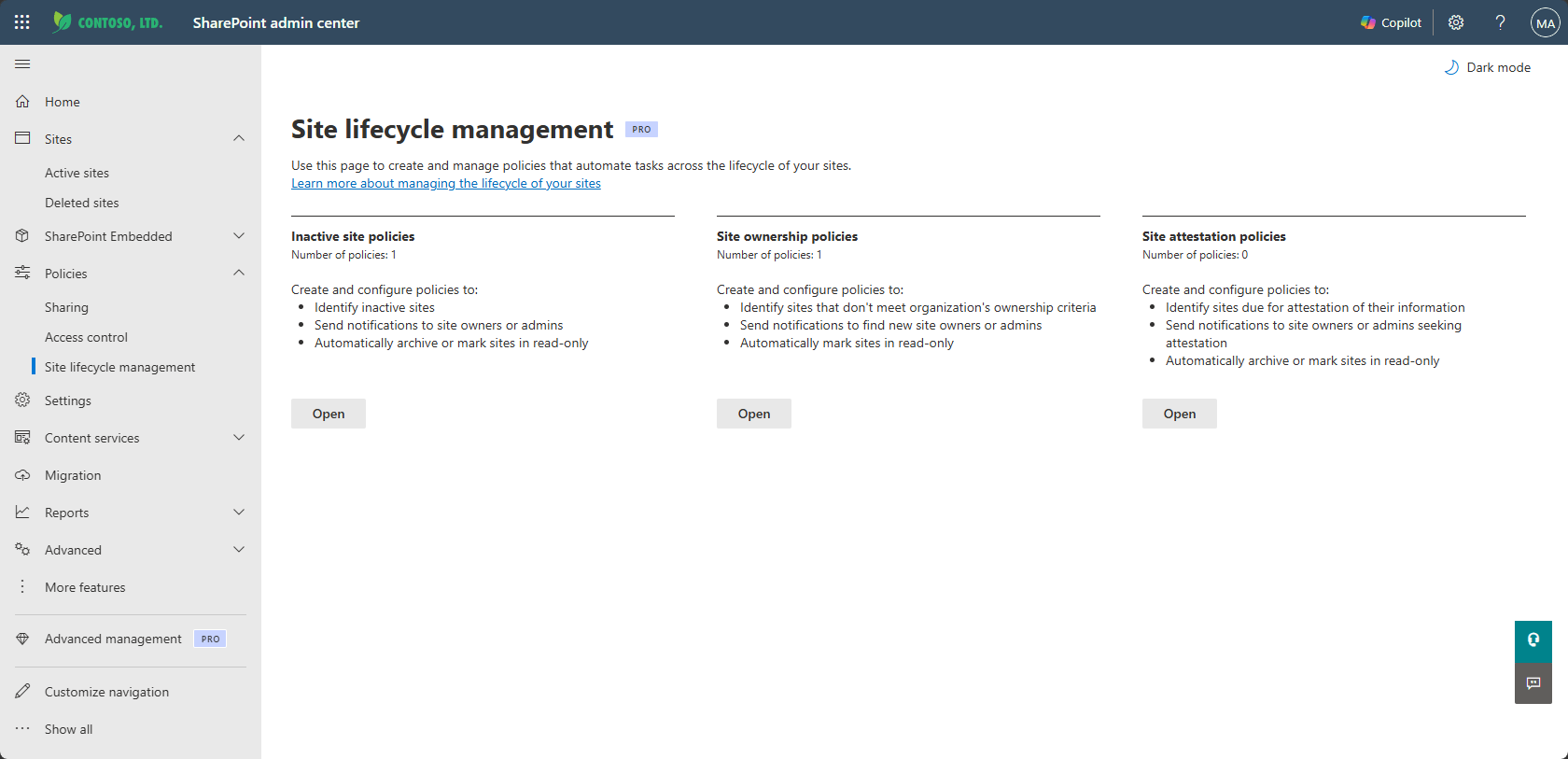
| Policy type | Purpose |
|---|---|
| Site ownership policy | Helps ensure sites have the required number of owners or site administrators. |
| Inactive site policy | Identifies sites that aren't active for a specified period of time. |
| Site attestation policy | Requests periodic confirmation that a site is still needed and meets organizational requirements. |
Use these policies independently or together to create a comprehensive site governance strategy.
Site ownership policies
Site ownership policies help ensure that every site has accountable individuals responsible for managing it. You can define ownership requirements, including:
- Whether ownership is based on site owners, site administrators, or both.
- The minimum number of owners or administrators required for a site.
- Which users receive notifications when ownership requirements aren't met.
For example, you can require all sites to have at least two site owners. If a site falls below that threshold, the policy can notify designated recipients and prompt corrective action.
Site ownership policies help reduce the risk of ownerless sites and improve administrative continuity when users change roles or leave the organization.
For more information, see Create a SharePoint site ownership policy.
Inactive site policies
Inactive site policies help identify sites that no longer show meaningful business activity. The policy evaluates activity across SharePoint and connected workloads, such as Microsoft Teams, Exchange, and Viva Engage, to determine whether a site remains active.
When a site exceeds the configured inactivity threshold, the policy can notify site owners or site administrators and request confirmation that the site is still in use. Use inactive site policies to:
- Reduce content sprawl.
- Identify abandoned collaboration spaces.
- Improve storage management.
- Support long-term governance objectives.
For more information, see Manage inactive sites using inactive site policies.
Site attestation policies
Site attestation policies help organizations periodically verify that sites remain necessary, business-relevant, and compliant with internal governance requirements. Unlike inactive site policies, which focus on detected activity, site attestation policies request an explicit review from designated site owners or site administrators.
Use attestation policies to:
- Confirm that a site is still required.
- Validate ownership and accountability.
- Review site purpose and business justification.
- Support governance and compliance programs.
For more information, see Request recurring site attestations for SharePoint sites.
Overlapping policies of same policy type
When more than one policy of the same policy type includes the same site, SharePoint helps reduce duplicate notifications by using stored site-level policy history.
If a notification was sent within the last 30 days from any policy of that type, and the site remains uncertified, no further notifications are sent and the policy execution report shows the site's status as "Notified by another policy."
For example, if a site is covered by two different inactive site policies and receives a notification email from the first policy, the second policy doesn't send additional notifications within the next 30 days if the site remains uncertified.
We recommend that policies of the same type don't have overlapping scopes. If sites fall under multiple policies of the same type, notification schedules and enforcement actions can become difficult to predict.
Overlapping policies of different types
Policies of different types operate independently for notification purposes. Notification history is tracked separately for each policy type.
For example, if a site falls within the scope of both a Site Ownership policy and an Inactive site policy, site owners may receive notifications from both policies when the respective policy conditions are met.
Enforcement actions are evaluated independently by each policy. If a policy applies an enforcement action that changes the site's state, the site may no longer qualify for processing by other policies:
If a policy places the site in a read-only (locked) state, the site is no longer included in the scope of other policies.
If a policy archives the site, the site reaches a terminal state and is no longer considered for enforcement by other policies.
When multiple policy types target the same site, the enforcement action from the policy whose conditions are satisfied first is applied first.
Disabling or deleting a policy
Disabling or deleting a policy stops future activities from that policy, including notifications and enforcement actions. It doesn't automatically reverse previously applied actions.
Notification history is maintained at the site level separately for each policy type. As a result, disabling or deleting one policy doesn't affect notification history associated with other policy types that continue to target the site.
For policies of the same type, stored notification history (including notification count and last notification date) is retained even after a policy is disabled or deleted. This history naturally resets after the site has been absent from the scope of that policy type for 90 days.
If notification history needs to be reset sooner, contact Microsoft Support to determine whether the stored notification state can be cleared.
Important
To ensure predictable behavior, avoid creating overlapping policies of the same type that target the same sites. While SharePoint suppresses duplicate notifications where possible, overlapping policies can make notification timing and enforcement outcomes harder to interpret.
Policy execution and notifications
All site lifecycle management policies support two operating modes:
- Simulation mode – Runs the policy once and generates a report without ongoing enforcement.
- Active mode – Runs the policy on a recurring schedule, generates reports, and sends notifications to designated recipients.
Policy notifications use Outlook Actionable Messages, so recipients can complete governance actions directly from email. You can also configure messaging, guidance, and support resources.
Enforcement actions
After multiple notification attempts, site lifecycle management policies can take enforcement actions when no response is received. Depending on the policy type, available actions include:
- Take no action and continue reporting.
- Set sites to read-only mode.
- Archive sites after a configurable read-only period by using Microsoft 365 Archive.
These enforcement options help organizations balance user self-service with governance requirements.
Reporting and monitoring
Each policy execution generates reports that help administrators understand policy outcomes and identify sites that require attention. Reports can include information such as:
- Site ownership status.
- Site activity status.
- Notification history.
- Enforcement actions.
- Site metadata and configuration details.
Use these reports to monitor governance trends and prioritize remediation activities.
Recommended governance strategy
Many organizations achieve the best results by combining all three policy types:
- Use site ownership policies to ensure every site has accountable owners.
- Use inactive site policies to identify abandoned or unused sites.
- Use site attestation policies to periodically validate ongoing business need.
Together, these policies help maintain a secure, well-governed, and sustainable SharePoint environment.