مشاركة عبر


What is SharePoint Advanced Management?

SharePoint Advanced Management (SAM) is a comprehensive governance solution for SharePoint and OneDrive. With SAM, you can efficiently manage content growth, secure access, and monitor changes across your organization. These capabilities help you maintain control over your digital workspace and prepare your environment for Microsoft 365 Copilot.

In this article, you learn how SAM enables you to:

Explore each of the following sections to discover how SAM supports your content governance needs and enhances collaboration in Microsoft 365.

What you need to get started

Before you get started, make sure SharePoint Advanced Management (SAM) features are available to your organizations through one of the following two licensing options:

  • If your organization has a Copilot license and at least one user is assigned a Copilot license, SharePoint administrators automatically gain access to the SharePoint Advanced Management features required for Copilot deployment. The only SAM feature not included with Copilot is Restricted Site Creation.
  • Organizations without a Copilot license can access SharePoint Advanced Management features by purchasing a standalone SharePoint Advanced Management license.

SAM features are managed by IT administrators with access to the SharePoint admin center. Some features can also be used by site owners.

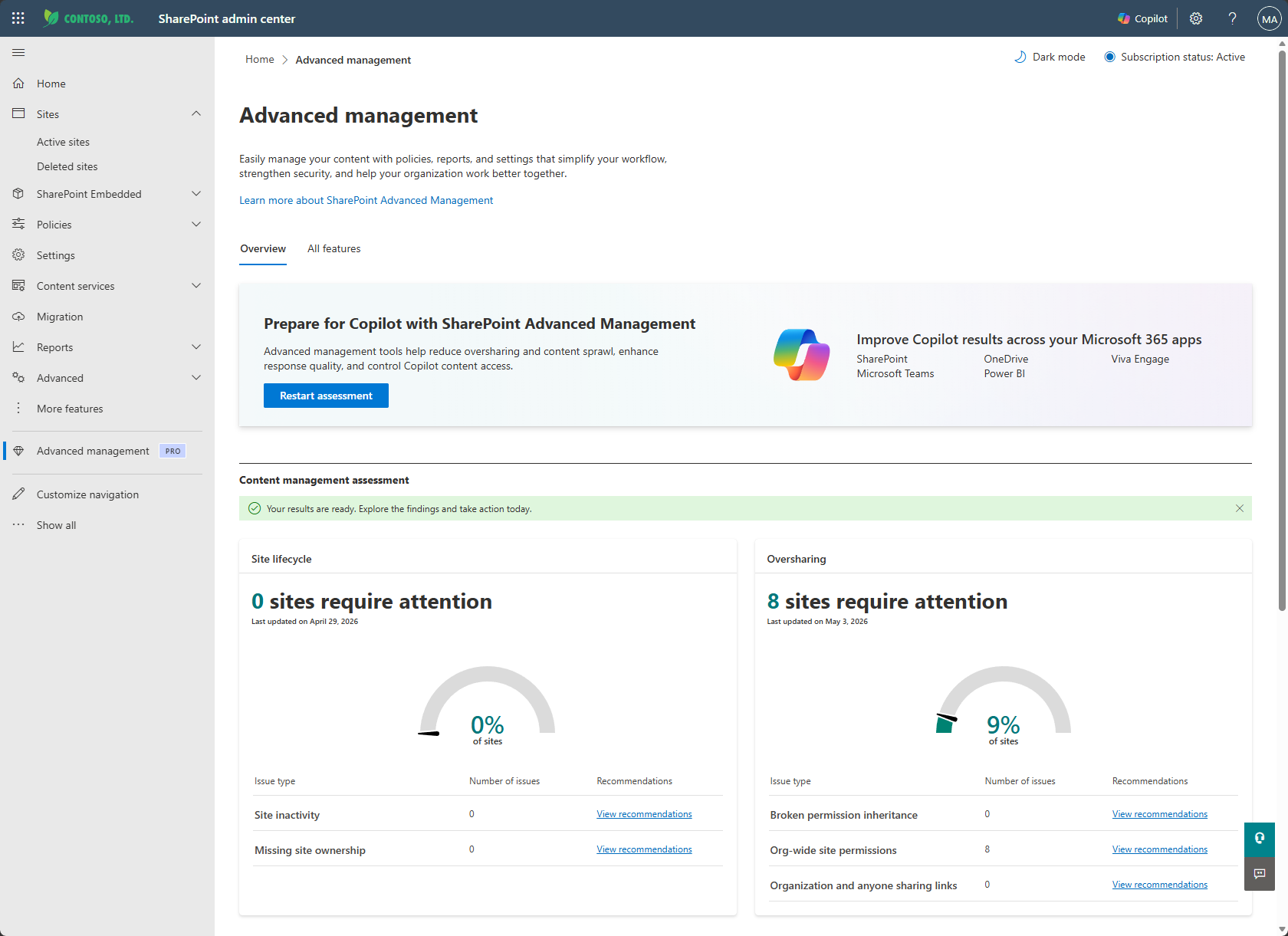
Screenshot of SharePoint Advanced Management features dashboard.

With the right licensing in place, you can take full advantage of SharePoint Advanced Management’s three core capabilities: preventing content sprawl, managing the content lifecycle, and streamlining permissions and access management for SharePoint and OneDrive sites. The following sections provide a detailed look at each area, helping you understand how SAM empowers you to govern your organization’s information effectively and securely.

What is content sprawl and how can you prevent it?

Content sprawl happens when digital files and information accumulate across your organization without effective oversight. This can make it harder to find what you need, increase storage costs, and create security or compliance risks. To help you prevent content sprawl, SharePoint Advanced Management offers three key features:

  • Site ownership policy: Ensure every SharePoint site has clear ownership and accountability with automated policies that help you manage site lifecycle and governance.
  • AI insights: Use AI-powered recommendations to identify patterns, spot potential issues, and take action to keep your content organized and secure.
  • Manage inactive sites: Automatically detect and address inactive SharePoint sites, reducing clutter and optimizing your storage.
  • Request site attestation: Regularly prompt site owners to review and confirm the relevance of their sites, helping you maintain an organized and purposeful digital environment.

By using these features together, you can maintain control over your digital workspace and support secure, efficient collaboration.

Site ownership policy

Site ownership policies are a part of site lifecycle management. These policies help you automatically monitor and enforce site ownership requirements across your organization. You can create these policies to define who should be responsible for each site, set minimum owner or admin counts, and automate notifications when sites don't meet your criteria. By regularly identifying noncompliant sites and prompting users to take action, site ownership policies support effective site management, reduce the risk of ownerless sites, and help maintain security and compliance in your SharePoint environment.

AI Insights

The AI insights feature for SharePoint Advanced Management uses a language model to identify patterns and potential issues from reporting and receive actionable recommendations to solve issues.

You can find the Get AI insights button next to various reports in the SharePoint admin center. Once selected, the AI insights feature extracts patterns from the report and offers a list of potential actions.

Inactive sites policy

You can run automated, rule-based policies to manage and reduce inactive sites with the Inactive SharePoint sites policy feature from SharePoint Advanced Management.

The inactive sites policy combats content sprawl by automatically identifying and managing inactive SharePoint sites. It operates by defining inactivity criteria, such as lack of updates or user activity over a set period. Once identified, site owners receive email notifications to confirm the active/inactive state of the site.

Request site attestation

Request site attestation is a feature that helps you ensure that SharePoint sites remain relevant and necessary over time. With this feature, you can set up periodic reviews where site owners and site admins are prompted to attest to the continued need for their sites. This process helps identify and clean up unused or unnecessary sites, reducing content sprawl and maintaining an organized digital environment.

How can you manage content lifecycle?

You can manage the content lifecycle for SharePoint sites by:

  • Using site change history reports to track property changes across your sites, helping you monitor updates and maintain compliance.
  • Reviewing recent site actions to see the latest changes you've made, making it easier to audit activity and ensure your governance policies are followed.

Together, these features give you visibility into site modifications and support effective lifecycle management.

Site change history reports

The Site change history report feature lets you create change history reports in the SharePoint admin center to review SharePoint site property changes made within the last 180 days. Create up to five reports for a given date range and filter by sites and users. You can download the report as a .csv file to view the site property changes.

Recent site actions

The Recent SharePoint admin actions policy lets you review and monitor the last 30 changes you've made to a SharePoint site's properties within the last 30 days in the SharePoint admin center. This feature only shows changes made by you and not other administrators.

How can you manage permissions and access

Microsoft 365 collaboration and AI experiences depend on strong permission and access controls for SharePoint and OneDrive. SharePoint Advanced Management (SAM) provides a suite of features to help you govern access, prevent oversharing, and protect sensitive data:

  • Assess content management status: Evaluate your organization's content management practices and receive actionable insights to improve governance all in one place.
  • Block download policy: Restrict file downloads from SharePoint and OneDrive sites, ensuring browser-only access and preventing offline copies.
  • Catalog management: Provide a comprehensive view of content distribution across regions, departments, users, information barriers, and custom properties defined by you.
  • Compare site policies: Evaluate and align site-level policies to maintain consistent governance across your environment.
  • Conditional access policies: Use authentication contexts to connect a Microsoft Entra Conditional Access policy to a SharePoint site.
  • Data access governance reports: Identify sites with overshared or sensitive content and take action to mitigate risks.
  • Manage data access governance via PowerShell: Automate and scale your data access governance tasks using PowerShell commands.
  • SharePoint agent insights: Gain visibility into recently created SharePoint agents and their activities.
  • Insights on agents accessing content: Get insights on how the agents are accessing content across all SharePoint and OneDrive sites in your organization.
  • App insights: Monitor and manage non-Microsoft applications registered in your Microsoft Entra admin center that access your SharePoint content.
  • Initiate site access reviews: Delegate review of overshared sites to site owners, ensuring regular validation of access permissions.
  • Restrict access to all OneDrives by security group: Limit OneDrive access to specific security groups, enhancing data protection.
  • Restrict access to specific OneDrives: Control access to individual OneDrive accounts based on user roles or group memberships.
  • Restrict content discovery of SharePoint sites: Limit the ability of end users to search for files from specific SharePoint sites.
  • Restrict site creation by users: Enforce policies to control who can create new SharePoint sites, reducing unnecessary sprawl.
  • Restrict site creation by apps: Control which non-Microsoft applications can create SharePoint sites, ensuring only trusted apps have this capability.
  • Restrict SharePoint access by security groups: Apply security group-based policies to further refine who can access specific SharePoint sites.

By using these features together, you can ensure that only authorized users have access to your organization’s data, reduce the risk of data leaks, and support secure, efficient collaboration with Microsoft 365 Copilot.

Assess content management status

The Content management assessment feature in SharePoint Advanced Management aggregates a comprehensive set of tools all in one place for you to quickly assess and improve your organization's content management practices with actionable insights and recommendations.

Block download policy for SharePoint and OneDrive sites

Block download policy for SharePoint and OneDrive sites You can block download of files from SharePoint sites or OneDrive without needing to use Microsoft Entra Conditional Access policies. Users have browser-only access with no ability to download, print, or sync files. They also won't be able to access content through apps, including the Microsoft Office desktop apps.

Catalog management

Catalog management helps you organize and govern SharePoint sites by grouping them into logical categories based on regions, departments, users, information barriers, and custom properties. This feature uses built-in Microsoft 365 metadata to enable targeted actions like content monitoring, policy enforcement, and Copilot grounding, streamlining governance and reducing administrative overhead.

Compare site policies

Compare site policies lets you evaluate and align site-level policies to maintain consistent governance across your SharePoint sites. You can compare policies such as sharing settings, sensitivity labels, and access controls between different sites to identify discrepancies and ensure uniform application of your organization's security standards.

Conditional access policies for SharePoint sites

Conditional access policies for SharePoint sites let you enforce stringent access conditions when users access SharePoint sites. Authentication contexts can be directly applied to sites or used with sensitivity labels to connect Microsoft Entra Conditional Access policies to labeled sites. This ensures that only authorized users can access sensitive content based on defined security requirements.

Data access governance reports

Data access governance reports lets you view reports that identify sites that contain potentially overshared or sensitive content. You can use these reports to assess and apply appropriate security and compliance policies.

Data Access Governance management via PowerShell

While Data access governance is available in SharePoint admin center portal, large organizations usually look for PowerShell support in order to manage scale via scripting and automation.

This document discusses all appropriate PowerShell commands available via SharePoint Online PowerShell module to manage reports from Data access governance.

SharePoint agent insights

SharePoint agent insights is a SharePoint Advanced Management feature that lets you gain visibility into recently created SharePoint agents and their activities. This report can help you monitor and manage the agents accessing your SharePoint content.

Insights on agents' access to content

Insights on agents' access to content is a SharePoint Advanced Management feature that lets you gain insights on how the agents are accessing content across all SharePoint and OneDrive sites in your organization. You can see how agents interact with your content, spot access patterns, and view agent distribution across sites.

Enterprise app insight reports

App insights is a SharePoint Advanced Management feature that lets you gain insights on the various non-Microsoft applications registered to your Microsoft Entra admin center and how they access your SharePoint content. This report can help you maintain and protect the integrity of your content.

Site access reviews

Site access review feature in the SharePoint admin center lets you delegate the review process of data access governance reports to the site owners of overshared sites.

Site access review involves site owners in the review process so they can address the concern of overshared sites identified in data access governance reports.

Restricted Access Control for SharePoint

You can prevent sites and content from being discovered at the site-level by enabling Restricted Access Control for SharePoint sites. Site access restriction allows only users in the specified security group or Microsoft 365 group to access content. This policy can be used with Microsoft 365 group-connected, Teams-connected, and nongroup connected sites.

Restricted Access Control for OneDrive

You can limit access to shared content of a specific user's OneDrive to only people in a security group with the Restricted Access Control for OneDrive policy. Once the policy is enabled, anyone who isn't in the designated security group won't be able to access content in that OneDrive even if it was previously shared with them.

To block users from accessing all OneDrives as a service, you can enable the Restrict OneDrive service access feature.

Restrict site creation by users

You can control who can create new SharePoint sites in your organization by enabling the Restrict site creation by users feature. This helps reduce unnecessary sprawl and ensures that only authorized users can create sites.

Restrict site creation by apps

You can control which non-Microsoft applications can create SharePoint sites in your organization by enabling the Restrict site creation by apps feature. This ensures that only trusted apps have the capability to create sites, enhancing security and governance.

Licensing

To use SharePoint Advanced Management (SAM), your organization must have the appropriate licensing in place. Learn about the main options for accessing SAM features here.

SharePoint Advanced Management features in Microsoft 365 Copilot licenses

Learn about SharePoint Advanced Management features included in Microsoft 365 Copilot licenses here.

Which Microsoft 365 Copilot SKUs include SharePoint Advanced Management?

Learn more about what Microsoft 365 Copilot SKUs include SharePoint Advanced Management features here.

How does SAM support Microsoft 365 Copilot deployment?

Whether preparing for Copilot deployment or managing content post-implementation, SharePoint Advanced Management offers capabilities to help you govern your SharePoint and OneDrive content effectively.

We recommend utilizing SharePoint Advanced Management features along with our best practices for Microsoft 365 Copilot to reduce the risk of oversharing, control content sprawl, and manage the content lifecycle.

Microsoft 365 Government - how to buy

Get started with Microsoft 365 Copilot