Note
Access to this page requires authorization. You can try signing in or changing directories.
Access to this page requires authorization. You can try changing directories.
In this article, you learn how to integrate AcquireIO with Microsoft Entra ID. When you integrate AcquireIO with Microsoft Entra ID, you can:
- Control in Microsoft Entra ID who has access to AcquireIO.
- Enable your users to be automatically signed-in to AcquireIO with their Microsoft Entra accounts.
- Manage your accounts in one central location.
Prerequisites
The scenario outlined in this article assumes that you already have the following prerequisites:
- A Microsoft Entra user account with an active subscription. If you don't already have one, you can Create an account for free.
- One of the following roles:
- AcquireIO single sign-on (SSO) enabled subscription.
Scenario description
In this article, you configure and test Microsoft Entra SSO in a test environment.
- AcquireIO supports IDP initiated SSO.
Note
Identifier of this application is a fixed string value so only one instance can be configured in one tenant.
Add AcquireIO from the gallery
To configure the integration of AcquireIO into Microsoft Entra ID, you need to add AcquireIO from the gallery to your list of managed SaaS apps.
- Sign in to the Microsoft Entra admin center as at least a Cloud Application Administrator.
- Browse to Entra ID > Enterprise apps > New application.
- In the Add from the gallery section, type AcquireIO in the search box.
- Select AcquireIO from results panel and then add the app. Wait a few seconds while the app is added to your tenant.
Alternatively, you can also use the Enterprise App Configuration Wizard. In this wizard, you can add an application to your tenant, add users/groups to the app, assign roles, and walk through the SSO configuration as well. Learn more about Microsoft 365 wizards.
Configure and test Microsoft Entra SSO for AcquireIO
Configure and test Microsoft Entra SSO with AcquireIO using a test user called B.Simon. For SSO to work, you need to establish a link relationship between a Microsoft Entra user and the related user in AcquireIO.
To configure and test Microsoft Entra SSO with AcquireIO, perform the following steps:
- Configure Microsoft Entra SSO - to enable your users to use this feature.
- Create a Microsoft Entra test user - to test Microsoft Entra single sign-on with B.Simon.
- Assign the Microsoft Entra test user - to enable B.Simon to use Microsoft Entra single sign-on.
- Configure AcquireIO SSO - to configure the single sign-on settings on application side.
- Create AcquireIO test user - to have a counterpart of B.Simon in AcquireIO that's linked to the Microsoft Entra representation of user.
- Test SSO - to verify whether the configuration works.
Configure Microsoft Entra SSO
Follow these steps to enable Microsoft Entra SSO.
Sign in to the Microsoft Entra admin center as at least a Cloud Application Administrator.
Browse to Entra ID > Enterprise apps > AcquireIO > Single sign-on.
On the Select a single sign-on method page, select SAML.
On the Set up single sign-on with SAML page, select the pencil icon for Basic SAML Configuration to edit the settings.
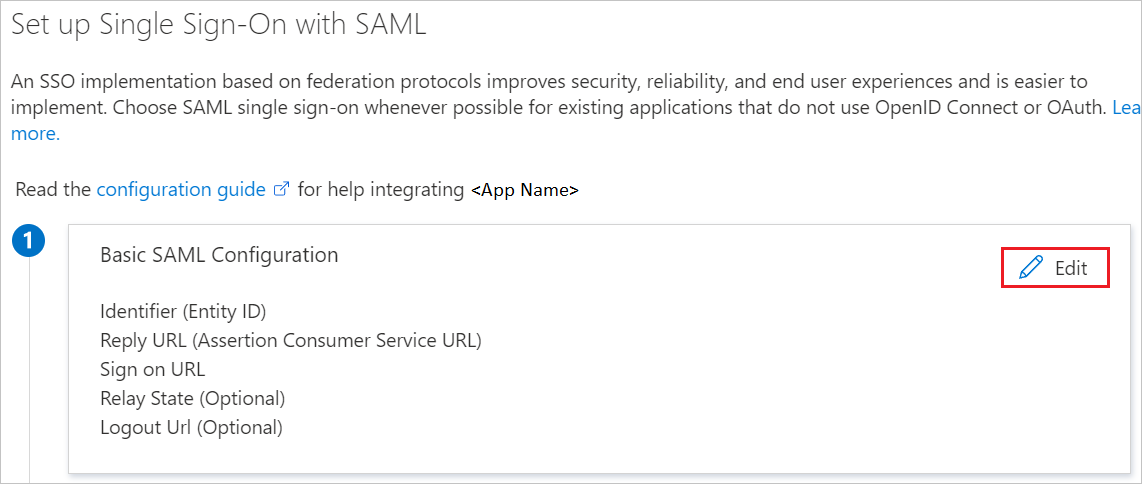
On the Basic SAML Configuration section, perform the following step:
In the Reply URL text box, type a URL using the following pattern:
https://app.acquire.io/ad/<acquire_account_uid>Note
The value isn't real. You get the actual Reply URL which is explained later in the Configure AcquireIO section of the article. You can also refer to the patterns shown in the Basic SAML Configuration section.
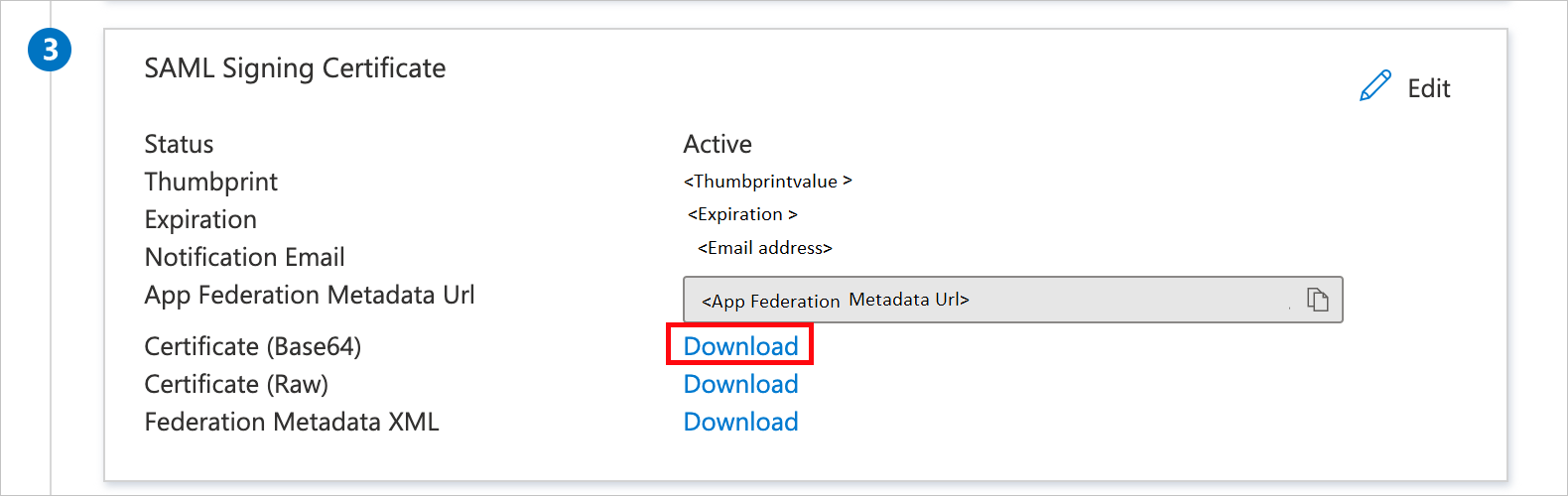
On the Set up single sign-on with SAML page, in the SAML Signing Certificate section, find Certificate (Base64) and select Download to download the certificate and save it on your computer.
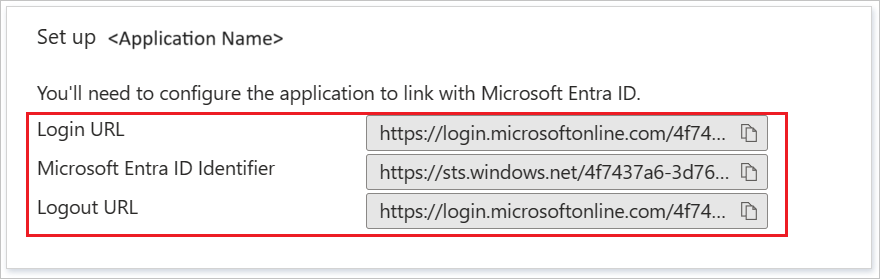
On the Set up AcquireIO section, copy the appropriate URL(s) based on your requirement.
Create and assign Microsoft Entra test user
Follow the guidelines in the create and assign a user account quickstart to create a test user account called B.Simon.
Configure AcquireIO SSO
In a different web browser window, sign in to your up AcquireIO company site as an administrator
From the left side of menu, select App Store.
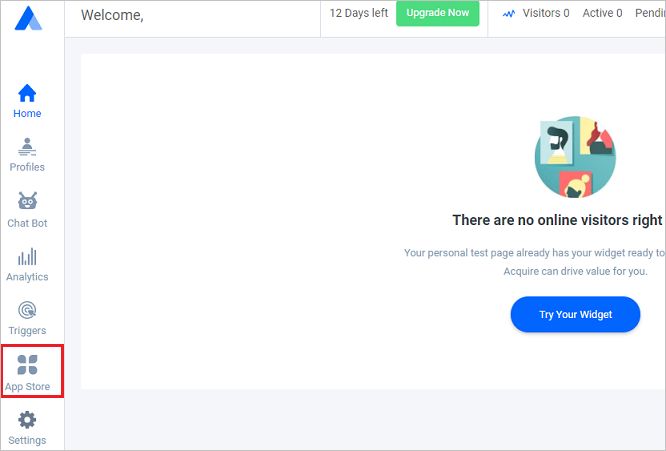
Scroll to Active Directory and select Install.
On the Active Directory pop-up, perform the following steps:
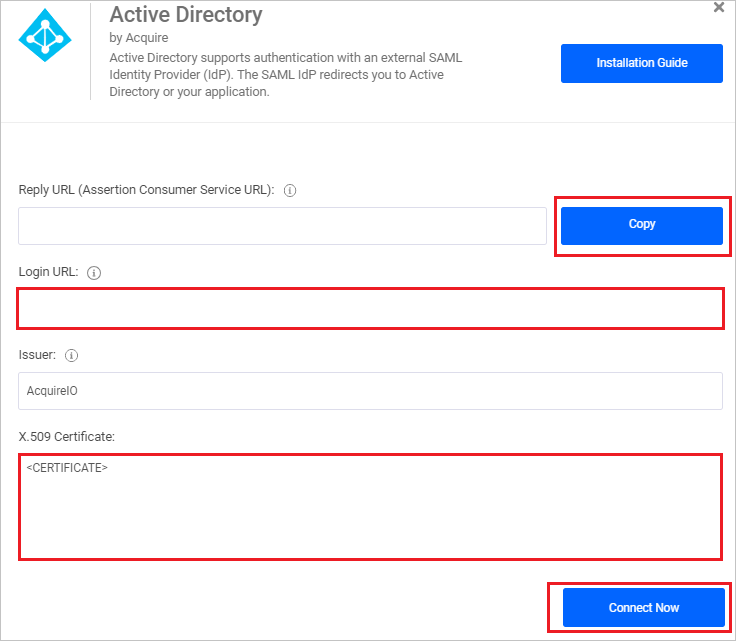
a. Select Copy to copy the Reply URL for your instance and paste it in Reply URL textbox in Basic SAML Configuration section.
b. In the Login URL textbox, paste the value of Login URL.
c. Open the Base64 encoded certificate in Notepad, copy its content and paste it in the X.509 Certificate text box.
d. Select Connect Now.
Create AcquireIO test user
To enable Microsoft Entra users to sign in to AcquireIO, they must be provisioned into AcquireIO. In AcquireIO, provisioning is a manual task.
To provision a user account, perform the following steps:
In a different web browser window, sign in to AcquireIO as an Administrator.
From the left side of menu, select Profiles and navigate to Add Profile.
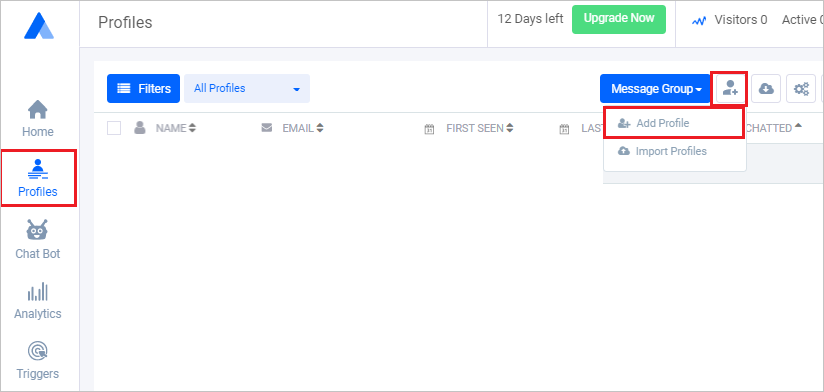
On the Add customer pop-up, perform the following steps:
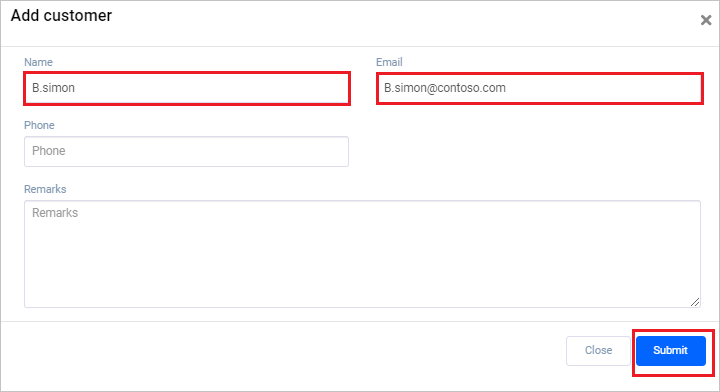
a. In Name text box, enter the name of user like B.simon.
b. In Email text box, enter the email of user like B.simon@contoso.com.
c. Select Submit.
Test SSO
In this section, you test your Microsoft Entra single sign-on configuration with following options.
Select Test this application, and you should be automatically signed in to the AcquireIO for which you set up the SSO.
You can use Microsoft My Apps. When you select the AcquireIO tile in the My Apps, you should be automatically signed in to the AcquireIO for which you set up the SSO. For more information about the My Apps, see Introduction to the My Apps.
Related content
Once you configure AcquireIO you can enforce session control, which protects exfiltration and infiltration of your organization’s sensitive data in real time. Session control extends from Conditional Access. Learn how to enforce session control with Microsoft Defender for Cloud Apps.