Note
Access to this page requires authorization. You can try signing in or changing directories.
Access to this page requires authorization. You can try changing directories.
This article shows you how to set up your local environment to develop Python web apps and deploy them to Azure. Your web app can be pure Python or use one of the common Python-based web frameworks like Django, Flask, or FastAPI.
You can deploy Python web apps developed locally to services such as Azure App Service, Azure Container Apps, or Azure Static Web Apps. There are many options for deployment. For example, for App Service deployment, you can choose to deploy from code, a Docker container, or a Static Web App. If you deploy from code, you can deploy by using Visual Studio Code, the Azure CLI, a local Git repository, or GitHub actions. If you deploy in a Docker Container, you can do so from Azure Container Registry, Docker Hub, or any private registry.
Before continuing with this article, review the Set up your dev environment for guidance on setting up your dev environment for Python and Azure. The following sections discuss setup and configuration specific to Python web app development.
After you set up your local environment for Python web app development, you're ready to tackle these articles:
- Quickstart: Create a Python (Django or Flask) web app in Azure App Service.
- Tutorial: Deploy a Python (Django or Flask) web app with PostgreSQL in Azure
- Create and deploy a Flask web app to Azure with a system-assigned managed identity
Working with Visual Studio Code
The Visual Studio Code integrated development environment (IDE) is an easy way to develop Python web apps and work with Azure resources that web apps use.
Tip
Make sure you install the Python extension. For an overview of working with Python in VS Code, see Getting Started with Python in VS Code.
In VS Code, you work with Azure resources through VS Code extensions. You can install extensions from the Extensions view or by using the key combination Ctrl+Shift+X. For Python web apps, you're likely to work with one or more of the following extensions:
The Azure App Service extension enables you to interact with Azure App Service from within Visual Studio Code. App Service provides fully managed hosting for web applications including websites and web APIs.
The Azure Static Web Apps extension enables you to create Azure Static Web Apps directly from VS Code. Static Web Apps is serverless and a good choice for static content hosting.
If you plan on working with containers, install:
The Docker extension to build and work with containers locally. For example, you can run a containerized Python web app on Azure App Service by using Web Apps for Containers.
The Azure Container Apps extension to create and deploy containerized apps directly from Visual Studio Code.
Other extensions include the Azure Storage, Azure Databases, and Azure Resources extensions. You can always add these and other extensions as needed.
Extensions in Visual Studio Code are accessible as you expect in a typical IDE interface. You can use rich keyword support by using the VS Code command palette. To access the command palette, use the key combination Ctrl+Shift+P. The command palette is a good way to see all the possible actions you can take on an Azure resource. The following screenshot shows some of the actions for App Service.

Working with Dev Containers in Visual Studio Code
Python developers often rely on virtual environments to create an isolated and self-contained environment for a specific project. Virtual environments allow developers to manage dependencies, packages, and Python versions separately for each project, avoiding conflicts between different projects that might require different package versions.
While there are popular options available in Python for managing environments like virtualenv or venv, the Visual Studio Code Dev Container
extension (based on the open Dev Container specification) lets you use a Docker container as a full-featured containerized environment. It enables developers to define a consistent and easily reproducible toolchain with all the necessary tools, dependencies, and extensions pre-configured. This means if you have system requirements, shell configurations, or use other languages entirely, you can use a Dev Container to explicitly configure all of those parts of your project that might live outside of a basic Python environment.
For example, a developer can configure a single Dev Container to include everything needed to work on a project, including a PostgreSQL database server along with the project database and sample data, a Redis server, Nginx, front-end code, client libraries like React, and so on. In addition, the container would contain the project code, the Python runtime, and all the Python project dependencies with the correct versions. Finally, the container can specify Visual Studio Code extensions to be installed so the entire team has the same tooling available. So when a new developer joins the team, the whole environment, including tooling, dependencies, and data, is ready to be cloned to their local machine, and they can begin working immediately.
See Developing inside a Container.
Working with Visual Studio 2022
Visual Studio 2022 is a full-featured integrated development environment (IDE) with support for Python application development and many built-in tools and extensions to access and deploy to Azure resources. While most documentation for building Python web apps on Azure focuses on using Visual Studio Code, Visual Studio 2022 is a great option if you already have it installed, you're comfortable with using it, and you're using it for .NET or C++ projects.
In general, see Visual Studio | Python documentation for all documentation related to using Python on Visual Studio 2022.
For setup steps, see Install Python support in Visual Studio which walks you through the steps of installing the Python workload into Visual Studio 2022.
For general workflow of using Python for web development, see Quickstart: Create your first Python web app using Visual Studio. This article is useful for understanding how to build a Python web application from scratch (but doesn't include deployment to Azure).
For using Visual Studio 2022 to manage Azure resources and deploy to Azure, see Azure Development with Visual Studio. While much of the documentation here specifically mentions .NET, the tooling for managing Azure resources and deploying to Azure works the same regardless of the programming language.
When there's no built-in tool available in Visual Studio 2022 for a given Azure management or deployment task, you can always use Azure CLI commands.
Working with other IDEs
If you're working in another IDE that doesn't have explicit support for Azure, use the Azure CLI to manage Azure resources. In the following screenshot, a simple Flask web app is open in the PyCharm IDE. You can deploy the web app to an Azure App Service by using the az webapp up command. In the screenshot, the CLI command runs within the PyCharm embedded terminal emulator. If your IDE doesn't have an embedded emulator, you can use any terminal and the same command. The Azure CLI must be installed on your computer and be accessible in either case.
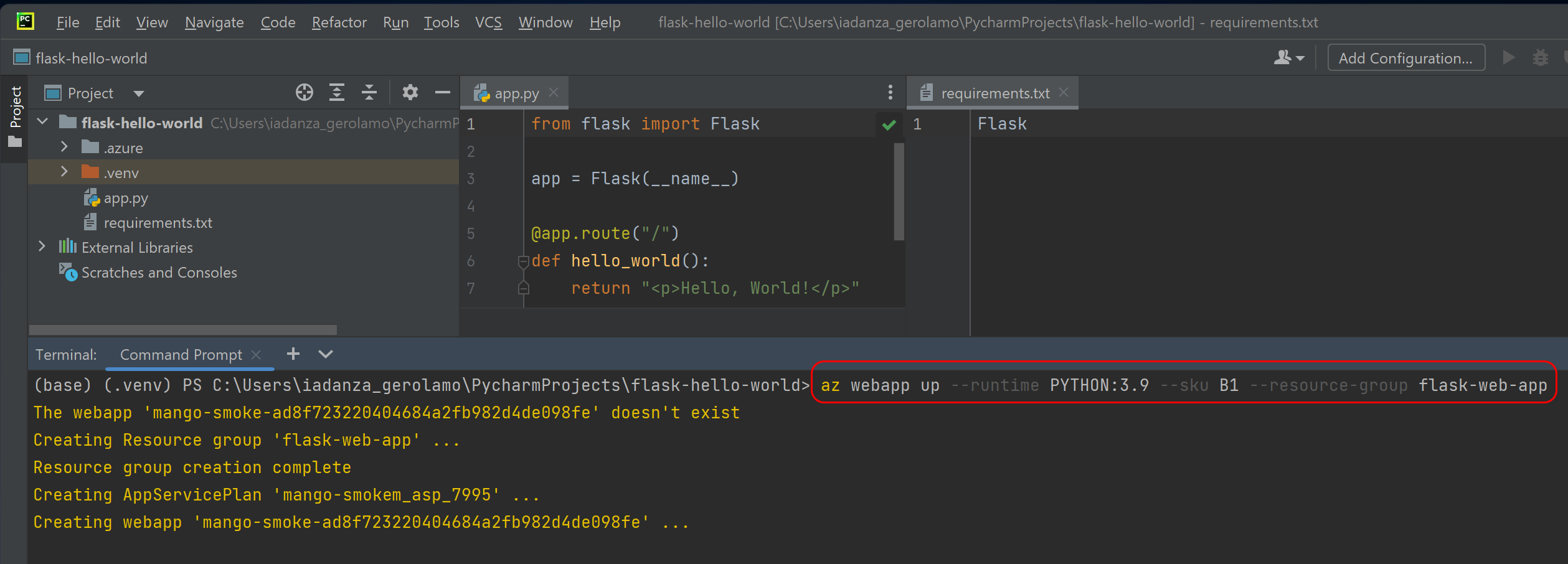
Azure CLI commands
When you work locally with web apps by using the Azure CLI commands, you typically use the following commands:
| Command | Description |
|---|---|
| az webapp | Manages web apps. Includes the subcommands create and up to create a web app or to create and deploy from a local workspace, respectively. |
| az container app | Manages Azure Container Apps. |
| az staticwebapp | Manages Azure Static Web Apps. |
| az group | Manages resource groups and template deployments. Use the subcommand create to make a resource group to put your Azure resources in. |
| az appservice | Manages App Service plans. |
| az config | Manages Azure CLI configuration. To save keystrokes, you can define a default location or resource group that other commands use automatically. |
Here's an example Azure CLI command to create a web app and associated resources, and deploy it to Azure in one command by using az webapp up. Run the command in the root directory of your web app.
az webapp up \
    --runtime PYTHON:3.9 \
    --sku B1 \
    --logs
For more information about this example, see Quickstart: Deploy a Python (Django or Flask) web app to Azure App Service.
Keep in mind that for some of your Azure workflow, you can also use the Azure CLI from an Azure Cloud Shell. Azure Cloud Shell is an interactive, authenticated, browser-accessible shell for managing Azure resources.
Azure SDK key packages
In your Python web apps, you can refer programmatically to Azure services by using the Azure SDK for Python. The section Use the Azure libraries (SDK) for Python discusses this SDK extensively. In this section, you learn about some key packages of the SDK that you use in web development. You also see an example that follows best practices for authenticating your code with Azure resources.
The following table lists some of the packages commonly used in web app development. You can install packages in your virtual environment directly by using pip. Or, put the Python package index (PyPI) name in your requirements.txt file.
| SDK docs | Install | Python package index |
|---|---|---|
| Azure Identity | pip install azure-identity |
azure-identity |
| Azure Storage Blobs | pip install azure-storage-blob |
azure-storage-blob |
| Azure Cosmos DB | pip install azure-cosmos |
azure-cosmos |
| Azure Key Vault Secrets | pip install azure-keyvault-secrets |
azure-keyvault-secrets |
The azure-identity package allows your web app to authenticate with Microsoft Entra ID. For authentication in your web app code, use the DefaultAzureCredential in the azure-identity package. The following example shows how to access Azure Storage. The pattern is similar for other Azure resources.
from azure.identity import DefaultAzureCredential
from azure.storage.blob import BlobServiceClient

azure_credential = DefaultAzureCredential()
blob_service_client = BlobServiceClient(
    account_url=account_url,
    credential=azure_credential)
The DefaultAzureCredential looks in predefined locations for account information, such as environment variables or the Azure CLI sign-in. For in-depth information on the DefaultAzureCredential logic, see Authenticate Python apps to Azure services by using the Azure SDK for Python.
Python-based web frameworks
In Python web app development, you often work with Python-based web frameworks. These frameworks provide functionality, such as page templates, session management, database access, and easy access to HTTP request and response objects. Frameworks enable you to avoid reinventing the wheel for common functionality.
Three common Python web frameworks are Django, Flask, and FastAPI. You can use these and other web frameworks with Azure.
The following example shows how you might get started quickly with these frameworks locally. When you run these commands, you end up with an application, albeit a simple one that you could deploy to Azure. Run these commands inside a virtual environment.
Step 1: Download the frameworks by using pip.
Step 2: Create a hello world app.
Create a sample project by using the django-admin startproject command. The project includes a manage.py file that serves as the entry point for running the app.
django-admin startproject hello_world
Step 3: Run the code locally.
Step 4: Browse the hello world app.
At this point, add a requirements.txt file. Then, deploy the web app to Azure or containerize it by using Docker and deploy it.