Note
Access to this page requires authorization. You can try signing in or changing directories.
Access to this page requires authorization. You can try changing directories.
Azure DevOps Services | Azure DevOps Server | Azure DevOps Server 2022
Secret variables are encrypted variables that you can use in pipelines without exposing their value. Use secret variables for private information like passwords, IDs, and other identifying data that you don't want exposed in a pipeline. Secret variables are encrypted at rest with a 2048-bit RSA key and are available on the agent for tasks and scripts to use.
Why secret variables matter: Protecting sensitive credentials in your CI/CD pipelines is critical. By storing secrets securely, you prevent unauthorized access to sensitive resources, reduce the risk of credential exposure in build logs, and maintain compliance with security best practices. Secret variables ensure that only authorized pipelines and tasks can access sensitive data, protecting your organization's security posture.
The recommended ways to set secret variables are in the UI, in a variable group, and in a variable group from Azure Key Vault. You can also set secret variables in a script with a logging command but this method isn't recommended since anyone who can access your pipeline can also see the secret.
Secret variables that you set in the pipeline settings UI for a pipeline are scoped to the pipeline where you set them. Use variable groups to share secret variables across pipelines.
Secret variable in the UI
Set secret variables in the pipeline editor when you edit an individual pipeline. Encrypt and make a pipeline variable secret by selecting the lock icon.
Set secret variables the same way for YAML and Classic.
To set secrets in the web interface, follow these steps:
- Go to the Pipelines page, select the appropriate pipeline, and then select Edit.
- Locate the Variables for this pipeline.
- Add or update the variable.
- Select the option to Keep this value secret to store the variable in an encrypted manner.
- Save the pipeline.
Secret variables are encrypted at rest with a 2048-bit RSA key. Secrets are available on the agent for tasks and scripts to use. Be careful about who has access to alter your pipeline.
Important
We make an effort to mask secrets from appearing in Azure Pipelines output, but you still need to take precautions. Never echo secrets as output. Some operating systems log command line arguments. Never pass secrets on the command line. Instead, we suggest that you map your secrets into environment variables.
We never mask substrings of secrets. If, for example, "abc123" is set as a secret, "abc" isn't masked from the logs. This is to avoid masking secrets at too granular of a level, making the logs unreadable. For this reason, secrets should not contain structured data. If, for example, "{ "foo": "bar" }" is set as a secret, "bar" isn't masked from the logs.
Unlike a normal variable, they are not automatically decrypted into environment variables for scripts. You need to explicitly map secret variables.
Use a secret variable in the UI
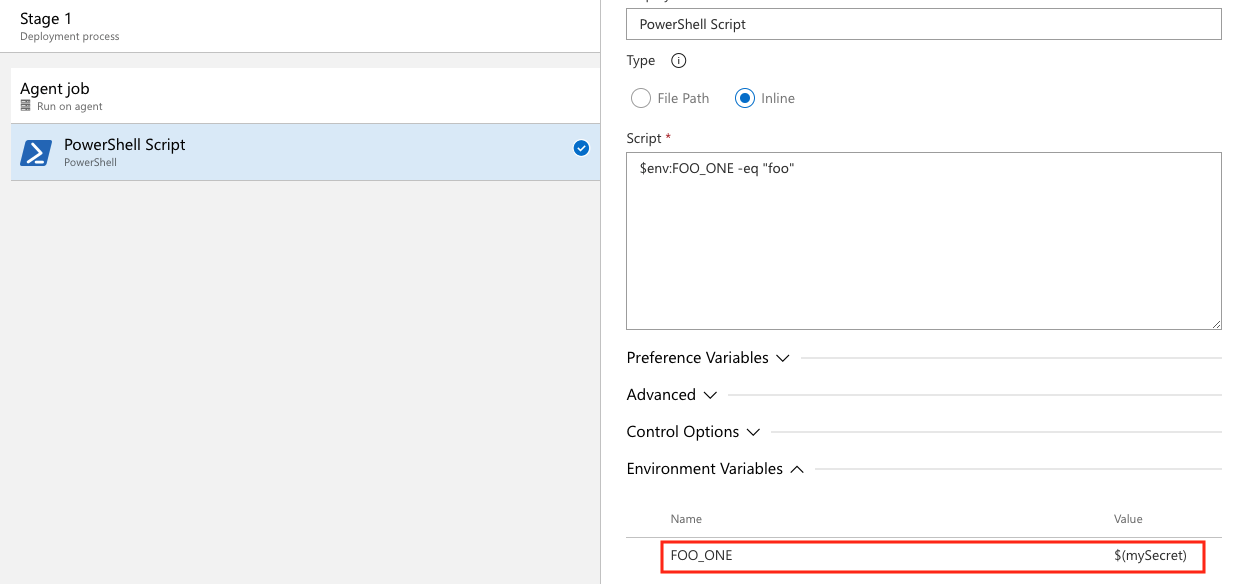
To reference secret variables in YAML pipelines, map them as environment variables. In this example, the UI defines two secret variables, SecretOne and SecretTwo. The value of SecretOne is foo, and the value of SecretTwo is bar.
steps:
- powershell: |
      Write-Host "My first secret variable is $env:FOO_ONE"
      $env:FOO_ONE -eq "foo"
  env:
    FOO_ONE: $(SecretOne)
- bash: |
    echo "My second secret variable: $FOO_TWO"
    if [ "$FOO_TWO" = "bar" ]; then
        echo "Strings are equal."
    else
        echo "Strings are not equal."
    fi
  env:
    FOO_TWO: $(SecretTwo)
The pipeline outputs:
My first secret variable is ***
True
My second secret variable: ***
Strings are equal.
Note
Azure Pipelines makes an effort to mask secrets when emitting data to pipeline logs, so you may see additional variables and data masked in output and logs that are not set as secrets.
For a more detailed example, see Define variables.

Set a secret variable in a variable group
You can add secrets to a variable group or link secrets from an existing Azure Key Vault.
Create new variable groups
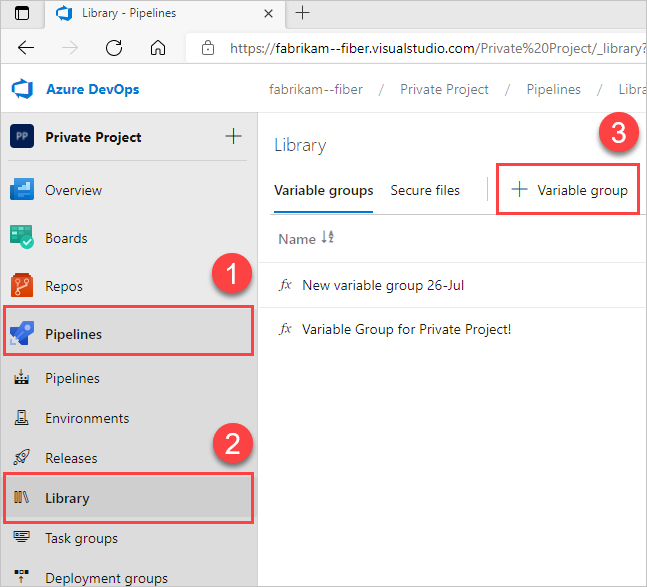
Select Pipelines > Library > + Variable group.
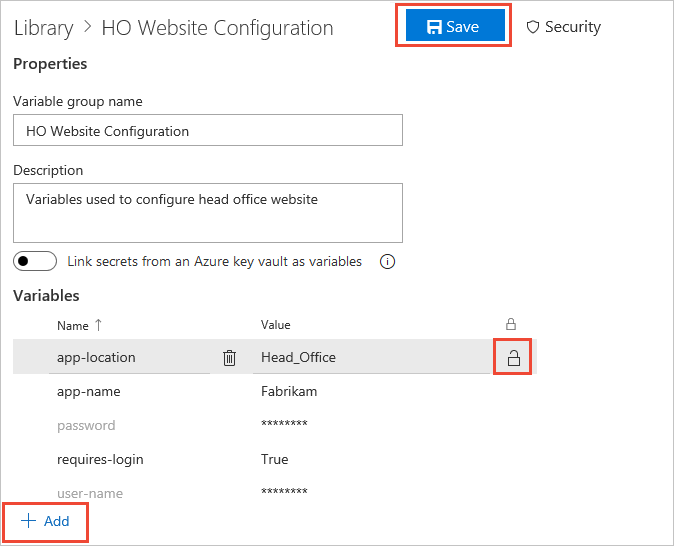
Enter a name and description for the group.
Optional: Move the toggle to link secrets from an Azure Key Vault as variables. For more information, see Use Azure Key Vault secrets.
Enter the name and value for each variable to include in the group, choosing + Add for each one.
To make your variable secure, choose the lock icon at the end of the row.
When you're finished adding variables, select Save.
Variable groups follow the library security model.
Link secrets from an Azure Key Vault
You can create variable groups and link them to an existing Key Vault, so you can map to secrets stored in the key vault. Only the secret names are mapped to the variable group, not the secret values. The pipeline runs that link to the variable group and fetches the latest secret values from the vault. For more information, see Link a variable group to secrets in Azure Key Vault.
Use the Azure Key Vault task
Use the Azure Key Vault task to include secrets in your pipeline. By using this task, your pipeline can connect to your Key Vault and retrieve secrets to use as pipeline variables.
In the pipeline editor, select Show assistant to expand the assistant panel.
Search for
vaultand select the Key Vault task.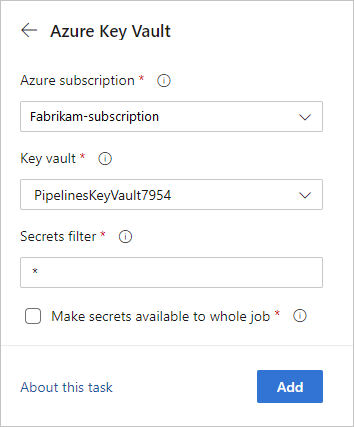
For more information about the Key Vault task, see Use Azure Key Vault secrets in Azure Pipelines.
Set secret variable in a script by using logging commands
Use the task.setvariable logging command to set variables in PowerShell and Bash scripts. This method is the least secure way to work with secret variables but can be useful for debugging. The recommended ways to set secret variables are in the UI, in a variable group, and in a variable group from Key Vault.
Warning
Security Risk: Setting secret variables in scripts by using logging commands is inherently less secure. Anyone with access to your pipeline definition, build logs, or source code can see the logging command and potentially expose the secret. Use this method only for debugging purposes in secure, trusted environments. Always prefer UI-based configuration, variable groups, or Azure Key Vault integration for production scenarios.
To set a variable as a script by using a logging command, pass the issecret flag.
When issecret is set to true, the value of the variable will be saved as secret and masked out from logs.
Note
Azure Pipelines makes an effort to mask secrets when emitting data to pipeline logs, so you may see additional variables and data masked in output and logs that are not set as secrets.
Set the secret variable mySecretVal.
- bash: |
    echo "##vso[task.setvariable variable=mySecretVal;issecret=true]secretvalue"
Get the secret variable mySecretVal.
- bash: |
    echo "##vso[task.setvariable variable=mySecretVal;issecret=true]secretvalue"
- bash: |
    echo $(mySecretVal)
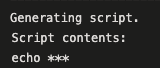
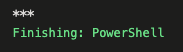
Secret variable output in bash.
For more information, see setting and using variables in scripts.