Note
Access to this page requires authorization. You can try signing in or changing directories.
Access to this page requires authorization. You can try changing directories.
You can enable Blob storage versioning to automatically maintain previous versions of an object. When you enable blob versioning, you can access earlier versions of a blob to recover your data if it's modified or deleted.
Caution
After you enable blob versioning for a storage account, every write operation to a blob in that account results in the creation of a new version. For this reason, enabling blob versioning might result in extra costs. To minimize costs, use a lifecycle management policy to automatically delete old versions. For more information about lifecycle management, see Optimize costs by automating Azure Blob Storage access tiers.
How blob versioning works
A version captures the state of a blob at a given point in time. Each version is identified with a version ID. When blob versioning is enabled for a storage account, Azure Storage automatically creates a new version with a unique ID when a blob is first created and each time that the blob is subsequently modified.
A version ID can identify the current version or a previous version. A blob can have only one current version at a time.
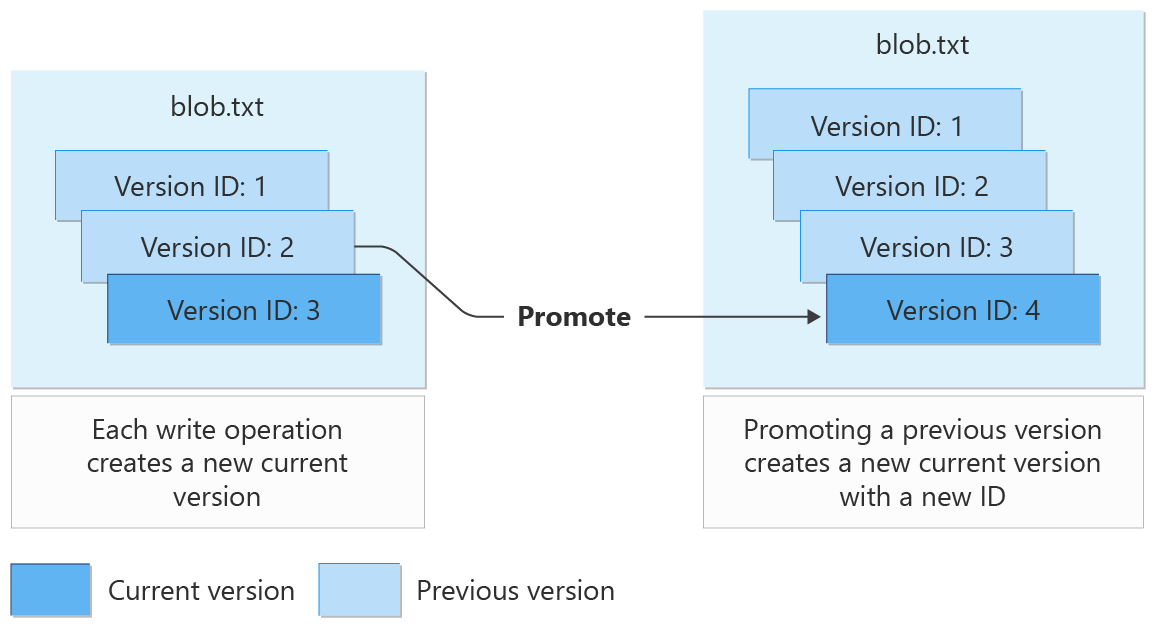
When you create a new blob, a single version exists, and that version is the current version. When you modify an existing blob, the current version becomes a previous version. A new version is created to capture the updated state, and that new version is the current version. When you delete a blob, the current version of the blob becomes a previous version, and there's no longer a current version. Any previous versions of the blob persist.
The following diagram shows how versions are created on write operations, and how a previous version may be promoted to be the current version:
Important
Having a large number of versions per blob can increase the latency for blob listing operations. Microsoft recommends maintaining fewer than 1000 versions per blob. You can use lifecycle management to automatically delete old versions. For more information about lifecycle management, see Optimize costs by automating Azure Blob Storage access tiers.
Blob versions are immutable. You can't modify the content or metadata of an existing blob version.
Blob versioning is available for standard general-purpose v2, premium block blob, and legacy Blob storage accounts. Storage accounts with a hierarchical namespace enabled for use with Azure Data Lake Storage aren't currently supported.
Version 2019-10-10 and higher of the Azure Storage REST API supports blob versioning.
Important
Blob versioning can't help you recover from the accidental deletion of a storage account or container. To prevent accidental deletion of the storage account, configure a lock on the storage account resource. For more information on locking a storage account, see Apply an Azure Resource Manager lock to a storage account.
Version ID
Each blob version has a unique version ID. The version ID value is the timestamp when the blob was updated. You assign the version ID when you create the version.
You can read or delete a specific version of a blob by using its version ID. If you don't include the version ID, the operation targets the current version.
When you call a write operation to create or modify a blob, Azure Storage returns the x-ms-version-id header in the response. This header contains the version ID for the current version of the blob that the write operation creates.
The version ID stays the same for the lifetime of the version.
Versioning on write operations
When you turn on blob versioning, each write operation to a blob creates a new version. Write operations include Put Blob, Put Block List, Copy Blob, and Set Blob Metadata.
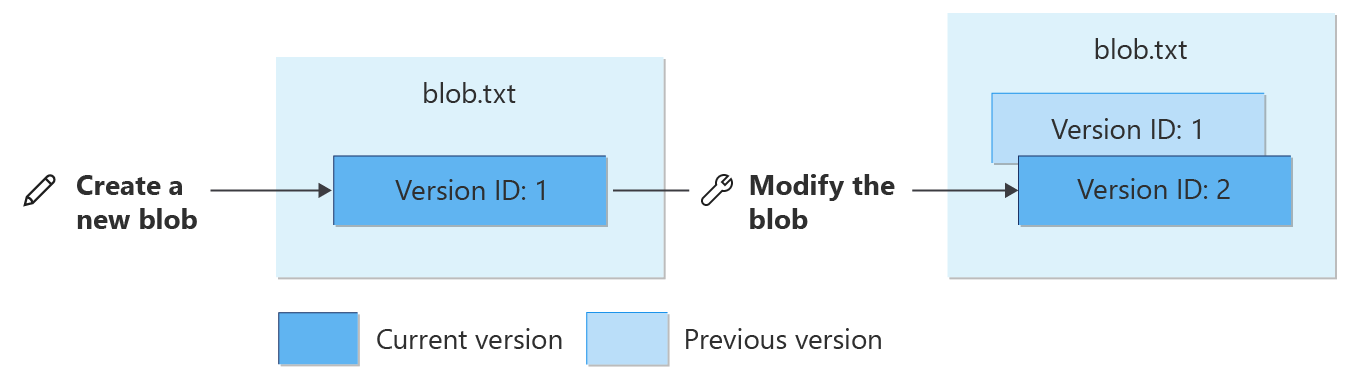
If the write operation creates a new blob, the resulting blob is the current version of the blob. If the write operation modifies an existing blob, the current version becomes a previous version, and a new current version captures the updated blob.
The following diagram shows how write operations affect blob versions. For simplicity, the diagrams in this article display the version ID as a simple integer value. In reality, the version ID is a timestamp. The current version is shown in blue, and previous versions are shown in gray.
Note
When you enable blob versioning for a storage account, all write operations on block blobs trigger the creation of a new version, except for the Put Block operation.
For page blobs and append blobs, only a subset of write operations triggers the creation of a version. These operations include:
The following operations don't trigger the creation of a new version. To capture changes from those operations, take a manual snapshot:
- Put Page (page blob)
- Append Block (append blob)
All versions of a blob must be the same blob type. If a blob has previous versions, you can't overwrite a blob of one type with another type unless you first delete the blob and all of its versions.
Versioning on delete operations
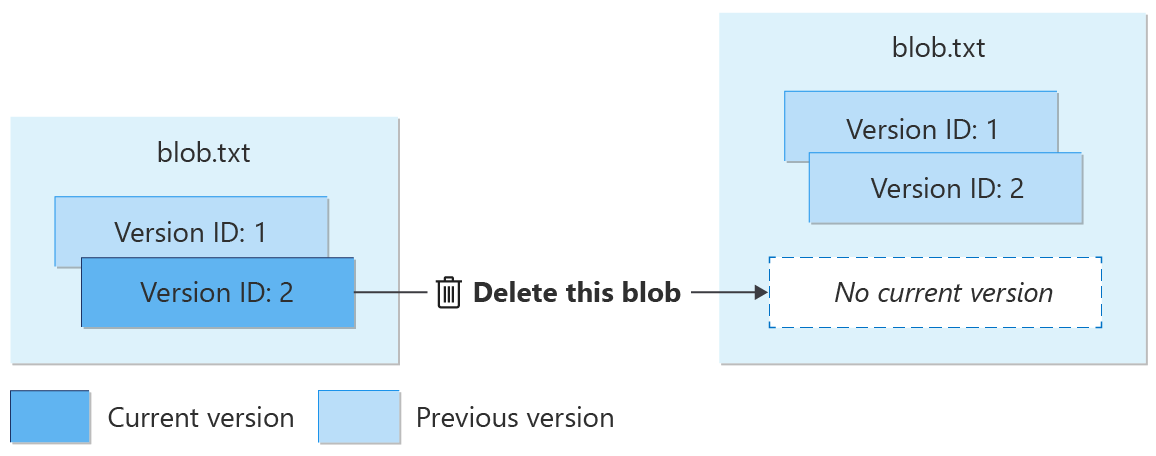
When you call the Delete Blob operation without specifying a version ID, the current version becomes a previous version, and there's no longer a current version. The operation preserves all existing previous versions of the blob.
The following diagram shows the effect of a delete operation on a versioned blob:
To delete a specific version of a blob, provide the ID for that version on the delete operation. If you also enable blob soft delete for the storage account, the system retains the version until the soft delete retention period elapses.
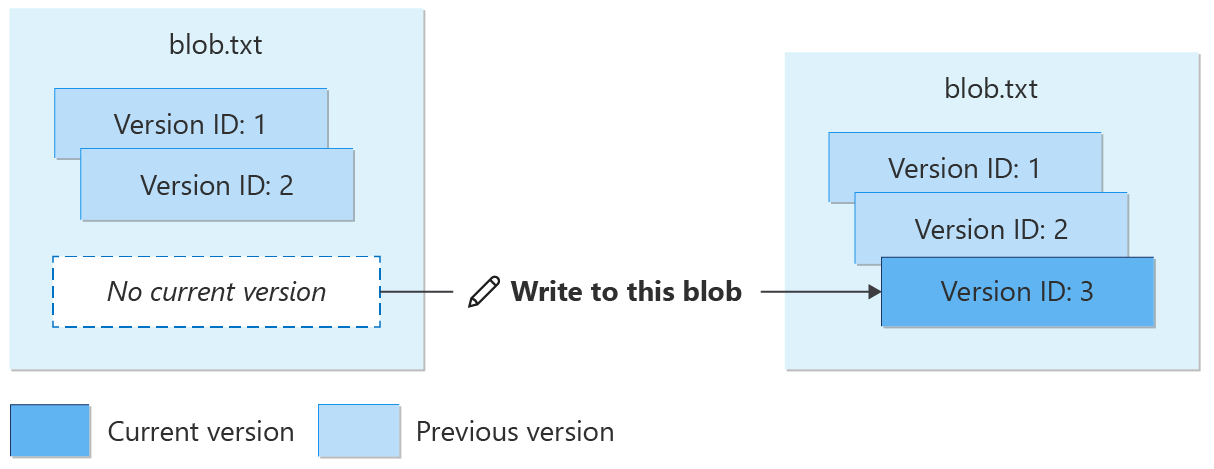
Writing new data to the blob creates a new current version of the blob. This action doesn't affect any existing versions, as shown in the following diagram.
Access tiers
You can move any version of a block blob, including the current version, to a different blob access tier by calling the Set Blob Tier operation. By moving older versions of a blob to the cool or archive tier, you can take advantage of lower capacity pricing. For more information, see Hot, Cool, Cold, and Archive access tiers for blob data.
To automate the process of moving block blobs to the appropriate tier, use blob lifecycle management. For more information about lifecycle management, see Manage the Azure Blob storage life cycle.
Enable or disable blob versioning
To learn how to enable or disable blob versioning, see Enable and manage blob versioning.
Disabling blob versioning doesn't delete existing blobs, versions, or snapshots. When you turn off blob versioning, any existing versions remain accessible in your storage account. No new versions are subsequently created.
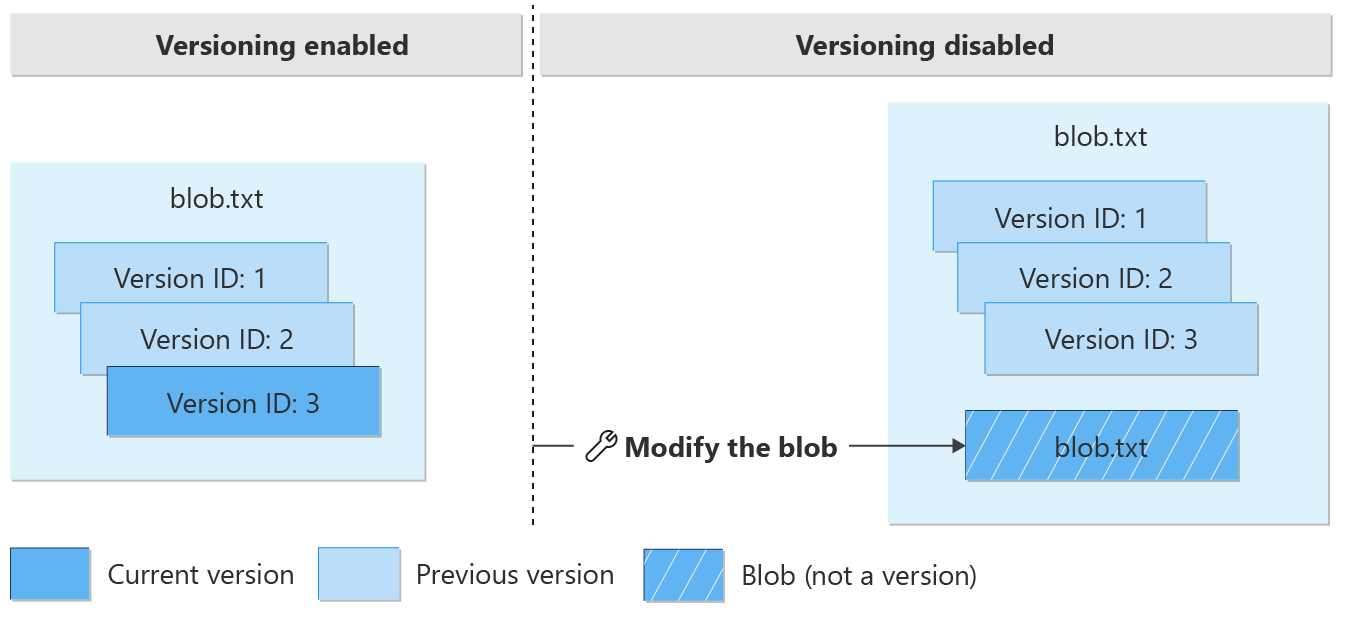
After versioning is disabled, modifying the current version creates a blob that isn't a version. All subsequent updates to the blob overwrite its data without saving the previous state. All existing versions persist as previous versions.
You can read or delete versions by using the version ID after versioning is disabled. You can also list a blob's versions after versioning is disabled.
Object replication relies on blob versioning. Before you can disable blob versioning, you must delete any object replication policies on the account. For more information about object replication, see Object replication for block blobs.
The following diagram shows how modifying a blob after versioning is disabled creates a blob that isn't versioned. Any existing versions associated with the blob persist.
Blob versioning and soft delete
Blob versioning and blob soft delete are part of the recommended data protection configuration for storage accounts. For more information about Microsoft's recommendations for data protection, see Data protection overview.
Overwriting a blob
If blob versioning and blob soft delete are both enabled for a storage account, then overwriting a blob automatically creates a new version. The new version isn't soft-deleted and isn't removed when the soft-delete retention period expires. No soft-deleted snapshots are created.
Deleting a blob or version
If you enable versioning and soft delete for a storage account, when you delete a blob, the current version of the blob becomes a previous version. The operation doesn't create a new version or soft-deleted snapshots. The soft delete retention period doesn't apply to the deleted blob.
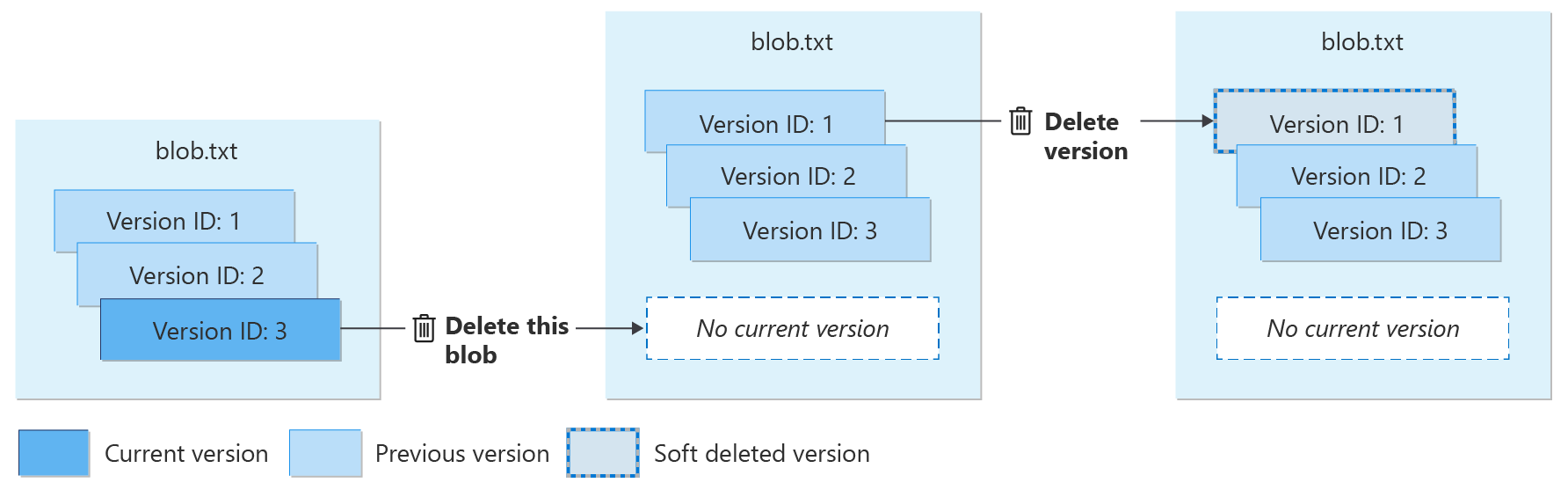
Soft delete provides extra protection when deleting blob versions. When you delete a previous version of the blob, that version is soft deleted. The soft-deleted version is preserved until the soft delete retention period ends, and then it's permanently deleted.
To delete a previous version of a blob, call the Delete Blob operation and specify the version ID.
The following diagram shows what happens when you delete a blob or a blob version.
Restoring a soft-deleted version
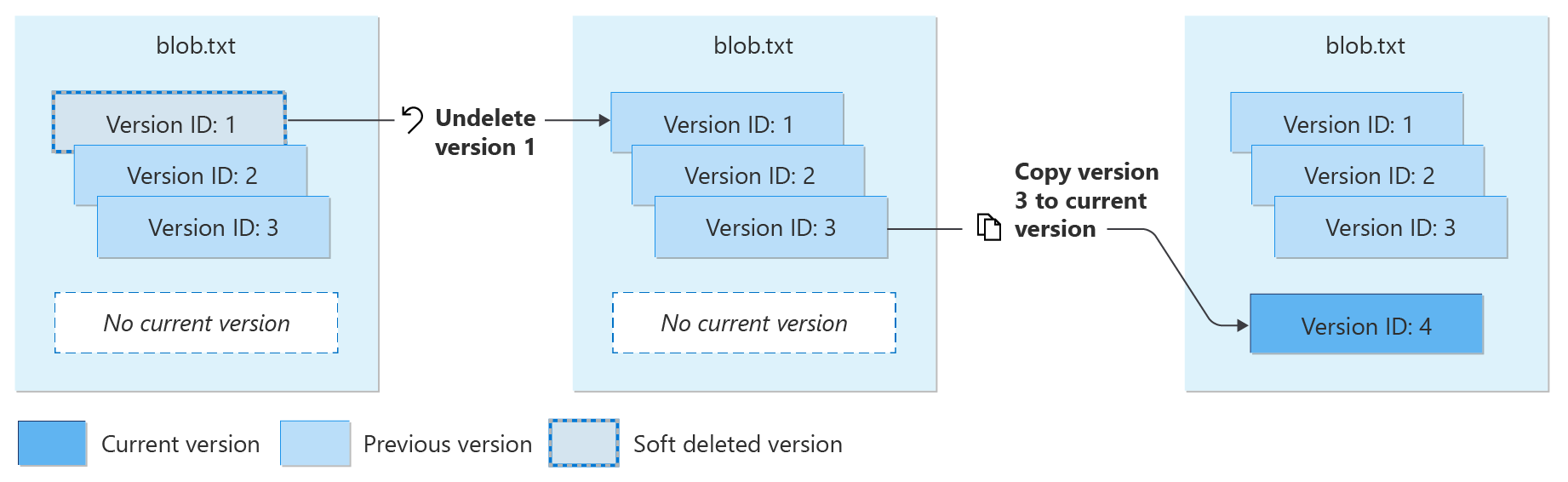
You can use the Undelete Blob operation to restore soft-deleted versions during the soft delete retention period. The Undelete Blob operation always restores all soft-deleted versions of the blob. You can't restore only a single soft-deleted version.
Restoring soft-deleted versions by using the Undelete Blob operation doesn't promote any version to be the current version. To restore the current version, first restore all soft-deleted versions, and then use the Copy Blob operation to copy a previous version to a new current version.
The following diagram shows how to restore soft-deleted blob versions by using the Undelete Blob operation, and how to restore the current version of the blob by using the Copy Blob operation.
After the soft delete retention period ends, any soft-deleted blob versions are permanently deleted.
Blob versioning and blob snapshots
A blob snapshot is a read-only copy of a blob taken at a specific point in time. Blob snapshots and blob versions are similar, but you or your application manually create a snapshot, while a blob version is created automatically during a write or delete operation when you enable blob versioning for your storage account.
Important
Microsoft recommends that after you enable blob versioning, you also update your application to stop taking snapshots of block blobs. If you enable versioning for your storage account, it captures and preserves all block blob updates and deletions by using versions. Taking snapshots doesn't offer any additional protection to your block blob data if blob versioning is enabled, and it might increase costs and application complexity.
Snapshot a blob when versioning is enabled
Although it's not recommended, you can take a snapshot of a blob that is also versioned. If you can't update your application to stop taking snapshots of blobs when you enable versioning, your application can support both snapshots and versions.
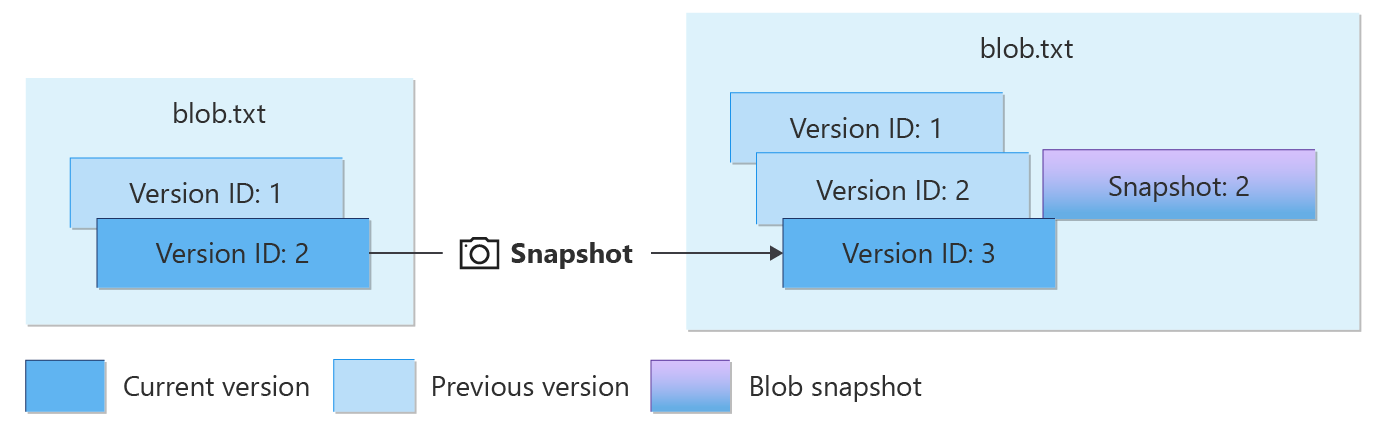
When you take a snapshot of a versioned blob, you create a new version at the same time that you create the snapshot. You also create a new current version when you take a snapshot.
The following diagram shows what happens when you take a snapshot of a versioned blob. In the diagram, blob versions and snapshots with version ID 2 and 3 contain identical data.
Authorize operations on blob versions
You can authorize access to blob versions by using one of the following approaches:
- Use Azure role-based access control (Azure RBAC) to grant permissions to a Microsoft Entra security principal. Microsoft recommends using Microsoft Entra ID for superior security and ease of use. For more information about using Microsoft Entra ID with blob operations, see Authorize access to data in Azure Storage.
- Use a shared access signature (SAS) to delegate access to blob versions. Specify the version ID for the signed resource type
bv, which represents a blob version, to create a SAS token for operations on a specific version. For more information about shared access signatures, see Grant limited access to Azure Storage resources using shared access signatures (SAS). - Use the account access keys to authorize operations against blob versions by using Shared Key. For more information, see Authorize with Shared Key.
Blob versioning is designed to protect your data from accidental or malicious deletion. To enhance protection, deleting a blob version requires special permissions. The following sections describe the permissions needed to delete a blob version.
Azure RBAC action to delete a blob version
The following table shows which Azure RBAC actions support deleting a blob or a blob version.
| Description | Blob service operation | Azure RBAC data action required | Azure built-in role support |
|---|---|---|---|
| Deleting the current version | Delete Blob | Microsoft.Storage/storageAccounts/blobServices/containers/blobs/delete | Storage Blob Data Contributor |
| Deleting a previous version | Delete Blob | Microsoft.Storage/storageAccounts/blobServices/containers/blobs/deleteBlobVersion/action | Storage Blob Data Owner |
Shared access signature (SAS) parameters
The signed resource for a blob version is bv. For more information, see Create a service SAS or Create a user delegation SAS.
The following table shows the permission required on a SAS to delete a blob version.
| Permission | URI symbol | Allowed operations |
|---|---|---|
| Delete | x | Delete a blob version. |
Pricing and billing
Enabling blob versioning can result in extra data storage charges to your account. When designing your application, be aware of how these charges might accrue so that you can minimize costs.
Blob versions, like blob snapshots, are billed at the same rate as active data. How you pay for versions depends on whether you explicitly set the tier for the current or previous versions of a blob (or snapshots). For more information about blob tiers, see Hot, Cool, Cold, and Archive access tiers for blob data.
If you don't change a blob or version's tier, you pay for unique blocks of data across that blob, its versions, and any snapshots it might have. For more information, see Billing when the blob tier isn't explicitly set.
If you change a blob or version's tier, you pay for the entire object, regardless of whether the blob and version are eventually in the same tier again. For more information, see Billing when the blob tier is explicitly set.
Note
Enabling versioning for data that is frequently overwritten might increase storage capacity charges and increase latency during listing operations. To mitigate these concerns, store frequently overwritten data in a separate storage account with versioning disabled.
Enabling versions on storage accounts that are backed up frequently might trigger data retrieval charges when the versions are stored on cool or cold access tiers.
For more information about billing details for blob snapshots, see Blob snapshots.
For storage accounts that use smart tier, you pay for versions and snapshots at full content length. For more information, see Optimize costs with smart tier.
Billing when you don't explicitly set the blob tier
If you don't explicitly set the blob tier for any versions of a blob, you pay for unique blocks or pages across all versions, and any snapshots it might have. You pay for shared data across blob versions only once. When you update a blob, the data in the new current version diverges from the data stored in previous versions, and you pay for the unique data per block or page.
When you replace a block within a block blob, you pay for that block as a unique block. This rule applies even if the block has the same block ID and the same data as it has in the previous version. After you commit the block again, it diverges from its counterpart in the previous version, and you pay for its data. The same rule applies to a page in a page blob that you update with identical data.
Blob storage doesn't have a way to determine whether two blocks contain identical data. Each block that you upload and commit is treated as unique, even if it has the same data and the same block ID. Because you pay for unique blocks, keep in mind that updating a blob when versioning is enabled results in more unique blocks and extra charges.
When you enable blob versioning, call update operations on block blobs so that they update the least possible number of blocks. The write operations that permit fine-grained control over blocks are Put Block and Put Block List. The Put Blob operation, on the other hand, replaces the entire contents of a blob and so might lead to extra charges.
The following scenarios demonstrate how charges accrue for a block blob and its versions when you don't explicitly set the blob tier.
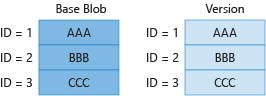
Scenario 1
In scenario 1, the blob has a previous version. The blob isn't updated since the version was created, so you incur charges only for unique blocks 1, 2, and 3.
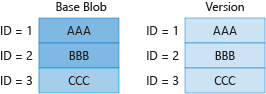
Scenario 2
In scenario 2, you update one block (block 3 in the diagram) in the blob. Even though the updated block contains the same data and the same ID, it isn't the same as block 3 in the previous version. As a result, you pay for four blocks.
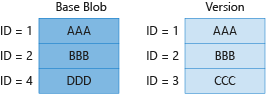
Scenario 3
In scenario 3, you update the blob, but you don't update the version. You replace block 3 with block 4 in the current blob, but the previous version still reflects block 3. As a result, you pay for four blocks.
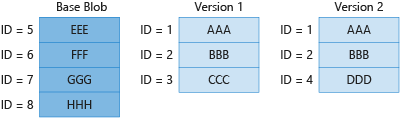
Scenario 4
In scenario 4, you completely update the current version and it contains none of its original blocks. As a result, you pay for all eight unique blocks - four in the current version, and four combined in the two previous versions. This scenario can occur if you write to a blob by using the Put Blob operation, because it replaces the entire contents of the blob.
Billing when the blob tier is explicitly set
If you explicitly set the blob tier for a blob, version, or snapshot, you pay for the full content length of the object in the new tier, even if it shares blocks with an object in the original tier. You also pay for the full content length of the oldest version in the original tier. For any other previous versions or snapshots that remain in the original tier, you pay for unique blocks they share, as described in Billing when the blob tier isn't explicitly set.
Moving a blob to a new tier
The following table describes the billing behavior for a blob or version when you move it to a new tier.
| When you set the blob tier… | Then you're billed for... |
|---|---|
| Explicitly on a version, whether current or previous | The full content length of that version. Versions that don't have an explicitly set tier are billed only for unique blocks.1 |
| To archive | The full content length of all versions and snapshots.1. |
1If there are other previous versions or snapshots that you didn't move from their original tier, those versions or snapshots are charged based on the number of unique blocks they contain, as described in Billing when the blob tier isn't explicitly set.
The following diagram illustrates how objects are billed when a versioned blob is moved to a different tier.
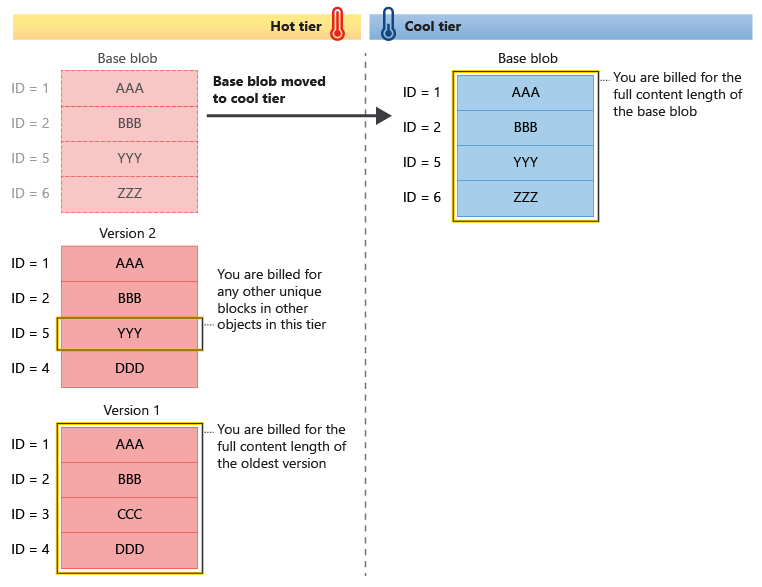
You can't undo explicitly setting the tier for a blob, version, or snapshot. If you move a blob to a new tier and then move it back to its original tier, you pay for the full content length of the object even if it shares blocks with other objects in the original tier.
Operations that explicitly set the tier of a blob, version, or snapshot include:
- Set Blob Tier
- Put Blob with tier specified
- Put Block List with tier specified
- Copy Blob with tier specified
Deleting a blob when soft delete is enabled
When you enable blob soft delete, you pay for all soft-deleted entities at the same rate as live data. If you delete or overwrite a current version that has an explicitly set tier, you pay for any previous versions of the soft-deleted blob at full content length. For more information about how blob versioning and soft delete work together, see Blob versioning and soft delete.
Feature support
Support for this feature might be impacted by enabling Data Lake Storage Gen2, Network File System (NFS) 3.0 protocol, or the SSH File Transfer Protocol (SFTP). If you've enabled any of these capabilities, see Blob Storage feature support in Azure Storage accounts to assess support for this feature.
Versioning isn't supported for blobs that you upload by using Data Lake Storage APIs.