Note
Access to this page requires authorization. You can try signing in or changing directories.
Access to this page requires authorization. You can try changing directories.
This page covers the basics of using the scheduled events system topic, such as the scope, the schema, and the delivery options of the events. It also shows how to enable the scheduled events system topic in your VM profile and how to create subscriptions to receive the events.
Scheduled events can be delivered through an Event Grid System Topic so you can read and process events from all your VMs in a central service.
You can use Event Grid to receive notifications about the upcoming maintenance operations on your Azure virtual machines (VMs), and configure your VMs to handle these events gracefully without disruptions to your customers.
Event Grid is a cloud service that enables you to create and manage event-driven applications. The Scheduled Events system topic publishes events related to impactful operations on your VMs, such as reboot, redeploy, or reimage. When you subscript to this topic, you're notified in advance about these events and can take appropriate actions. These actions include saving the state of your applications, draining sessions, or migrating the workloads to another VM.
Note
Scheduled Events in Event Grid is in preview. See the Preview Terms Of Use | Microsoft Azure for legal terms that apply to Azure features that are in beta, preview, or otherwise not yet released into general availability.
Prerequisites
Before you begin, familiarize yourself with these topics:
Basic Steps for Using Scheduled Events in Event Grid
The scheduled events system topic is best used in cases where your application has a centralized control plane that makes management decisions on behalf of all the VMs in your workload. It provides a single centralized location to gather scheduled events for your entire subscription and provides an easy API for approving those events from outside the VM.
This section shows you how to enable event delivery and receive your first scheduled events.
Accessing Scheduled Events in Event Grid Preview
During the preview, you need to explicitly enable access to event delivery in Event Grid via a feature flag. During the preview, we don't recommend using this delivery method for production workloads.
az feature register --name SendScheduledEventsPolicy --namespace Microsoft.Compute
az feature register --name ScheduledEventsActivity --namespace Microsoft.Maintenance
Opting-In to Receive Scheduled Events
Note
We recommend using the latest tooling available. This feature requires Azure Compute Resource Manager REST API versions 2025-04-01 or newer to have access to all required parameters for scheduledEventsPolicy when creating/updating resources.
By default, scheduled events aren't delivered to Event Grid for virtual machines on Azure. If you wish to receive scheduled events you need to opt in using either the VM profile, the Virtual Machine Scale Set profile, or the availability set profile. If your VM is part of an availability set or a Virtual Machine Scale Set then you can't set the schedule events profile for each VM individually. All VMs in the same Virtual Machine Scale Set or availability set are required to have the same scheduled events policy.
Enabling delivery to the Event Grid System Topic also delivers the events to Azure Resource Graph.
If you're using Virtual Machine Scale Sets Flex or Uniform, enable scheduled events in Event Grid using the scheduledEventsAdditionalPublishingTargets eventGridAndResourceGraph setting. This setting enables scheduled events for all VMs in the scale set and ensure they're published to both Event Grid and the Azure Resource Graph.
"scheduledEventsPolicy": {
      "scheduledEventsAdditionalPublishingTargets": {
        "eventGridAndResourceGraph": {
          "enable": true,
          "scheduledEventsApiVersion": "2020-07-01"
        }
      },
    }
You can also enable scheduled events using the Azure CLI for new and Virtual Machine Scale Sets.
az vmss create  --name "<ScaleSetName>" -g "<ResourceGroupName>"  -platformFaultDomainCount <DesiredFaultDomainCount> --set scheduledEventsPolicy='{
    "scheduledEventsAdditionalPublishingTargets": {
      "eventGridAndResourceGraph": {
        "enable": true,
        "scheduledEventsApiVersion": "2020-07-01"
      }
    }
  }'
You can enable scheduled events for an existing Virtual Machine Scale Set at any time using the Azure CLI or by directly modifying the Virtual Machine Scale Set profile.
az vmss update --resource-group "vm_group" --name "SETest" --set scheduledEventsPolicy='{
    "scheduledEventsAdditionalPublishingTargets": {
      "eventGridAndResourceGraph": {
        "enable": true,
        "scheduledEventsApiVersion": "2020-07-01"
      }
    }
  }'
We recommend that you set this property when you create the scale set to ensure that scheduled events are always enabled for every virtual machine.
Using the Event Grid Endpoint to Receive VM Events
Once your virtual machines are registered to receive scheduled events, you need to read the events coming from the system topic. Scheduled events are delivered to the Microsoft.ResourceNotifications.MaintenanceResources topic.
az eventgrid system-topic create -g <ResourceGroupName> --name <SubscriptionName> --location global --topic-type microsoft.resourcenotifications.MaintenanceResources --source /subscriptions/<SubscriptionGuid>
Role Based Access Control to View Scheduled Events
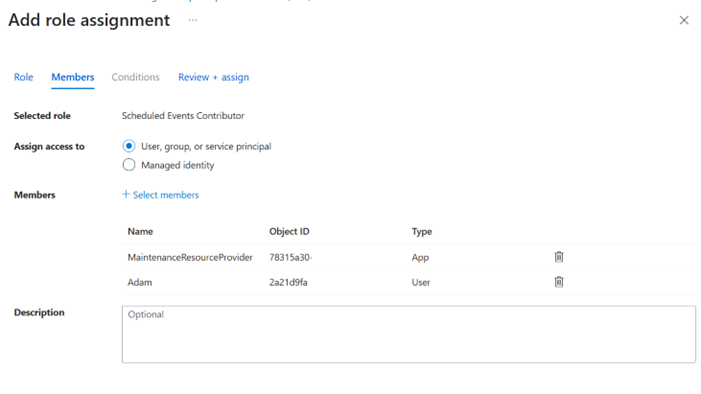
A user must have the ScheduledEventContributor role to read or acknowledge the scheduled events from a VM.
- Navigate to the Access Control (IAM) tab of a subscription / Resource Group / Resource.
- Select Add and choose Add role assignment.
- Search for ScheduledEventContributor

- Select appropriate members to provision this role and assign it to the service identifier.
Detailed Scheduled Event Schema
The events that are delivered over Event Grid will have a standard Event Grid wrapper, with the scheduled events specific information in the data fields. This section covers all the fields in payload along with a sample payload from a scheduled event.
Common Event Grid Payload Fields
These values are sent with all Event Grid system topic messages and mostly include metadata about Event Grid's delivery process.
| Field | Description |
|---|---|
| Topic | Event Grid topic that the event is published under /subscriptions/{subscription-id} |
| Subject | The Azure Resource Manager (ARM) ID of the scheduled event. The final GUID is the same as the event ID in scheduled event specific fields and as the event in the VM. /subscriptions/{subscription-id}/resourcegroups/{rg-name}/providers/Microsoft.Compute/virtualmachineschalsets/{vmss-name}/providers/Microsoft.Maintenance/Scheduledevents/{event-id} |
| eventTime | Time of event, generated by the system, in ISO 8601 format |
| ID | Unique identifier for the event in Event Grid. This ID is different than the scheduled event ID, which is used to track the flow of events |
| eventType | All scheduled events have the same event type microsoft.maintenance/scheduledevents/write |
| apiVersion | The versioning information for the scheduled events specific metadata in the payload. This is unused during the preview. |
| dataVersion | Tracks the data version of the scheduled events specific fields |
| metdataVersion | Provided by Event Grid – version of the Event Grid schema used. |
Scheduled Events Specific Fields
These fields contain the same information as the IMDS and Azure Resource Graph Endpoints, except for the EventStatus field.
| Field | Description |
|---|---|
| EventId | A unique identifier for an event. The EventId won't change as the EventStatus changes throughout the event's lifetime |
| EventType | Impact this event causes. Freeze: The Virtual Machine is scheduled to pause for a few seconds. CPU and network connectivity might be suspended, but there's no impact on memory or open files. Reboot: The Virtual Machine is scheduled for reboot (non-persistent memory is lost). In rare cases a VM scheduled for EventType:"Reboot" might experience a freeze event instead of a reboot. Redeploy: The Virtual Machine is scheduled to move to another node (ephemeral disks are lost). Preempt: The Spot Virtual Machine is being deleted (ephemeral disks are lost). This event is made available on a best effort basis. Terminate: The virtual machine is scheduled for deletion. |
| ResourceType | Type of resource this event affects. Currently the only possible value is "VirtualMachine" |
| Resources | Array of resources this event affects, identified by VM instance names. Approving this event approves it to proceed for all resources listed in this array. |
| EventStatus | Status of this event. Scheduled: The event is scheduled to start after the time specified in the NotBefore property. Started: The event has started. Completed: (Event Grid and ARG only) The event was completed successfully after the maintenance operations was performed. Canceled: (Event Grid and ARG only) The scheduled impact won't proceed as scheduled and the VM won't be impacted at the scheduled time. |
| NotBefore | Time after which this event can start. The event is guaranteed to not start before this time. Is blank if the event is in the started state. Time is in GMT format, using RFC 1123. |
| Description | A human-readable description of the event. |
| EventSource | Initiator of the event. Platform: The Azure platform initiated this event. User: An authorized user initiated the event. |
| ScheduledEventApiVersion | Version of the scheduled event API selected in the virtual machine profile. During the preview, the only supported value is "2020-07-01" |
Finding the Virtual Machine ID for a Virtual Machine in a Virtual Machine Scale Set
If you're using a Virtual Machine Scale Sets, then the scheduled event ID includes the ID of the entire Virtual Machine Scale Set, not just the impacted VMs. To get the ID of the impacted VMs, you need to assemble it out of the following components:
| Data and source | Example |
|---|---|
| Subscription and resource group from data.resourceinfo.id | "/subscriptions/{subscription-id}/resourceGroups/{rg-name}" from "/subscriptions/{subscription-id}/resourceGroups/{rg-name}/providers/Microsoft.Compute/virtualMachineScaleSets/{vmss-name}/providers/microsoft.maintenance/scheduledevents/{event-id}" |
| A static component | providers/Microsoft.Compute/virtualMachines |
VM Name from data.resourceinfo.properties.resources |
myvmss_1 |
Combined that gets you the ID of the impacted VM: "/subscriptions/{subscription-id}/resourceGroups/{rg-name}/ providers/Microsoft.Compute/virtualMachines/myvmss_1
There might be multiple VMs in the resources field and events are only grouped together if the maintenance is a single atomic operation to all the listed VMs. As an example, if three VMs on different hosts have a host update at the same time, there are three different scheduled event IDs created. The separate events are created because Azure can cancel the operation on VM1 without stopping the operation on VM2 and VM3. If the three VMs are on the same host, then you'd get one event with three VMs in the resources array since canceling the operation would impact all three VMs at the same time.
{
    "id": "3da1b9aa-5204-4335-8c33-c54e315dcffe",
    "topic": "/subscriptions/{subscription-id}",
    "subject": "/subscriptions/{subscription-id}/resourceGroups/{rg-name}/providers/Microsoft.Compute/virtualMachineScaleSets/{vmss-name}/providers/microsoft.maintenance/scheduledevents/{event-id}",
    "data": {
        "resourceInfo": {
            "id": "/subscriptions/{subscription-id}/resourceGroups/{rg-name}/providers/Microsoft.Compute/virtualMachineScaleSets/{vmss-name}/providers/microsoft.maintenance/scheduledevents/{event-id}",
            "name": "{event-id}",
            "type": "microsoft.maintenance/scheduledEvents",
            "location": "eastus",
            "properties": {
                "DurationInSeconds": 5,
                "Description": "Virtual machine is being paused because of a memory-preserving Live Migration operation.",
                "EventId": "3da1b9aa-5204-4335-8c33-c54e315dcffe",
                "EventSource": "Platform",
                "EventStatus": "Started",
                "EventType": "Freeze",
                "NotBefore": "Mon, 19 Sep 2025 18:29:47 GMT",
                "Resources": [
                    "myvmss_1",
                    "myvmss_2"
                ],
                "ResourceType": "VirtualMachine",
                "ScheduledEventApiVersion": "2020-07-01"
             }
        },
        "apiVersion": "2024-07-01"
    },
    "eventType": "Microsoft.ResourceNotifications.MaintenanceResources.ScheduledEventEmitted",

    "dataVersion": "3.0",
    "metadataVersion": "1",
    "eventTime": "2017-06-26T18:41:00.9584103Z"
}
Acknowledging with the Maintenance Resource Provider Endpoint
Once your workload is prepared for an event, it's recommended to acknowledge the event so Azure knows that it's safe to proceed. If an event isn't acknowledged, it will proceed after the NotBefore time indicated in the scheduled event payload.
The acknowledgment API is available through Azure CLI or events can also be acknowledged using the IMDS endpoint.
Note
Use Az.Maintenance CLI extension Version 2.0.0b1 (preview) during the feature preview.
az maintenance scheduledevents acknowledge --resource-group {resourceGroupName} --resource-type "virtualMachines" --resource-name {VMname} --scheduled-event-id {scheduledEventId} --subscription {subscriptionId}

az maintenance scheduledevents acknowledge --ids /subscriptions/{subscriptionId}/resourcegroups/{resourceGroupName}/providers/microsoft.compute/virtualMachines/{resourceName}/providers/microsoft.maintenance/scheduledevents/{scheduledEventId}
Exceptional Cases - Double Notifications
In rare cases the same notification might be broadcasted to the system topic multiple times. It has an identical payload in each case and the second case can be safely ignored. These duplicate notifications can be identified by checking for the ID field on the Event Grid payload. Both events have the same ID value. The double events are part of Azure's processes to ensure event delivery if there's an internal error and shouldn't have any impact on your workload.