Note
Access to this page requires authorization. You can try signing in or changing directories.
Access to this page requires authorization. You can try changing directories.
Scheduled events give your application time to prepare for virtual machine (VM) maintenance.
Scheduled events are provided before any interruption to your virtual machine's availability so that your application can prepare for them and limit disruption. It's available for all Azure Virtual Machines types, including PaaS and IaaS on both Windows and Linux.
This overview covers how scheduled events can be used in your application to limit disruptions. For details on specific endpoints you can consume scheduled events from see the following pages:
- Scheduled events from IMDS (Windows)
- Scheduled events from IMDS (Linux)
- Scheduled events from Event Grid
- Scheduled events from Azure Resource Graph
For more information about root cause analysis and reactive notifications about impacts that occurred in the past, see Resource Health Annotations for more information.
Note
Scheduled events from Event Grid and Azure Resource Graph are in preview. See the Preview Terms Of Use | Microsoft Azure for legal terms that apply to Azure features that are in beta, preview, or otherwise not yet released into general availability. Scheduled events from IMDS (Windows and Linux) are generally available.
Why Use Scheduled Events
VMs running on Azure occasionally experience interruptions due to unavoidable maintenance to hardware or software system they depend on. Scheduled events provide notice before to the operation happening so that applications can perform tasks that improve their availability, reliability, and serviceability including:
- Checkpoint and restore.
- Connection draining.
- Primary replica failover.
- Removal from a load balancer pool.
- Event logging.
- Graceful shutdown.
With Scheduled events, your application can discover when maintenance occurs and trigger tasks to limit its impact.
Scheduled events are generated in the following use cases:
- Platform initiated maintenance (for example, VM reboot, live migration or memory preserving updates for host).
- Virtual machine is running on degraded host hardware that is predicted to fail soon.
- Virtual machine was running on a host that suffered a hardware failure.
- User-initiated maintenance (for example, a user restarts or redeploys a VM).
- Spot VM and Spot scale set instance evictions.
Due to the short time between events and the operations they describe, scheduled events are intended for automated machine-to-machine communication, and not read and acted on by human operators. For human readable information about events in the past, use resource health annotations and use maintenance configurations for human readable information about operations scheduled up to 35 days in advance.
Understanding and Processing Scheduled Events
Scheduled events provide insight into how and when your VM will be interrupted and understanding them helps you plan how your application should respond.
While the specifics of how to get the event payload differ across the Event Grid, Azure Resource Graph (ARG), and Instance Metadata Service (IMDS) endpoints, the content of the payload is the same regardless of which one you choose. This section covers when events are emitted and the different states they represent.
Timeline of a Scheduled Event for a VM Interruption
There are three major steps to handling Scheduled events, preparation, impact, and recovery. When a maintenance operation that affects your VM is scheduled, a scheduled event is sent with EventStatus:"Scheduled" and a NotBeforeTime. The NotBeforeTime indicates the earliest time that the scheduled impactful operation could occur.
Once the warning period expires and the maintenance operation is ready to proceed, a new event is sent with EventStatus:"Started". This event indicates that the interruption to the VM availability is imminent and sensitive workloads should already be paused or drained from the VM. Finally when the operation is done either an event with EventStatus:"Completed" (Event Grid, ARG) or an empty event array (IMDS) is sent to indicate that you can safely restore sensitive workloads to the VM.
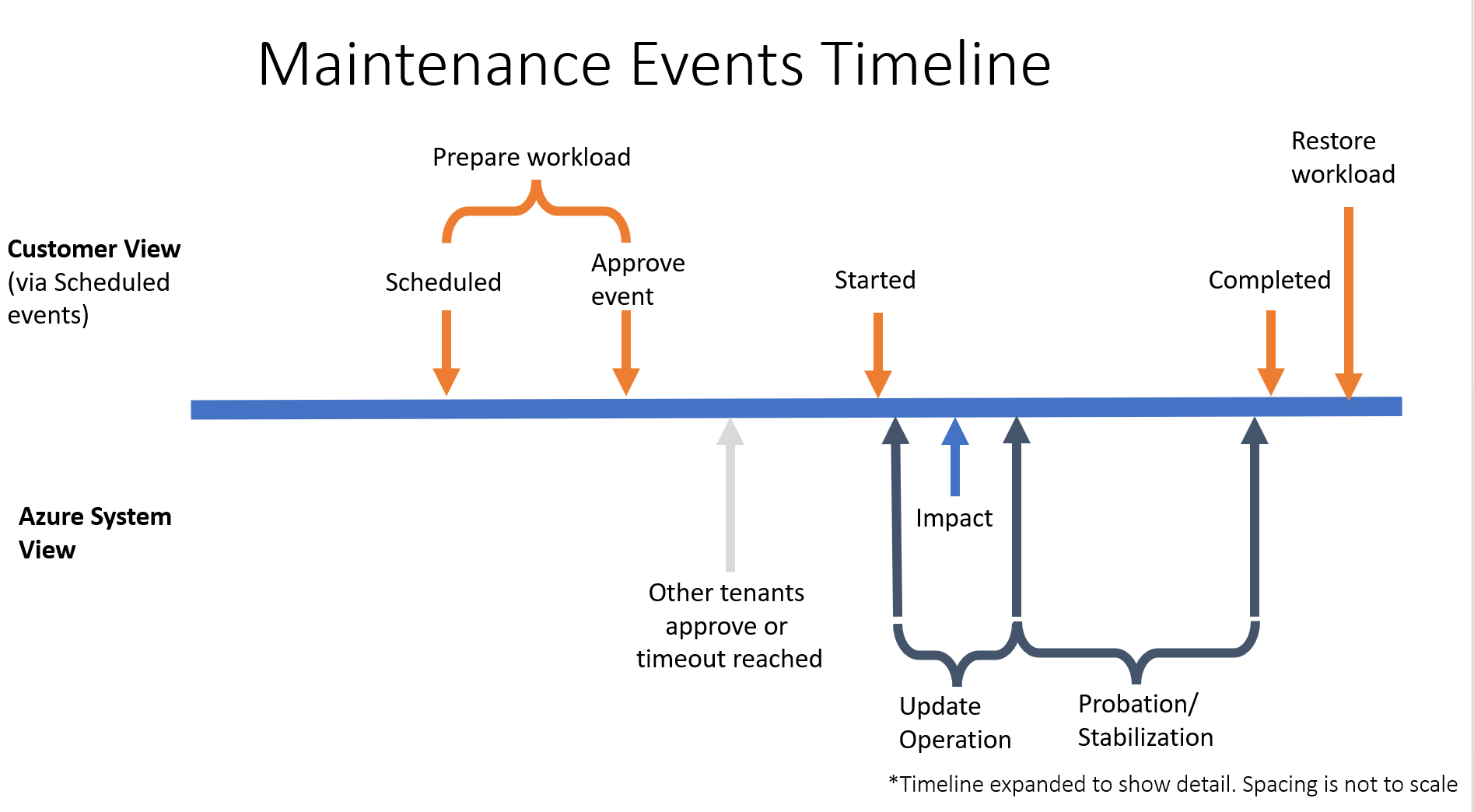
While the exact timings of events vary, the following diagram provides a rough guideline for how a typical maintenance operation proceeds:
EventStatus:"Scheduled"to Approval Timeout: 15 minutesEventStatus:"Started"toEventStatus:Completed(event removed from Events array): 10 minutes
Scheduled Events States
The EventStatus value in a scheduled event changes based on the progress of the interruption throughout the timeline shown previously. The following timeline shows all the different states that an event could take during its lifetime. It's important to note that all connections in this diagram are unidirectional, an event will never move backwards from started to scheduled or restart after being marked completed.
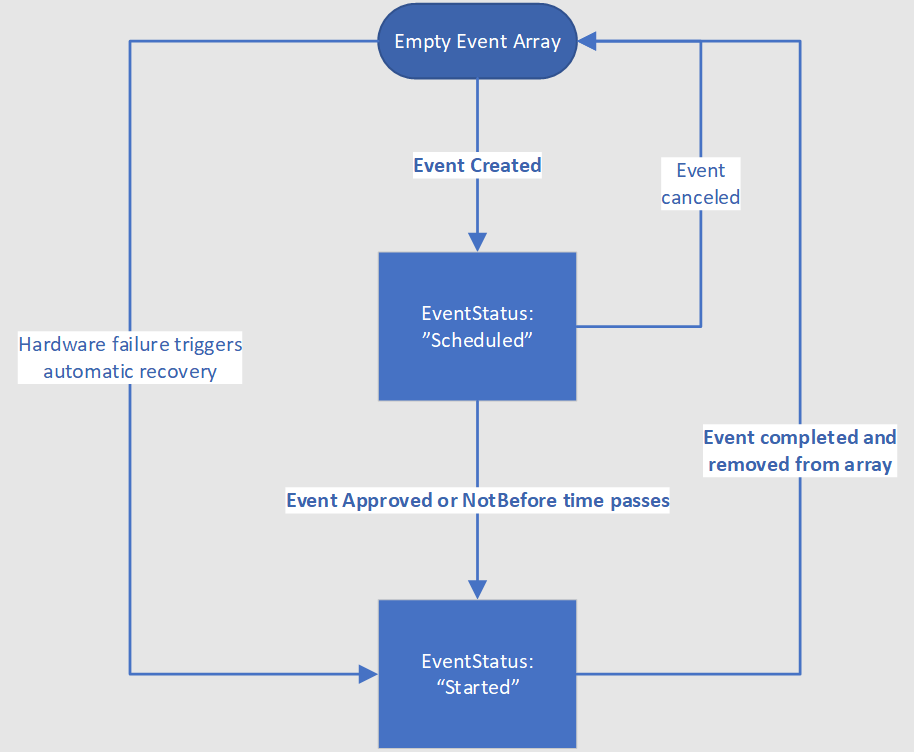
While the event is in the EventStatus:"Scheduled" state, you need to take steps to prepare your workload. Once the preparation is complete, you should then approve the event using the scheduled event API. Otherwise, the event is automatically approved when the NotBefore time is reached. If the VM is on shared infrastructure, the system waits for all other tenants on the same hardware to also approve the job or timeout. After approvals are gathered from all impacted VMs or the NotBefore time is reached, then Azure generates a new scheduled event payload with EventStatus:"Started" and triggers the start of the maintenance event. When the event reaches a terminal state, it's removed from the list of events. That serves as the signal for you to recover your VMs.
Typical Time to Prepare Workload for Different Scheduled Event Types
Each event is scheduled for a minimum amount of time in the future based on the event type. Most events are sent immediately before the minimum notice so any high availability application must be designed to prepare for the impact during that timeframe.
| EventType | Minimum notice |
|---|---|
| Freeze | 15 minutes |
| Reboot | 15 minutes |
| Redeploy | 10 minutes |
| Preempt | 30 seconds |
| Terminate | User Configurable: 5 to 15 minutes |
This means that you can detect a future schedule of event at least by the minimum notice time before the event occurs. Once an event is scheduled, it will move into the Started state after it's approved or the NotBefore time passes. However, in rare cases, Azure cancels the operation before it starts. In that case the event is removed from the Events array, and the impact won't occur as previously scheduled.
Acknowledging Scheduled Events
After you learn of an upcoming event and finish your logic for graceful shutdown, you can acknowledge the outstanding event. This call indicates to Azure that it can shorten the minimum notification time (when possible). The event might not start immediately upon approval. In some cases Azure requires the approval of all the VMs hosted on the node before proceeding with the event.
Acknowledging an event allows the event to proceed for all Resources in the event, not just the VM that acknowledges the event. Therefore, you can choose to elect a leader to coordinate the acknowledgment, which might be as simple as the first machine in the Resources field.
The acknowledgment can be sent either to the IMDS endpoint within any VM or via the Maintenance Resource Provider (MRP) REST API endpoint. Azure treats an approval request from either endpoint as meaning that the event can start. It's possible to receive the event from the IMDS endpoint and approve via the MRP REST endpoint.
Exceptional Cases
To ensure that your application meets its availability targets using scheduled events, there are a few unique cases that rarely occur but should prepare for:
Predicted Hardware Failure: In some cases, Azure can predict host failure due to degraded hardware and attempts to mitigate disruption to your service by scheduling a migration. Affected virtual machines will receive a scheduled event with a NotBefore that is typically a few days in the future. The actual time varies depending on the predicted failure risk assessment. Azure tries to give seven days' advance notice when possible. The actual warning time varies and might be smaller if the prediction is that there's a high chance of the hardware failing imminently. To minimize risk to your service in case the hardware fails before the system-initiated migration, we recommend that you acknowledge the event to redeploy your virtual machine to new hardware as soon as possible.
Hardware Failure: If the host node experiences a hardware failure Azure bypasses the minimum notice period and immediately begin the recovery process for affected virtual machines. This immediate action reduces recovery time in the case that the affected VMs are unable to respond. During the recovery process, an event is created for all impacted VMs with EventType = Redploy and EventStatus = Started.
Canceled Events: Azure monitors maintenance operations across the entire fleet and in rare circumstances determines that a maintenance operation is too high risk to carry out after it's scheduled. In that case the scheduled event goes directly from EventStatus:Scheduled to being canceled. In these cases, the VM doesn't experience any interruption to availability.
Multiple Impacts During Started State: While the event is still in EventStatus:Started state, there might be more impacts of a shorter duration than what was advertised in the scheduled event. These impacts don't occur after the event moves to EventStatus:Completed and we recommend that you don't restore any sensitive workloads until the event is marked as completed.
Guest OS Updates: Scheduled events for Virtual Machine Scale Sets Guest OS upgrades or reimages are supported for general purpose VM sizes that support memory preserving updates only. It doesn't work for G, M, N, and H series. Scheduled events for Virtual Machine Scale Sets Guest OS upgrades and reimages are disabled by default. To enable scheduled events for these operations on supported VM sizes, first enable them using OSImageNotificationProfile.
Scheduled Events for User Initiated Maintenance
By default, user-initiated VM maintenance via the Azure portal, API, CLI, or PowerShell results in a scheduled event. Like all types of events, user triggered events don't proceed unless they're either approved via a POST message or the NotBefore time elapses. The event lets your workload prepare for the impending operation regardless of the events source. We advise having a primary and secondary VM communicating and approving user generated scheduled events in case the primary VM becomes unresponsive. Immediately approving events prevents delays in recovering your application back to a good state.
Azure automatically approves user-initiated operations if the automaticallyApprove property is set to true in either the Virtual Machine Scale Set, VM, or Availability Set profile depending on how your VM was deployed. If automaticallyApprove is set to true then events proceed immediately to the EventStatus:Started state, skipping the scheduled state.
    "scheduledEventsPolicy: {
      "userInitiatedRedeploy": { "automaticallyApprove": true },
      "userInitiatedReboot":   { "automaticallyApprove": true }
    }
Applications can test their response to scheduled events by using user-initiated events. Since restarting a VM from the portal generates a scheduled event, you can generate a series of events to test your application's response to unexpected outages.
Scheduled Events Endpoints
Scheduled events are available via three different endpoints depending on your application's need and architecture. Each endpoint delivers the same event information with slight differences because of limitations of the communication medium. Choosing which endpoint to use, or if you use multiple endpoints, depends on what works best for your application and your team.
IMDS (Windows + Linux)
The Instance Metadata Service (IMDS) exposes information about running VMs by using a REST endpoint that's accessible from within the VM. The information is available via a nonroutable IP and isn't exposed outside the VM. Event information is broadcasted to all VMs in the same Virtual Machine Scale Set placement group or Availability Set. This works well for cloud native workloads where each VM can enter or leave the cluster at any time, such as containerized workloads. Each VM can monitor the scheduled events endpoint for new events impacting them and then remove itself from the cluster if an upcoming impact is scheduled.
Event Grid System Topic
Azure Event Grid is a fully managed Pub Sub message distribution service that offers flexible message consumption patterns. System topics are predefined topics that represent events from Azure services, such as VMs, Storage, or Resource Manager. If you want to monitor the scheduled events for your VMs, you can subscribe to the Microsoft.Maintenance.ScheduledEvents system topic and get notified when there's an event that affects any of your VMs. This works well for centralized control systems where failover decisions need to be made by a single controller.
Azure Resource Graph
Azure Resource Graph (ARG) lets developers explore Azure resources and their properties across subscriptions at scale. It’s designed for complex querying and analysis, providing a comprehensive view of resources and their relationships. ARG is helpful when you want to do large-scale queries about events across the history of all the VMs in your subscription or for its integration with other tools.
Detailed Scheduled Event Schema
Scheduled events include the same information regardless of the endpoint that they're delivered from. This flexibility allows you to pick the endpoint that works best for your application. The following section outlines the information that's available in each event along example events.
Scheduled Event properties
| Property | Description |
|---|---|
| Document Incarnation | Integer that increases when the events array changes. Documents with the same incarnation contain the same event information, and the incarnation is incremented when an event changes. |
| EventId | Globally unique identifier for this event. |
| EventType | Expected impact of this event. Values:
|
| ResourceType | Type of resource this event affects. Values:
|
| Resources | List of resources this event affects. Example:
|
| EventStatus | Status of this event. Values:
|
| NotBefore | Time after which this event can start. The event is guaranteed to not start before this time. Will be blank if the event after the event starts. Example:
|
| Description | Description of this event. Example:
|
| EventSource | Initiator of the event. Example:
|
| DurationInSeconds | The expected duration of the interruption caused by the event. There might be secondary impacts of a shorter duration during the impact window. Example:
|
Understanding Scheduled Events
To learn why a particular impactful operation was scheduled, there are a few things to check when reading the event.
- EventSource: indicates if Azure scheduled the operation or if a user triggered the action.
- Description: Gives a brief description of what is being done during the event, such as host maintenance or a live migration. Host maintenance typically includes software operations being done to the host, such as updating the OS on it.
- EventType: A redeploy operation indicated that the operation requires the VM to run on a new host, whereas a non-live migration freeze event indicates the VM remains on the same host.
While knowing why an event is happening isn’t critical to managing events, it's sometimes helpful to understand more about why Azure is interrupting your VM. To manage the impact to your VM though, it's critical to understand the EventType and DurationInSeconds to determine how your application should respond.
Example Event Flow
The following example shows the scheduled events delivered to the IMDS endpoint for a live migration that was scheduled to happen to two VMs at the same time.
Azure ensures that the smallest set of VMs that can be acted on independently are included in the resources array. This means that if there the two live migrations scheduled that can be approved separately, there would be two events in the Events array. However, in this case, the VMs needed to be migrated in the same operation and thus they were both included in the same event with two entries in the Resources array.
You can note that the DocumentIncarnation increasing from 3 to 4 while having the event removed from the array indicates that the impact window was complete. Once the event is removed from the array (or marked complete in the Event Grid endpoint), there is no further impact on the VM without a new scheduled event created. At this point, you should restore the workload to your VM and continue normal operations.
{
    "DocumentIncarnation":  1,
    "Events":  [
    ]
}

{
    "DocumentIncarnation":  2,
    "Events":  [
        {
            "EventId":  "C7061BAC-AFDC-4513-B24B-AA5F13A16123",
            "EventStatus":  "Scheduled",
            "EventType":  "Freeze",
            "ResourceType":  "VirtualMachine",
            "Resources":  [
                "WestNO_0",
                "WestNO_1"
            ],
            "NotBefore":  "Mon, 20 Apr 2026 22:26:58 GMT",
            "Description":  "Virtual machine is being paused because of a memory-preserving Live Migration operation.",
            "EventSource":  "Platform",
            "DurationInSeconds":  5
        }
    ]
}

{
    "DocumentIncarnation":  3,
    "Events": [
        {
            "EventId":  "C7061BAC-AFDC-4513-B24B-AA5F13A16123",
            "EventStatus":  "Started",
            "EventType":  "Freeze",
            "ResourceType":  "VirtualMachine",
            "Resources":  [
                "WestNO_0",
                "WestNO_1"
            ],
            "NotBefore":  "",
            "Description":  "Virtual machine is being paused because of a memory-preserving Live Migration operation.",
            "EventSource":  "Platform",
            "DurationInSeconds":  5
        }
    ]
}

{
    "DocumentIncarnation":  4,
    "Events":  [
    ]
}
OS Update Notifications via Scheduled Events
Scheduled events for Virtual Machine Scale Sets Guest OS upgrades or reimages are supported for general purpose VM sizes. These notifications allow your VMs to receive scheduled events before to maintenance operations that upgrade or reimage your Guest OS. You can enable these events using OSImageNotificationProfile and set how long of a warning period your VMs are given before the operation begins.
"scheduledEventsProfile": {
        "osImageNotificationProfile": {
          "enable": true,
          "notBeforeTimeout": "PT15M"
        }
OS update notifications aren't supported for G, M, N, and H series VMs.
Auto Approve User Initiated Scheduled Events
In some cases, you might wish to have Azure immediately approve all user-initiated events on your behalf, such as if a VM is redeployed from the portal. Automatic approval is enabled by setting the property in either the Virtual Machine Scale Set profile, the Availability Set profile, or the VM profile depending on how your VMs are deployed.
When setting the automatic approval behavior, you can choose to have all reboot operations, all redeploy operations, or both types of operations automatically approved depending on your workload's requirements.
"scheduledEventsPolicy": {
     "userInitiatedRedeploy": {
        "automaticallyApprove": true
      },
      "userInitiatedReboot": {
        "automaticallyApprove": true
      }
    }
When events are automatically approved, a scheduled event with EventStatus:Scheduled isn't created. Instead, the operation is approved and only events with EventStatus:Started and EventStatus:Completed are created. Thus, it's important to consider if there are situations where other VMs running your application might need time to react before being forcefully shut down. For example, some applications using a primary-secondary architecture might need time to switch the secondary VM to be the primary before forcefully shutting down.
Testing Scheduled Events
Two common ways to test your applications response to scheduled events are manually triggering user imitated events or using a mock server.
You can manually trigger redeploy and reboot events through the Azure portal or Azure CLI by selecting the 'reboot' or 'redeploy' VM option from the VM blade. This will create an event and send it to your workload.
Operations that impact multiple VMs, such as host updates, can't be triggered on demand so you can use a mock server instead. The vm-scheduled-events-mock-server provides a framework for testing your application's response to different scenarios by replaying real events flows back for development and testing. By default the server supports nine different scenarios, all captured from VMs running in Azure and representing the most common cases. The scenarios can be expanded to include more options depending on your applications particular characteristics.