Note
Access to this page requires authorization. You can try signing in or changing directories.
Access to this page requires authorization. You can try changing directories.
When you create a custom connector, you can enable others in your organization to use it. People in your organization can use the custom connector just like they use other prebuilt connectors. This article covers the details.
Note
This article is part of a tutorial series on creating and using custom connectors in Azure Logic Apps, Microsoft Power Automate, and Microsoft Power Apps, and calling connectors as tools in Microsoft Copilot Studio. To understand the process, read the custom connector overview.
To share your connector with people outside your organization, such as all Logic Apps, Power Automate, and Power Apps users, certify your connector.
Important
If you share a connector, others might start to depend on that connector. Deleting your connector deletes all connections to that connector.
Share in Azure Logic Apps
Custom connectors in Logic Apps are visible and available to the connector's author and users who have the same Microsoft Entra ID tenant and Azure subscription for logic apps in the region where those apps are deployed.
Share in Power Apps and Power Automate
By default, other users can't access custom connectors in Power Apps and Power Automate. You can share custom connectors directly. Custom connectors are also shared when you share an app or create a team flow that uses the connector.
Go to make.powerapps.com or flow.microsoft.com.
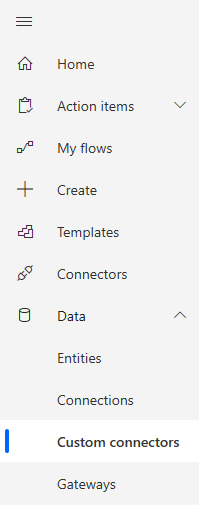
In the navigation pane, select More > Discover all, and then under Data, select Custom connectors.
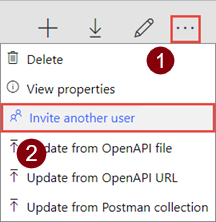
Select the ellipsis button (...) for your connector, and then select Invite another user.
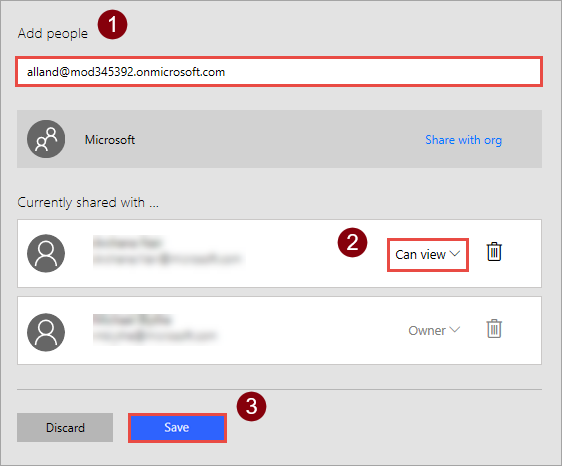
On the Share tab, under Add people, enter the users or groups you want to share with. Choose a permission of Can view or Can edit, and then select Save.
Related information
To share a custom connector with users outside your organization, submit your connectors for Microsoft certification.
Provide feedback
We greatly appreciate feedback on issues with our connector platform, or new feature ideas. To provide feedback, go to Submit issues or get help with connectors and select your feedback type.