Note
Access to this page requires authorization. You can try signing in or changing directories.
Access to this page requires authorization. You can try changing directories.
Share a cloud flow with others in your organization and guest users so they can also benefit from the automation you created. There are three primary ways to share a cloud flow in Power Automate:
- Add an owner to a cloud flow.
- Share a cloud flow with run-only privileges.
- Share a copy of a cloud flow.
Prerequisites
- You must have a Power Automate license that supports sharing or a qualifying seeded license. The Power Automate Free license doesn't include flow sharing.
- You must be the creator or owner to add or remove owners from a cloud flow.
About embedded and other connections
Connections used in a cloud flow fall into two categories:
- Embedded: These connections are used in the flow.
- Other: These connections are defined for a cloud flow, but aren't used in it.
If you stop using a connection in a cloud flow, that connection appears in the Other connections list, where it remains until an owner includes it in the flow again. To make changes to embedded connections, follow the steps in Modify a connection, later in this article.
The list of connections appears under the list of owners in a cloud flow's properties.
Add an owner to a cloud flow
The most common way to share a cloud flow is by adding an owner. Any owner of a cloud flow can perform these actions:
- View the run history.
- Manage the properties of the flow (for example, start or stop the flow, add owners, or update credentials for a connection).
- Edit the definition of the flow (for example, add or remove an action or condition).
- Add or remove other owners (but not the flow's creator), including guest users.
- Delete the flow.
To find a cloud flow that you own or co-own, select My flows in Power Automate and check the Cloud flows and Shared with me tabs.
Note
You can use shared connections only in the flow where you created them.
Owners can use services in a cloud flow but can't modify the credentials for a connection that another owner created.
To add more owners to a cloud flow:
Sign in to Power Automate, and then select My flows.
Select the flow that you want to share, select the vertical ellipsis (⋮), and then select Share.
Enter the name, email address, or group name for the person or group that you want to add as an owner.
The user or group you selected becomes an owner of the flow.
You shared your cloud flow.
Sharing for Planner portfolio sync flows
In Microsoft Planner, when you add a premium plan to a portfolio and select Connect, Planner creates a scheduled cloud flow to keep the portfolio data up to date. Members of the portfolio become co-owners of that flow. Co-owners can view run history, edit the flow, and use its embedded Portfolio and Roadmap connection within that flow.
The connection uses the permissions of the account used to create that connection. Those permissions can extend beyond the plan where you created the flow, including to private plans that account can access. Sharing the flow doesn't add members to those plans or give them the account's sign-in credentials.
Add actions and connections only if they're appropriate for everyone who co-owns the flow. If an action uses data or a connection you don't intend to make available through the shared flow, keep that action in a separate flow with its own access settings.
For more information about connecting plans to a portfolio, see Manage multiple plans with portfolios in Microsoft Planner.
Add a list as a co-owner
You can add SharePoint lists as co-owners of a cloud flow so that everyone who has edit access to the list automatically gets edit access to the flow. After you share the flow, you can distribute a link to it. More information: Training: Create and set up a SharePoint list.
Use a list when the flow is connected to SharePoint, and use a group in all other cases.
Important
- SharePoint users must have Edit permission or be a member of the Members or Owners group to run flows in SharePoint.
- Adding a list as a co-owner isn't available in GCC High and DoD tenants.
Remove an owner
When you remove an owner whose credentials are used to access Power Automate services, update the credentials for those connections so that the flow continues to run properly. Learn more in Modify a connection.
On the flow details page, in the Owners section, select Edit.
Select Delete (the trash can) for the owner you want to remove.
In the confirmation dialog box, select Remove.
The user or group that you removed is no longer listed as an owner of the flow.
Modify a connection
You might need to change the owner of a connection in a cloud flow if you remove the existing owner or if you want to use a different account to sign in to an action or trigger.
Go to the flow that you want to modify.
Select Edit.
Select the ellipsis (...) in the step where you want to edit the connection.
If you have a connection already, select it. If not, select Add new connection to create a new connection, and then select Sign in to create your new connection.
Share a cloud flow with run-only permissions
Instant flows (that is, flows that use a manual trigger such as a button or an item being selected) can be shared by using run-only permissions. Any user you add as a run-only user doesn't have access to edit or modify the flow in any way. They have permissions only to trigger the flow.
To add a run-only user:
On the flow details page, in the Run only users section, select Edit.
In the Manage run-only permissions panel, specify the users and groups you want to provide run-only access to.
As an owner, you can specify whether run-only users need to provide their own connections or you can use a connection already defined in the flow.

The user or group now has access to run the flow.
To remove a run-only user:
On the flow details page, in the Run only users section, select Edit.
In the Manage run-only permissions panel, select Delete (the trash can) next to the user whose access you want to remove, and then select Save.
The user or group no longer has access to run this flow.
Flows used by canvas apps
When you share a canvas app that includes a flow, users can run the flow through the app. Sharing the app doesn't by itself make those users co-owners of the flow or give them permission to edit it.
Review the flow's connection settings before sharing the app. A connection configured as Provided by run-only user uses the invoking user's connection. An embedded connection uses the account associated with that connection, which might have access to data that app users can't access directly.
For more information, see Share resources used by canvas apps.
Send a copy of a cloud flow
You can send a copy of a cloud flow to another user, who can then use the definition of the flow as a template. This method provides a way to share the general structure of a cloud flow without sharing any connections. The recipient can modify their flow independently of yours, so they can make it fit their needs.
Note
Sending a copy creates an independent instance of the flow for the recipient. You can't revoke access to the flow after you share it.
To send a copy of a cloud flow
On the flow details page command bar, select Send a copy.
On the Send a copy panel, you can edit the name and description of the flow you want to share, and specify the users with whom you want to share it.
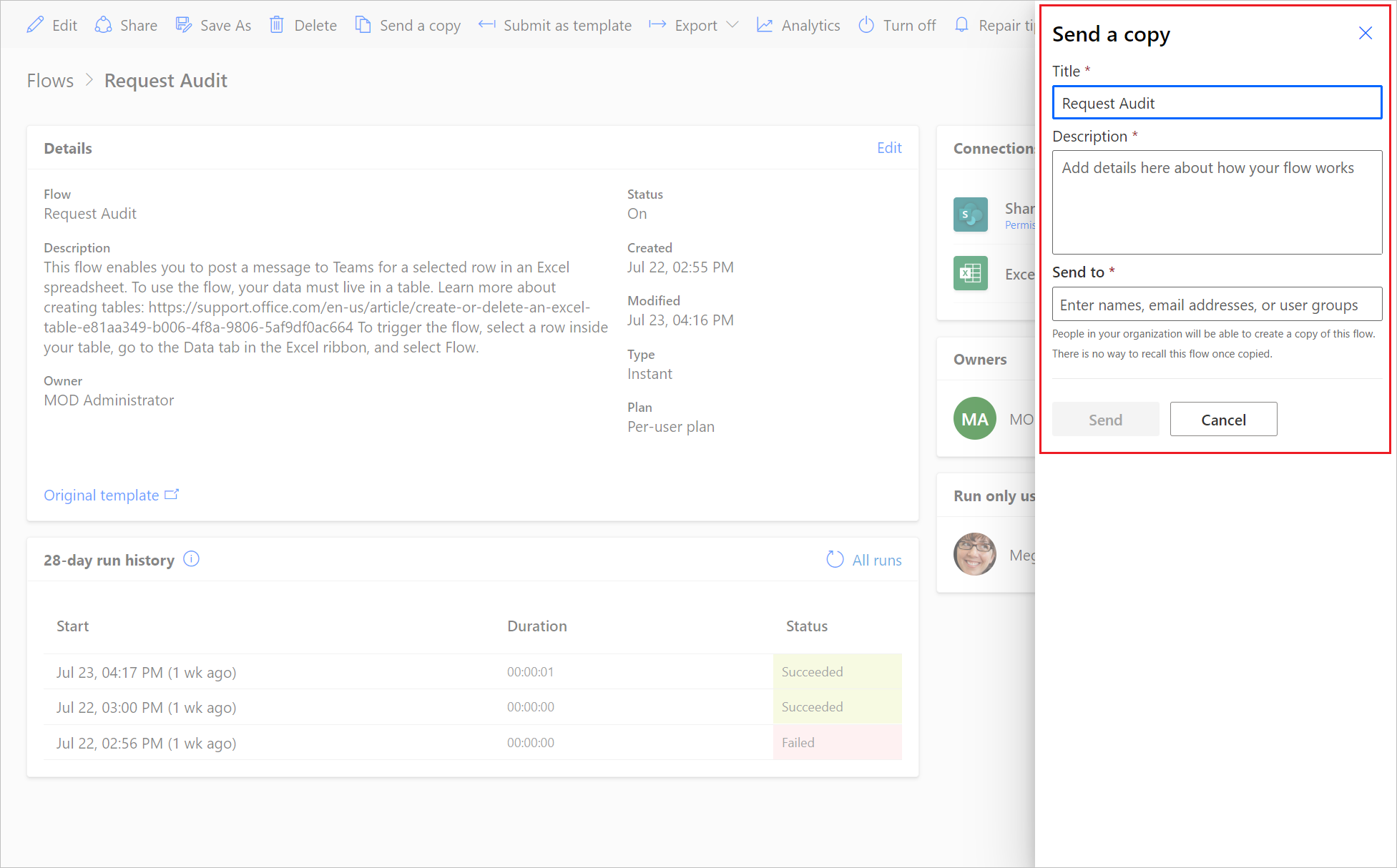
The recipient receives an email stating that you shared a cloud flow template with them, and they can then create their own instance of that flow.
Best practices for managing shared cloud flows
To avoid improper sharing and reduce the effort of compliance, administrators should implement best practices. Here are key recommendations to manage shared flows securely and efficiently.
Use security roles to segment duties
Grant the Environment Maker role only to users who genuinely need to create or edit flows in that environment. End users who only run flows should stay as basic users. This principle limits who can share or modify flows. For example, if you have a group of users who only trigger flows but shouldn't create new ones, don't elevate them to makers. By keeping run-only users as basic environment members, or using run-only sharing without promotion, you prevent them from building or importing rogue flows. This segmentation creates a clear boundary: makers design, others consume. If an environment has no security group (open to all), you can still control maker privileges through roles. You might designate a makers Microsoft Entra group and script assignment of the Environment Maker role only to that group's members. This way, although everyone is in the environment, only approved makers can share or own flows. This approach reduces accidental external shares.
Use run-only access instead of co-ownership
When an instant flow needs to be used by many people, especially outside the core team, prefer providing run-only access over making them co-owners. Run-only users can trigger the flow, for example by selecting an item in SharePoint, without editing its design. For instance, suppose a department builds an Expense Approval flow that managers in other departments can trigger. Rather than adding those managers as co-owners, share the flow with them as run-only users. Only designate co-owners when collaborative editing or management is needed.
Enforce data loss prevention (DLP) policies
DLP policies don't directly stop sharing flows, but they mitigate risks if flows are broadly shared. By classifying connectors into Business versus Non-Business and creating DLP rules, you prevent flows (even those shared widely) from using connectors that could exfiltrate data. For example, if an external user somehow gets run access to a flow, a strict DLP policy ensures that flow can't suddenly send data to an unauthorized service, like a social media or personal cloud drive connector. Also, if you suspect some flows might be shared externally, disallow custom connectors or HTTP connectors in certain environments unless necessary. This restriction reduces what an external person could do if they had edit access. Essentially, DLP acts as a safety net. Even if sharing boundaries are stretched, the flow’s capabilities remain within acceptable limits. It's a best practice to review DLP policies whenever you expand access to flows.
Establish regular auditing and monitoring
Make it a routine to review flow sharing and ownership. For instance, do monthly or quarterly audits of flows in each production environment. Use the PowerShell approach from Identify flows shared with users outside their environment to generate a current list of all flows and owners. Identify anomalies such as flows with owners outside expected teams or any new guest owners. You can automate parts of this process. For example, an admin can set up a scheduled PowerShell script or a flow using the Power Platform for Admins connector to gather sharing data and send a report through email. Microsoft's documentation encourages periodic entitlement reviews. Ensure they align with current business needs and remove access for users who no longer require it. For example, if Terry was an external co-owner for a special project and that project ended, catch it in the next audit and clean it up.
Tip
The Power Platform admin center analytics and the Power Platform Center of Excellence Starter Kit dashboards can show trends, like how many flows each user runs, or how many flows each environment has. Use these to detect if a particular flow is being widely used by unexpected users. This finding indicates a possible unmanaged share.
FAQ
Manage flows when the user who created a shared flow leaves the organization
If the shared flow still has an active owner, the flow continues to run.
Note
If the flow uses any active or embedded connections that belong to the user who left the organization, those specific actions might fail. To fix this problem, follow the steps in Modify a connection, earlier in this article to update the credentials.
If there's no active owner for a flow, ask an administrator to restore access by adding a co-owner. For more information, see Manage orphaned flows. To replace the primary owner, follow Change the owner of a cloud flow.
Change the owner of a solution-aware cloud flow
Edit the details to change the ownership of a solution-aware cloud flow.
Change the owner of a non-solution-aware cloud flow
If the environment has Dataverse, add the flow to a solution, and then change its owner.
If the environment doesn't have Dataverse, have the intended owner create a new flow from the existing one. For example, send them a copy to use as a template. This action creates a separate flow; it doesn't change the owner of the existing flow.
Share ownership of a solution-aware cloud flow with a user outside the environment
Flow permissions and environment access are separate requirements. Before adding someone as a co-owner of a solution-aware cloud flow, ensure they can access the flow's environment and have an appropriate security role to edit the flow. If access to the environment is restricted by a security group, an administrator might need to add the user to that group first. Don't rely on sharing the flow alone to grant environment access.
Follow Manage shared flows with users outside an environment to grant environment access and choose the appropriate role. Then add the user as an owner of the flow. For more information about environment membership and security roles, see Add users to an environment.
Can the user that runs the flow provide connections?
Yes. When you configure a connection as Provided by run-only user, the user that runs (or invokes) the flow provides that connection.
Can another user use a connection provided by the run-only user?
No. When you configure a connection as Provided by run-only user, the user that runs (or "invokes") the flow provides that connection. All users of the flow use embedded connections, but only the user that provides them uses connections provided by a run-only user. When the flow connects to a service via a connector, the Provided by run-only user connections allow the flow to act as the run-only user and access the data that the user has access to. If you export the flow, the Provided by run-only user connections have a RuntimeSource value of invoker.