Poznámka:
Přístup k této stránce vyžaduje autorizaci. Můžete se zkusit přihlásit nebo změnit adresáře.
Přístup k této stránce vyžaduje autorizaci. Můžete zkusit změnit adresáře.
The Monday.com Microsoft 365 Copilot connector integrates Monday.com items into the Microsoft 365 ecosystem, allowing Microsoft 365 Copilot, Copilot Search, and Microsoft Search to surface project and task data from Monday.com across Microsoft 365 experiences.
This article describes how to deploy and configure the Monday.com connector in the Microsoft 365 admin center.
Prerequisites
Before you deploy the Monday.com connector, make sure that you meet the following prerequisites:
- You're a Microsoft 365 search admin for your organization.
- You have access to your organization’s Monday.com instance URL (for example,
https://contoso.monday.com). - You have the required permissions in Monday.com to create or manage OAuth applications.
- You understand your Monday.com plan limits, including daily API call limits.
Deploy the connector
To add the Monday.com connector for your organization:
- In the Microsoft 365 admin center, in the left pane, select Copilot > Connectors.
- Go to the Connectors tab, and then select Gallery.
- From the list of available connectors, select Monday.com.
Set display name
The display name is used to identify references in Copilot responses and search results to help users recognize the source of the content. The display name also indicates trusted content and is used as a content source filter.
You can accept the default Monday display name, or customize it to use a name that users in your organization recognize.
Set instance URL
Enter the instance URL of your Monday.com tenant. The URL typically follows this format:
https://<your-instance>.monday.com
Choose authentication type
The Monday.com connector supports the following authentication options:
- OAuth (recommended).
- OAuth 2.0 with a customized Monday.com app.
OAuth (recommended)
With OAuth authentication, you install and authorize the Microsoft 365 Copilot Monday app in your Monday.com workspace. During authorization, you sign in to Monday.com and grant read permissions required for content ingestion.
This option requires minimal configuration and is recommended for most organizations.
Install the Microsoft 365 Copilot Monday app on your Monday Workspaces via this link.
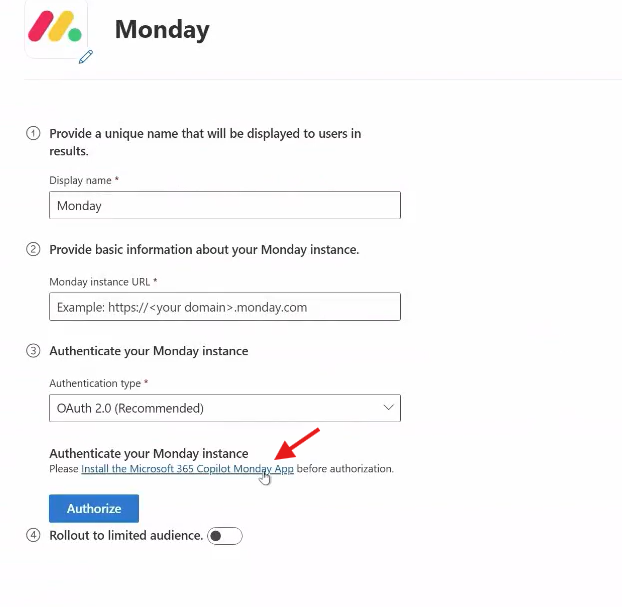
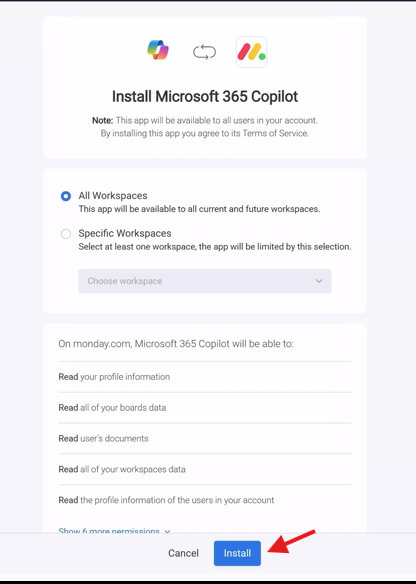
Review the workspaces you want to use and the corresponding Microsoft 365 Copilot access level before you choose the install button in the pop-up window.
Choose Authorize to sign in and grant access.
OAuth 2.0 with customized app
With OAuth 2.0, you create and configure your own OAuth app in the Monday.com Developer Center. You record the client ID and client secret, enable required read scopes, configure redirect URLs, and promote the app to live status before you use it with the connector.
Use this option when your organization requires a custom OAuth app configuration.
Sign in your Monday.com account and go to the Monday.com Developer Center.
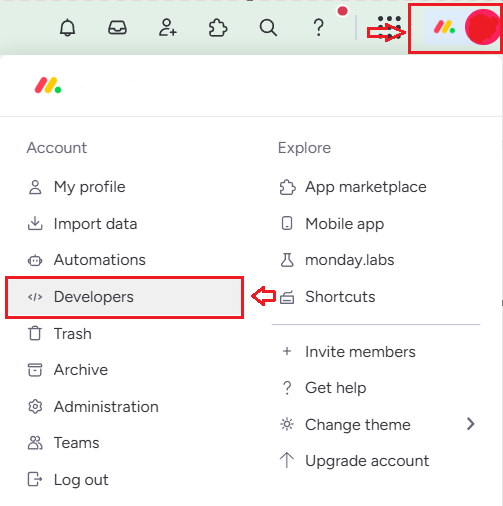
Choose Create app.

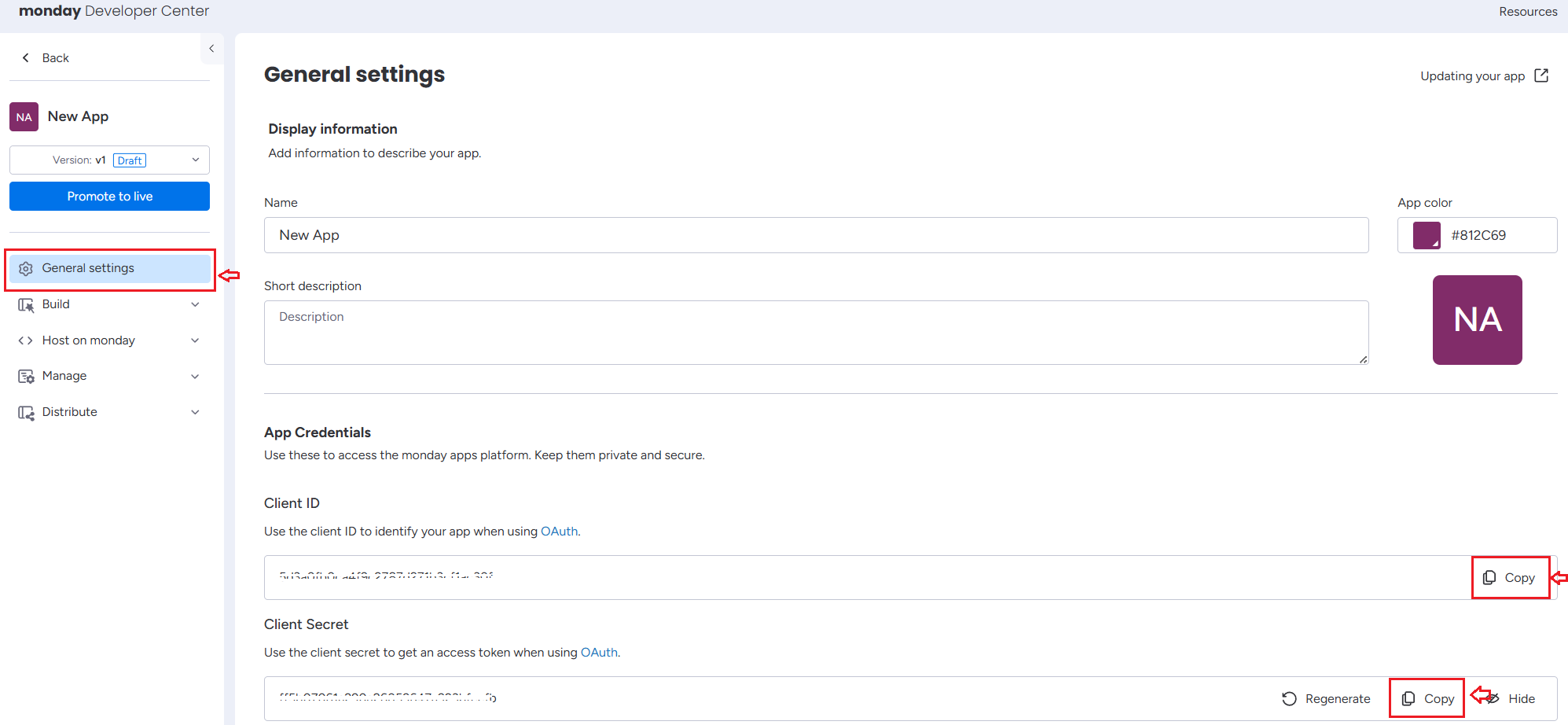
In the General Settings section, locate and note down your client ID and client secret.
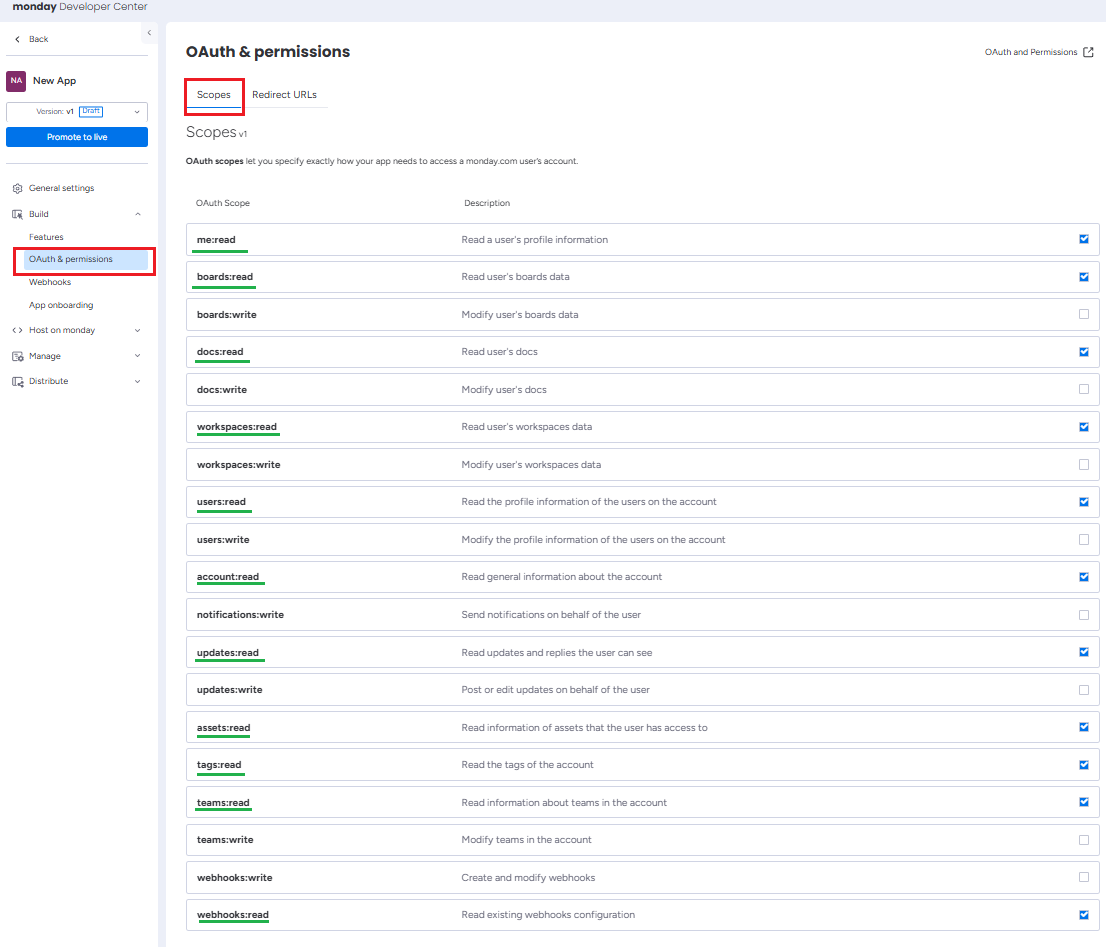
In the Build section, open the OAuth & permission tab, choose the Scopes tab, and enable all read permissions.
Go to the Redirect URLs tab, enter the following redirect URLs, and choose Save Scopes.
- For Microsoft 365 Enterprise:
https://gcs.office.com/v1.0/admin/oauth/callback - For Microsoft 365 Government:
https://gcsgcc.office.com/v1.0/admin/oauth/callback
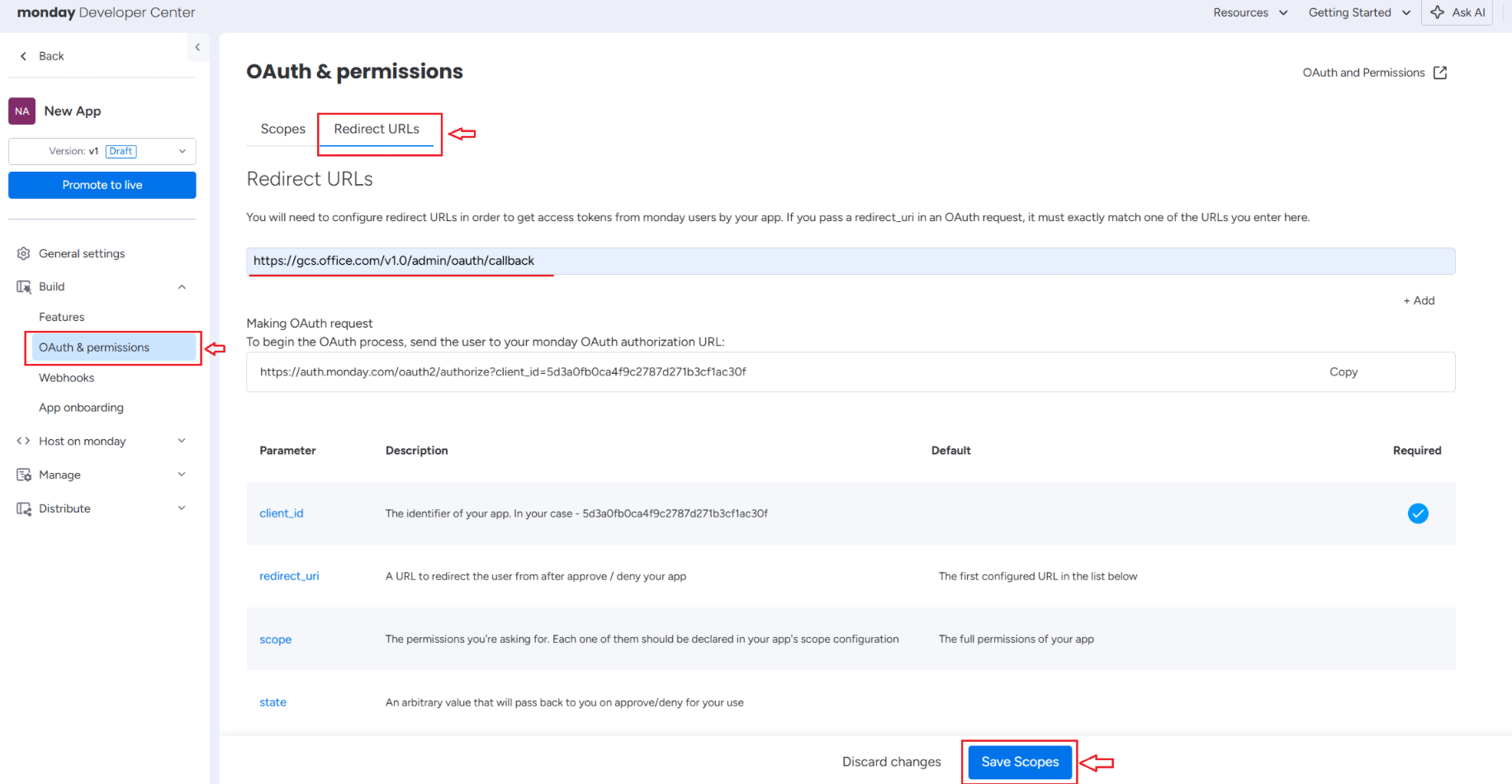
- For Microsoft 365 Enterprise:
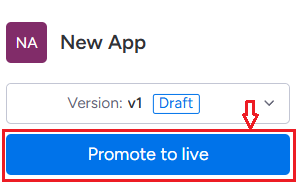
Choose Promote to Live to activate the app.
Next:
- Enter your client ID and client secret from Monday.com.
- Choose Authorize to sign in and grant access.
- Grant the required API scopes.
Roll out
You can deploy the connector to a limited audience to validate results in Copilot and Microsoft Search before you make the connector available more broadly.
To roll out to a limited set of users:
- Turn on Rollout to limited audience.
- Specify the users or groups that can access the connector content.
When you’re ready, choose Create to publish the connection. The connector starts indexing content right away.
The Monday.com connector provides default settings that are optimized for typical Monday.com usage. The following table lists the default values that are set when you create the connection:
| Category | Setting | Default value |
|---|---|---|
| Users | Access permissions | Only people with access to this data source. |
| Users | Identity mapping | Data source identities mapped using Microsoft Entra ID. |
| Content | Index content | All boards and items, excluding personal spaces. For a list of properties, see Customize content settings. |
| Crawl | Incremental crawl | Every four hours. |
| Crawl | Full crawl | Every day. |
These values help balance content freshness while respecting Monday.com API limits.
To customize the default values, choose Custom setup. For more information, see Customize settings.
After you create your connection, you can review the status in the Connectors section of the Microsoft 365 admin center.
Customize settings (optional)
You can customize the default values after you create the connection by choosing Custom setup. Custom setup includes the following tabs:
- Users
- Content
- Crawl
Customize user settings
Access permissions
The Monday.com Copilot connector supports data visible to Only people with access to this data source (recommended) or Everyone. If you choose Everyone, indexed data appears in the search results for all users.
Map identities
To ensure correct permission enforcement, map Monday.com user identities to Microsoft Entra ID.
- Choose the Microsoft Entra ID option if the email ID of Monday.com users is same as the user principal name (UPN) of users in Microsoft Entra ID.
- Choose the non-Entra ID option if the email ID of Monday.com users is different from the UPN of users in Microsoft Entra ID.
Important
- If you choose Microsoft Entra ID as the type of identity source, the connector maps the email IDs of users from Monday.com directly to the UPN property from Microsoft Entra ID.
- If you chose non-Entra ID for the identity type, provide the mapping regular expression from email ID to UPN. For more information, see Map your non-Entra ID identities.
- Updates to users or groups that govern access permissions are synced in full crawls only. Incremental crawls don't currently support processing updates to permissions.
Customize content settings
Content ingestion filters
You can choose what data you want to index. Use the regex expression of WorkSpaces to select your data before it's indexed to control what data is searchable. The following examples show how to use regex expressions to select specific workspaces.
| Scenario | Example workspace names | Regex expression | Notes |
|---|---|---|---|
| Exact match for a single workspace | workspace1 | ^workspace1$ | Exact match of workspace1 |
| Fuzzy match for a single workspace | team-marketing-q1 | .*marketing.* | Matches any workspace that contains marketing in the name |
| Exact match for multiple workspaces | workspace1, workspace2 | ^(workspace1|workspace2)$ | Matches exactly workspace1 or workspace2 |
| Fuzzy match for multiple workspaces | workspace-marketing, workspace-sales | ^workspace-[a-z]+$ | Matches any workspace starting with workspace- and letters |
| Fuzzy match for multiple keywords in name | workspace-engineering, workspace-sales-q4 | .*(eng|sales).* | Matches workspaces that contain engineering or sales in the name |
Choose Preview results to verify sample values of the selected properties and filters.
Manage properties
Check available properties from your Monday.com instance. Assign a schema to the property (define whether a property is searchable, queryable, retrievable, or refinable), review the semantic label, and add an alias to the property. The following table lists properties that are selected by default.
| Default Property | Label | Description | Schema |
|---|---|---|---|
| Authors | Authors | The author of the items | Query, Retrieve, Search |
| BoardDescription | None | Description of the board. | Retrieve, Search. |
| BoardID | None | Unique identifier for the board. | Query, Retrieve. |
| BoardName | None | Name of the board. | Query, Retrieve, Search, Refine |
| BoardUrl | None | URL link to the board. | Query, Retrieve. |
| Content | CONTENT | Merge all columns and corresponding values of the item. | Search. |
| CreatedBy | Created by | User who created the item. | Query, Retrieve, Search |
| CreatedDateTime | Created date time | Timestamp when the item was created. | Query, Retrieve. |
| GroupID | None | Unique identifier for the group. | Query, Retrieve. |
| GroupName | None | Name of the group. | Query, Retrieve, Search. |
| IconUrl | IconUrl | URL related to the icon. | Retrieve |
| ItemPath | None | Path of the item. | Query, Retrieve, Search, Refine. |
| ItemTerminology | None | Query, Retrieve, Refine. | |
| LastModifiedBy | Last modified by | User of the last modification. | Query, Retrieve, Search. |
| LastModifiedDateTime | Last modified date time | Timestamp of the last modification. | Query, Retrieve. |
| Title | Title | Title of the task item. | Query, Retrieve, Search. |
| URL | url | URL related to the item. | Retrieve. |
| WorkspaceDescription | None | Description of the workspace. | Retrieve, Search. |
| WorkspaceID | None | Unique identifier for the workspace. | Query, Retrieve. |
| WorkspaceName | None | Name of the workspace. | Query, Retrieve, Search, Refine. |
Content property
The Content field contains a JSON object that represents all the columns and their corresponding values for a given item. Each key in the JSON object corresponds to a column name (such as Assignee or Status), and each value holds the specific data for that item. The following example shows how an item and its Content field are structured.

{
"Assignee": "QC",
"Status": "Not Started",
"Date": "Apr 2",
"Priority": "Medium",
"Labels": "Benefits, Flexible"
}
Customize crawl intervals
The connector supports two crawl types:
- Incremental crawl, which captures recent changes.
- Full crawl, which refreshes all indexed content.
By default, incremental crawls run every four hours and full crawls run daily. You can adjust these values, but consider Monday.com daily API call limits if you configure more frequent sync schedules.
Important
Monday.com daily API call limits
Monday.com enforces daily API call limits that vary by plan. All API calls made by the connector count toward this daily limit. The following call limits apply:
- Standard/Basic plan: 1,000 API calls per day
- Free/Trial: 200 API calls per day
- Pro and Enterprise plans support higher limits
For more information, see Rate limits.
If crawl frequency is set too high, your organization might reach Monday.com daily API limits, which can result in crawl failures.
For more information, see Guidelines for sync settings.