Poznámka:
Přístup k této stránce vyžaduje autorizaci. Můžete se zkusit přihlásit nebo změnit adresáře.
Přístup k této stránce vyžaduje autorizaci. Můžete zkusit změnit adresáře.
In this quickstart, you follow guided steps to clone a GitHub repository of Python code and create a project. Visual Studio makes it easy to work with Python projects by using Git commands to access content under source control. You can also clone Python code repositories from the command line and then work with the projects in Visual Studio.
Prerequisites
Visual Studio for Mac isn't supported. For more information, see What's happening to Visual Studio for Mac? Visual Studio Code on Windows, Mac, and Linux works well with Python through available extensions.
Clone existing repository files
Important
In this quickstart, you create a direct clone of the python_koans repository on GitHub. Such a repository is protected by its author from direct changes, so attempting to commit changes to the repository fails. In practice, developers instead fork such a repository to their own GitHub account, make changes there, and then create pull requests to submit those changes to the original repository. When you have your own fork, use its URL instead of the original repository URL used earlier.
Create project from cloned files
After you clone the repository, you can create a new project from the cloned files.
Configure project properties
To run the project, you need to identify the working directory for the project, and let Visual Studio know which file to use as the Startup File.
Follow these steps to configure your project properties:
In Solution Explorer, expand the project node, right-click the contemplate_koans.py file, and select Set as Startup File. This action lets Visual Studio know which file to use to run the project.
On the main Visual Studio toolbar, select Project > Properties to open the properties for the project.
On the General tab, observe the value of the Working Directory for the project.
By default, Visual Studio sets the Working Directory to the project root (
.). Notice that the Startup File has no specific folder location.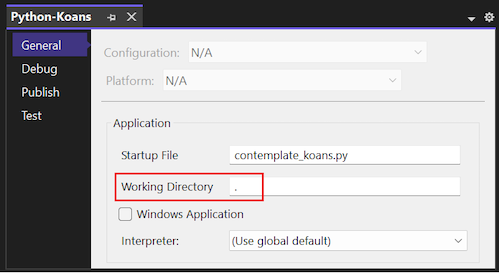
The cloned program code looks for a file named koans.txt in the working directory. The code expects the directory to be the folder location where you instructed Visual Studio to store the cloned repository files. If you leave the Working Directory set to the project root (
.), the program generates runtime errors.Set the value of the Working Directory to the folder location of the cloned repository, such as
C:\Users\contoso\source\repos\Python-Koans.Tip
A quick way to confirm the folder location for the cloned files is to check the properties for the cloned file in Solution Explorer. Right-click the koans.txt file and select Properties to open the details pane under Solution Explorer. In the details pane, notice that the folder location for the file is listed in the Full path property. You can paste this value into the Working Directory field in the project Properties page.
Save your changes and close the project Properties pane.
Run Python program
Now you're ready to try running the application for the new project:
Select Debug > Start without Debugging (or use the keyboard shortcut Ctrl+F5) to run the program.
If you see a FileNotFoundError runtime error for the koans.txt file, confirm the Working Directory is set correctly, as described in the previous section.
When the program runs successfully, it displays an assertion error on line 17 of the project file /koans/about_asserts.py:
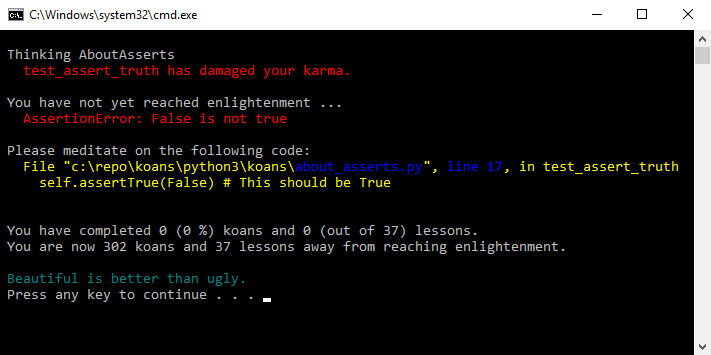
The assertion error is intentional. The program is designed to teach Python by having you correct all the intentional errors. You can find more information about the program at Ruby Koans, which inspired Python Koans.
Exit the program.
In Solution Explorer, double-click the /koans/about_asserts.py file to open the file in the editor:
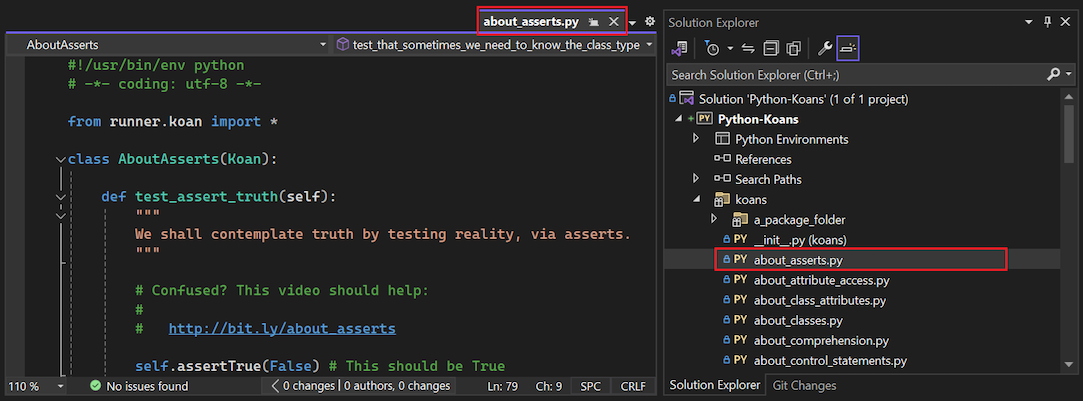
Correct the error in the /koans/about_asserts.py file by changing the
Falseargument on line 17 toTrue. Here's what the updated code should look like:self.assertTrue(True) # This value should be TrueRun the program again.
If Visual Studio warns about errors, respond with Yes to continue running the code. This time, the program passes through the first check and stops on the next koan. You can continue to correct further errors and run the program to see the adjustments.
