Poznámka:
Přístup k této stránce vyžaduje autorizaci. Můžete se zkusit přihlásit nebo změnit adresáře.
Přístup k této stránce vyžaduje autorizaci. Můžete zkusit změnit adresáře.
Important
The classic eDiscovery experiences were retired on August 31, 2025. This retirement includes classic Content Search, classic eDiscovery (Standard), and classic eDiscovery (Premium). These options aren't available as an experience option in the Microsoft Purview portal.
Unless you're working directly with Microsoft when using these legacy features for specific short-term transition scenarios, use the guidance for the new eDiscovery experience in the Microsoft Purview portal.
Review sets are a static set of documents where you can analyze, query, view, tag, and export data in a case. For more information about performing these tasks, see:
- Analyze data in a review set
- Query the data in a review set
- View documents in a review set
- Tag documents in a review set
- Export case data
Create a review set
Review sets can be created on the Review sets tab by selecting + Add review set.
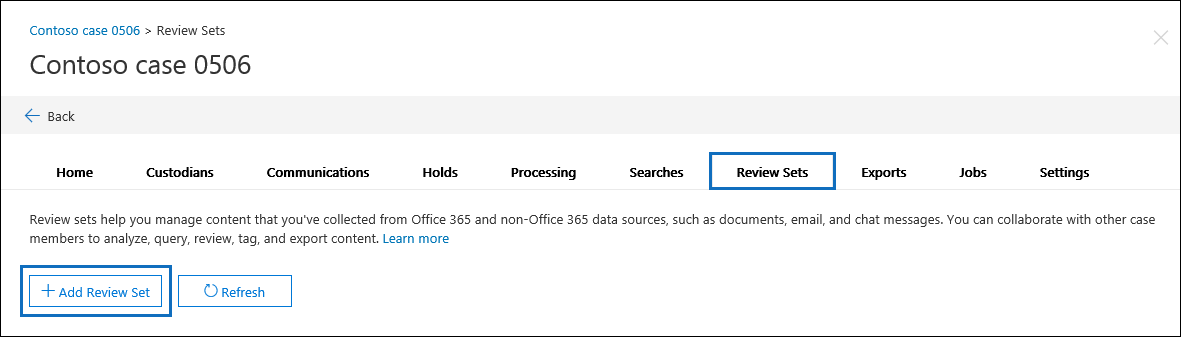
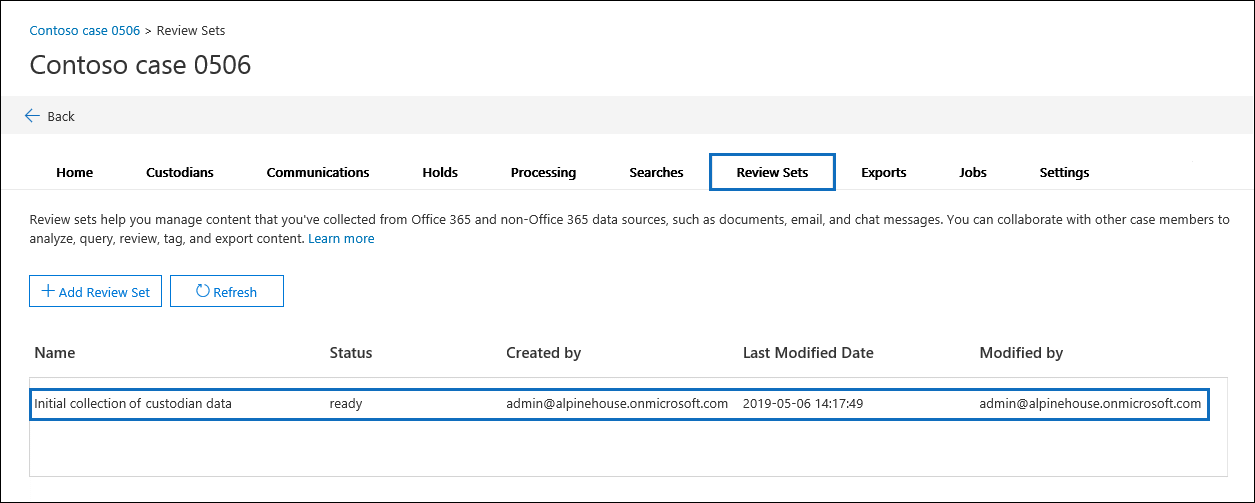
On the Add review set flyout page, type a name for the review set and then select Save. The new review set is displayed in the list on the Review sets tab.
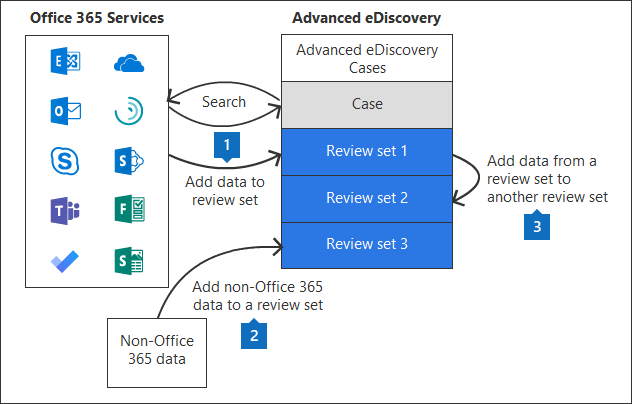
There are three different ways to add data to a review set in an eDiscovery (Premium) case.
Note
You can't delete items from a review set and you can't delete review sets from a case. To delete a review set (and delete the data in it), you have to delete the eDiscovery (Premium) case the review set is located in. For more information, see Close or delete an eDiscovery (Premium) case.