Poznámka:
Přístup k této stránce vyžaduje autorizaci. Můžete se zkusit přihlásit nebo změnit adresáře.
Přístup k této stránce vyžaduje autorizaci. Můžete zkusit změnit adresáře.
Profile source precedence lets tenant admins control the source of profile data for their organization's users. Profile data might originate from Microsoft Entra ID, Microsoft 365 Organizational Data Service, user profile synchronization, or other sources. When multiple sources provide overlapping data, a tenant administrator can configure the authoritative source of profile data for users in their organization. Learn more.
The following guide explains how to configure profile source precedence in Microsoft 365 Organizational Data Service.
How to assign data precedence
Applies to: Microsoft 365 Global Administrator
To use the value from organizational data in the Microsoft 365 User Profile, you can override the default precedence. To update data precedence:
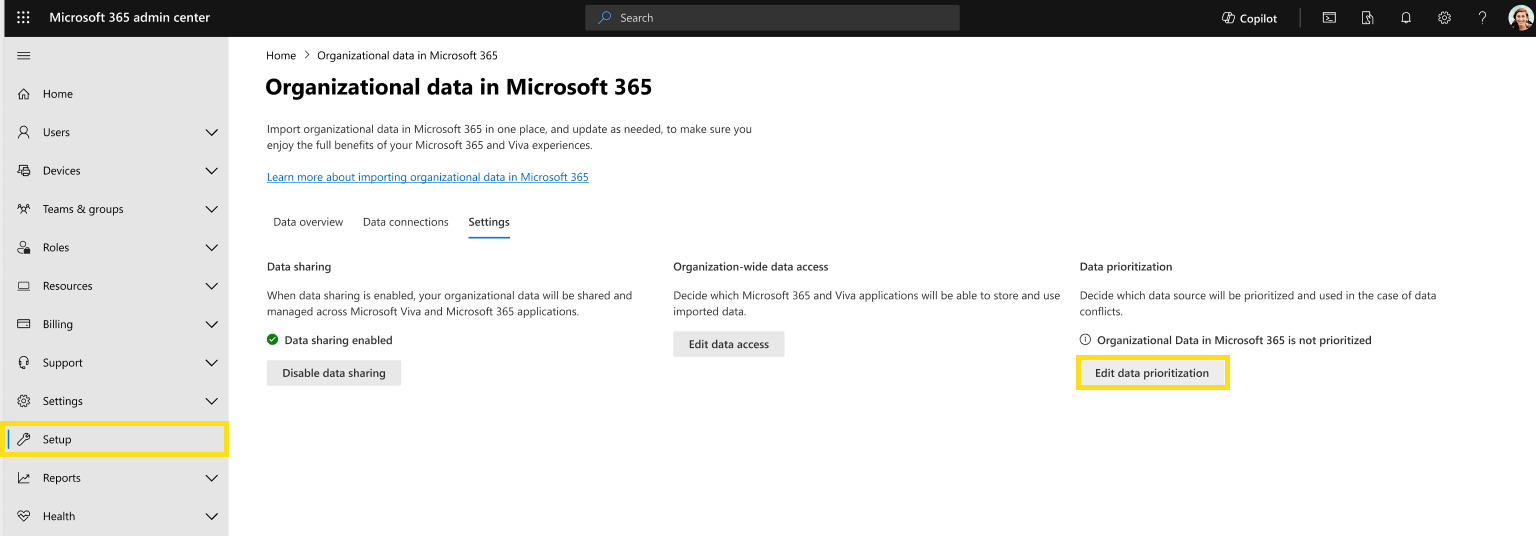
In the Microsoft 365 admin center, navigate to Microsoft 365 Organizational Data Service.
On the left, select Settings.
Under Data prioritization, select Edit data prioritization.
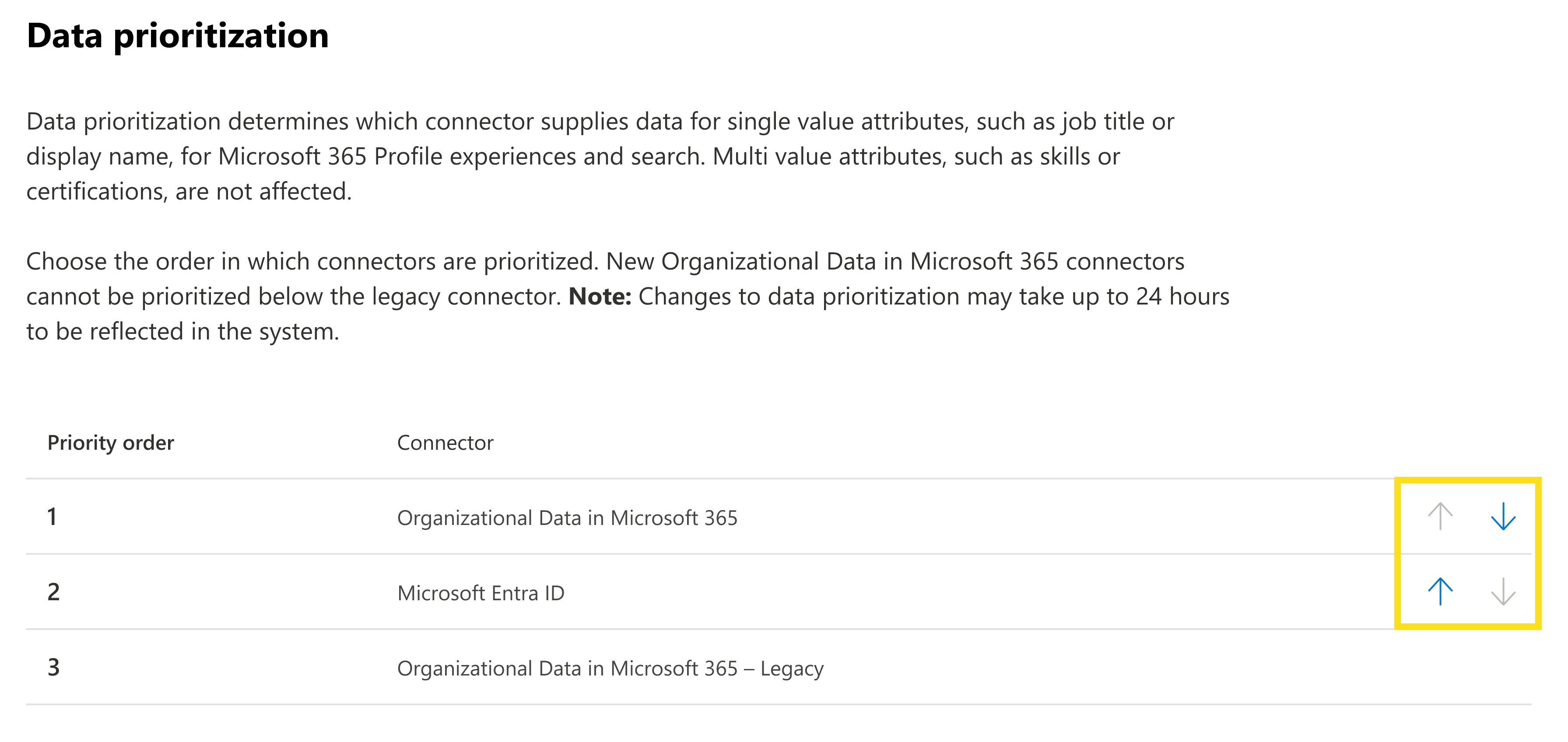
Use the arrows in the table to re-order the list of connectors based on how you'd like to prioritize the data.
At the bottom, select Save.
Confirm you've read and understand the change and impact to Microsoft 365 User Profile data. Select Confirm change.
Note
Any connectors you set up previously are also shown in the list, identified as a Legacy connector. Data prioritization for any new connectors you create in Microsoft 365 Organizational Data Service can't be ordered below this Legacy connector. If you previously set up a connector operating on a refresh schedule, such as the SAP SuccessFactors connector, it's listed automatically as a new connector once the import completes. The new connector is shown as Microsoft 365 Organizational Data Service - [connector type]. However, if you have multiple new connectors, they're all shown under Microsoft 365 Organizational Data Service.
The data precedence you assign only impacts the returned value in Microsoft 365 services and non-Microsoft services when there are different values for the same attribute from different sources. For example, using the preceding example, let's say an end user has "Software Engineer" as the jobTitle property in Microsoft Entra ID, and the Organizational Data Source Administrator for your organization uses the Microsoft 365 Organizational Data Service feature to upload a value of "Senior Software Engineer" for the Microsoft_JobTitle attribute for that same end user. If you assign data precedence to organizational data, when an experience like Profile cards in Microsoft 365 queries the Microsoft 365 User Profile to get the jobTitle property for that end user, "Senior Software Engineer" is returned instead of "Software Engineer."
To ensure that the data in the Microsoft 365 User Profile remains up to date and accurate, we recommend that you upload refreshed organizational data regularly (for example, weekly). This regular upload prevents the data in the user profile from becoming stale when compared to the data in your organization's human capital management systems.
Ensure that the data you upload matches attribute names and descriptions listed in the Attribute reference. Also avoid uploading sensitive personal data.
How to un-assign data precedence
Applies to: Microsoft 365 Global Administrator
If you changed the default data precedence to Microsoft 365 Organizational Data Service, and you want to change it back to Entra, follow these steps:
In the Microsoft 365 admin center, navigate to Microsoft 365 Organizational Data Service, then on the left select Settings.
Under Data prioritization, select Edit data prioritization.
Use the arrows in the table to re-order the list of connectors based on how you'd like to prioritize the data.
At the bottom, select Save.
Confirm you've read and understand the change and impact to Microsoft 365 User Profile data. Select Confirm change.