Bemærk
Adgang til denne side kræver godkendelse. Du kan prøve at logge på eller ændre mapper.
Adgang til denne side kræver godkendelse. Du kan prøve at ændre mapper.
This article describes how to create a ready-to-run .zip deployment package, deploy the package to Azure, and configure your function app to run directly from the package. You can deploy by using Azure Functions Core Tools, Azure CLI, or the deployment REST APIs.
Package-based deployment is the default for function apps that run from code. The deployment technology and package configuration depend on the hosting plan. Select your hosting plan at the top of this article.
Azure Functions has the full range of continuous deployment and integration options that Azure App Service provides. For more information, see Continuous deployment for Azure Functions.
Package deployment by hosting plan
The following table summarizes the deployment process and package configuration for each hosting plan:
| Hosting plan | Deployment process | Package configuration |
|---|---|---|
| Flex Consumption plan | Managed package deployment | Runs from the deployed package by default. Don't set WEBSITE_RUN_FROM_PACKAGE. |
| Premium plan | ZIP deployment | Set WEBSITE_RUN_FROM_PACKAGE to 1 to run from the deployed package. |
| Dedicated (App Service) plan | ZIP deployment | Set WEBSITE_RUN_FROM_PACKAGE to 1 to run from the deployed package. |
| Consumption plan on Windows | ZIP deployment | Set WEBSITE_RUN_FROM_PACKAGE to 1 to run from the deployed package. |
| Consumption plan on Linux | Remote build or external package URL | Use an external package URL for a locally built package. |
| Azure Container Apps | Container image deployment | Package-based code deployment doesn't apply. |
Note
The content in this article isn't relevant to the currently selected hosting plan. To choose a different plan, use the selector at the top of this article. For a comparison of all hosting plans, see Azure Functions hosting options.
Function apps hosted on Azure Container Apps are deployed as container images, not .zip packages. To create and deploy an image-based function app, see Create a function app on Azure Container Apps using code.
Create a deployment package
In most cases, you don't need to create the deployment package yourself. These tool-based deployment methods create the package as part of the publishing process:
- The Azure Functions Core Tools
func azure functionapp publishcommand. - Visual Studio Code publishing.
- Visual Studio publishing.
- GitHub Actions deployment, which packages the configured project path.
For Azure Pipelines deployment, the pipeline build steps create the .zip archive and pass it to the AzureFunctionApp deployment task.
When you need to work directly with a ready-to-run deployment package, create the package by using func pack. For example, create the package yourself when you deploy by using an external package URL.
You can also create the .zip archive manually. When you create the archive manually, follow these package structure requirements.
Deployment package requirements
The zip archive you deploy must contain all of the files needed to run your function app. You can manually create a zip archive from the contents of a Functions project folder using built-in .zip compression functionality or non-Microsoft tools.
The archive must include the host.json file at the root of the extracted folder. The selected language stack for the function app creates other requirements:
Important
For languages that generate compiled output for deployment, make sure to compress the contents of the output folder you plan to publish and not the entire project folder. When Functions extracts the contents of the zip archive, the host.json file must exist in the root of the package.
A zip deployment process extracts the .zip archive's files and folders in the wwwroot directory. If you include the parent directory when creating the archive, the system doesn't find the files it expects to see in wwwroot.
Deploy a package
Flex Consumption uses package deployment to store a ready-to-run package in the app's deployment storage container. The app runs directly from this package. Don't set the WEBSITE_RUN_FROM_PACKAGE app setting.
Deploy the package by using Core Tools, Visual Studio Code, or Azure CLI. These tools automatically select the correct package deployment behavior for a Flex Consumption app.
These tools perform a push deployment by sending the package to the app's deployment endpoint. For Flex Consumption, these clients send the package to /api/publish on the app's scm host. When the deployment endpoint is reachable only over a private endpoint, the computer, runner, or agent that performs the deployment must have network connectivity to and DNS resolution for the private deployment endpoint. The deployment service stores the processed package in the configured deployment container; directly uploading a package to this container doesn't deploy it. To deploy without pushing from the initiating client to the deployment endpoint, use a Bicep or ARM template deployment with a package URL that the deployment service can access.
Deploy by using Azure CLI
Use the az functionapp deployment source config-zip command to deploy a package:
az functionapp deployment source config-zip --resource-group <RESOURCE_GROUP> \
  --name <APP_NAME> --src <ZIP_FILE_PATH>
Add --build-remote true when the source project requires a remote build. Don't request a remote build for a package that func pack already built into a ready-to-run state, such as a Go deployment package.
To configure deployment storage or recover an earlier deployment, see Create and manage function apps in the Flex Consumption plan.
Deploy a package
Premium, Dedicated, and Consumption plan apps use the zip deployment API. The deployment service performs these actions:
- Delete files that remain from earlier deployments.
- Run deployment scripts and other deployment customizations.
- Write deployment logs.
- Sync function triggers.
Important
In a zip deployment, files from the previous deployment are deleted or updated when they were part of that deployment. The deployment process retains other files and directories in your function app that weren't part of the previous deployment. For implementation details, see the zip deployment reference.
Deploy by using Azure CLI
Use Azure CLI to trigger a push deployment. Push deploy a .zip file to your function app by using the az functionapp deployment source config-zip command. To use this command, you must use Azure CLI version 2.0.21 or later. To see what Azure CLI version you're using, use the az --version command.
In the following command, replace the <zip_file_path> placeholder with the path to the location of your .zip file. Also, replace <app_name> with the unique name of your function app and replace <resource_group> with the name of your resource group.
az functionapp deployment source config-zip -g <resource_group> -n \
<app_name> --src <zip_file_path>
This command deploys project files from the .zip file to your function app in Azure and restarts the app.
When you're using Azure CLI on your local computer, <zip_file_path> is the path to the .zip file on your computer. You can also run Azure CLI in Azure Cloud Shell. When you use Cloud Shell, you must first upload your deployment .zip file to the Azure Files account that's associated with your Cloud Shell. In that case, <zip_file_path> is the storage location that your Cloud Shell account uses. For more information, see Persist files in Azure Cloud Shell.
Deploy ZIP file with REST APIs
You can use the deployment service REST APIs to deploy the .zip file to your app in Azure. To deploy, send a POST request to https://<app_name>.scm.azurewebsites.net/api/zipdeploy. The POST request must contain the .zip file in the message body. The deployment credentials for your app are provided in the request by using HTTP BASIC authentication. For more information, see the .zip push deployment reference.
For the HTTP BASIC authentication, you need your App Service deployment credentials. To see how to set your deployment credentials, see Set and reset user-level credentials.
With cURL
The following example uses the cURL tool to deploy a .zip file. Replace the placeholders <deployment_user>, <zip_file_path>, and <app_name>. When prompted by cURL, type in the password.
curl -X POST -u <deployment_user> --data-binary "@<zip_file_path>" https://<app_name>.scm.azurewebsites.net/api/zipdeploy
This request triggers push deployment from the uploaded .zip file. You can review the current and past deployments by using the https://<app_name>.scm.azurewebsites.net/api/deployments endpoint, as shown in the following cURL example. Again, replace <app_name> with the name of your app and <deployment_user> with the username of your deployment credentials.
curl -u <deployment_user> https://<app_name>.scm.azurewebsites.net/api/deployments
Asynchronous zip deployment
While deploying synchronously, you might receive errors related to connection timeouts. Add ?isAsync=true to the URL to deploy asynchronously. You receive a response as soon as the zip file is uploaded with a Location header pointing to the pollable deployment status URL. When polling the URL provided in the Location header, you receive an HTTP 202 (Accepted) response while the process is ongoing and an HTTP 200 (OK) response once the archive has been expanded and the deployment completes successfully.
Microsoft Entra authentication
An alternative to using HTTP BASIC authentication for the zip deployment is to use a Microsoft Entra identity. Microsoft Entra identity might be needed if HTTP BASIC authentication is disabled for the SCM site.
A valid Microsoft Entra access token for the user or service principal performing the deployment is required. An access token can be retrieved using the Azure CLI's az account get-access-token command. The access token is used in the Authentication header of the HTTP POST request.
curl -X POST \
    --data-binary "@<zip_file_path>" \
    -H "Authorization: Bearer <access_token>" \
    "https://<app_name>.scm.azurewebsites.net/api/zipdeploy"
With PowerShell
The following example uses Publish-AzWebapp upload the .zip file. Replace the placeholders <group-name>, <app-name>, and <zip-file-path>.
Publish-AzWebapp -ResourceGroupName <group-name> -Name <app-name> -ArchivePath <zip-file-path>
This request triggers push deployment from the uploaded .zip file.
To review the current and past deployments, run the following commands. Again, replace the <deployment-user>, <deployment-password>, and <app-name> placeholders.
$username = "<deployment-user>"
$password = "<deployment-password>"
$apiUrl = "https://<app-name>.scm.azurewebsites.net/api/deployments"
$base64AuthInfo = [Convert]::ToBase64String([Text.Encoding]::ASCII.GetBytes(("{0}:{1}" -f $username, $password)))
$userAgent = "powershell/1.0"
Invoke-RestMethod -Uri $apiUrl -Headers @{Authorization=("Basic {0}" -f $base64AuthInfo)} -UserAgent $userAgent -Method GET
Deploy by using Bicep or an Azure Resource Manager template
You can deploy a package to a Flex Consumption app as part of a Bicep or Azure Resource Manager (ARM) template deployment. Define a Microsoft.Web/sites/extensions resource that uses the /onedeploy extension and provides the remote package URL in the packageUri property.
You must name the package file released-package.zip. The Functions host must be able to access both the remote package URL and the deployment storage container. Directly uploading the package to the deployment container doesn't deploy it.
For Bicep and ARM template examples, see Define the Flex Consumption deployment package.
Deploy by using an Azure Resource Manager template
You can use the Azure Resource Manager (ARM) template ZipDeploy extension to push your .zip file to your function app.
Example ZipDeploy ARM template
This template includes both a production and staging slot and deploys to one or the other. Typically, you use this template to deploy to the staging slot and then swap to get your new zip package running on the production slot.
{
  "$schema": "https://schema.management.azure.com/schemas/2019-04-01/deploymentTemplate.json#",
  "contentVersion": "1.0.0.0",
  "parameters": {
    "appServiceName": {
      "type": "string"
    },
    "deployToProduction": {
      "type": "bool",
      "defaultValue": false
    },
    "slot": {
      "type": "string",
      "defaultValue": "staging"
    },
    "packageUri": {
      "type": "secureString"
    }
  },
  "resources": [
    {
      "condition": "[parameters('deployToProduction')]",
      "type": "Microsoft.Web/sites/extensions",
      "apiVersion": "2021-02-01",
      "name": "[format('{0}/ZipDeploy', parameters('appServiceName'))]",
      "properties": {
        "packageUri": "[parameters('packageUri')]",
        "appOffline": true
      }
    },
    {
      "condition": "[not(parameters('deployToProduction'))]",
      "type": "Microsoft.Web/sites/slots/extensions",
      "apiVersion": "2021-02-01",
      "name": "[format('{0}/{1}/ZipDeploy', parameters('appServiceName'), parameters('slot'))]",
      "properties": {
        "packageUri": "[parameters('packageUri')]",
        "appOffline": true
      }
    }
  ]
}
For the initial deployment, you deploy directly to the production slot. For more information, see Slot deployments.
Run functions from the deployment package
Running directly from the deployment package skips copying files into the wwwroot directory. Instead, the Functions runtime mounts the package as a read-only wwwroot directory. This approach:
- Reduces file copy locking issues.
- Verifies the files that are running in your app.
- Improves Azure Resource Manager deployment performance.
- Can reduce cold-start time, particularly for JavaScript apps with large npm package trees.
Flex Consumption package configuration
Flex Consumption apps run from a package by default. Don't add the WEBSITE_RUN_FROM_PACKAGE app setting. Deployment settings, including the storage container and its authentication method, are properties of the function app resource. For more information, see Deployment.
Premium and Dedicated package configuration
Set WEBSITE_RUN_FROM_PACKAGE to 1 to run directly from the locally deployed package. The runtime stores the package in the c:\home\data\SitePackages folder on Windows or /home/data/SitePackages folder on Linux.
Consumption package configuration
The supported WEBSITE_RUN_FROM_PACKAGE value depends on the operating system:
| Operating system | Value | Behavior |
|---|---|---|
| Windows | 1 |
The app runs from a package in the c:\home\data\SitePackages folder. |
| Linux | <URL> |
The app runs from the package at the specified URL. Use a private Azure Blob Storage container accessed by using a managed identity. |
Important
Function apps still running the end-of-life v3 runtime on Linux in a Consumption plan stop running after September 30, 2026. To avoid service disruption, migrate your app to the v4 runtime.
The option to host function apps on Linux in a Consumption plan is retiring on 30 September 2028. The Linux Consumption plan isn't getting any new features or language versions. Apps running on Windows in a Consumption plan aren't currently affected. Migrate your apps to the Flex Consumption plan before the retirement date.
Package deployment considerations
Keep these requirements and limitations in mind when you deploy and run your function app from a package:
- The package must use .zip format. Tar and gzip formats aren't supported.
- The maximum package size is 1 GB. The deployment uses temporary storage when it unpacks project files, so the app must also have enough temporary storage. The Consumption plan provides 500 MB of temporary storage per plan.
- When you run from a package, files in
wwwrootare read-only, including in the Azure portal. - You can't use the local cache when running from a package.
- Don't set
WEBSITE_RUN_FROM_PACKAGEwhen you request a remote build. Instead, setSCM_DO_BUILD_DURING_DEPLOYMENT=true. On Linux, also setENABLE_ORYX_BUILD=true. WEBSITE_RUN_FROM_PACKAGEdoesn't work with MSDeploy. Use zip deployment instead.
Add the WEBSITE_RUN_FROM_PACKAGE setting
There are several ways that you can add, update, and delete function app settings:
Changes to function app settings require your function app to be restarted.
Run from a package uploaded by zip deployment
Set WEBSITE_RUN_FROM_PACKAGE to 1 before you deploy the package. The zip deployment API copies the package to the SitePackages folder instead of extracting its contents to wwwroot. The deployment also creates a packagename.txt file that identifies the package to mount. After the app restarts, the package mounts as the read-only wwwroot directory. Linux Consumption apps don't support this setting value and must instead run from an external package URL.
When deployment restarts the app, currently running function executions terminate. For information about writing functions that handle restarts safely, see Write functions to be stateless.
Run from an external package URL
Use an external package URL when you need to manage package storage yourself. You need this option to run a locally built package on a Linux Consumption app. It's not supported on Flex Consumption.
Note
You can't change an existing function app that uses WEBSITE_RUN_FROM_PACKAGE=1 to run from an external package URL. To use an external package URL, create a new function app and set WEBSITE_RUN_FROM_PACKAGE to the package URL.
Use a private Blob Storage container and grant the function app's managed identity access to the package. Use managed identity because SAS tokens expire and require maintenance. Whenever you publish an updated package, you must manually sync triggers. If you update the package in place without changing its URL, restart the function app before you sync triggers.
Manually upload a package to Azure Blob Storage
Create a .zip deployment package.
In the Azure portal, go to your storage account.
Under Data storage, select Containers, and then create or select a private container.
Upload the package to the container.
Select the uploaded blob and copy its URL. If you don't use a managed identity, generate a SAS URL instead.
In your function app, expand Settings, select Environment variables, and then select Add on the App settings tab.
Add a setting named
WEBSITE_RUN_FROM_PACKAGEwith the package URL as its value.Apply the changes, restart the app, and manually sync triggers.
Fetch a package from Azure Blob Storage by using a managed identity
You can configure Azure Blob Storage to authorize requests with Microsoft Entra ID. This configuration means that instead of generating a SAS key with an expiration, you can instead rely on the application's managed identity.
By default, the app's system-assigned identity is used. If you wish to specify a user-assigned identity, you can set the WEBSITE_RUN_FROM_PACKAGE_BLOB_MI_RESOURCE_ID app setting to the resource ID of that identity. The setting can also accept SystemAssigned as a value, which is equivalent to omitting the setting.
To enable the package to be fetched using the identity:
Ensure that the blob is configured for private access.
Grant the identity the Storage Blob Data Reader role with scope over the package blob. See Assign an Azure role for access to blob data for details on creating the role assignment.
Set the
WEBSITE_RUN_FROM_PACKAGEapplication setting to the blob URL of the package. This URL is usually of the formhttps://<storage-account-name>.blob.core.windows.net/<container-name>/<path-to-package>or similar.If you wish to specify a user-assigned identity, you can set the
WEBSITE_RUN_FROM_PACKAGE_BLOB_MI_RESOURCE_IDapp setting to the resource ID of that identity. The setting can also accept SystemAssigned as a value, although this is the same as omitting the setting altogether. A resource ID is a standard representation for a resource in Azure. For a user-assigned managed identity, that is going to be/subscriptions/subid/resourcegroups/rg-name/providers/Microsoft.ManagedIdentity/userAssignedIdentities/identity-name. The resource ID of a user-assigned managed identity can be obtained in the Settings > Properties > ID for the user assigned managed identity.
Deployment customization
The deployment process assumes that the .zip file that you push contains a ready-to-run app. By default, no customizations are run. To enable the same build processes that you get with continuous integration, add the following to your application settings:
SCM_DO_BUILD_DURING_DEPLOYMENT=true
When you use .zip push deployment, this setting is false by default. The default is true for continuous integration deployments. When set to true, your deployment-related settings are used during deployment. You can configure these settings either as app settings or in a .deployment configuration file that's located in the root of your .zip file. For more information, see Repository and deployment-related settings in the deployment reference.
Download your function app files
If you need the exact package that your app currently runs, download it from the Blob Storage container configured for your app's deployments:
In your function app page in the Azure portal, expand Settings, and then select Deployment settings.
Under Application package location, note the storage account and container used for deployments.
Go to that storage account, expand Data storage, and then select Containers.
Select the deployment container, select the current package, and then select Download.
The downloaded package contains the built app content that you deployed, which might differ from your source project. Each deployment overwrites the current package, and the deployment container doesn't provide deployment history.
For apps deployed by using CI/CD, keep the source project in source control and retain ready-to-run build artifacts according to your release retention policy. Use a retained artifact to redeploy a specific release. Use the package in the deployment container when you need the exact package that the app currently runs or when the original artifact is no longer available.
Download your function app files
If you created your functions by using the editor in the Azure portal, you can download your existing function app project as a .zip file in one of these ways:
Sign in to the Azure portal, and then go to your function app.
On the Overview tab, select Download app content. Select your download options, and then select Download.
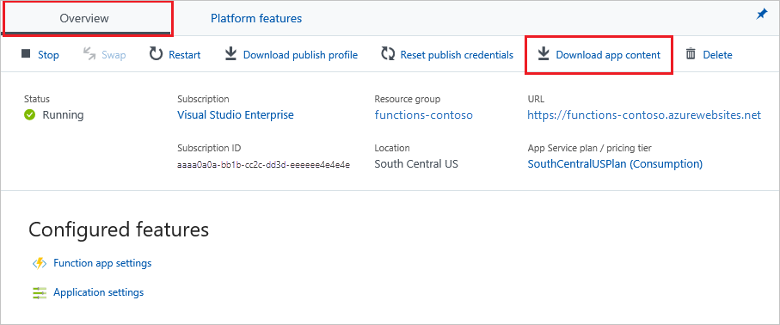
The downloaded .zip file is in the correct format to be republished to your function app by using .zip push deployment. The portal download can also add the files needed to open your function app directly in Visual Studio.
For apps deployed by using CI/CD, keep the source project in source control and retain ready-to-run build artifacts according to your release retention policy. A source archive downloaded from a repository isn't a deployment package. Use your deployment workflow to build and deploy the project.