Bemærk
Adgang til denne side kræver godkendelse. Du kan prøve at logge på eller ændre mapper.
Adgang til denne side kræver godkendelse. Du kan prøve at ændre mapper.
In this quickstart, you create a MongoDB Atlas resource in the Azure portal.
Prerequisites
- An Azure account with an active subscription is required. If you don't have one, create an account for free.
- The Owner or Contributor role for your Azure subscription. Only users who are assigned one of these roles can set up the partner service integration for your Azure subscription. Before you begin, verify that you have the appropriate access.
Create a resource
Begin by signing in to the Azure portal.
In the Azure portal, in the search box, enter the name of the service.
In the Services search results, select the service.
Select the Create option.
Basics tab
The Basics tab has sections for details about the project, the Azure resource, and the MongoDB Atlas organization.
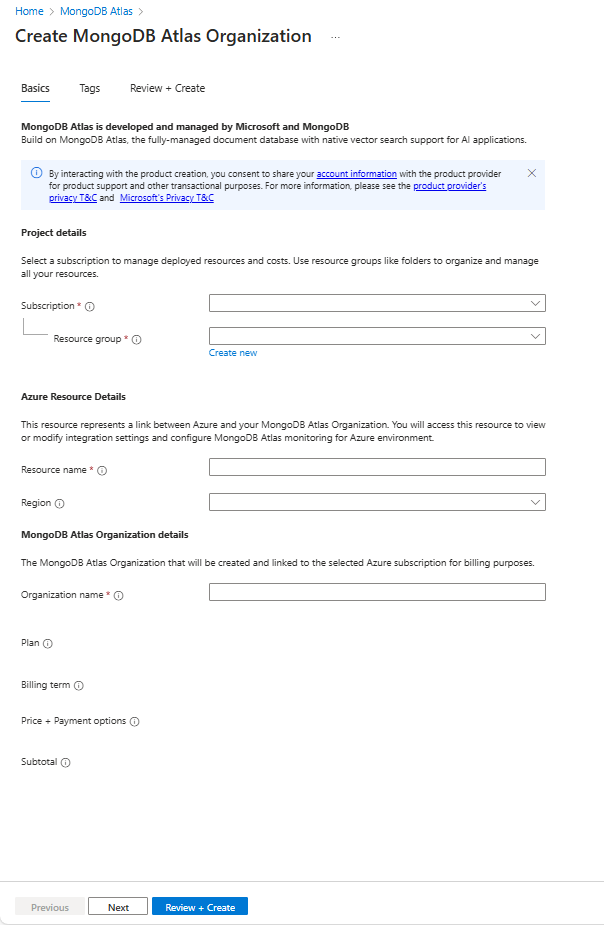
Red asterisks identify required settings. Enter values for each required setting.
Project details:
Setting Value Subscription Select a subscription from your existing subscriptions. Resource group Use an existing resource group or create a new one. Azure Resource Details:
Setting Value Resource name Specify a unique name for the resource. Region Select the Azure region where this resource will be deployed. This selection is separate from the Atlas cluster region, which you will choose later during cluster setup. MongoDB Atlas Organization details:
Setting Value Organization name Specify the name of the MongoDB Atlas organization. The remaining settings update themselves to reflect the details of the plan that you selected for this new organization.
Select Next to add tags, or select Review and create.
Tags tab (optional)
Optionally, you can create tags for your resource. Then select Review + create.
Review + create tab
If the review finds no errors, the Create button becomes active. Select Create.
If the review identifies errors, a red dot appears next to each section where errors exist. To fix errors:
Open each section that has errors and fix the errors.
Fields with errors are highlighted in red.
Select Review + create again.
Select Create.
The message "Deployment is in progress" appears. When the deployment is complete, the message "Your deployment is complete" appears on the upper-right corner of the Azure portal.
After the resource is created, select Go to resource to view your resource.