Bemærk
Adgang til denne side kræver godkendelse. Du kan prøve at logge på eller ændre mapper.
Adgang til denne side kræver godkendelse. Du kan prøve at ændre mapper.
In this quickstart, you use Azure Infrastructure Resiliency Manager in the Azure portal to review your resources' zone resilience and assess an application's resilience posture. You start with a resource-level summary, group existing resources into a service group, and assign a zone resilience goal to identify gaps. These steps assess your existing configuration; they don't change the resources' resilience configuration.
This quickstart follows the Get Resilient journey for existing workloads. If you're designing an application before deployment, begin with Start Resilient. If you need help identifying application resources before creating a service group, use agent-assisted application discovery.
In this quickstart, you learn how to:
- Access Azure Infrastructure Resiliency Manager.
- View a resource resiliency summary without creating a service group.
- Create a service group to represent an application.
- Assign a zone resilience goal and view the service group's posture.
- Review recommendations and return to the at-scale service group view.
Prerequisites
- An Azure subscription with existing resources to evaluate. If you don't have a subscription, create a free account.
- Reader access to the resources you want to view.
- Service Group Contributor or Service Group Administrator on the parent service group where you create your new service group. For access to the root service group, see Root service group access.
- Service Group Contributor on the service group you configure, and the following permissions on its member resources:
Microsoft.Relationship/ServiceGroupMember/writeto add members.Microsoft.Relationship/ServiceGroupMember/readto discover resources when assigning goals.
For detailed permissions, see the goals and recommendations support matrix.
For this quickstart, choose a small set of existing, supported resources that belong to one application, such as an Azure virtual machine, a storage account, and an Azure SQL database. Goals support service groups with up to 500 resources. Review the supported resource types and detected solutions before you begin.
Note
At-scale posture, goals, and recommendations are available at no additional Infrastructure Resiliency Manager cost without a usage plan. You don't need to create or enroll in a usage plan for this quickstart. Advanced capabilities, such as drills and recovery plans, require a usage plan. A service group with assigned goals is billed if it's enrolled in a valid usage plan, even without drills or recovery plans. For details, see Billing and pricing.
Access Infrastructure Resiliency Manager
- Sign in to the Azure portal.
- In the search bar, enter Resiliency, and then select Resiliency from the results.
- In the left menu, select Overview.
- On the Get started tab, review the entry points to infrastructure resiliency and backup and recovery.
- Expand Infrastructure resiliency in the left menu to find Infrastructure resiliency overview, Resources, Service groups, and Recommendations. Use these views to explore infrastructure resilience across your estate.
View the resource resiliency summary
Start with the resource-level view to understand your current posture before defining application boundaries.
- In Resiliency, select Overview, and then select the Resource resiliency tab.
- Under Resiliency insights, review Zonally Resilient to see the percentage and counts of zone-resilient and not-zone-resilient resources.
- Review Backup Enabled separately to understand backup protection coverage. Backup protection and zone resilience are different indicators; having a backup doesn't, by itself, make a resource zone-resilient.
- Under Top resource recommendations, review recommendations grouped by impact. Select View all resource recommendation to open the full list.
- In Recent Resources, review the Zonal resilient state and Backup enabled values for individual resources. Select View recommendation for a resource to review the suggested action.
The summary shows which resources have a detected zone resilience solution and which don't. A nonresilient result identifies a configuration gap to investigate, not an active outage.
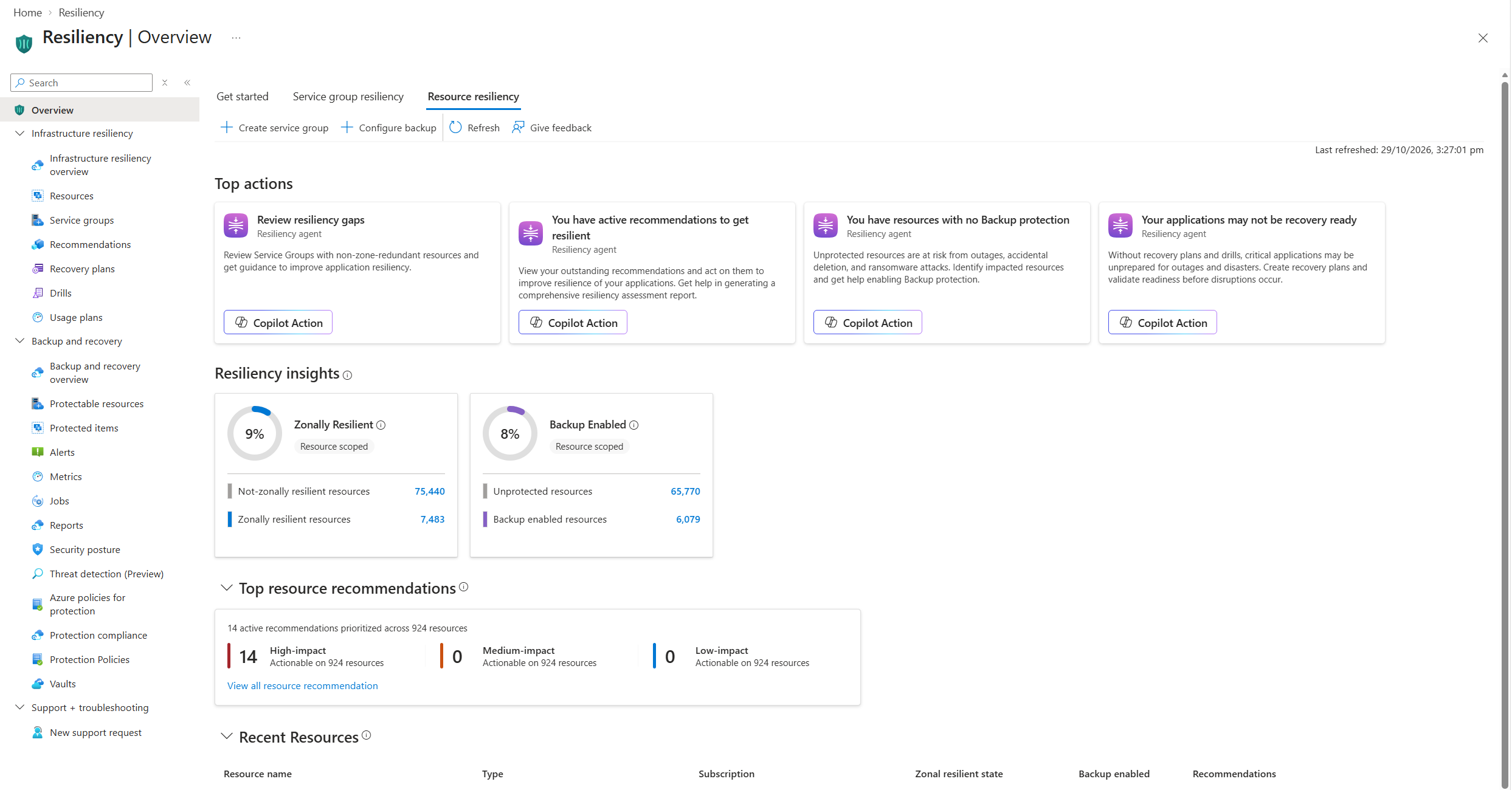
To explore the infrastructure-specific resource list, select Infrastructure resiliency > Resources in the left menu.
At this point, you can review resource-level resilience without a service group or assigned goals. Next, create a service group to get an application-centric assessment.
Create a service group for your application
A service group logically groups your application's resources across subscriptions and resource groups without moving them from their existing locations.
- Return to Overview > Resource resiliency.
- Select Create service group.
- Enter the service group's basic details:
- Service Group ID: Enter a descriptive identifier for your application. The ID must be globally unique across Microsoft Entra tenants, and you can't change it after creation.
- Display name: Enter a recognizable application name, such as
Contoso production application. - Parent Service Group: Select the parent under which to create the group. If you're creating a top-level application group, select the root service group, provided you have the required access.
- Assign the appropriate Criticality for your application.
- On the Members tab, choose to add individual resources, resource groups, or subscriptions. For this quickstart, select individual resources so that the assessment covers only your chosen application resources.
- Filter by subscription, resource group, resource type, or location to find your application resources. Select the resources, and then select Select to add them to the member list.
- Select Review + Create, review the member list and the service group's details, and then select Create to complete creation.
- In Resiliency, select Infrastructure resiliency > Service groups, and then find and open the service group you created.
Your service group now represents the application resources you selected. Creating the group doesn't assign resilience goals; you do that next.
For more information about membership, see Add resources or resource containers to service groups.
Assign a zone resilience goal
When you assign a goal, the service group starts discovering and evaluating its resources. The current release supports zone resilience goals.
- In your service group, under Resiliency, select Goals and Recommendations.
- Select Assign goals.
- In the confirmation pane, select Save.
- Wait for discovery and goal assignment to complete. This process might take a few minutes.
- After discovery completes, review the resilience summary and recommendations on the same page.
You should now see resource counts by resilience status. If the count is lower than expected, verify the group's membership and your resource permissions before interpreting the results.
Important
Assigning a goal evaluates your resources and provides recommendations. It doesn't automatically enable zone redundancy, configure protection, or make your application zone-resilient.
View your service group's resilience posture
On Goals and Recommendations, review the resilience summary:
Status What it means Zone resilient An Azure-recommended zone resilience solution is detected, or the resource is manually attested as resilient through a custom solution. Non zone-resilient No zone resilience solution is detected for the resource. Not evaluated The resource is excluded from evaluation or isn't supported by the service. Select the summary tile to open the detailed resource list.
Review each resource's detected zone resilience solution and whether it's included in evaluation.
Return to Goals and Recommendations and scroll to Recommendations.
Select a recommendation to review the impacted resources, rationale, and remediation guidance. Review any cost implications before making changes.
The discovered resource count depends on the access of the user who assigns goals or triggers rediscovery. The count includes resources in member resource groups, subscriptions, and child service groups, with each resource counted only once.
If a resource doesn't need zone resilience, or uses a custom resilience solution that the service can't detect, you can exclude or manually attest it. Only attest a resource after verifying that your custom solution meets your resilience requirements.
View posture across service groups
Return to the at-scale view to see your application alongside other service groups.
- In Resiliency, select Overview > Service group resiliency.
- Under Service group resiliency, review:
- Criticality and Goals to identify service groups without criticality or assigned goals.
- Resilience State to identify gaps based on member resources' resilience.
- Drills and Recovery Plan State to identify service groups without configured drills or recovery plans.
- In Recent Service groups, find your service group and review its criticality tier and zonal resilience state.
- Select the service group name to return to its details, or select View recommendation to review its recommendations.
A service group's resilience state is based on its member resources. Use the detailed resource list to investigate gaps rather than treating the summary as a guarantee that the application can withstand an outage.
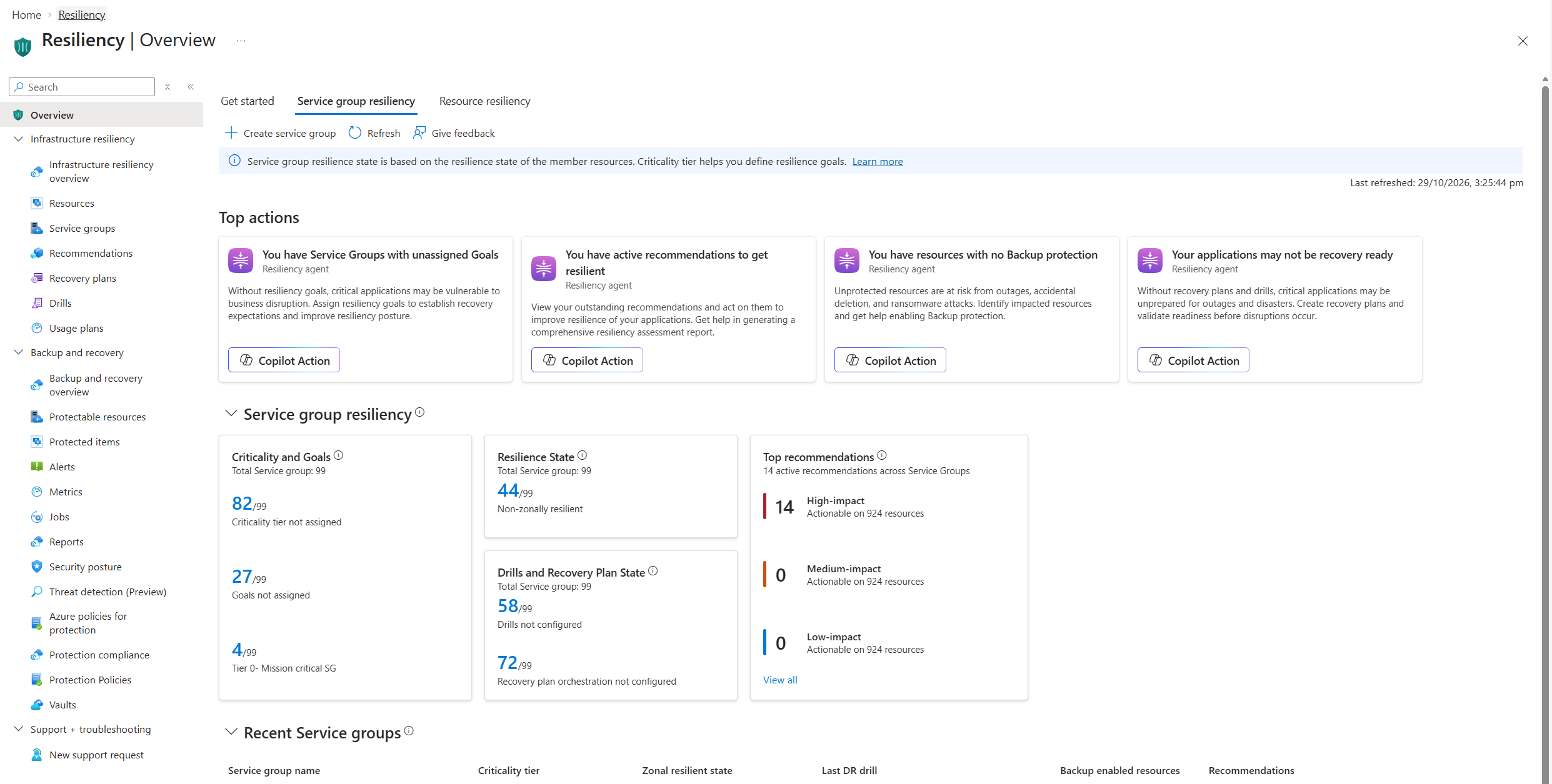
If you later add or remove application resources, open the service group's Goals and Recommendations page and select Re-discover resources to update the evaluation.
You now reviewed resource-level resilience, created an application service group, assigned a zone resilience goal, and viewed the resulting posture and recommendations.
Clean up resources
This quickstart uses existing Azure resources and doesn't require a usage plan, drill, or recovery plan. You can keep the service group and goals to continue tracking your application's posture without a usage-plan enrollment.
If you created a service group only for this quickstart and no longer need it, follow Clean up resources to delete that service group. Deleting the service group doesn't delete its member Azure resources.