Bemærk
Adgang til denne side kræver godkendelse. Du kan prøve at logge på eller ændre mapper.
Adgang til denne side kræver godkendelse. Du kan prøve at ændre mapper.
The SIEM migration tool analyzes Splunk and QRadar detections, including custom detections, and recommends best‑fit Microsoft Sentinel detections rules. It also provides recommendations for data connectors, both Microsoft and third-party connectors available in Content Hub to enable the recommended detections. Customers can track the migration by assigning the right status to each recommendation card.
Note
The old migration tool is deprecated. This article describes the current SIEM migration experience.
The SIEM Migration experience includes the following features:
- The experience focuses on migrating Splunk and QRadar security monitoring to Microsoft Sentinel and mapping out-of-the-box (OOTB) analytics rules wherever possible.
- The experience supports migration of Splunk and QRadar detections to Microsoft Sentinel analytics rules.
Prerequisites
- Microsoft Sentinel in Microsoft Defender portal
- At least Microsoft Sentinel Contributor permissions in the Microsoft Sentinel workspace
- Security Copilot enabled in your tenant with at least a workspace operator role assigned
Note
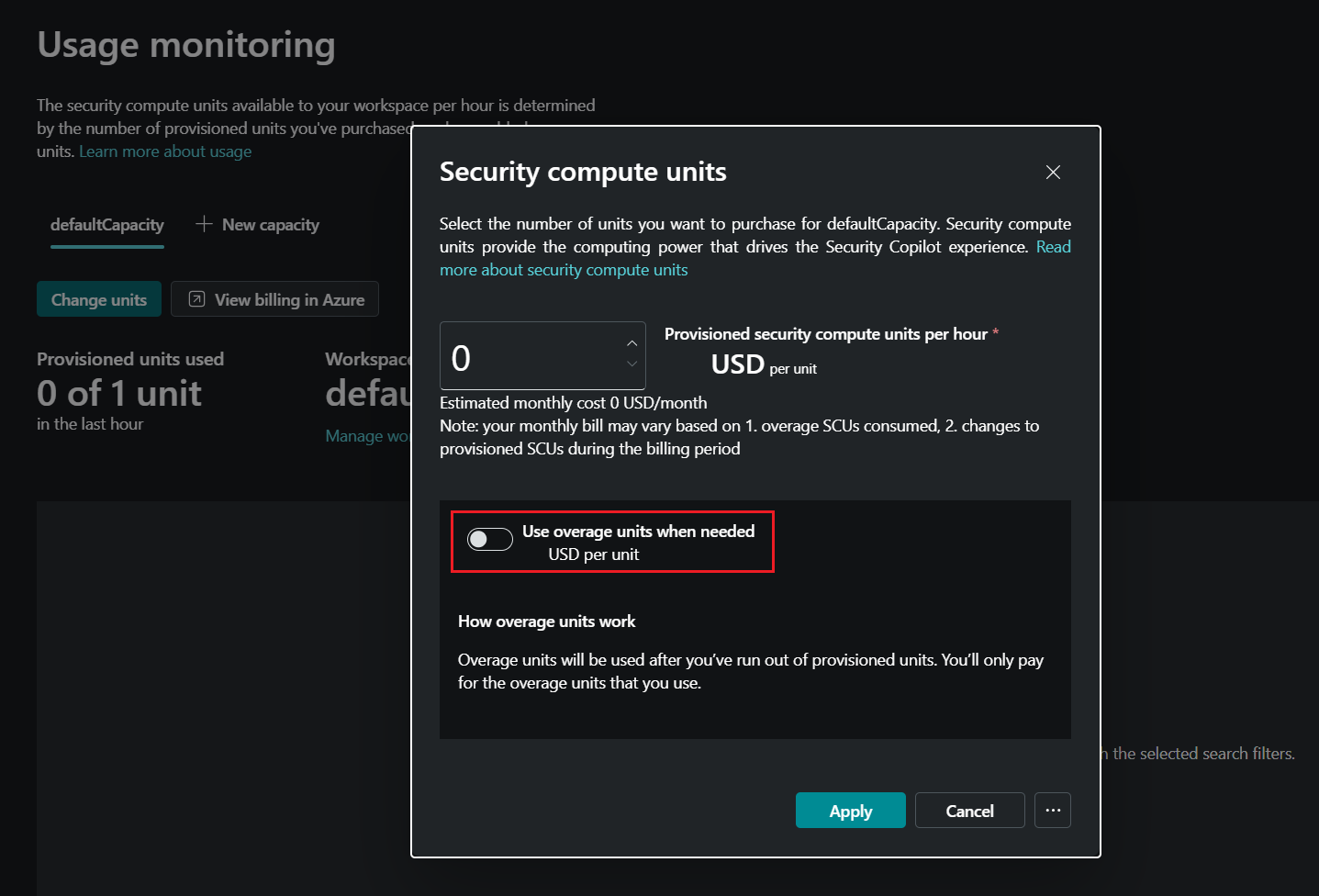
The SIEM Migration tool is powered by Security Copilot, so you need Security Copilot enabled in your tenant to use it. However, it doesn't consume SCUs or generate any SCU‑based charges not matter how you configure it. You can optimize your Security Copilot setup based on your preferences for access and cost management, and workflow remains completely SCU‑free. Any SCU usage would apply only to other Security Copilot features you intentionally use.
Export detection rules from your current SIEM
In the Search and Reporting app in Splunk, run the following query:
| rest splunk_server=local count=0 /servicesNS/-/-/saved/searches | search disabled=0 | search alert_threshold != "" | table title, search, description, cron_schedule, dispatch.earliest_time, alert.severity, alert_comparator, alert_threshold, alert.suppress.period, id, eai:acl.app, actions, action.correlationsearch.annotations, action.correlationsearch.enabled | tojson | table _raw | rename _raw as alertrules | mvcombine delim=", " alertrules | append [ | rest splunk_server=local count=0 /servicesNS/-/-/admin/macros | table title,definition,args,iseval | tojson | table _raw | rename _raw as macros | mvcombine delim=", " macros ] | filldown alertrules |tail 1
You need a Splunk admin role to export all Splunk alerts. For more information, see Splunk role-based user access.
Start the SIEM migration experience
After exporting the rules, do the following:
Go to
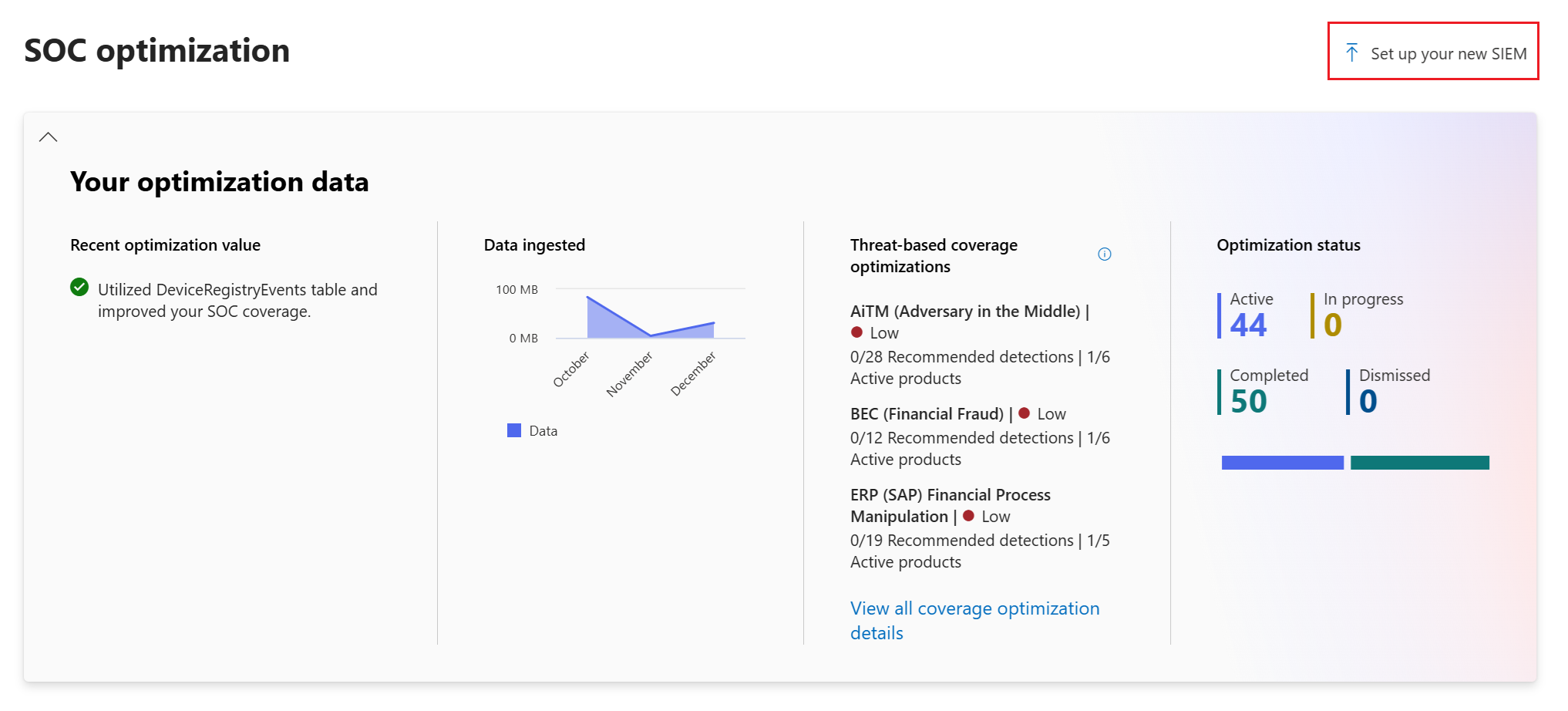
security.microsoft.com.From the SOC Optimization tab, select Set up your new SIEM.
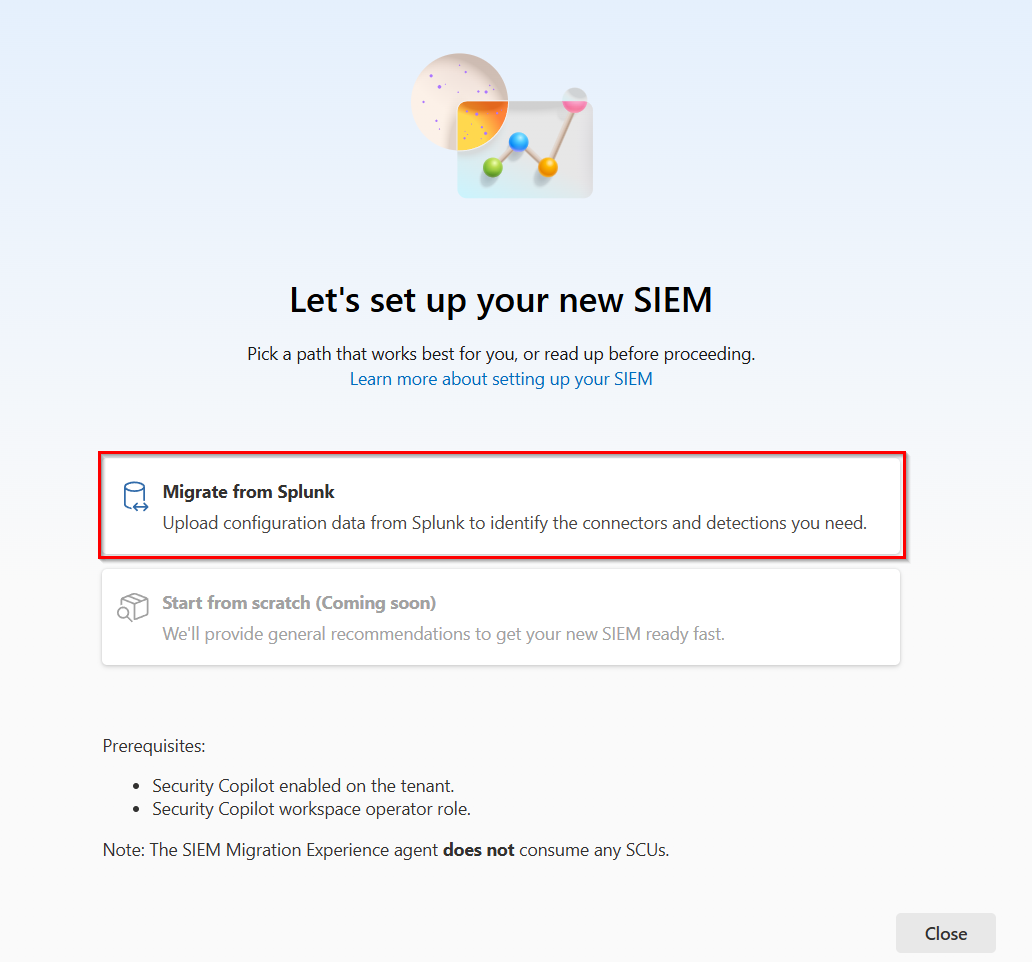
Select Migrate from your current SIEM:
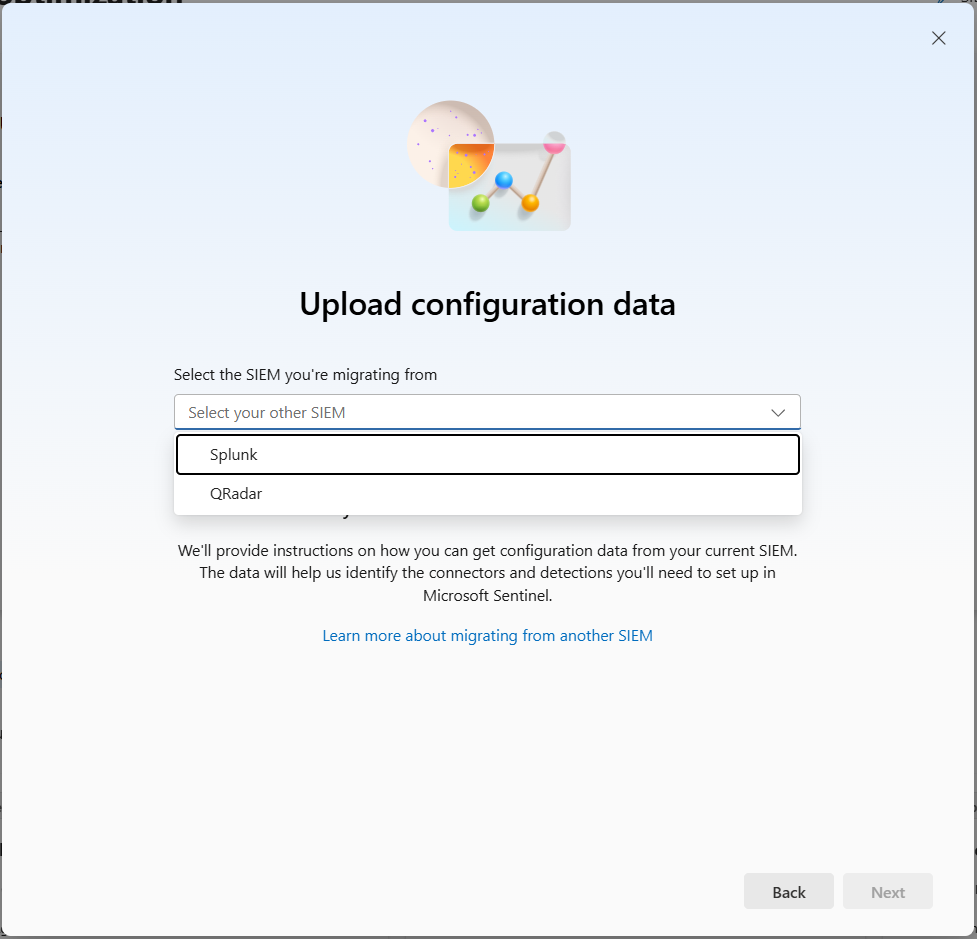
Select the SIEM you're migrating from.
Upload the configuration data that you exported from your current SIEM and select Next.
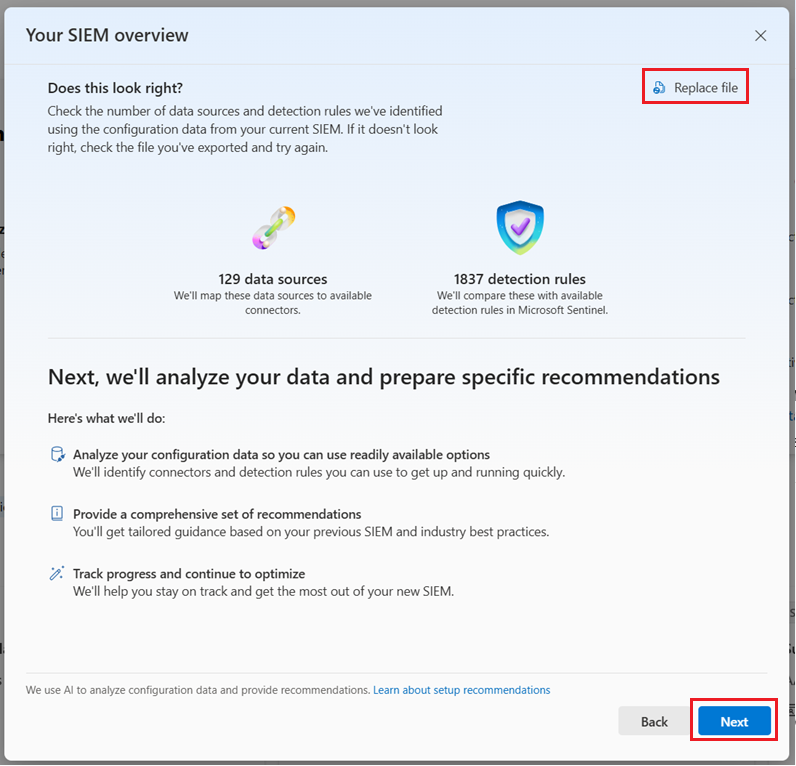
The migration tool analyzes the export and identifies the number of data sources and detection rules in the file you provided. Use this information to confirm that you have the right export.
If the data doesn't look correct, select Replace file from the top right corner and upload a new export. When the correct file is uploaded, select Next.
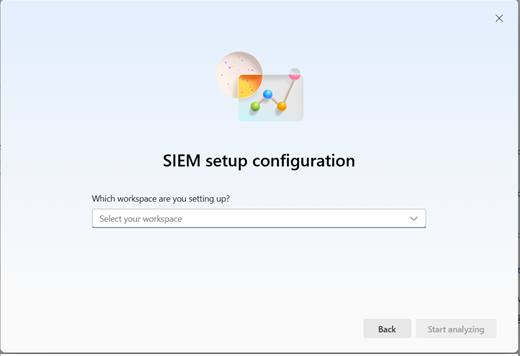
Select a workspace, then select Start Analyzing.
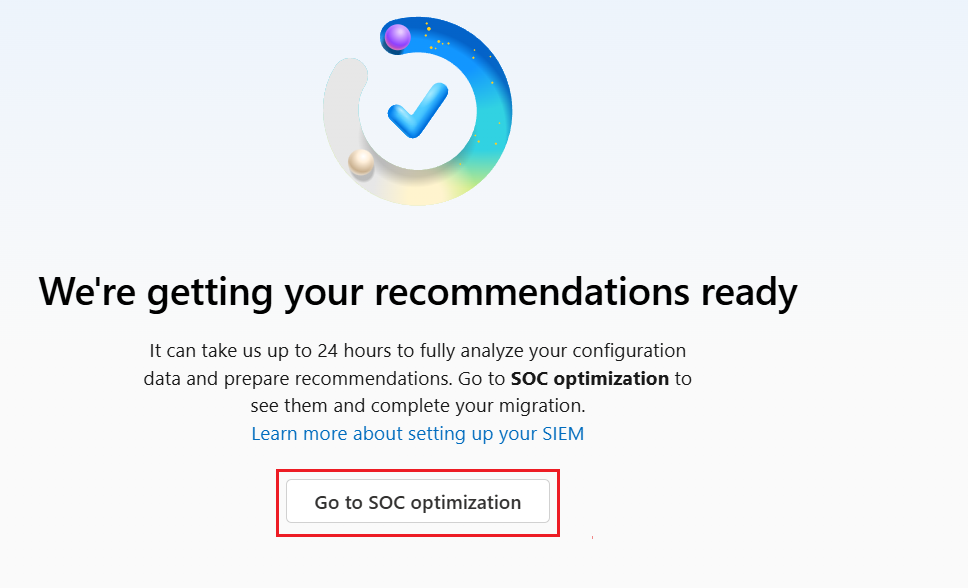
The migration tool maps the detection rules to Microsoft Sentinel data sources and detection rules. If there are no recommendations in the workspace, recommendations are created. If there are existing recommendations, the tool deletes and replaces them with new ones.
Refresh the page and select the SIEM setup analysis status to view the progress of the analysis:
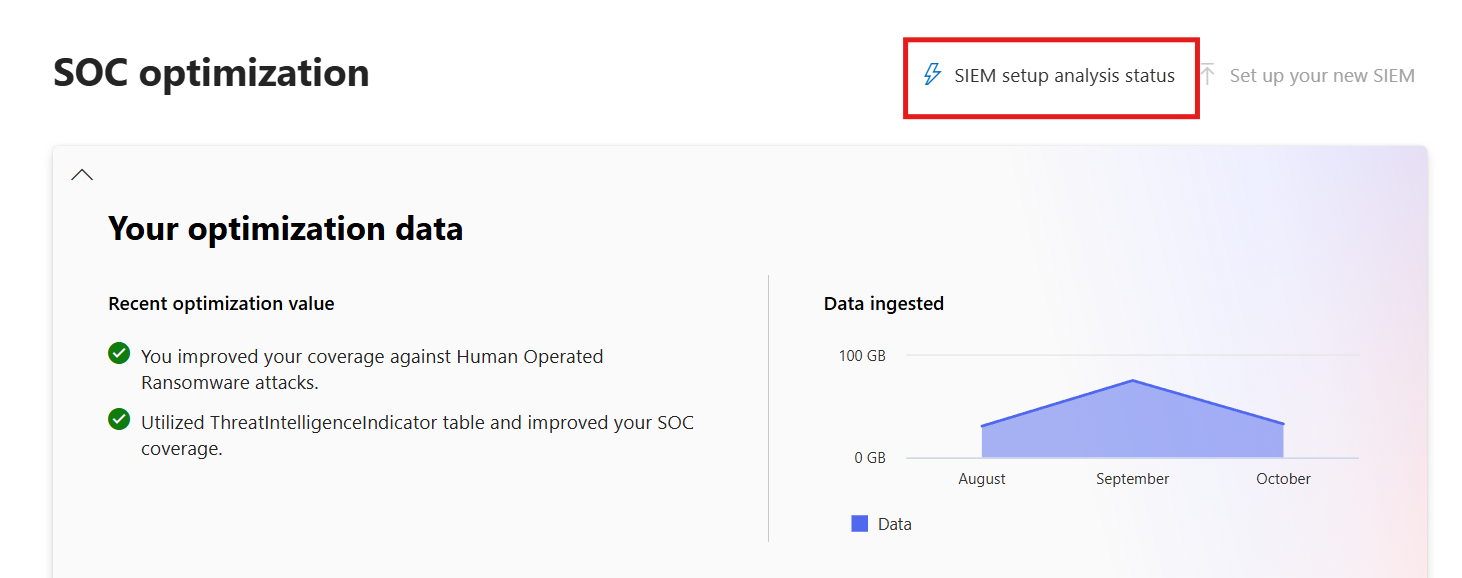
This page doesn't refresh automatically. To see the latest status, close and reopen the page.
The analysis is complete when all three check marks are green. If the three checkmarks are green but there are no recommendations, it means that no matches were found for your rules.
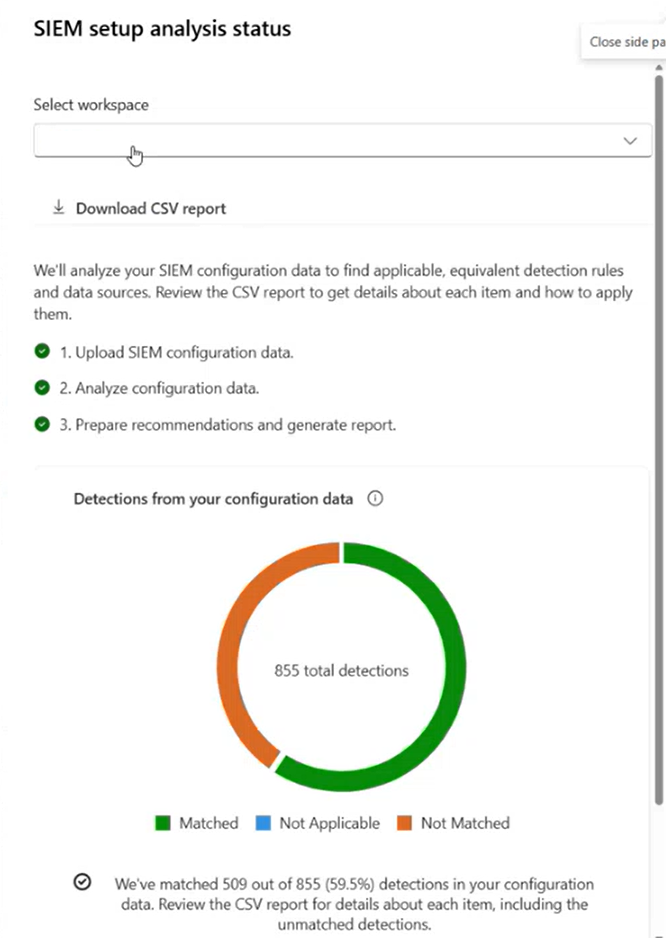
When the analysis completes, the migration tool generates use-case-based recommendations, grouped by Content Hub solutions. You can also download a detailed report of the analysis. The report contains a detailed analysis of recommended migration jobs, including Splunk rules that we didn't find good solution for, weren't detected, or not applicable.
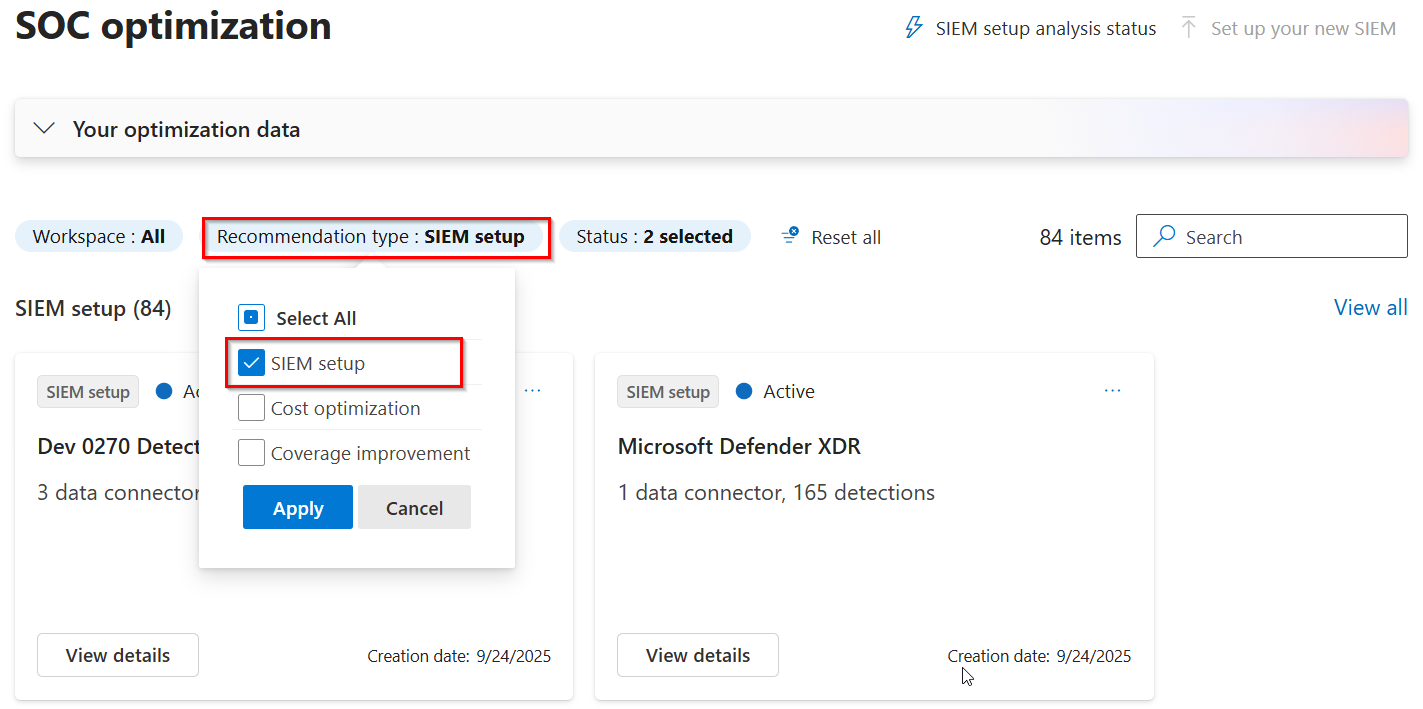
Filter recommendation type by SIEM Setup to see migration recommendations.
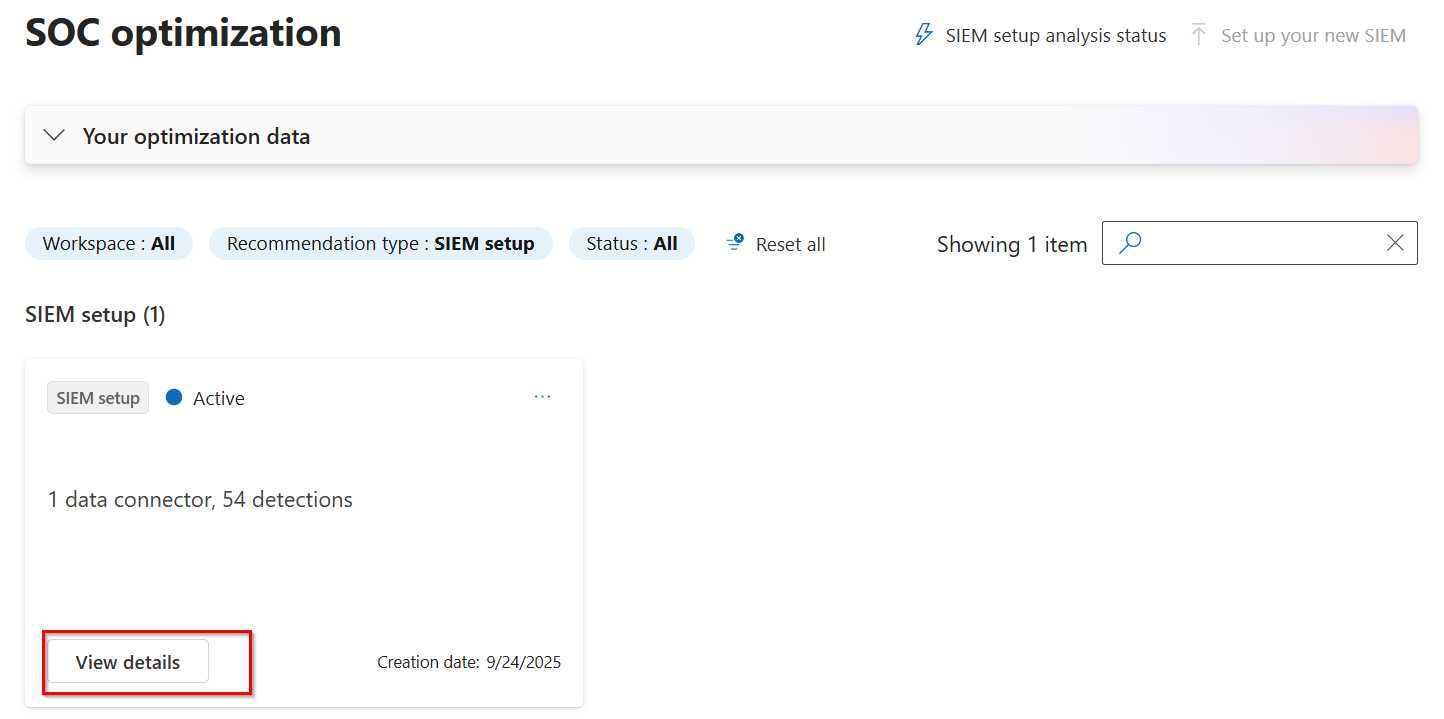
Select one of the recommendation cards to view the data sources and rules mapped.
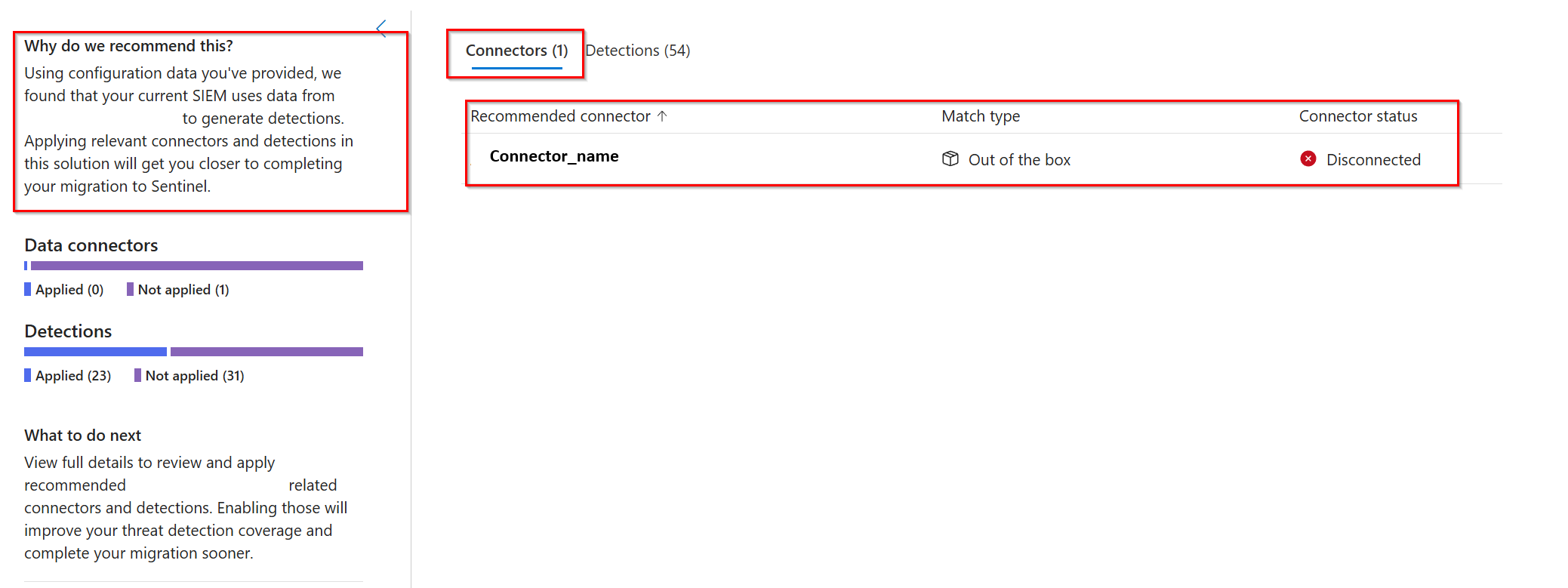
The tool matches the Splunk rules to out-of-box Microsoft Sentinel data connectors and out-of-box Microsoft Sentinel detection rules. The connectors tab shows the data connectors matched to the rules from your SIEM and the status (connected or not disconnected). If the connector you want to use isn't already connected, you can connect from the connector tab. If a connector isn't installed, go to the Content hub and install the solution that contains the connector you want to use.
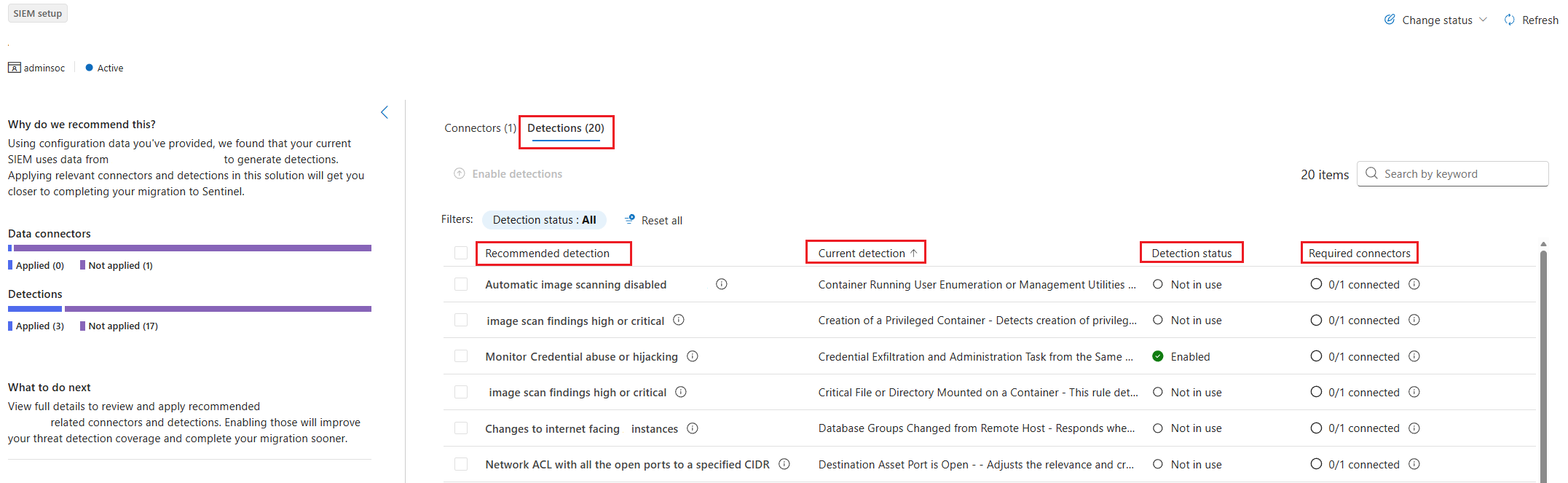
The detections tab shows the following information:
- Recommendations from the SIEM migration tool.
- The current Splunk detection rule from your uploaded file.
- The status of the detection rule in Microsoft Sentinel. The status can be:
- Enabled: The detection rule is created from the rule template, enabled, and active (from a previous action)
- Disabled: The detection rule is installed from the Content Hub but not enabled in the Microsoft Sentinel workspace
- Not in use: The detection rule was installed from Content Hub and is available as a template to be enabled
- Not installed: The detection rule wasn't installed from the Content Hub
- The required connectors that need to be configured to bring the logs required for the recommended detection rule. If a required connector isn't available, there's a side panel with a wizard to install it from the Content Hub. If all required connectors are connected, a green check mark appears.
Enable detection rules
When you select a rule, the rules details side panel opens and you can view the rules template details.
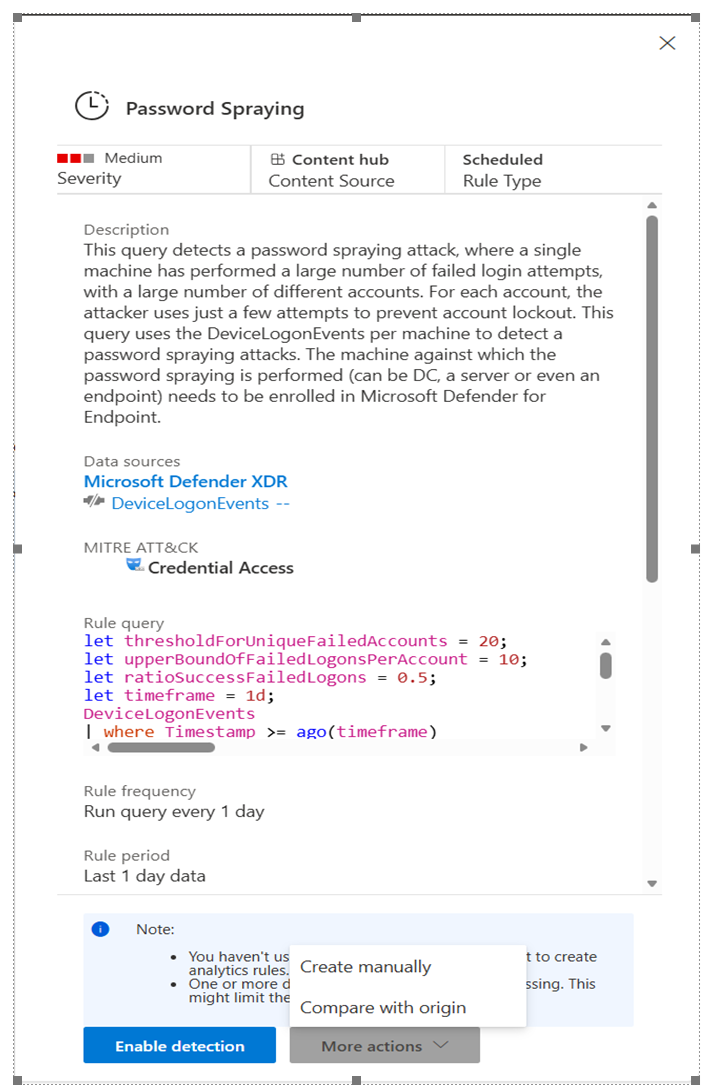
If the associated data connector is installed and configured, select Enable detection to enable the detection rule.
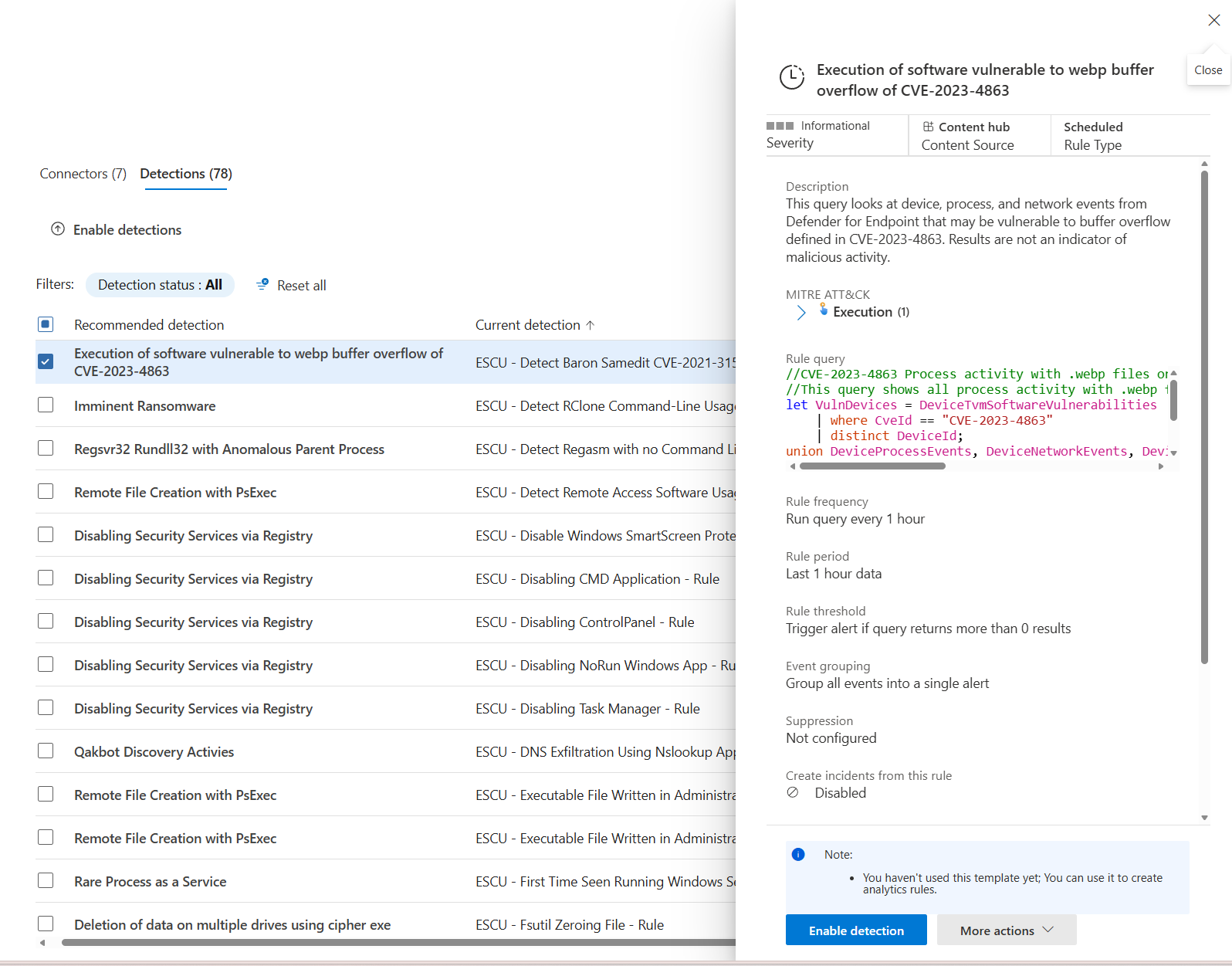
Select More actions > Create manually to open the analytics rules wizard so you can review and edit the rule before enabling it.
If the rule is already enabled, select Edit to open the analytics rules wizard to review and edit the rule.
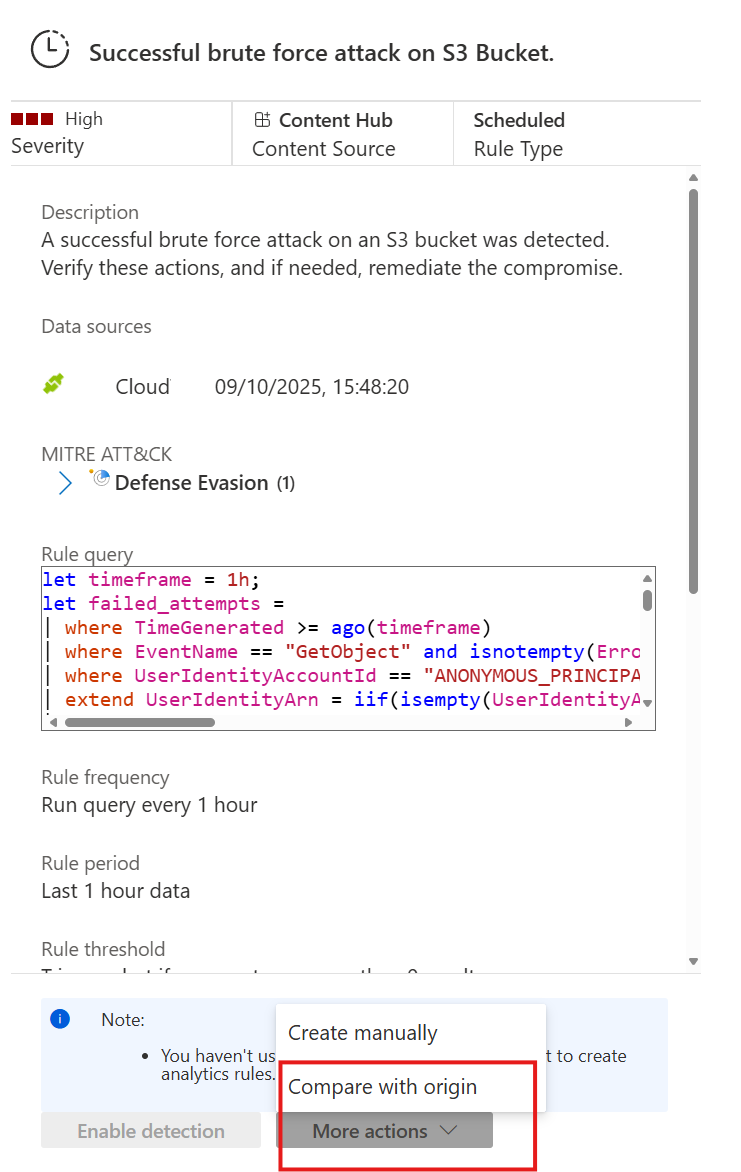
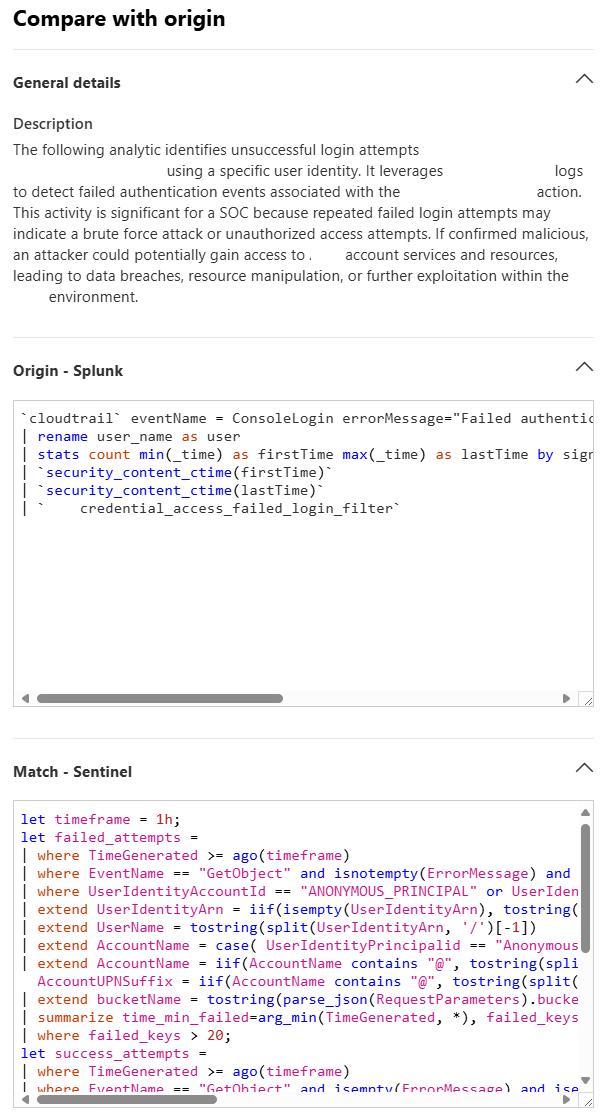
The wizard shows the Splunk SPL rule and you can compare it with the Microsoft Sentinel KQL.
Tip
Instead of creating rules manually from scratch, it can be faster and simpler to enable the rule from the template and then edit it as needed.
If the data connector isn't installed and configured to stream logs, Enable detection is disabled.
You can enable several rules at once by selecting the check boxes next to each rule you want to enable and then selecting Enable selected detections at the top of the page.
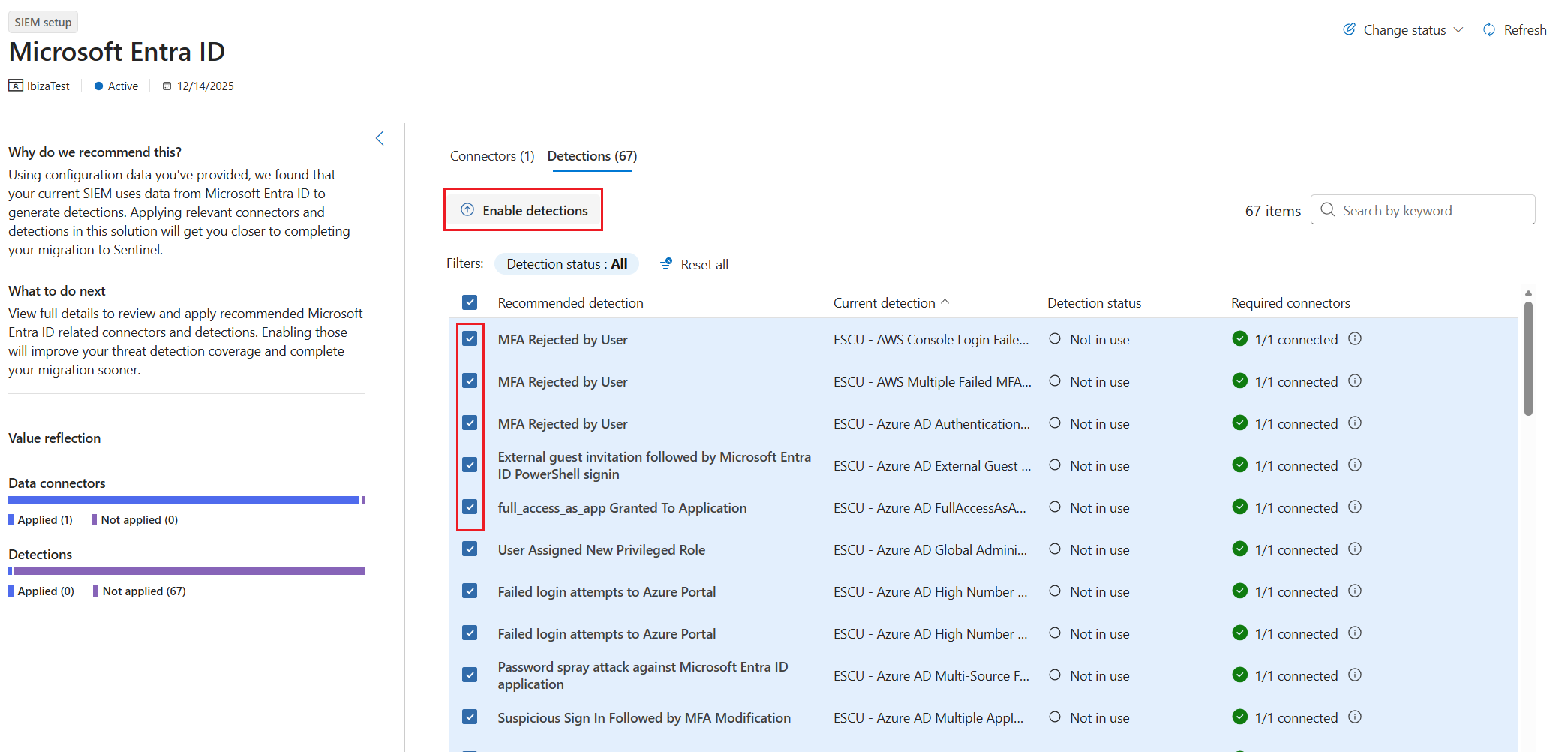
The SIEM migration tool doesn't explicitly install any connectors or enable detection rules.
Limitations
- The migration tool maps the rules export to out-of-the-box Microsoft Sentinel data connectors and detection rules.