Bemærk
Adgang til denne side kræver godkendelse. Du kan prøve at logge på eller ændre mapper.
Adgang til denne side kræver godkendelse. Du kan prøve at ændre mapper.
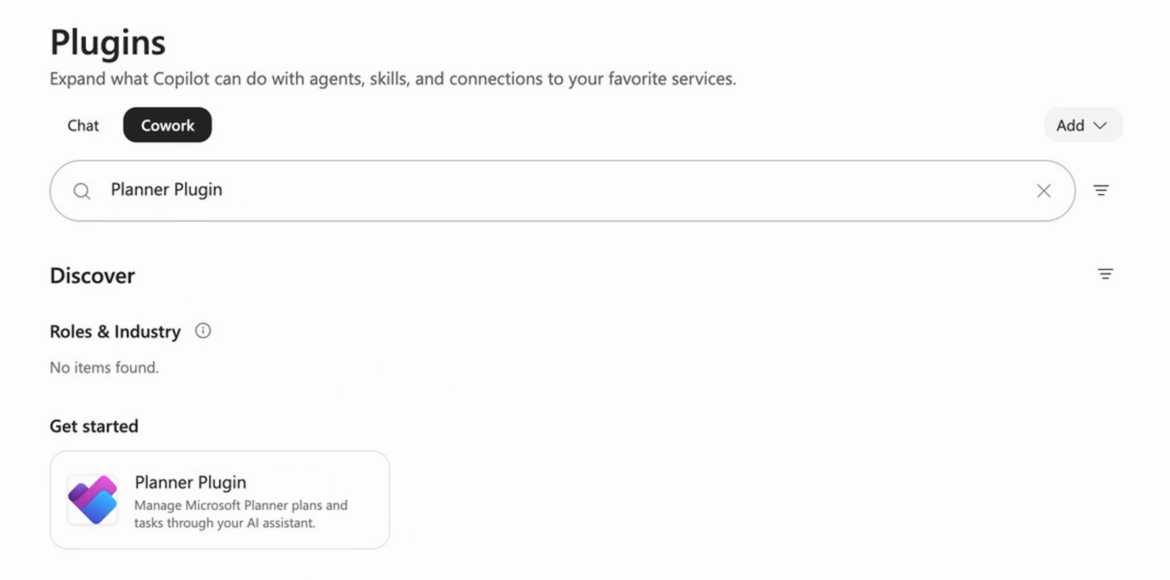
The Planner Plugin connects Planner to supported Copilot experiences. As an admin, you enable or deploy this Microsoft-created plugin for your organization and control who gets access. Users currently find it in Microsoft Copilot under Plugins > Cowork.
This article covers Cowork deployment and governance. For the user experience, see Turn on the Planner Plugin in Cowork. For general plugin governance, see Manage plugins for Copilot Cowork.
What's in the Planner Plugin
The Planner Plugin connects Microsoft Planner to supported Copilot experiences so people can manage plans and tasks through their AI assistant. It includes a Planner connector. This article documents the Cowork experience, and the plugin is available to users with an active Microsoft 365 Copilot license after an admin enables or deploys it.
| Item | Details |
|---|---|
| Plugin name | Planner Plugin |
| Created by | Microsoft Corporation |
| Description | Manage Microsoft Planner plans and tasks through your AI assistant. |
| Distribution | Microsoft 365 App Store |
| Connector | Planner Plugin: reads and updates plans, tasks, buckets, and goals on behalf of the signed-in user |
| Where users find it today | Microsoft Copilot > Plugins > Cowork tab |
The plugin doesn't have a standalone interface. Users access it through supported Copilot experiences. Users currently find it in Microsoft Copilot under Plugins > Cowork, and this article documents the Cowork experience.
Important
AI-generated content might be inaccurate. Users review proposed changes and approve them before anything is written to Planner.
Prerequisites
| Requirement | Details |
|---|---|
| Admin role | Global Administrator or Copilot Administrator |
| User licenses | Microsoft 365 Copilot |
| Cowork | Copilot Cowork enabled for your organization |
| Planner | Users have access to Microsoft Planner |
Deploy the plugin
Enable the plugin for your organization by installing it for users or making it available for users to add themselves. This makes the plugin available to users in supported Copilot experiences. The discovery and setup steps in this article cover Plugins > Cowork in Microsoft Copilot.
Option 1: Install for users (recommended)
- Sign in to the Microsoft 365 admin center.
- Select Agents, and then select Tools (or All agents).
- Search for Planner Plugin and select it.
- Select Installed for, and then select All users or Specific users/groups.
- Select Next, and then select Install.
Users get the plugin automatically. It appears on their Plugins page (Cowork tab), labeled Managed by your organization.
Option 2: Let users add it themselves
- In the Microsoft 365 admin center, go to Agents > Tools.
- Select Planner Plugin, and then open the Users tab.
- Select Available to all users, or Available to specific users or groups.
Users with access can install the plugin from the Plugins page in Microsoft Copilot, on the Cowork tab.
Tip
Start with a pilot security group, and then expand to all users.
Control availability
| Setting | Result |
|---|---|
| Installed for all users | Every licensed user gets the plugin and can't remove it. |
| Installed for specific users or groups | Targeted users get the plugin and can't remove it. |
| Available to all users | Any licensed user can add it. |
| Available to specific users or groups | Only selected users and groups can find it. |
| Blocked | No one in your organization can use it. |
To block the plugin, go to Agents > Tools, select Planner Plugin, open the Users tab, and select Block. Blocking applies to new conversations. Conversations already in progress continue until they end.
Note
Availability can't be scoped by country or region. Use security groups instead.
Authentication and permissions
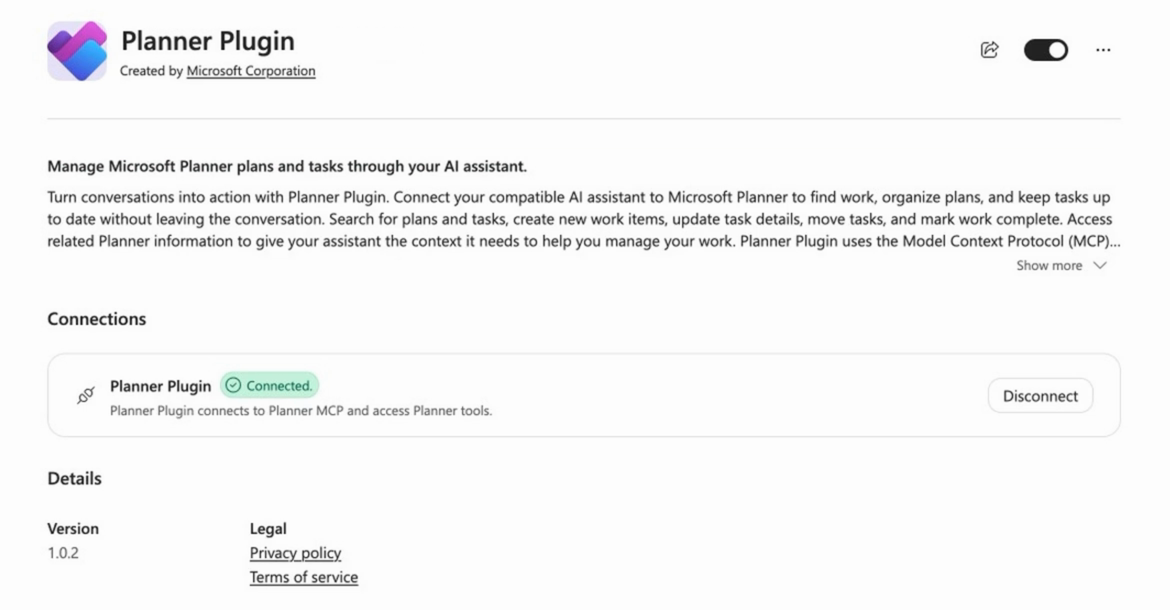
- The Planner Plugin is a Microsoft first-party plugin. Users might be asked to connect once the first time they use it. You can't complete this step on their behalf.
- After connecting, Cowork remembers the connection until the user or an admin revokes it. Users can disconnect from the plugin's details page.
- The plugin acts on behalf of the signed-in user. Users can only see and change plans and tasks that they already have access to in Planner. The plugin doesn't grant any new access.
What users see
- Admin-installed plugins appear automatically on the user's Plugins page, on the Cowork tab.
- Users can turn the plugin on or off for their own conversations from the Plugins page (Cowork tab).
- Every change to Planner is shown to the user and requires their approval. Tasks are marked complete only after the user confirms.
Data, security, and compliance
- The plugin respects existing Planner and Microsoft 365 permissions.
- To help with Planner tasks, Cowork can use other Microsoft 365 content that the user already has access to, such as files, email, and meetings.
- Microsoft Purview Information Barriers aren't currently supported for Cowork plugin management and sharing.
Monitor usage
Cowork and plugin activity is captured in Microsoft Purview audit logs under Copilot activities. Audit (Standard) provides these logs at no additional cost.
Troubleshooting
| Issue | What to check |
|---|---|
| Users can't find the plugin | Confirm the plugin isn't blocked and the user is in an assigned group. Changes can take some time to appear. |
| Plugin shows Not connected | The user needs to select Connect and complete sign-in. |
| Cowork doesn't use Planner | Confirm the plugin is turned on and shows Connected on the Plugins page (Cowork tab). |
| User can't access a plan | The user doesn't have access to that plan in Planner. |
| User can't remove the plugin | Expected for admin-installed plugins. Users can turn it off instead. |