Bemærk
Adgang til denne side kræver godkendelse. Du kan prøve at logge på eller ændre mapper.
Adgang til denne side kræver godkendelse. Du kan prøve at ændre mapper.
Genie Code helps developers generate, optimize, explain, and fix code in Azure Databricks notebooks, the SQL editor, jobs, AI/BI dashboards, and the file editor. Use Chat mode for explanations and quick code generation, and Agent mode (the default) to let Genie Code autonomously plan and complete multi-step tasks.
Note
Genie Code defaults to using Databricks-hosted AI models if you disable Partner-powered AI features.
To learn how Genie Code helps with code, see Get coding help from Genie Code.
Tour of Genie Code pane
This section describes the default experience of Genie Code pane.
To open Genie Code pane, click  on the upper-right corner of the page.
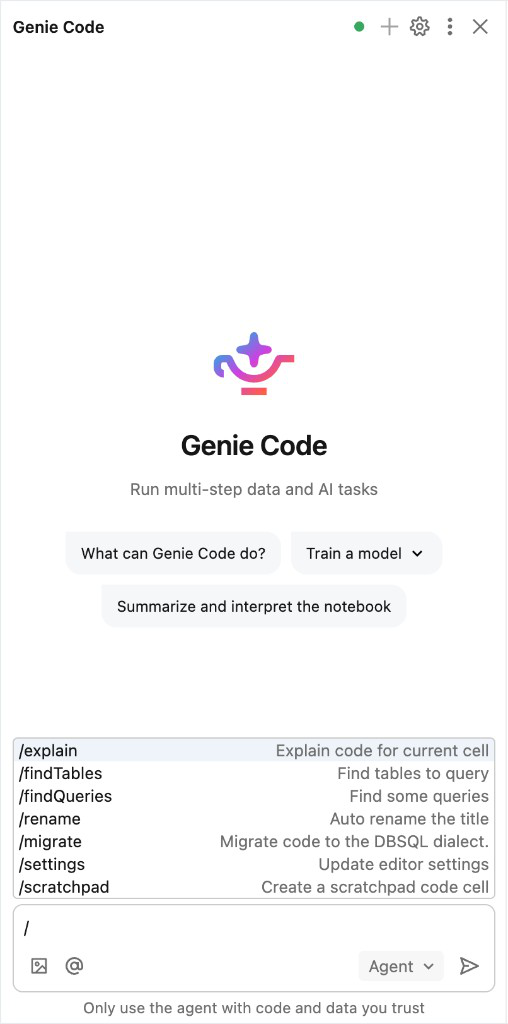
Type questions or slash commands in the text box at the bottom of Genie Code pane and press Enter or click  at the right of the text box. Genie Code displays its answer.
If you prompt Genie Code to help with code, it leads you through running, accepting, or rejecting the code changes it proposes.
Genie Code pane controls and settings
Genie Code pane header has controls and settings.
Click
 start a new thread.
Click
 to open Genie Code settings. From here, you can add custom user and workspace instructions.
Click
 to open settings for Genie Code pane.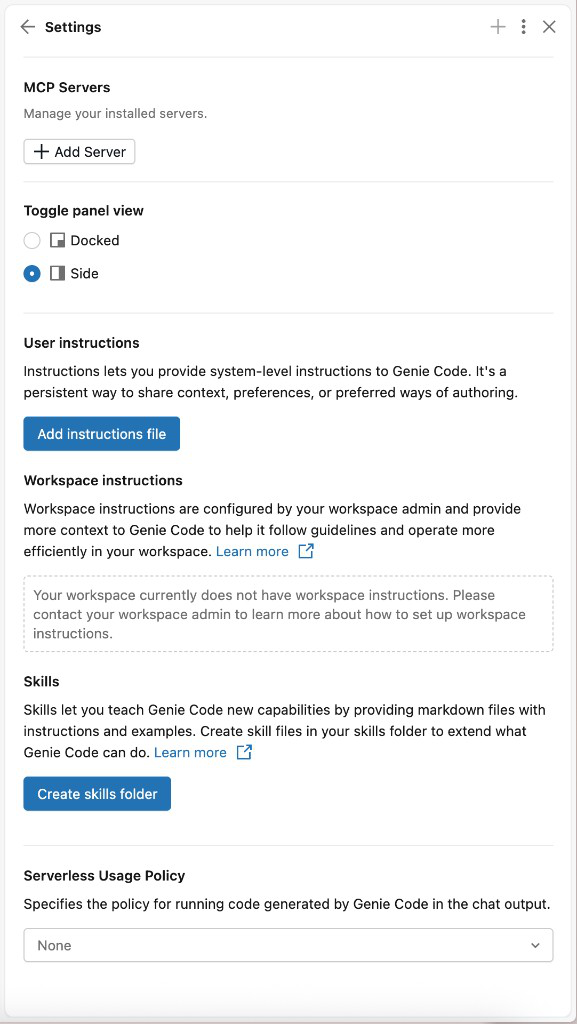
- Control the location of Genie Code: Choose Docked to dock Genie Code pane anywhere along the bottom. You can drag and drop the pane to move it. Choose Side to keep Genie Code pane on the right side.
- View chat threads in History: Click History to view past chat threads. Click a chat thread to reopen it. To delete a chat thread, hover over it and click the trash icon
 .
.
Click
 to Close Genie Code pane.
Genie Code modes
Genie Code runs in two modes: Chat for quick questions and code generation, and Agent for autonomous multi-step workflows. Agent mode is the default.
Note
Agent mode requires the following:
- Partner-powered AI features enabled for both the account and workspace. See Partner-powered AI features.
- Your workspace must be in a supported region. Genie Code is a Designated Service that uses Geos to manage data residency. See Geo availability of Genie Code features.
To switch between modes, use the mode selector at the bottom of Genie Code pane:
The table below summarizes the two Genie Code modes:
| Mode | Capabilities | When to use | Example prompts |
|---|---|---|---|
| Chat | Answer questions to help you understand code and concepts. Generate and run code within the chat. |
|
|
| Agent | Automate multi-step workflows, plan a solution, retrieve relevant assets, run code, use cell outputs to improve results, fix errors automatically, and more. |
|
|
Full page Genie Code (Beta)
Genie Code has a full page command center experience, where the active thread is shown prominently, surfacing assets like notebooks and files alongside it as tabs when needed. See Full page Genie Code.
Approve tool actions
When Genie Code needs to use a tool, like running code, editing a notebook, or querying a table, it asks for your approval before proceeding. You can approve each request individually, or set an approval mode that applies to the rest of your current thread or to all future threads.
Approve a single request
When Genie Code requests permission to use a tool, click Allow to approve the action or Skip to refuse it.
To change how Genie Code handles future approval requests in the current thread, select one of the following from the same prompt:
| Option | Behavior |
|---|---|
| Ask every time | Genie Code asks for approval every time it uses a tool. This is the default. |
| Allow in current thread | Genie Code can use the requested tool for the rest of the current thread without asking. |
| Always allow | Genie Code can use the requested tool in every thread without asking. |
| Auto-approve | Genie Code automatically approves tool actions for the rest of the current thread. An AI classifier reviews each action and blocks risky ones. (Recommended.) |
Set a default approval mode
To apply the same approval mode to every Genie Code thread, set a default in Genie Code settings. Click in Genie Code pane header to open settings.
Choose one of the following:
Ask first: Approve each tool when it runs. Per-tool overrides still apply.
Auto-approve: An AI classifier reviews each proposed action against your stated intent and approves or blocks each one, minimizing manual approvals while blocking risky actions.
Important
Auto-approve is a productivity feature, not a security boundary. The classifier is a best-effort heuristic that can be wrong. It may approve unsafe actions or block safe ones. Do not rely on it to enforce security, compliance, or access-control requirements. Keep auto-approve off when working with production data, sensitive workspaces, or shared resources where the consequences of an incorrect approval matter. You remain responsible for reviewing Genie Code's results.
When auto-approve is on, Genie Code typically allows low-risk operations like read-only queries, edits to your own workspace files and notebooks, writes to tables you own, and running jobs or pipelines you've already referenced. It blocks anything that could escalate scope or affect shared resources, such as destructive operations, production deployments, permission and secret changes, external calls to third parties, and risky source control operations like force pushes.
When an action is blocked, Genie Code receives the reason and adapts, for example by retrying with a narrower scope.
Share a chat thread
You can share Genie Code chat threads with other users, groups, or service principals.
To share a chat thread:
In the Genie Code pane, click the
kebab menu, then click  History to open chat history.
Hover over the chat thread you want to share and click the
kebab menu.Click
 Share.
In the share dialog, add the users, groups, or service principals to share with. Recipients receive Can View permission on the chat thread. See Genie Code chat ACLs.
(Optional) Check Email new users to send an email notification to newly added users.
(Optional) To share a direct link to the chat thread, click
 Copy link at the bottom of the share dialog.
Click Add to share the conversation.
Get help with code
Get help with code from Genie Code directly in your notebooks. Genie Code offers:
- Use Genie Code for data science to help you plan and automate multi-step data science workflows.
- AI-based autocomplete.
- Data filtering with natural language prompts.
- Code debugging with Diagnose Error.
- Quick Fix, which presents automatic recommendations for fixing code errors that you can Accept and run.
- Serverless code execution.
Users should always review any code generated by Genie Code before running it because it can sometimes make mistakes.
For more information on how Genie Code can help with code, see Get coding help from Genie Code.
Code optimized for the Azure Databricks environment
Code generated by the Genie Code is intended to run in a Databricks compute environment. It is optimized to create code in Databricks-supported programming languages, frameworks, and dialects. It is not intended to be a general-purpose programming assistant.
Genie Code often uses information from Databricks resources, such as the Databricks documentation website or Knowledge Base, to better answer user queries. It performs best when the user question is related to questions that can be answered with knowledge from Databricks documentation, Unity Catalog, and user code in the Workspace.
Get answers sourced from documentation
Genie Code searches Databricks documentation to answer your questions. When it references documentation, you see a Searched documentation step in the response. You can ask Genie Code to cite its sources, and it provides links to relevant documentation pages.
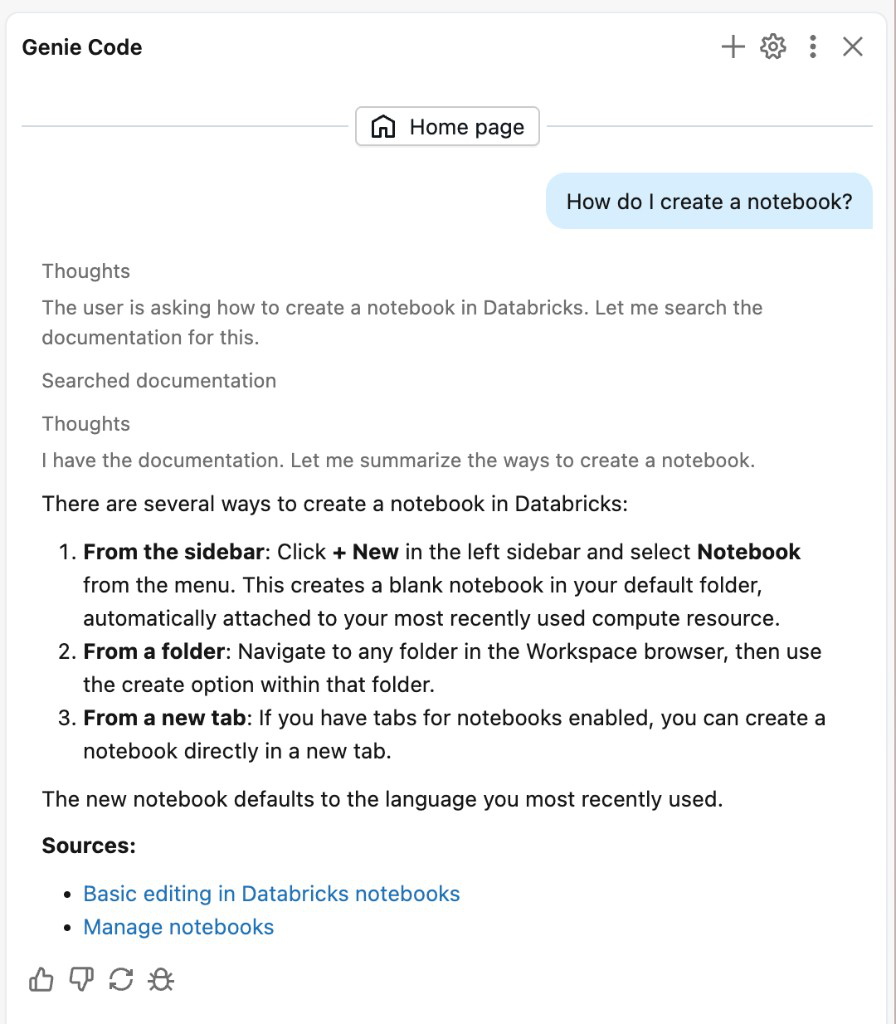
Give feedback on Genie Code answers
Let us know whether Genie Code answers are useful or not:
- Hover just below Genie Code answer.
- Click the Useful
 or Not useful
  button.