Bemærk
Adgang til denne side kræver godkendelse. Du kan prøve at logge på eller ændre mapper.
Adgang til denne side kræver godkendelse. Du kan prøve at ændre mapper.
Important
This feature is in Beta. For workspace-level authorization, a workspace admin must turn on Workspace Device Code Authorization from the workspace Previews page. For account-level authorization, an account admin must turn on device code authorization from the account console Previews page. See Manage Azure Databricks previews.
Use device code authorization to get a workspace-level or account-level OAuth access token on a machine that can't open a browser, such as a remote VM or a container. You start the sign-in on the headless machine, complete it in a browser on any other device, and then return a confirmation code to the headless machine to get the token.
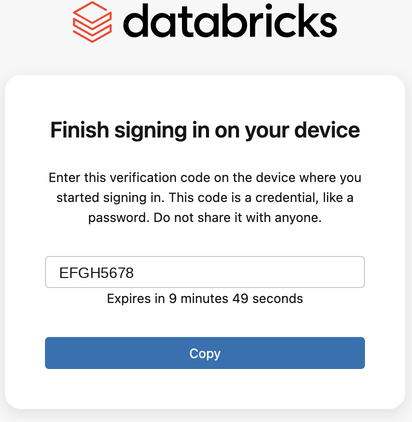
The flow is based on the OAuth 2.0 device authorization grant (RFC 8628), with an added confirmation step. After you sign in, Azure Databricks shows a confirmation code that you enter on the headless machine. The token request fails without this code, so signing in alone doesn't issue a token. You must also return the confirmation code to the machine that started the request.
If your machine can open a browser, use the standard user-to-machine (U2M) flow instead. See Authorize user access to Azure Databricks with OAuth.
Choose a workspace or account level
The flow is the same at both levels. Only the host and the request paths differ.
- Workspace level: Use this level to call workspace-level REST APIs. You send requests to your workspace URL.
- Account level: Use this level to call account-level REST APIs. You send requests to your account console URL and include your account ID in the path.
Requirements
- For workspace-level authorization, a workspace admin has turned on Workspace Device Code Authorization from the Previews page. See Manage Azure Databricks previews. If it isn't on, requests fail with an
access_deniederror that saysDevice authorization is not enabled for this workspace. - For account-level authorization, an account admin has turned on device code authorization from the account console Previews page. See Manage account-level previews. If it isn't on, requests fail with an
access_deniederror that saysDevice authorization is not enabled for this account. - You use the Databricks CLI OAuth application, with the client ID
databricks-cli. Device code authorization doesn't support custom OAuth applications. - For workspace-level authorization, you have the workspace URL.
- For account-level authorization, you have your account ID and your account console URL,
https://accounts.azuredatabricks.net. See Locate your account ID.
Get an access token with a device code
You have 10 minutes after step 1 to approve the sign-in in step 2. After you approve it, you have another 10 minutes to complete step 3. If either window passes, start again from step 1.
Step 1: Request a device code and user code
On the headless machine, use curl to request a device code.
Workspace
Replace <databricks-instance> with the Azure Databricks workspace instance name, for example adb-1234567890123456.7.azuredatabricks.net.
To request a device code, run the following:
curl --request POST \
https://<databricks-instance>/oidc/v1/device/auth \
--data "client_id=databricks-cli" \
--data "scope=all-apis offline_access"
Include offline_access in scope only if you need a refresh token.
The response is similar to the following:
{
  "device_code": "Zk9x...Qm3w",
  "user_code": "ABCD1234",
  "verification_uri": "https://<databricks-instance>/device/verification",
  "expires_in": 600
}
Account
Replace the following in the request:
<account-console-url>: Your account console URL,https://accounts.azuredatabricks.net.<account-id>: Your Azure Databricks account ID.
To request a device code, run the following:
curl --request POST \
<account-console-url>/oidc/accounts/<account-id>/v1/device/auth \
--data "client_id=databricks-cli" \
--data "scope=all-apis offline_access"
Include offline_access in scope only if you need a refresh token.
The response is similar to the following. The verification_uri includes your account ID:
{
  "device_code": "Zk9x...Qm3w",
  "user_code": "ABCD1234",
  "verification_uri": "<account-console-url>/device/verification?account_id=<account-id>",
  "expires_in": 600
}
Save the device_code value for step 3.
Step 2: Approve the sign-in in a browser
On any device that has a browser, such as your laptop or phone:
Go to the
verification_urifrom the response in step 1.If prompted, sign in to your Azure Databricks workspace or account. For account-level authorization, sign in to the account that matches the account ID in the
verification_uri.On the Sign into Databricks page, enter the
user_codefrom step 1 and click Sign In.On the Finish signing in on your device page, click Copy to copy the confirmation code. The page shows how long the code remains valid.
Step 3: Exchange the codes for an access token
On the headless machine, use curl to exchange the device code and confirmation code for an access token.
Workspace
Replace the following in the request:
<databricks-instance>: Your workspace instance name.<device-code>: Thedevice_codevalue from step 1.<confirmation-code>: The confirmation code from step 2. The code is case-sensitive.
To get the access token, run the following:
curl --request POST \
https://<databricks-instance>/oidc/v1/token \
--data "client_id=databricks-cli" \
--data "grant_type=urn:ietf:params:oauth:grant-type:device_code" \
--data "device_code=<device-code>" \
--data "confirmation_code=<confirmation-code>"
Account
Replace the following in the request:
<account-console-url>: Your account console URL,https://accounts.azuredatabricks.net.<account-id>: Your Azure Databricks account ID.<device-code>: Thedevice_codevalue from step 1.<confirmation-code>: The confirmation code from step 2. The code is case-sensitive.
To get the access token, run the following:
curl --request POST \
<account-console-url>/oidc/accounts/<account-id>/v1/token \
--data "client_id=databricks-cli" \
--data "grant_type=urn:ietf:params:oauth:grant-type:device_code" \
--data "device_code=<device-code>" \
--data "confirmation_code=<confirmation-code>"
Copy the access_token value from the response. For example:
{
  "access_token": "eyJr...Dkag",
  "refresh_token": "doau...f26e",
  "scope": "all-apis offline_access",
  "token_type": "Bearer",
  "expires_in": 3600
}
The access token is valid for one hour. The response includes refresh_token only if you requested the offline_access scope in step 1. You can use the device code and confirmation code only one time.
Unlike the standard RFC 8628 flow, this flow doesn't use polling. Send the token request one time, after you have the confirmation code.
Step 4: Call a Azure Databricks REST API
Use the access token to call REST APIs at the level that you authorized.
Workspace
This example uses curl along with Bearer authentication to list all available clusters in the workspace. Replace <oauth-access-token> with the access token, and replace <databricks-instance> with the Azure Databricks workspace instance name, for example adb-1234567890123456.7.azuredatabricks.net.
export OAUTH_TOKEN=<oauth-access-token>

curl --request GET --header "Authorization: Bearer $OAUTH_TOKEN" \
"https://<databricks-instance>/api/2.0/clusters/list"
Account
To call account-level APIs, your Azure Databricks user must be an account admin.
This example uses curl along with Bearer authentication to list all workspaces in the account. Replace <oauth-access-token> with the access token, <account-console-url> with your account console URL, https://accounts.azuredatabricks.net, and <account-id> with your account ID.
export OAUTH_TOKEN=<oauth-access-token>

curl --request GET --header "Authorization: Bearer $OAUTH_TOKEN" \
"<account-console-url>/api/2.0/accounts/<account-id>/workspaces"
Refresh tokens and session lifetime
The device code flow issues single-use refresh tokens, regardless of your OAuth application's token settings. This follows the refresh token rotation guidance in RFC 9700, section 4.14. Refresh tokens from the device code flow have the following limits:
- Single-use: You can use each refresh token only one time. When you use it to get a new access token, the response includes a new refresh token, and the old one stops working. If you resend the previous refresh token within 30 seconds, the response returns the current refresh token instead of an error. Store the new refresh token each time. See What are single-use refresh tokens?.
- 24-hour session: Refresh tokens work for at most 24 hours after you complete the device code flow. Your OAuth application's token access policy can shorten this limit but can't extend it.
After the session ends, run the device code flow again to get a new access token.
Troubleshoot errors
The following table lists errors that the device code flow can return and how to resolve them.
| Error | Cause | Resolution |
|---|---|---|
access_denied: Device authorization is not enabled for this workspace |
The Workspace Device Code Authorization preview isn't turned on for the workspace. | Ask a workspace admin to turn it on from the Previews page. |
access_denied: Device authorization is not enabled for this account |
Device code authorization isn't turned on for the account. | Ask an account admin to turn it on from the account console Previews page. |
unauthorized_client: Device authorization is not enabled for this app |
The OAuth client doesn't support device code authorization. | Use databricks-cli. |
unauthorized_client: Device authorization is only supported for public clients |
The OAuth client is a confidential client, such as a custom OAuth application with a client secret. | Use databricks-cli. |
This code is invalid, expired, or already used on the verification page |
The user code is wrong, expired, or already used. | Check the code and enter it again. If it expired, start again from step 1. |
invalid_request: Invalid device code |
The device code is wrong or already used. | Start again from step 1. |
invalid_request: Invalid confirmation code |
The confirmation code is missing, wrong, or expired, or you haven't approved the sign-in yet. | Complete the sign-in in step 2, then check that you copied the confirmation code exactly, including case. If it expired, start again from step 1. |
invalid_request: Device grant rate limit exceeded (HTTP 429) |
You sent too many token requests for the same device code. | Wait a few seconds, then try again. If the code expires, start again from step 1. |
Too many attempts on the verification page |
You entered user codes too many times. | Wait a few seconds, then try again. |
Security recommendations
The user code and confirmation code grant access to your workspace or account. Follow these recommendations:
- Enter a user code only for a sign-in that you started yourself. If someone sends you a user code or verification link and asks you to sign in, don't enter it. An attacker can use this request to get a token for your account.
- Treat the device code, confirmation code, and tokens like passwords. Don't share them, and don't write them to logs or source control.
- Request only the scopes you need. Leave out
offline_accessif you don't need a refresh token.