Bemærk
Adgang til denne side kræver godkendelse. Du kan prøve at logge på eller ændre mapper.
Adgang til denne side kræver godkendelse. Du kan prøve at ændre mapper.
Azure DevOps Services | Azure DevOps Server | Azure DevOps Server 2022
Important
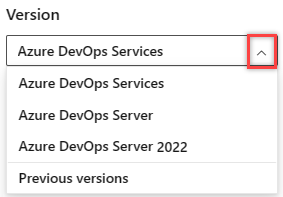
Select the version of this article that corresponds to your platform and version. The version selector is above the table of contents. Look up your Azure DevOps platform and version.
Use expressions when you need to specify a string, boolean, or number value while authoring a pipeline. When an expression returns an array, normal indexing rules apply and the index starts with 0.
The most common use of expressions is in conditions to determine whether a job or step should run.
# Expressions are used to define conditions for a step, job, or stage
steps:
- task: ...
  condition: <expression>
Another common use of expressions is in defining variables.
You can evaluate expressions at compile time or at run time.
Use compile time expressions anywhere; use runtime expressions in variables and conditions. Use runtime expressions to compute the contents of variables and state (example: condition).
# Two examples of expressions used to define variables
# The first one, a, is evaluated when the YAML file is compiled into a plan.
# The second one, b, is evaluated at runtime.
# Note the syntax ${{}} for compile time and $[] for runtime expressions.
variables:
  a: ${{ <expression> }}
  b: $[ <expression> ]
The difference between runtime and compile time expression syntaxes is primarily what context is available.
In a compile-time expression (${{ <expression> }}), you have access to parameters and statically defined variables.
In a runtime expression ($[ <expression> ]), you have access to more variables but no parameters.
In this example, a runtime expression sets the value of $(isMain). A static variable in a compile expression sets the value of $(compileVar).
variables:
  staticVar: 'my value' # static variable
  compileVar: ${{ variables.staticVar }} # compile time expression
  isMain: $[eq(variables['Build.SourceBranch'], 'refs/heads/main')] # runtime expression

steps:
  - script: |
      echo ${{variables.staticVar}} # outputs my value
      echo $(compileVar) # outputs my value
      echo $(isMain) # outputs True
An expression can be a literal, a reference to a variable, a reference to a dependency, a function, or a valid nested combination of these types.
Literals
As part of an expression, you can use boolean, null, number, string, or version literals.
# Examples
variables:
  someBoolean: ${{ true }} # case insensitive, so True or TRUE also works
  someNumber: ${{ -1.2 }}
  someString: ${{ 'a b c' }}
  someVersion: ${{ 1.2.3 }}
Boolean
True and False are boolean literal expressions.
Null
Null is a special literal expression that's returned from a dictionary miss, for example (variables['noSuch']). Null can be the output of an expression but can't be called directly within an expression.
Number
Starts with '-', '.', or '0' through '9'.
String
Must be single-quoted. For example: 'this is a string'.
To express a literal single-quote, escape it with a single quote.
For example: 'It''s OK if they''re using contractions.'.
You can use a pipe character (|) for multiline strings.
myKey: |
  one
  two
  three
Version
A version number with up to four segments.
Must start with a number and contain two or three period (.) characters.
For example: 1.2.3.4.
Variables
As part of an expression, you can access variables by using one of two syntaxes:
- Index syntax:
variables['MyVar'] - Property dereference syntax:
variables.MyVar
To use property dereference syntax, the property name must:
- Start with
a-Zor_ - Be followed by
a-Z,0-9, or_
Different variables are available depending on the execution context.
- If you create pipelines using YAML, then pipeline variables are available.
- If you create build pipelines using classic editor, then build variables are available.
- If you create release pipelines using classic editor, then release variables are available.
Variables are always strings. If you want to use typed values, use parameters.
Note
There is a limitation for using variables with expressions for both Classical and YAML pipelines when setting up such variables via variables tab UI. Variables that are defined as expressions shouldn't depend on another variable with expression in value since it isn't guaranteed that both expressions will be evaluated properly. For example we have variable a whose value $[ <expression> ] is used as a part for the value of variable b. Since the order of processing variables isn't guaranteed variable b could have an incorrect value of variable a after evaluation.
You can only use these constructions when you set up variables through the variables keyword in a YAML pipeline. You need to place the variables in the order they should be processed to get the correct values after processing.
Functions
You can use the following built-in functions in expressions.
and
- Evaluates to
Trueif all parameters areTrue. - Minimum parameters: 2. Maximum parameters: N.
- Casts parameters to Boolean for evaluation.
- Short-circuits after first
False. - Example:
and(eq(variables.letters, 'ABC'), eq(variables.numbers, 123))
coalesce
- Evaluates the parameters in order (left to right), and returns the first value that isn't null or an empty string.
- Returns no value if all parameter values are null or empty strings.
- Minimum parameters: 2. Maximum parameters: N.
- Example:
coalesce(variables.couldBeNull, variables.couldAlsoBeNull, 'literal so it always works')
contains
- Evaluates to
Trueif the left parameter string contains the right parameter. - Minimum parameters: 2. Maximum parameters: 2.
- Casts parameters to string for evaluation.
- Performs ordinal ignore-case comparison.
- Example:
contains('ABCDE', 'BCD')(returns True).
containsValue
- Evaluates
Trueif the left parameter is an array, and any item equals the right parameter. Also evaluatesTrueif the left parameter is an object, and the value of any property equals the right parameter. - Minimum parameters: 2. Maximum parameters: 2.
- If the left parameter is an array, convert each item to match the type of the right parameter. If the left parameter is an object, convert the value of each property to match the type of the right parameter. The equality comparison for each specific item evaluates
Falseif the conversion fails. - Ordinal ignore-case comparison for strings.
- Short-circuits after the first match
Note
There is no literal syntax in a YAML pipeline for specifying an array. This function is of limited use in general pipelines. It's intended for use in the pipeline decorator context with system-provided arrays such as the list of steps.
You can use the containsValue expression to find a matching value in an object. Here's an example that demonstrates looking in list of source branches for a match for Build.SourceBranch.
parameters:
- name: branchOptions
  displayName: Source branch options
  type: object
  default:
    - refs/heads/main
    - refs/heads/test

jobs:
  - job: A1
    steps:
    - ${{ each value in parameters.branchOptions }}:
      - script: echo ${{ value }}

  - job: B1
    condition: ${{ containsValue(parameters.branchOptions, variables['Build.SourceBranch']) }}
    steps:
      - script: echo "Matching branch found"
convertToJson
- Take a complex object and outputs it as JSON.
- Min parameters: 1. Max parameters: 1.
parameters:
  - name: listOfValues
    type: object
    default:
      this_is:
        a_complex: object
        with:
          - one
          - two

steps:
- script: |
    echo "${MY_JSON}"
  env:
    MY_JSON: ${{ convertToJson(parameters.listOfValues) }}
Script output:
{
  "this_is": {
    "a_complex": "object",
    "with": [
      "one",
      "two"
    ]
  }
}
counter
- Use this function only in an expression that defines a variable. Don't use it as part of a condition for a step, job, or stage.
- Evaluates a number that increments with each run of a pipeline.
- Takes two parameters:
prefixandseed. prefixis a string expression. The function tracks a separate counter value for each uniqueprefix. Use UTF-16 characters in theprefix.seedis the starting value of the counter.
You can create a counter that automatically increments by one each time your pipeline runs. When you define a counter, provide a prefix and a seed. The following example demonstrates this concept.
variables:
  major: 1
  # define minor as a counter with the prefix as variable major, and seed as 100.
  minor: $[counter(variables['major'], 100)]

steps:
- bash: echo $(minor)
The value of minor in the preceding example is 100 during the first run of the pipeline. In the second run, the value is 101, as long as the value of major remains 1.
If you edit the YAML file and update the value of the variable major to 2, the value of minor is 100 in the next run of the pipeline. Subsequent runs increment the counter to 101, 102, 103, and so on.
If you later edit the YAML file and set the value of major back to 1, the counter value resumes where it left off for that prefix. In this example, it resumes at 102.
The following example shows how to set a variable to act as a counter that starts at 100, increments by 1 for every run, and resets to 100 every day.
Note
pipeline.startTime isn't available outside of expressions. pipeline.startTime
formats system.pipelineStartTime into a date and time object so that expressions can use it.
The default time zone for pipeline.startTime is UTC. You can change the time zone for your organization.
jobs:
- job:
  variables:
    a: $[counter(format('{0:yyyyMMdd}', pipeline.startTime), 100)]
  steps:
  - bash: echo $(a)
The following example shows a counter that maintains a separate value for PRs and CI runs.
variables:
  patch: $[counter(variables['build.reason'], 0)]
Counters are scoped to a pipeline. In other words, the pipeline increments the counter value for each run. No counters are project-scoped.
endsWith
- Evaluates
Trueif left parameter String ends with right parameter - Minimum parameters: 2. Maximum parameters: 2.
- Casts parameters to string for evaluation.
- Performs ordinal ignore-case comparison.
- Example:
endsWith('ABCDE', 'DE')(returns True)
eq
- Evaluates
Trueif parameters are equal - Minimum parameters: 2. Maximum parameters: 2.
- Converts right parameter to match type of left parameter. Returns
Falseif conversion fails. - Ordinal ignore-case comparison for strings.
- Example:
eq(variables.letters, 'ABC')
format
- Evaluates the trailing parameters and inserts them into the leading parameter string
- Min parameters: 1. Max parameters: N
- Example:
format('Hello {0} {1}', 'John', 'Doe') - Uses .NET custom date and time format specifiers for date formatting (
yyyy,yy,MM,M,dd,d,HH,H,m,mm,ss,s,f,ff,ffff,K) - Example:
format('{0:yyyyMMdd}', pipeline.startTime). In this casepipeline.startTimeis a special date time object variable. - Escape by doubling braces. For example:
format('literal left brace {{ and literal right brace }}')
ge
- Evaluates
Trueif left parameter is greater than or equal to the right parameter - Minimum parameters: 2. Maximum parameters: 2.
- Converts right parameter to match type of left parameter. Errors if conversion fails.
- Ordinal ignore-case comparison for strings.
- Example:
ge(5, 5)(returns True)
gt
- Evaluates
Trueif left parameter is greater than the right parameter - Minimum parameters: 2. Maximum parameters: 2.
- Converts right parameter to match type of left parameter. Errors if conversion fails.
- Ordinal ignore-case comparison for strings.
- Example:
gt(5, 2)(returns True)
in
- Evaluates
Trueif left parameter is equal to any right parameter - Min parameters: 1. Max parameters: N
- Converts right parameters to match type of left parameter. Equality comparison evaluates
Falseif conversion fails. - Ordinal ignore-case comparison for strings.
- Short-circuits after first match
- Example:
in('B', 'A', 'B', 'C')(returns True)
iif
- Returns the second parameter if the first parameter evaluates to
True, and the third parameter otherwise - Min parameters: 1. Max parameters: 3
- The first parameter must be a condition
- Example:
iif(eq(variables['Build.Reason'], 'PullRequest'), 'ManagedDevOpsPool', 'Azure Pipelines')returns 'ManagedDevOpsPool' when the pipeline runs in response to a PR.
join
- Concatenates all elements in the right parameter array, separated by the left parameter string.
- Minimum parameters: 2. Maximum parameters: 2.
- Each element in the array is converted to a string. Complex objects are converted to empty string.
- If the right parameter isn't an array, the result is the right parameter converted to a string.
In this example, a semicolon gets added between each item in the array. The parameter type is an object.
parameters:
- name: myArray
  type: object
  default:
    - FOO
    - BAR
    - ZOO

variables:
   A: ${{ join(';',parameters.myArray) }}

steps:
  - script: echo $A # outputs FOO;BAR;ZOO
le
- Evaluates
Trueif left parameter is less than or equal to the right parameter - Minimum parameters: 2. Maximum parameters: 2.
- Converts right parameter to match type of left parameter. Errors if conversion fails.
- Ordinal ignore-case comparison for strings.
- Example:
le(2, 2)(returns True)
length
- Returns the length of a string or an array, either one that comes from the system or that comes from a parameter
- Minimum parameters: 1. Maximum parameters: 1.
- Example:
length('fabrikam')returns 8.
lower
- Converts a string or variable value to all lowercase characters.
- Minimum parameters: 1. Maximum parameters: 1.
- Returns the lowercase equivalent of a string.
- Example:
lower('FOO')returnsfoo.
lt
- Evaluates
Trueif left parameter is less than the right parameter. - Minimum parameters: 2. Maximum parameters: 2.
- Converts right parameter to match type of left parameter. Errors if conversion fails.
- Ordinal ignore-case comparison for strings.
- Example:
lt(2, 5)(returns True)
ne
- Evaluates
Trueif parameters are not equal - Minimum parameters: 2. Maximum parameters: 2.
- Converts right parameter to match type of left parameter. Returns
Trueif conversion fails. - Ordinal ignore-case comparison for strings.
- Example:
ne(1, 2)returnsTrue.
not
- Evaluates
Trueif parameter isFalse - Min parameters: 1. Max parameters: 1
- Converts value to Boolean for evaluation
- Example:
not(eq(1, 2))(returns True)
notIn
- Evaluates
Trueif left parameter isn't equal to any right parameter - Min parameters: 1. Max parameters: N
- Converts right parameters to match type of left parameter. Equality comparison evaluates
Falseif conversion fails. - Ordinal ignore-case comparison for strings.
- Short-circuits after first match
- Example:
notIn('D', 'A', 'B', 'C')(returns True)
or
- Evaluates
Trueif any parameter isTrue - Minimum parameters: 2. Maximum parameters: N.
- Casts parameters to Boolean for evaluation.
- Short-circuits after first
True - Example:
or(eq(1, 1), eq(2, 3))(returns True, short-circuits)
replace
- Returns a new string in which all instances of a string in the current instance are replaced with another string.
- Minimum parameters: 3. Maximum parameters: 3.
replace(a, b, c): returnsa, with all instances ofbreplaced byc.- Example:
replace('https://www.tinfoilsecurity.com/saml/consume','https://www.tinfoilsecurity.com','http://server')(returnshttp://server/saml/consume).
split
- Splits a string into substrings based on the specified delimiting characters.
- Minimum parameters: 2. Maximum parameters: 2.
- The first parameter is the string to split.
- The second parameter is the delimiting characters.
- Returns an array of substrings. The array includes empty strings when the delimiting characters appear consecutively or at the end of the string.
- Example:
variables: - name: environments value: prod1,prod2 steps: - ${{ each env in split(variables.environments, ',')}}: - script: ./deploy.sh --environment ${{ env }} - Example of using split() with replace():
parameters:
- name: resourceIds
  type: object
  default:
  - /subscriptions/mysubscription/resourceGroups/myResourceGroup/providers/Microsoft.Network/loadBalancers/kubernetes-internal
  - /subscriptions/mysubscription02/resourceGroups/myResourceGroup02/providers/Microsoft.Network/loadBalancers/kubernetes
- name: environments
  type: object
  default:
  - prod1
  - prod2

trigger:
- main

steps:
- ${{ each env in parameters.environments }}:
  - ${{ each resourceId in parameters.resourceIds }}:
      - script: echo ${{ replace(split(resourceId, '/')[8], '-', '_') }}_${{ env }}
startsWith
- Evaluates
Trueif left parameter string starts with right parameter - Minimum parameters: 2. Maximum parameters: 2.
- Casts parameters to string for evaluation.
- Performs ordinal ignore-case comparison.
- Example:
startsWith('ABCDE', 'AB')(returns True).
trim
- Returns the parameter without leading and trailing white spaces
- Min parameters: 1. Max parameters: 1
- Example:
trim(' variable ')returns 'variable'
upper
- Converts a string or variable value to all uppercase characters
- Minimum parameters: 1. Maximum parameters: 1.
- Returns the uppercase equivalent of a string
- Example:
upper('bah')returnsBAH
xor
- Evaluates
Trueif exactly one parameter isTrue - Minimum parameters: 2. Maximum parameters: 2.
- Casts parameters to Boolean for evaluation.
- Example:
xor(True, False)(returns True)
Job status check functions
Use the following status check functions as expressions in conditions, but not in variable definitions.
always
- Always evaluates to
True(even when canceled). Note: A critical failure might still prevent a task from running. For example, if getting sources failed.
canceled
- Evaluates to
Trueif the pipeline is canceled.
failed
- For a step, equivalent to
eq(variables['Agent.JobStatus'], 'Failed'). - For a job:
- With no arguments, evaluates to
Trueif any previous job in the dependency graph failed. - With job names as arguments, evaluates to
Trueif any of those jobs failed.
- With no arguments, evaluates to
succeeded
- For a step, equivalent to
in(variables['Agent.JobStatus'], 'Succeeded', 'SucceededWithIssues'). - Use with
dependsOnwhen working with jobs and you want to check if a previous job was successful. Jobs run in parallel, while stages run sequentially. - For a job:
- With no arguments, evaluates to
Trueif all previous jobs in the dependency graph succeeded or partially succeeded. - With job names as arguments, evaluates to
Trueif all of those jobs succeeded or partially succeeded. - Evaluates to
Falseif the pipeline is canceled.
- With no arguments, evaluates to
succeededOrFailed
For a step, equivalent to
in(variables['Agent.JobStatus'], 'Succeeded', 'SucceededWithIssues', 'Failed').For a job:
- With no arguments, evaluates to
Trueregardless of whether any jobs in the dependency graph succeeded or failed. - With job names as arguments, evaluates to
Truewhether any of those jobs succeeded or failed. - You might want to use
not(canceled())instead when previous jobs in the dependency graph are skipped.
This function is like
always(), except it evaluates toFalsewhen the pipeline is canceled.- With no arguments, evaluates to
Conditional insertion
Use if, elseif, and else clauses to conditionally assign variable values or set inputs for tasks. You can also conditionally run a step when a condition is met.
Conditionals only work when you use template syntax. For more information, see variable syntax.
For templates, you can use conditional insertion when adding a sequence or mapping. For more information, see conditional insertion in templates.
Conditionally assign a variable
variables:
  ${{ if eq(variables['Build.SourceBranchName'], 'main') }}: # only works if you have a main branch
    stageName: prod

pool:
  vmImage: 'ubuntu-latest'

steps:
- script: echo ${{variables.stageName}}
Conditionally set a task input
pool:
  vmImage: 'ubuntu-latest'

steps:
- task: PublishPipelineArtifact@1
  inputs:
    targetPath: '$(Pipeline.Workspace)'
    ${{ if eq(variables['Build.SourceBranchName'], 'main') }}:
      artifact: 'prod'
    ${{ else }}:
      artifact: 'dev'
    publishLocation: 'pipeline'
Conditionally run a step
If there's no variable set, or the value of foo doesn't match the if conditions, the else statement runs. In this example, the value of foo returns true in the elseif condition.
variables:
  - name: foo
    value: contoso # triggers elseif condition

pool:
  vmImage: 'ubuntu-latest'

steps:
- script: echo "start"
- ${{ if eq(variables.foo, 'adaptum') }}:
  - script: echo "this is adaptum"
- ${{ elseif eq(variables.foo, 'contoso') }}: # true
  - script: echo "this is contoso"
- ${{ else }}:
  - script: echo "the value is not adaptum or contoso"
Each keyword
Use the each keyword to loop through parameters with the object type.
parameters:
- name: listOfStrings
  type: object
  default:
  - one
  - two

steps:
- ${{ each value in parameters.listOfStrings }}:
  - script: echo ${{ value }}
You can also iterate through nested elements within an object.
parameters:
- name: listOfFruits
  type: object
  default:
  - fruitName: 'apple'
    colors: ['red','green']
  - fruitName: 'lemon'
    colors: ['yellow']
steps:
- ${{ each fruit in parameters.listOfFruits }} :
  - ${{ each fruitColor in fruit.colors}} :
    - script: echo ${{ fruit.fruitName}} ${{ fruitColor }}
Dependencies
Expressions can use the dependencies context to reference previous jobs or stages. Use dependencies to:
- Reference the job status of a previous job
- Reference the stage status of a previous stage
- Reference output variables in the previous job in the same stage
- Reference output variables in the previous stage in a stage
- Reference output variables in a job in a previous stage in the following stage
The context is called dependencies for jobs and stages and works much like variables.
If you refer to an output variable from a job in another stage, the context is called stageDependencies.
If you experience problems with output variables having quote characters (' or ") in them, see this troubleshooting guide.
Dependency syntax overview
The syntax of referencing output variables with dependencies varies depending on the circumstances. Here's an overview of the most common scenarios. There might be times when alternate syntax also works.
Type
Description
stage to stage dependency (different stages)
Reference an output variable from a previous stage in a job in a different stage in a condition in stages.
- Syntax:
and(succeeded(), eq(stageDependencies.<stage-name>.outputs['<job-name>.<step-name>.<variable-name>'], 'true')) - Example:
and(succeeded(), eq(stageDependencies.A.outputs['A1.printvar.shouldrun'], 'true'))
job to job dependency (same stage)
Reference an output variable in a different job in the same stage in stages.
- Syntax:
and(succeeded(), eq(dependencies.<job-name>.outputs['<step-name>.<variable-name>'], 'true')) - Example:
and(succeeded(), eq(dependencies.A.outputs['printvar.shouldrun'], 'true'))
Job to stage dependency (different stages)
Reference an output variable in a different stage in a job.
- Syntax:
eq(stageDependencies.<stage-name>.<job-name>.outputs['<step-name>.<variable-name>'], 'true') - Example:
eq(stageDependencies.A.A1.outputs['printvar.shouldrun'], 'true')
Stage to stage dependency (deployment job)
Reference output variable in a deployment job in a different stage in stages.
- Syntax:
eq(dependencies.<stage-name>.outputs['<deployment-job-name>.<deployment-job-name>.<step-name>.<variable-name>'], 'true') - Example:
eq(dependencies.build.outputs['build_job.build_job.setRunTests.runTests'], 'true')
Stage to stage dependency (deployment job with resource)
Reference an output variable in a deployment job that includes a resource in different stage in stages.
- Syntax:
eq(dependencies.<stage-name>.outputs['<deployment-job-name>.<Deploy_resource-name>.<step-name>.<variable-name>'], 'true') - Example:
eq(dependencies.build.outputs['build_job.Deploy_winVM.setRunTests.runTests'], 'true')
The syntax for output variables in deployment jobs varies depending on the deployment strategy. For more information, see Deployment jobs.
Stage to stage dependencies
Structurally, the dependencies object is a map of job and stage names to results and outputs.
Expressed as JSON, it looks like:
"dependencies": {
  "<STAGE_NAME>" : {
    "result": "Succeeded|SucceededWithIssues|Skipped|Failed|Canceled",
    "outputs": {
        "jobName.stepName.variableName": "value"
    }
  },
  "...": {
    // another stage
  }
}
Note
The following examples use standard pipeline syntax. If you're using deployment pipelines, both variable and conditional variable syntax differ. For information about the specific syntax to use, see Deployment jobs.
Use this form of dependencies to map in variables or check conditions at a stage level.
In this example, two stages exist, A and B. Stage A has the condition false and doesn't run. Stage B runs if the result of Stage A is Succeeded, SucceededWithIssues, or Skipped. Stage B runs because Stage A was skipped.
stages:
- stage: A
  condition: false
  jobs:
  - job: A1
    steps:
    - script: echo Job A1
- stage: B
  condition: in(dependencies.A.result, 'Succeeded', 'SucceededWithIssues', 'Skipped')
  jobs:
  - job: B1
    steps:
    - script: echo Job B1
Stages can also use output variables from another stage.
In this example, two stages exist. Stage A includes a job, A1, that sets an output variable shouldrun to true. Stage B runs when shouldrun is true. Because shouldrun is true, Stage B runs.
stages:
- stage: A
  jobs:
  - job: A1
    steps:
     - bash: echo "##vso[task.setvariable variable=shouldrun;isOutput=true]true"
     # or on Windows:
     # - script: echo ##vso[task.setvariable variable=shouldrun;isOutput=true]true
       name: printvar

- stage: B
  condition: and(succeeded(), eq(dependencies.A.outputs['A1.printvar.shouldrun'], 'true'))
  dependsOn: A
  jobs:
  - job: B1
    steps:
    - script: echo hello from Stage B
Note
By default, each stage in a pipeline depends on the one just before it in the YAML file.
If you need to refer to a stage that isn't immediately prior to the current one, you can override this automatic default by adding a dependsOn section to the stage.
Job-to-job dependencies within one stage
At the job level within a single stage, the dependencies data doesn't contain stage-level information.
"dependencies": {
  "<JOB_NAME>": {
    "result": "Succeeded|SucceededWithIssues|Skipped|Failed|Canceled",
    "outputs": {
      "stepName.variableName": "value1"
    }
  },
  "...": {
    // another job
  }
}
In this example, there are three jobs (a, b, and c). Job a is always skipped because of condition: false.
Job b runs because it has no associated conditions.
Job c runs because all of its dependencies either succeed (job b) or are skipped (job a).
jobs:
- job: a
  condition: false
  steps:
  - script: echo Job a
- job: b
  steps:
  - script: echo Job b
- job: c
  dependsOn:
  - a
  - b
  condition: |
    and
    (
      in(dependencies.a.result, 'Succeeded', 'SucceededWithIssues', 'Skipped'),
      in(dependencies.b.result, 'Succeeded', 'SucceededWithIssues', 'Skipped')
    )
  steps:
  - script: echo Job c
In this example, Job B depends on an output variable from Job A.
jobs:
- job: A
  steps:
  - bash: echo "##vso[task.setvariable variable=shouldrun;isOutput=true]true"
  # or on Windows:
  # - script: echo ##vso[task.setvariable variable=shouldrun;isOutput=true]true
    name: printvar

- job: B
  condition: and(succeeded(), eq(dependencies.A.outputs['printvar.shouldrun'], 'true'))
  dependsOn: A
  steps:
  - script: echo hello from B
Job to job dependencies across stages
At the job level, you can also reference outputs from a job in a previous stage.
This requires using the stageDependencies context.
"stageDependencies": {
  "<STAGE_NAME>" : {
    "<JOB_NAME>": {
      "result": "Succeeded|SucceededWithIssues|Skipped|Failed|Canceled",
      "outputs": {
          "stepName.variableName": "value"
      }
    },
    "...": {
      // another job
    }
  },
  "...": {
    // another stage
  }
}
In this example, job B1 runs if job A1 is skipped. Job B2 checks the value of the output variable from job A1 to determine whether it should run.
stages:
- stage: A
  jobs:
  - job: A1
    steps:
     - bash: echo "##vso[task.setvariable variable=shouldrun;isOutput=true]true"
     # or on Windows:
     # - script: echo ##vso[task.setvariable variable=shouldrun;isOutput=true]true
       name: printvar

- stage: B
  dependsOn: A
  jobs:
  - job: B1
    condition: in(stageDependencies.A.A1.result, 'Skipped') # change condition to `Succeeded and stage will be skipped`
    steps:
    - script: echo hello from Job B1
  - job: B2
    condition: eq(stageDependencies.A.A1.outputs['printvar.shouldrun'], 'true')
    steps:
     - script: echo hello from Job B2
If a job depends on a variable defined by a deployment job in a different stage, then the syntax is different. In the following example, the job run_tests runs if the build_job deployment job set runTests to true. Notice that the key used for the outputs dictionary is build_job.setRunTests.runTests.
stages:
- stage: build
  jobs:
  - deployment: build_job
    environment:
      name: Production
    strategy:
      runOnce:
        deploy:
          steps:
          - task: PowerShell@2
            name: setRunTests
            inputs:
              targetType: inline
              pwsh: true
              script: |
                $runTests = "true"
                echo "setting runTests: $runTests"
                echo "##vso[task.setvariable variable=runTests;isOutput=true]$runTests"

- stage: test
  dependsOn:
  - 'build'
  jobs:
    - job: run_tests
      condition: eq(stageDependencies.build.build_job.outputs['build_job.setRunTests.runTests'], 'true')
      steps:
        ...
Deployment job output variables
If a stage depends on a variable defined by a deployment job in a different stage, then the syntax is different. In the following example, the stage test depends on the deployment build_job setting shouldTest to true. Notice that in the condition of the test stage, build_job appears twice.
stages:
- stage: build
  jobs:
  - deployment: build_job
    environment:
      name: Production
    strategy:
      runOnce:
        deploy:
          steps:
          - task: PowerShell@2
            name: setRunTests
            inputs:
              targetType: inline
              pwsh: true
              script: |
                $runTests = "true"
                echo "setting runTests: $runTests"
                echo "##vso[task.setvariable variable=runTests;isOutput=true]$runTests"

- stage: test
  dependsOn:
  - 'build'
  condition: eq(dependencies.build.outputs['build_job.build_job.setRunTests.runTests'], 'true')
  jobs:
    - job: A
      steps:
        - script: echo Hello from job A
In the example above, the condition references an environment and not an environment resource. To reference an environment resource, you'll need to add the environment resource name to the dependencies condition. In the following example, condition references an environment virtual machine resource named vmtest.
stages:
- stage: build
  jobs:
  - deployment: build_job
    environment:
      name: vmtest
      resourceName: winVM2
      resourceType: VirtualMachine
    strategy:
      runOnce:
        deploy:
          steps:
          - task: PowerShell@2
            name: setRunTests
            inputs:
              targetType: inline
              pwsh: true
              script: |
                $runTests = "true"
                echo "setting runTests: $runTests"
                echo "##vso[task.setvariable variable=runTests;isOutput=true]$runTests"

- stage: test
  dependsOn:
  - 'build'
  condition: eq(dependencies.build.outputs['build_job.Deploy_winVM2.setRunTests.runTests'], 'true')
  jobs:
  - job: A
    steps:
     - script: echo Hello from job A
Filtered arrays
When you work with a collection of items, use the * syntax to apply a filtered array. A filtered array returns all objects or elements regardless of their names.
For example, consider an array of objects named foo. You want to get an array of the values of the id property in each object in your array.
[
    { "id": 1, "a": "avalue1"},
    { "id": 2, "a": "avalue2"},
    { "id": 3, "a": "avalue3"}
]
Use the following expression:
foo.*.id
This expression tells the system to treat foo as a filtered array and then select the id property from each object.
This expression returns:
[ 1, 2, 3 ]
Type casting
Values in an expression might be converted from one type to another as the expression gets evaluated. When you evaluate an expression, the process converts parameters to the relevant data type and then turns them back into strings.
For example, in this YAML, the values True and False convert to 1 and 0 when the expression is evaluated.
The function lt() returns True when the left parameter is less than the right parameter.
variables:
  firstEval: $[lt(False, True)] # 0 vs. 1, True
  secondEval: $[lt(True, False)] # 1 vs. 0, False

steps:
- script: echo $(firstEval)
- script: echo $(secondEval)
When you use the eq() expression for evaluating equivalence, values are implicitly converted to numbers (false to 0 and true to 1).
variables:
  trueAsNumber: $[eq('true', true)] # 1 vs. 1, True
  falseAsNumber: $[eq('false', true)] # 0 vs. 1, False

steps:
- script: echo $(trueAsNumber)
- script: echo $(falseAsNumber)
In this next example, the values variables.emptyString and the empty string both evaluate as empty strings.
The function coalesce() evaluates the parameters in order, and returns the first value that isn't null or an empty string.
variables:
  coalesceLiteral: $[coalesce(variables.emptyString, '', 'literal value')]

steps:
- script: echo $(coalesceLiteral) # outputs literal value
Detailed conversion rules are listed further below.
| From / To | Boolean | Null | Number | String | Version |
|---|---|---|---|---|---|
| Boolean | - | - | Yes | Yes | - |
| Null | Yes | - | Yes | Yes | - |
| Number | Yes | - | - | Yes | Partial |
| String | Yes | Partial | Partial | - | Partial |
| Version | Yes | - | - | Yes | - |
Boolean
To number:
False→0True→1
To string:
False→'False'True→'True'
Null
- To Boolean:
False - To number:
0 - To string:
''(the empty string)
Number
- To Boolean:
0→False, any other number →True - To version: Must be greater than zero and must contain a nonzero decimal. Must be less than Int32.MaxValue (decimal component also).
- To string: Converts the number to a string with no thousands separator and no decimal separator.
String
- To Boolean:
''(the empty string) →False, any other string →True - To null:
''(the empty string) →Null, any other string not convertible - To number:
''(the empty string) → 0, otherwise, runs C#'sInt32.TryParseusing InvariantCulture and the following rules: AllowDecimalPoint | AllowLeadingSign | AllowLeadingWhite | AllowThousands | AllowTrailingWhite. IfTryParsefails, then it's not convertible. - To version:
runs C#'s
Version.TryParse. Must contain Major and Minor component at minimum. IfTryParsefails, then it's not convertible.
Version
- To Boolean:
True - To string: Major.Minor or Major.Minor.Build or Major.Minor.Build.Revision.
FAQ
I want to do something that expressions don't support. What options do I have for extending Pipelines functionality?
You can customize your pipeline by using a script that includes an expression. For example, this snippet takes the BUILD_BUILDNUMBER variable and splits it by using Bash. This script outputs two new variables, $MAJOR_RUN and $MINOR_RUN, for the major and minor run numbers.
The two variables are then used to create two pipeline variables, $major and $minor by using task.setvariable. These variables are available to downstream steps. To share variables across pipelines see Variable groups.
steps:
- bash: |
    MAJOR_RUN=$(echo $BUILD_BUILDNUMBER | cut -d '.' -f1)
    echo "This is the major run number: $MAJOR_RUN"
    echo "##vso[task.setvariable variable=major]$MAJOR_RUN"

    MINOR_RUN=$(echo $BUILD_BUILDNUMBER | cut -d '.' -f2)
    echo "This is the minor run number: $MINOR_RUN"
    echo "##vso[task.setvariable variable=minor]$MINOR_RUN"

- bash: echo "My pipeline variable for major run is $(major)"
- bash: echo "My pipeline variable for minor run is $(minor)"