Bemærk
Adgang til denne side kræver godkendelse. Du kan prøve at logge på eller ændre mapper.
Adgang til denne side kræver godkendelse. Du kan prøve at ændre mapper.
To deploy the Azure Storage Discovery service, you need to create a Discovery workspace resource in one of your resource groups. With this resource, you define which storage resources you want to cover across your Microsoft Entra tenant and how you want to segment reporting for them. The workspace offers prebuilt reports in the Azure portal that you can use to retrieve the insights you need about your storage resources.
Create a storage discovery workspace
You can create a storage discovery workspace using the Azure portal, Azure PowerShell, or the Azure CLI.
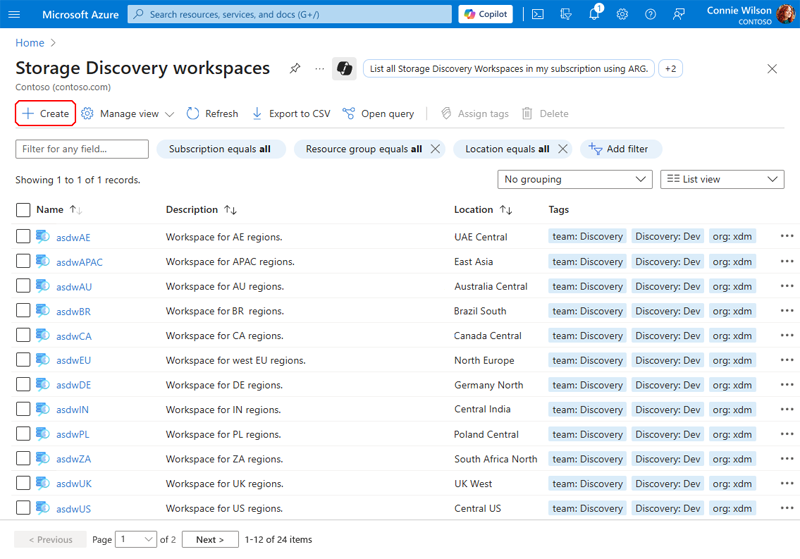
Create an Azure Storage Discovery Workspace resource in the Azure portal by selecting Create as shown in the following image.
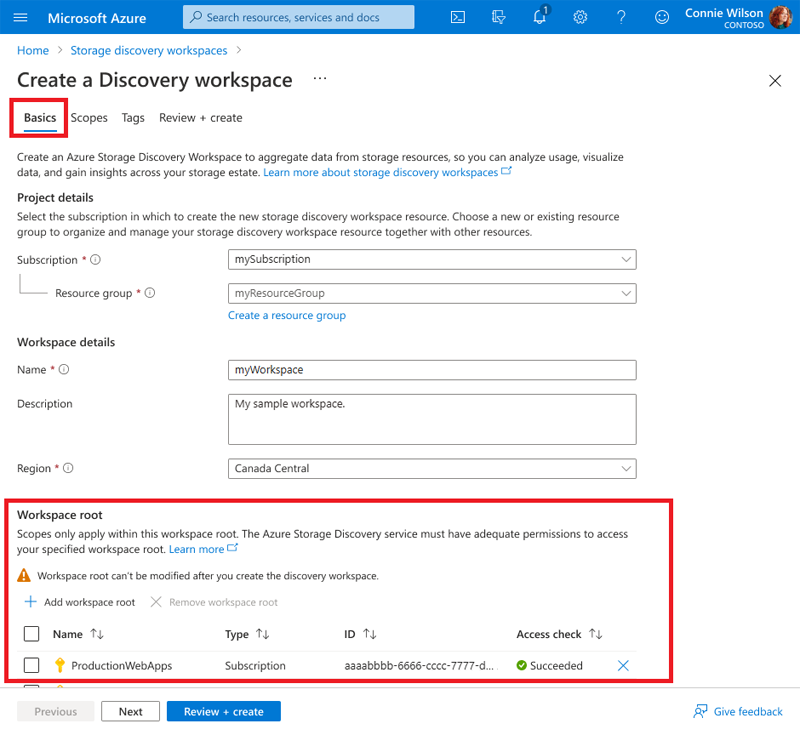
Choose the Subscription and Resource group in which to create the discovery workspace. The following table describes each element.
| Element | Description |
|---|---|
Name |
The name of the Discovery workspace resource. |
Description |
Optional. Description of the Discovery workspace resource. |
Region |
Azure region where the Discovery resource is created.1 |
Pricing plan |
Storage Discovery pricing plan.2 |
1 For information on regions covered, see Storage Discovery workspace regions.
2 For information on Storage Discovery pricing plan, see Understand Storage Discovery Pricing.
Define workspaceRoots
A workspaceRoot specifies the top-level Azure resource identifiers where Storage Discovery initiates its scan for storage accounts. These identifiers are typically subscriptions or resource groups, and serve as the root of the discovery process. WorkspaceRoots define the overall scope and boundaries of your Azure estate for analysis.
Select the subscriptions and/or resource groups you want to include in the workspace.
Note
- Ensure that the user or service principal deploying the workspace is granted at least Reader access to each specified root.
- Up to 100 resources - subscriptions and/or resource groups can be included in one workspace.
- The default limit of 100 resources per workspace can be increased. Reach out Azure Support. Provide the tenantID, SubscriptionID where you would want this limit to be increased.
After you add your subscriptions or resource groups to your workspace, the service runs an access check to verify that the user has Microsoft.Storage/storageAccounts/read on the added resources. The following image provides an example of an access check failure with the associated status message.
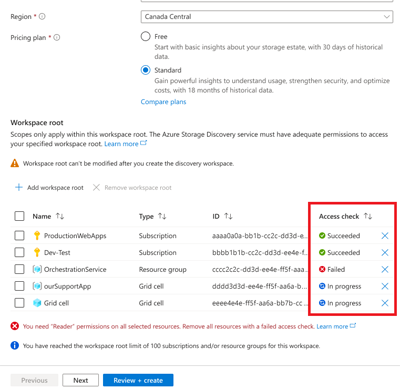
If you don't have Microsoft.Storage/storageAccounts/read on any of the resources added, remove the resource from the workSpaceRoots to proceed with the creation of workspace or resolve the access issue and try again.
Create a scope
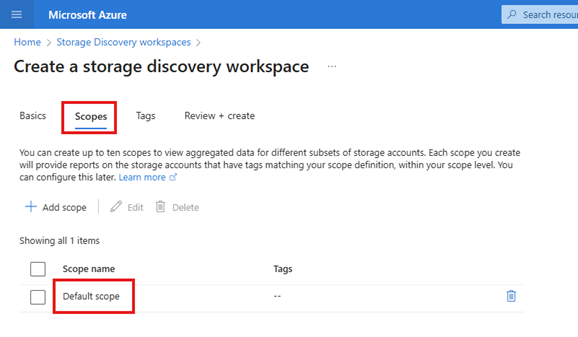
Scopes are logical groupings of storage accounts within the defined workspaceRoots. Scopes allow you to filter and organize data using tags and resource types, enabling targeted insights. For example, you can create scopes for individual departments, environments, or compliance zones.
Important
A default Scope is added automatically, which includes all storage accounts within subscriptions or resource groups added in the workspaceRoots.
You can optionally add tags to this workspace resource. Then select Review and Create. If the access validation is still running, you can't create the workspace resource yet. Wait for this check to finish, correct any issues, then confirm by selecting Create.
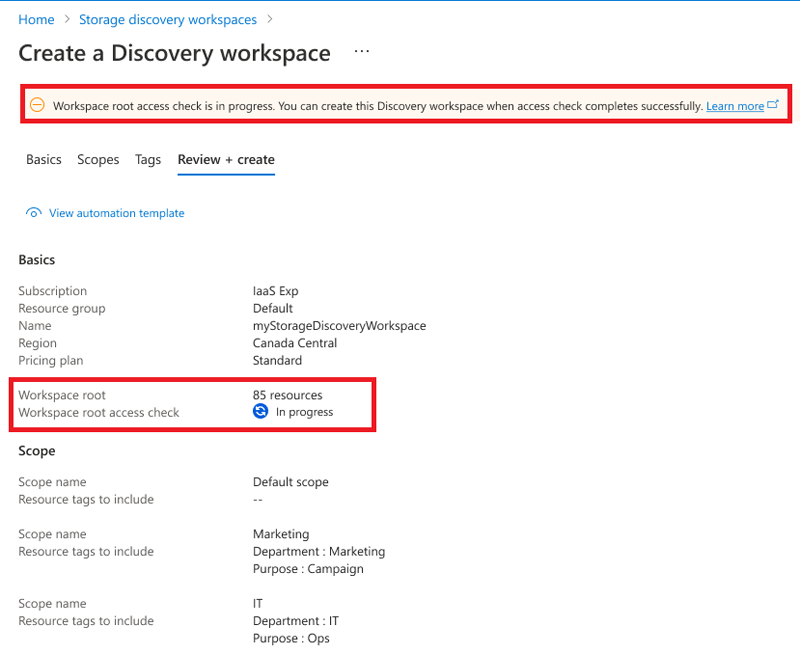
Note
Discovery resource creation fails if the access checks on any subscription or resource group aren't successful.
After the access checks complete successfully, the resource can be deployed as shown in the following sample image.
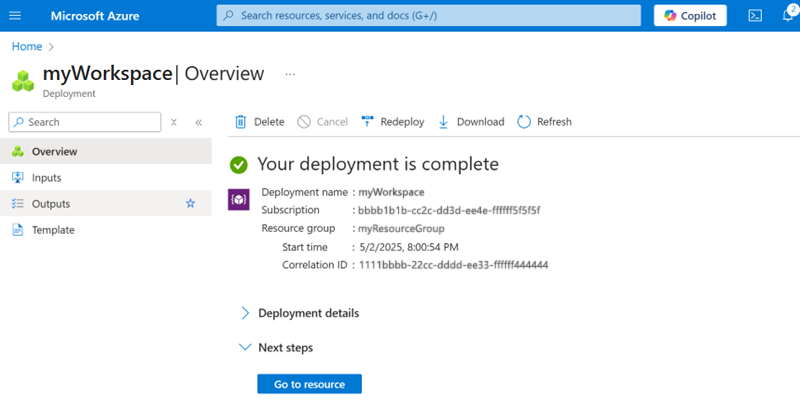
Note
It can take up to 24 hours after scope creation for metrics to begin appearing in reports.
Enable advanced capacity insights
You can access advanced capacity insights through the Capacity details report. During preview, you can enable this feature only for existing workspaces on the Standard plan, not during workspace creation.
Before you begin, review the prerequisites and permissions, regional availability, and preview coverage limits.
- Open the Azure portal.
- Go to your Storage Discovery workspace.
- On the workspace Overview page, find Capacity details in the Essentials section.
- Select Enable.
- If the workspace uses the Free plan, follow the prompt to upgrade to the Standard plan.
- Complete the additional access checks.
- Review any access-check failures and correct the reported permissions before you try again.
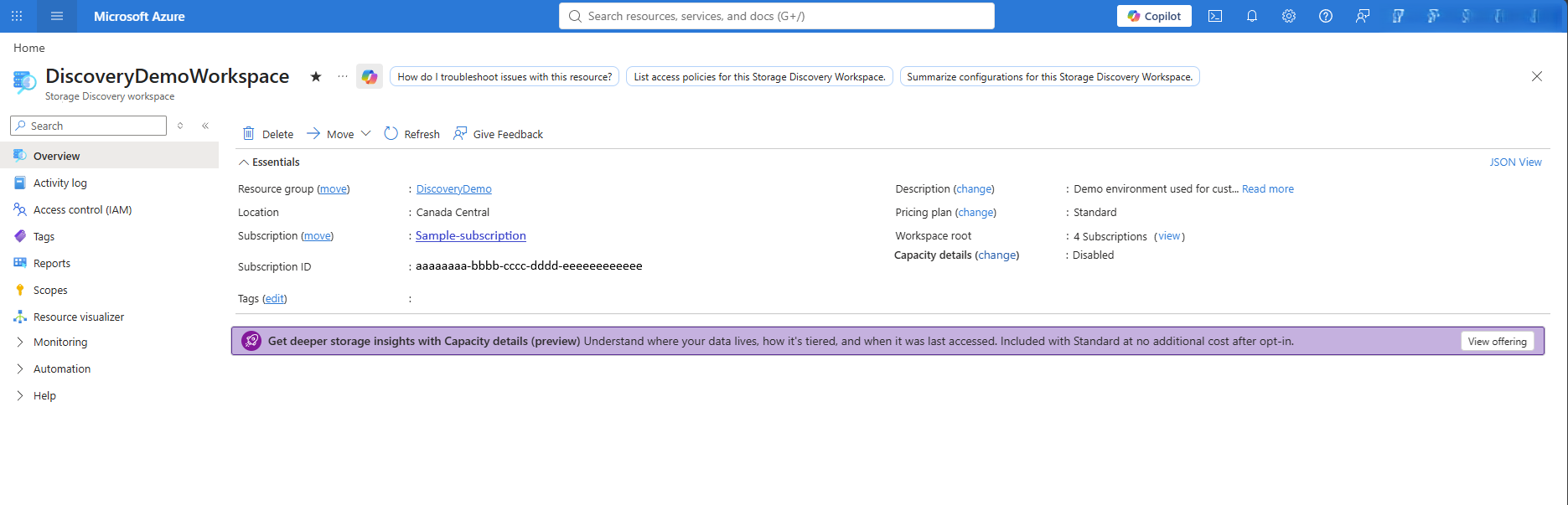
After you enable this feature, insights can take up to 48 hours to begin populating. To view the results, see Open and filter the Capacity details report.
Disable advanced capacity insights
You can disable Capacity details from the workspace management experience. Before you confirm, review the portal warning for the effect on report history.
When you disable advanced capacity insights:
- Storage Discovery stops producing new advanced capacity insights.
- The Capacity details report stops showing advanced insights.
- Configured prefixes are retained, but aggregation for them stops.
- You must complete the additional access checks again if you re-enable the capability.
Changing the workspace to the Free plan also makes advanced capacity insights unavailable. If you later return to the Standard plan, enable Capacity details again to resume aggregation.