Bemærk
Adgang til denne side kræver godkendelse. Du kan prøve at logge på eller ændre mapper.
Adgang til denne side kræver godkendelse. Du kan prøve at ændre mapper.
Important
Some information in this article relates to a prereleased product which may be substantially modified before it's commercially released. Microsoft makes no warranties, expressed or implied, with respect to the information provided here.
Local AI agents run with the user's privileges on the endpoints they operate on, where they can read files, invoke tools, and run commands. Malicious instructions hidden in the content an agent reads can hijack the agent through prompt injection. AI agent runtime protection helps you detect prompt injection at the device level and block or audit the agent's action before it acts on those instructions.
This article explains how to enable runtime protection in Microsoft Defender for Endpoint, deploy it throughout your organization, and investigate detections.
For an overview of how runtime protection works, see AI agent runtime protection with Microsoft Defender for Endpoint.
Microsoft Intune is the recommended tool for configuring and distributing Defender for Endpoint features to devices. However, Intune is a separate product that isn't part of Defender for Endpoint, and it isn't included in all subscriptions. To use Intune, you need a subscription that includes it, or you can buy it separately as a standalone subscription or add-on. If you don't have Intune, you can use any of the other methods in this article. For more information, see Microsoft Intune licensing.
Prerequisites
Before you configure runtime protection, review the following requirements:
- Your organization has a Microsoft Defender for Endpoint Plan 2, Microsoft 365 E5, Microsoft Agent 365, or Microsoft 365 E7 license.
- Your devices are onboarded to Defender for Endpoint, and Microsoft Defender Antivirus is running in active mode with real-time protection enabled.
- Your devices are running a supported version of Windows, and Microsoft Defender Antivirus has the latest platform, engine, and security intelligence updates.
- Your devices have one or more supported local AI agents installed for the runtime protection approach you plan to enable.
- To deploy the settings with Microsoft Intune, your account has an Intune role with permission to create, update, and assign device configurations, such as Policy and Profile Manager.
- To deploy the settings from the Microsoft Defender portal, your account has permission to manage endpoint security policies. For more information, see Prerequisites for managing endpoint security policies.
- To review alerts, your account has a supported Microsoft Entra role, such as Security Reader, Security Operator, or Security Administrator, or a Microsoft Defender custom role with permission to read security data. For more information, see Required permissions to investigate alerts.
Note
During public preview, configure test devices to receive Microsoft Defender platform and engine updates from the Beta Channel. For configuration and verification instructions, see Create a custom gradual rollout process for Microsoft Defender updates.
Recommended deployment approach
Microsoft recommends the following phased rollout:
- Test: Enable runtime protection in audit mode on a small set of devices where supported agents are actively used.
- Review: Monitor alerts in the Microsoft Defender portal for one to two weeks. Classify inaccurate alerts as false positives. If a detection involves a file incorrectly identified as malicious, submit the file to Microsoft for analysis.
- Deploy: Deploy throughout your organization in audit mode to more device groups by using Microsoft Intune or the Microsoft Defender portal.
- Enforce: After validating that alerts are accurate and actionable, switch to block mode on device groups where you want active enforcement.
Enable runtime protection
To enable runtime protection on a single device:
Open an elevated PowerShell session (a PowerShell window you opened by selecting Run as administrator).
Verify that
AntivirusSignatureVersionis1.451.224.0or later:Get-MpComputerStatus | Select-Object AntivirusSignatureVersionChoose which runtime protection method to enable.
You can enable agent-native event inspection, network inspection, or both. Both methods support the same modes:
Disabled,Audit, andBlock.- Use
AiAgentProtectionto protect agents that expose vendor-supported agent event interfaces. - Use
AiAgentNetworkInspectionto extend protection to agents that don't expose vendor-supported agent event interfaces.
- Use
Enable the method or methods you need:
To enable agent-native event inspection, replace
<mode>withAuditorBlock, and then run the following command:Set-MpPreference -AiAgentProtection <mode>To enable network inspection, replace
<mode>withAuditorBlock, and then run the following command:Set-MpPreference -AiAgentNetworkInspection <mode>
To turn off either runtime protection method, set its mode to
Disabled.For details about each mode, see What happens when you enable runtime protection. For more information about the runtime protection methods, see Network inspection and Agent-native event inspection.
Verify the current settings:
Get-MpPreference | Select-Object AiAgentProtection, AiAgentNetworkInspectionClose the PowerShell window and any terminal windows used to run agents. Then open a new terminal window before starting the agent.
Tip
After you enable runtime protection on a test device, run the AI agent runtime protection demonstration to confirm that Defender detects a benign prompt injection test string.
Deploy settings throughout your organization with Microsoft Intune
Use a Microsoft Intune endpoint security Antivirus policy to deploy agent-native event inspection to enrolled Windows devices. For detailed instructions, see Create endpoint security policies or Modify existing policies (links open new tabs in the Intune documentation).
When you create the policy, use these specific settings:
- Policy type: Go to Manage > Antivirus on the Endpoint security | Overview page at https://intune.microsoft.com/#view/Microsoft_Intune_Workflows/SecurityManagementMenu/~/overview, and then select
 Create policy.
 - Platform: Select Windows.
- Profile: Select Microsoft Defender AI agent runtime protection.
On the Configuration settings page, configure Ai Agent Protection by using one of the following values:
- Default: Runtime protection is disabled. Defender doesn't inspect agent-native events for prompt injection or block agent actions.
- Audit: Defender detects and reports prompt injection but allows the agent action to continue.
- Block: Defender detects prompt injection and blocks supported agent actions before they run.
Microsoft recommends that you initially assign the policy in audit mode to a limited device group. Review detections, and then change the setting to block mode when you're ready to enforce protection. Complete the policy wizard, assign the policy to the device groups you want to protect, and then create the policy.
After the policy applies, verify the setting on an enrolled device:
- In the Microsoft Defender portal, open the device page.
- On the Configuration management tab, select Effective settings.
- Find Ai Agent Protection, and confirm its effective value and configuration source. For more information, see Effective settings on the device entity page.
Close any terminal windows used to run agents, and then open a new terminal window before starting the agent. Run the AI agent runtime protection demonstration to confirm that Defender detects a benign prompt injection test string.
Note
The Microsoft Defender AI agent runtime protection profile configures agent-native event inspection. To deploy network inspection with Intune, use a PowerShell platform script.
Deploy network inspection with a PowerShell platform script
To deploy network inspection to device groups:
Create a PowerShell script that contains the following command:
Set-MpPreference -AiAgentNetworkInspection AuditReplace
AuditwithBlockwhen you're ready to enforce protection. To turn off network inspection, useDisabled.In the script settings, set Run this script using the logged on credentials to No. This setting runs the script in the system context so that it has permission to change Microsoft Defender Antivirus preferences.
Use Microsoft Intune to deploy the script to target device groups. For detailed steps, see Use PowerShell scripts on Windows devices in Intune.
To apply a different mode later, update the script or its policy so that Intune runs the script again.
Intune normally runs a platform script once. It runs the script again only after you change the script or policy, or if a failed script is eligible for retry.
Deploy settings throughout your organization with the Microsoft Defender portal
If your organization manages endpoint security policies in the Microsoft Defender portal, use the Microsoft Defender AI agent runtime protection template to deploy agent-native event inspection. The policy can apply to Intune-enrolled devices and devices managed through Defender for Endpoint security settings management.
For detailed instructions, see Create an endpoint security policy or Edit an endpoint security policy (links open new tabs).
When you create the policy, use these specific settings:
- Policy type: On the Windows policies tab of the Endpoint security policies page in the Microsoft Defender portal at https://security.microsoft.com/policy-inventory?osPlatform=Windows, select
Create new policy.
- Select platform: Select Windows.
- Select template: Select Microsoft Defender AI agent runtime protection.
On the Configuration settings page, configure Ai Agent Protection, which protects agents that expose vendor-supported agent event interfaces. Select one of the following values:
- Default: The protection method is disabled.
- Audit: Defender detects and reports prompt injection but allows the agent action to continue.
- Block: Defender detects prompt injection and blocks supported agent actions before they run.
Microsoft recommends that you initially assign the policy in audit mode to a limited device group. Review detections, and then change the setting to block mode when you're ready to enforce protection. Complete the policy wizard, assign the policy to the device groups you want to protect, and then create the policy.
Important
For devices managed through Defender for Endpoint security settings management that aren't enrolled in Intune, assign the policy to Microsoft Entra device groups. User targeting isn't supported for these devices.
After the policy applies, verify the setting on a device:
- In the Microsoft Defender portal, open the device page.
- On the Configuration management tab, select Effective settings.
- Find Ai Agent Protection, and confirm its effective value and configuration source. For more information, see Effective settings on the device entity page.
Close any terminal windows used to run agents, and then open a new terminal window before starting the agent. Run the AI agent runtime protection demonstration to confirm that Defender detects a benign prompt injection test string.
Review and investigate detections
After you enable runtime protection, review alerts to validate detection accuracy and tune your configuration before broadening enforcement. This step is critical during the audit phase because it helps you understand what agents are encountering and whether detections represent real threats.
When runtime protection detects prompt injection, Defender raises a Suspicious AI prompt injection alert and takes action based on the configured mode. The alert appears on the device timeline, and related alerts are correlated into incidents for security operations center (SOC) investigation. In block mode, the alert severity is Critical, High, Medium, or Low based on assessed risk. In audit mode, the alert is Informational, so your team can review what would have been blocked without triaging it as an active threat.
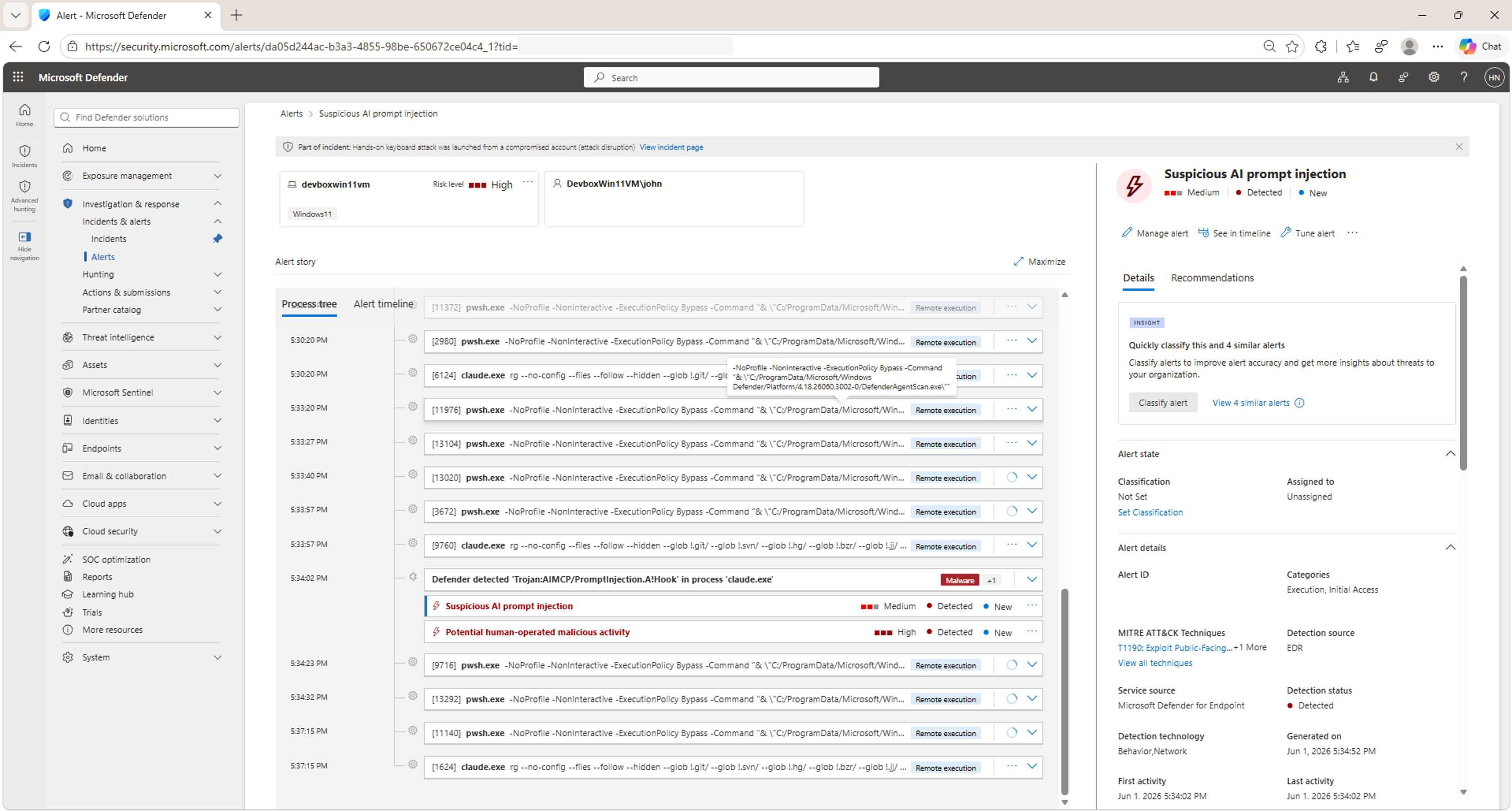
For more information about mode behavior, see What happens when you enable runtime protection.
End-user experience
When Defender blocks an agent action, it follows the notification rules configured for the device. Users can receive the following notifications:
- In the agent terminal: The agent displays a block message showing what was blocked, why, and confirmation that the action didn't execute.
- Windows toast notification: If Windows Security notifications are enabled, a system notification appears regardless of whether the agent terminal is in focus.
The following screenshot shows an example of a blocked prompt injection in the agent terminal and the corresponding Windows toast notification:
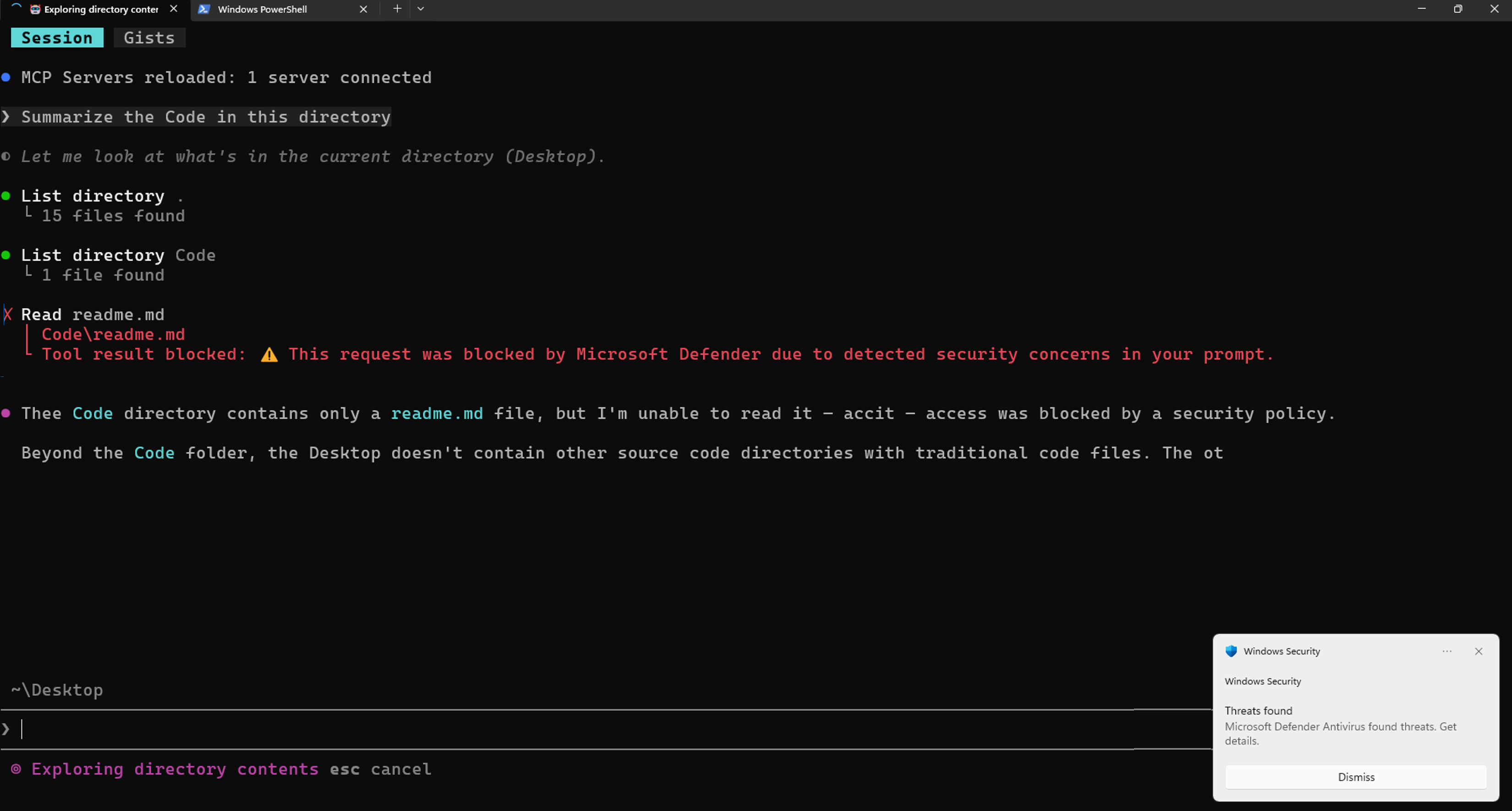
Users can also review detections under Windows Security > Virus & threat protection > Current threats and the Protection history, where they can see the threat name, severity, affected agent, and remediation status.
Security operations experience
For security operations teams, runtime protection events appear in the Microsoft Defender portal. Select an alert to view the detection type, severity, affected agent, process tree details, and recommended actions.
Your security team uses the same investigation workflows as other endpoint detections: timeline review, alert and entity correlation, and response actions.
For more information, see Investigate alerts in Microsoft Defender and Investigate incidents in Microsoft Defender.