Bemærk
Adgang til denne side kræver godkendelse. Du kan prøve at logge på eller ændre mapper.
Adgang til denne side kræver godkendelse. Du kan prøve at ændre mapper.
Offline security intelligence updates keep Microsoft Defender for Endpoint on Linux devices current when they have limited or no internet connectivity. In this article, you configure a mirror server to download updates from Microsoft, configure Linux endpoints to retrieve the updates, and verify the deployment. Before you begin, make sure your environment meets the prerequisites.
How offline security intelligence updates work
Offline security intelligence updates use a local hosting server, called a mirror server, to download security intelligence updates from Microsoft. Linux devices retrieve the updates from the mirror server at configured intervals.
The offline update process works as follows:
- You set up a local web or network file system (NFS) server that can connect to Microsoft to download updates.
- You use a cron job or scheduled task to run the downloader script on the mirror server.
- Linux endpoints running Defender for Endpoint retrieve the downloaded updates from the mirror server at a configured interval.
- Defender for Endpoint verifies the downloaded updates before loading them into the antivirus engine.
- You configure the update process on Linux endpoints by using an endpoint security policy or the managed JSON file.
- You view update status by using the
mdatpcommand-line tool.
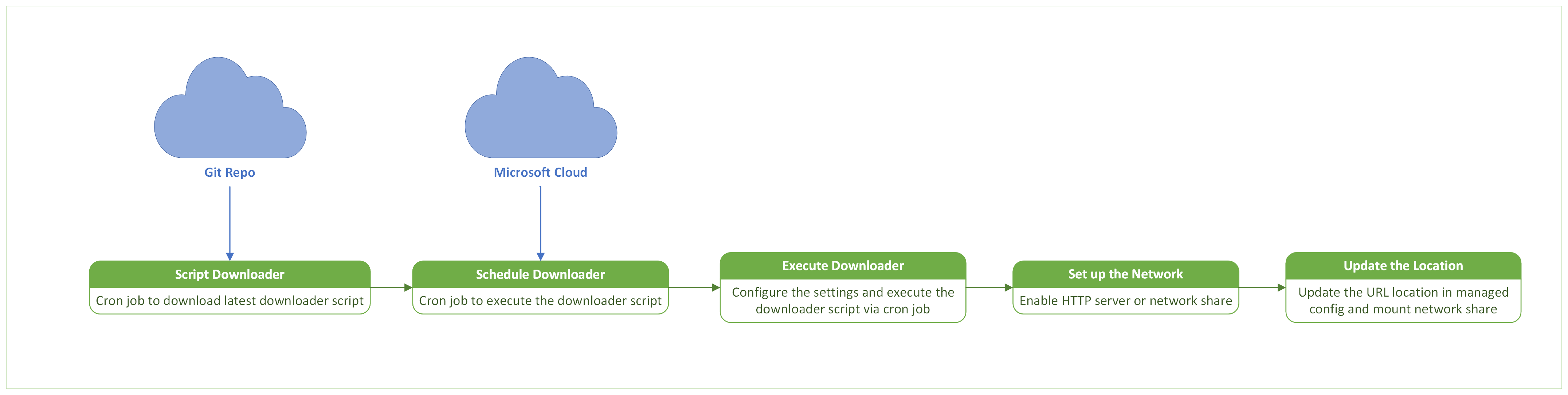
Figure 1. The mirror server downloads and hosts offline security intelligence updates.
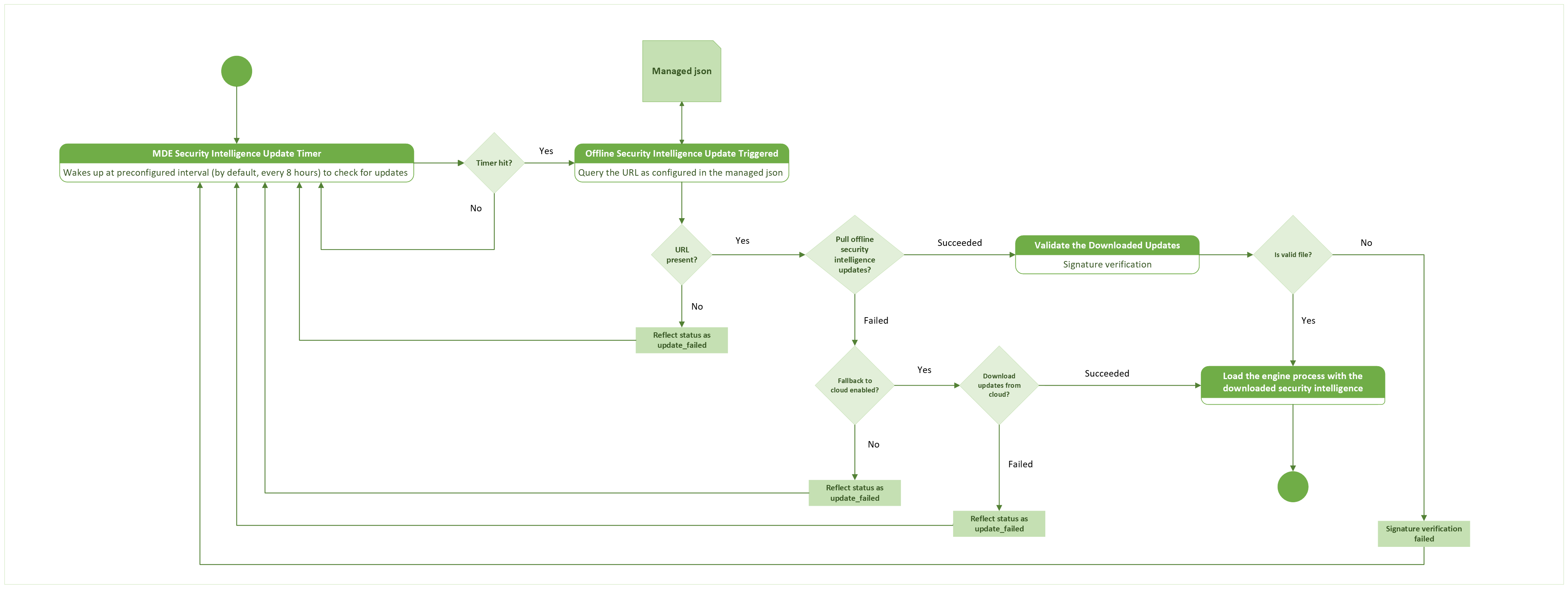
Figure 2. Linux endpoints retrieve offline security intelligence updates from the mirror server.
The mirror server can run any of the following operating systems:
- Linux
- Windows
- macOS
Benefits of using offline security intelligence updates
Key benefits include:
- Control how often the mirror server downloads updates and how often endpoints retrieve them.
- Test downloaded updates on a test device before you distribute them throughout your organization.
- Reduce network bandwidth because only the mirror server downloads updates from Microsoft.
- Use a Windows, macOS, or Linux mirror server without installing Defender for Endpoint on it.
- Download security intelligence updates with the latest compatible antivirus engine.
- Keep the previous update in a backup folder. If there's an issue with the latest update, you can distribute the previous version instead.
- Configure endpoints to retrieve updates from Microsoft if an update from the mirror server fails.
Prerequisites
Install Defender for Endpoint version
101.24022.0001(March 2024) or later on the Linux endpoints.Make sure the Linux endpoints can connect to the mirror server.
Use a supported Linux distribution.
Configure the mirror server as an HTTP or HTTPS server, an NFS server, or another network share.
Make sure the mirror server can access the following URLs:
https://github.com/microsoft/mdatp-xplat.githttps://go.microsoft.com/fwlink/?linkid=2144709https://definitionupdates.microsoft.com
The offline update downloader requests the
go.microsoft.comlink and follows its redirects todefinitionupdates.microsoft.comto retrieve the manifest and update package. Configure the mirror server's firewall or proxy to allow outbound HTTPS access to both endpoints.Install Bash or PowerShell on the mirror server. The Bash downloader script also requires
curlandjq.The following minimum system specifications are required for the mirror server:
CPU cores RAM Free disk Swap 2 cores (4 cores preferred) 1 GB minimum (4 GB preferred) 2 GB System dependent Note
This configuration might vary depending on the number of requests that are served and the load each server must process.
Configure the mirror server
Note
- Your organization manages and owns the mirror server in its private environment.
- You don't need to install Defender for Endpoint on the mirror server.
Get the offline security intelligence downloader script
Microsoft hosts an offline security intelligence downloader script on the microsoft/mdatp-xplat GitHub repository.
Use one of the following options to get the downloader script.
Option 1: Clone the repository (preferred)
To clone the repository, follow these steps:
Install Git on the mirror server.
Go to the directory where you want to clone the repository.
Clone the repository by running
git clone https://github.com/microsoft/mdatp-xplat.git.
Option 2: Download the zipped file
To use the zip package instead of cloning the repository, follow these steps:
Copy the downloaded file to the folder where you want to keep the script.
Extract the zipped folder.
Use a scheduled task or cron job to periodically download and extract the latest version.
Local directory structure after cloning the repo or downloading the zipped file
Use the following example directory listing to verify that your local copy contains the expected linux/definition_downloader structure and scripts:
user@vm:~/mdatp-xplat$ tree linux/definition_downloader/
linux/definition_downloader/
├── README.md
├── settings.json
├── settings.ps1
├── xplat_offline_updates_download.ps1
└── xplat_offline_updates_download.sh

0 directories, 5 files
Note
Review the README.md file for details about using the offline update downloader scripts.
Configure the following fields in settings.json to control the downloader script:
| Field Name | Value | Description |
|---|---|---|
downloadFolder |
string | Specifies the folder where the script downloads the files. |
downloadLinuxUpdates |
bool | When set to true, downloads Linux updates to downloadFolder. |
logFilePath |
string | Specifies the diagnostic log file. You can share this file with Microsoft Support when you troubleshoot the script. |
downloadMacUpdates |
bool | When set to true, downloads macOS updates to downloadFolder. |
downloadPreviewUpdates |
bool | When set to true, downloads preview updates for the selected operating systems. |
backupPreviousUpdates |
bool | When set to true, copies the previous update to a _back folder before downloading the new update. |
Execute the offline security intelligence downloader script
To download the latest update manually, configure settings.json, and then use the command for the shell on your mirror server:
Bash: Run the following command to fetch the latest offline definition updates into the configured download folder:
./xplat_offline_updates_download.shPowerShell: Run the PowerShell downloader script on a mirror server with PowerShell:
./xplat_offline_updates_download.ps1
Note
Schedule a cron job or scheduled task to run the script regularly so that the mirror server has current security intelligence updates.
Host the offline security intelligence updates on the mirror server
When the script runs, it downloads updates.zip and manifest.json to folders organized by operating system, release ring, and architecture. For example, Linux production updates for x86_64 devices are stored under linux/production/arch_x86_64 in the configured download folder.
Host the configured download folder on an HTTP or HTTPS server, network share, or local or remote mount point that the Linux endpoints can access.
Copy the URL or absolute directory path through the release-ring folder, but don't include the arch_* directory.
Note
For example, if the downloader script uses downloadFolder=/tmp/wdav-update and the HTTP server at updates.contoso.com:8000 hosts /tmp/wdav-update, use http://updates.contoso.com:8000/linux/production/. Verify that this location contains the arch_* directories.
You can also use the absolute path of a local or remote mount point. For example, if the script downloads the files to /tmp/wdav-update, use /tmp/wdav-update/linux/production.
After you configure the mirror server, deploy its URL or path to Linux endpoints as the offlineDefinitionUpdateUrl value. Choose one of the methods in Configure the endpoints.
Configure endpoints in Microsoft Intune
Microsoft Intune is the recommended tool for configuring and distributing Defender for Endpoint features to devices. However, Intune is a separate product that isn't part of Defender for Endpoint, and it isn't included in all subscriptions. To use Intune, you need a subscription that includes it, or you can buy it separately as a standalone subscription or add-on. If you don't have Intune, you can use any of the other methods in this article. For more information, see Microsoft Intune licensing.
To configure offline security intelligence updates in Intune, use an endpoint security Antivirus policy. For detailed instructions, see Create endpoint security policies or Modify existing policies (links open new tabs in the Intune documentation).
When you create the policy, use these specific settings:
- Policy type: Go to Manage > Antivirus on the Endpoint security | Overview page at https://intune.microsoft.com/#view/Microsoft_Intune_Workflows/SecurityManagementMenu/~/overview, and then select
 Create policy.
 - Platform: Select Linux.
- Profile: Select Microsoft Defender Antivirus.
When you create or modify the policy, configure the following settings on the Configuration settings tab:
Cloud delivered protection preferences section:
- Automatic security intelligence updates: Make sure this setting is set to Enabled.
- Security intelligence update time interval: By default, Linux endpoints pull security intelligence updates from the mirror server every eight hours (
28800seconds). To use a different interval, slide the toggle to Configured and enter the interval in seconds.
Antivirus engine section:
- Enable offline security intelligence update: Select Enable to make the other offline update settings available:
- Offline security intelligence update fallback to cloud: Set this value to True to have the endpoint attempt to get security intelligence updates from the Microsoft cloud if it can't get them from the mirror server.
- Offline security intelligence update URL or directory: Slide the toggle to
Configured, and then enter the URL or directory path of the mirror server. For an HTTP or HTTPS server, use the format
http://<mirror_server_address>/linux/production/. You can also specify a network share or local or remote mount point. For more information, see Host the offline security intelligence updates on the mirror server.
- Enable offline security intelligence update: Select Enable to make the other offline update settings available:
Configure endpoints in the Microsoft Defender portal
If your organization manages endpoint security policies in the Microsoft Defender portal, you can configure offline security intelligence updates with the same endpoint security policies that Intune uses.
For detailed instructions, see Create an endpoint security policy or Edit an endpoint security policy (links open new tabs).
When you create the policy on the Linux policies tab of the Endpoint security policies page in the Defender portal at https://security.microsoft.com/policy-inventory?osPlatform=Linux, use these specific settings:
- Select platform: Select Linux.
- Select template: Select Microsoft Defender Antivirus.
When you create or modify the policy, use the settings described in Configure endpoints in Microsoft Intune on the Configuration settings page.
When you assign the policy, assignment group limitations apply to devices managed through Defender for Endpoint security settings management. For details, see the Assignments step.
Configure endpoints using managed JSON
The mdatp_managed.json file is the managed configuration file that Defender for Endpoint on Linux reads at startup to apply policy settings. Use this method to configure the settings manually or with a third-party management tool such as Chef or Ansible. Update the following sample for your environment, and deploy it to /etc/opt/microsoft/mdatp/managed/mdatp_managed.json.
{
  "cloudService": {
    "automaticDefinitionUpdateEnabled": true,
    "definitionUpdatesInterval": 1202
  },
  "antivirusEngine": {
    "offlineDefinitionUpdateUrl": "http://172.22.199.67:8000/linux/production/",
    "offlineDefinitionUpdateFallbackToCloud":false,
    "offlineDefinitionUpdate": "enabled"
  }
}
| Field name | Values | Description |
|---|---|---|
automaticDefinitionUpdateEnabled |
true or false |
Controls whether Defender for Endpoint attempts to install security intelligence updates automatically. |
definitionUpdatesInterval |
Numeric | Specifies the interval between automatic security intelligence updates, in seconds. |
offlineDefinitionUpdateUrl |
String | Specifies the mirror server URL or the path to a local or remote mount point. For path requirements, see Host the offline security intelligence updates on the mirror server. |
offlineDefinitionUpdate |
enabled or disabled |
Enables or disables offline security intelligence updates. |
offlineDefinitionUpdateFallbackToCloud |
true or false |
Controls whether Defender for Endpoint attempts to retrieve an update from Microsoft when an update from the mirror server fails. |
Engine signature verification
Starting with release 101.26062.0005 (August 2026), Defender for Endpoint on Linux verifies the antivirus engine's digital signature before loading it. This default-on behavior helps protect your devices against tampered or unsigned engine files.
What you need to know
- Signature verification is enabled automatically on new installations and upgrades. No separate action is required.
- If an engine file fails signature verification, Defender for Endpoint doesn't load it.
- The
offlineDefinitionUpdateVerifySigsetting is deprecated and no longer has any effect. If your managed configuration uses this setting, no replacement action is required because engine signature verification is enabled by default.
Run the following commands to view the signature verification state:
mdatp health --details definitions
mdatp health --details features
The relevant fields appear in both command outputs:
offline_definition_update_verify_sig : "DEPRECATED"
engine_signature_verification        : "enabled"
Values such as the definitions version, timestamps, and update source URI vary by device.
Verify offline security intelligence updates
To verify the configuration on a Linux endpoint, view the security intelligence update settings and status:
mdatp health --details definitions
The following example output shows an up-to-date device with offline security intelligence updates configured:
user@vm:~$ mdatp health --details definitions
automatic_definition_update_enabled         : true [managed]
definitions_updated                         : Mar 14, 2024 at 12:13:17 PM
definitions_updated_minutes_ago             : 2
definitions_version                         : "1.407.417.0"
definitions_status                          : "up_to_date"
definitions_update_source_uri               : "https://go.microsoft.com/fwlink/?linkid=2144709"
definitions_update_fail_reason              : ""
offline_definition_url_configured           : "http://172.XX.XXX.XX:8000/linux/production/" [managed]
offline_definition_update                   : "enabled" [managed]
offline_definition_update_verify_sig        : "DEPRECATED"
engine_signature_verification               : "enabled"
offline_definition_update_fallback_to_cloud : false[managed]
Trigger offline security intelligence updates
You can trigger offline security intelligence updates automatically or manually.
Configure automatic updates
Defender for Endpoint retrieves offline security intelligence updates automatically at configured intervals when the following settings are configured:
- The antivirus engine enforcement level is set to
real_time. automaticDefinitionUpdateEnabledis set totrue.offlineDefinitionUpdateis set toenabled.
The default update interval is eight hours. Use definitionUpdatesInterval to specify a different interval in seconds.
Trigger a manual update
To have a Linux endpoint retrieve an immediate security intelligence update from its configured source, run the following command:
mdatp definitions update
Check update status
After triggering an update, use the following checks to confirm success:
View the update status by running
mdatp health --details definitions.Verify that
definitions_statusisup_to_dateanddefinitions_update_fail_reasonis empty. The following example shows these fields:
user@vm:~$ mdatp health --details definitions
...
definitions_status                          : "up_to_date"
...
definitions_update_fail_reason              : ""
...
Troubleshooting and diagnostics
If updates fail, are stuck, or don't start, follow these steps to troubleshoot:
Check the status of offline security intelligence updates. Use the following command to review the current definition state and update source:
mdatp health --details definitionsLook for information in the
definitions_update_fail_reasonsection.Make sure that
offline_definition_updateandengine_signature_verificationare enabled.Review
definitions_update_source_urito identify where the device retrieved the update:- If the device retrieved the update from the mirror server,
definitions_update_source_urishould matchoffline_definition_url_configured. - If fallback to Microsoft cloud is enabled and the mirror server update failed,
definitions_update_source_urican show a Microsoft source instead.
- If the device retrieved the update from the mirror server,
Run a connectivity test to confirm the endpoint can reach the mirror server and required Defender services:
mdatp connectivity testIf connectivity succeeds, manually retry the definition update with the following command:
mdatp definitions update