Bemærk
Adgang til denne side kræver godkendelse. Du kan prøve at logge på eller ændre mapper.
Adgang til denne side kræver godkendelse. Du kan prøve at ændre mapper.
Remove the Microsoft Defender for Identity sensor when you need to decommission a server, clean up orphaned or duplicate sensor entries, or stop Defender for Identity monitoring on a specific server. For sensors onboarded without Microsoft Defender for Endpoint deployment, follow the dedicated offboarding procedure before removing the sensor entry.
Offboard a domain controller without Defender for Endpoint deployment (Preview)
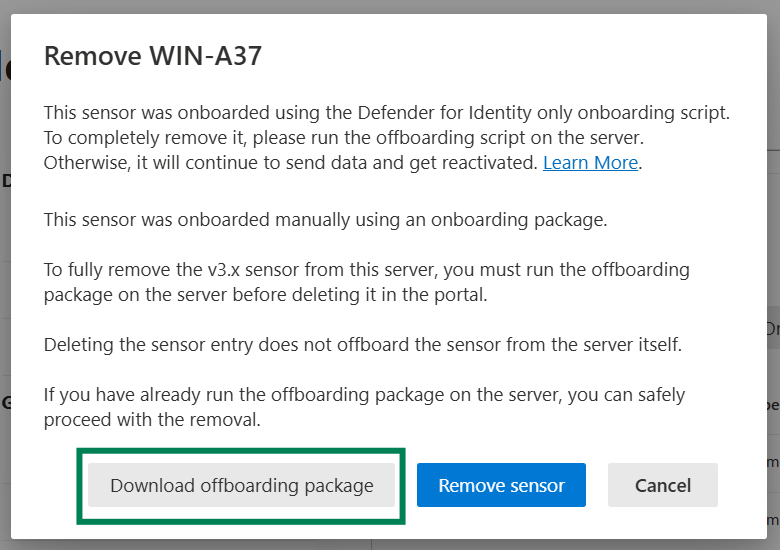
For a domain controller onboarded without Defender for Endpoint deployment, run the offboarding package on the domain controller before removing the sensor from the portal. Removing the portal entry alone doesn't uninstall the sensor component. The sensor can continue sending data and reactivate.
On the Sensor management tab of the On-premises page in the Microsoft Defender portal at https://security.microsoft.com/securitysettings/identities, select the v3.x sensor, and then select Delete.
In the removal dialog, select Download offboarding package.
Copy the downloaded offboarding package to the domain controller.
Open PowerShell as an administrator, and change to the folder that contains the offboarding package.
Run the deployment tool with the full path to the
.offboardingfile:.\DefenderDeploymentTool_Offboard.exe -Offboard -File:"C:\Path\WindowsDefenderATP_valid_until_YYYY-MM-DD.offboarding"To run without confirmation prompts or dialogs, add the optional
-YESand-Quietparameters.After offboarding finishes, return to the Sensor management tab and remove the sensor.
Delete a sensor
For sensor v3.x
Important
For a sensor onboarded without Defender for Endpoint deployment, complete Offboard a domain controller without Defender for Endpoint deployment before deleting the sensor entry.
To delete a v3.x sensor from the Microsoft Defender portal, follow these steps:
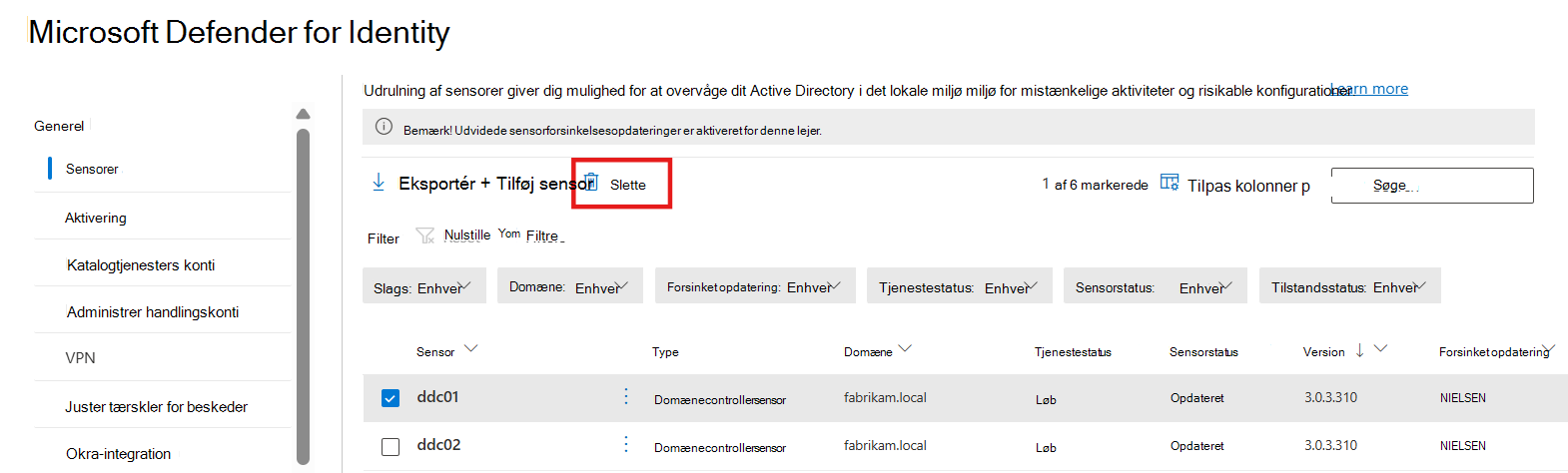
On the Sensor management tab of the On-premises page in the Microsoft Defender portal at https://security.microsoft.com/securitysettings/identities, select the domain controller where you want to deactivate Defender for Identity capabilities.
Select Delete, and confirm your selection.
Delete and uninstall a sensor v2.x from a domain controller
Important
We recommend removing the sensor from the domain controller before demoting the domain controller.
To remove sensor v2.x from a domain controller and delete its portal entry, follow these steps:
- Sign in to the domain controller with administrative privileges.
- From the Windows Start menu, select Settings > Control Panel > Add/ Remove Programs.
- Select the sensor installation, select Uninstall, and follow the instructions to remove the sensor.
- After the uninstall finishes, open the Microsoft Defender portal.
- On the Sensor management tab of the On-premises page at https://security.microsoft.com/securitysettings/identities, select the domain controller, and then select Delete.
Remove an orphaned sensor
A sensor can be orphaned when a domain controller was deleted without first uninstalling the sensor, and the sensor still appears in the Microsoft Defender portal.
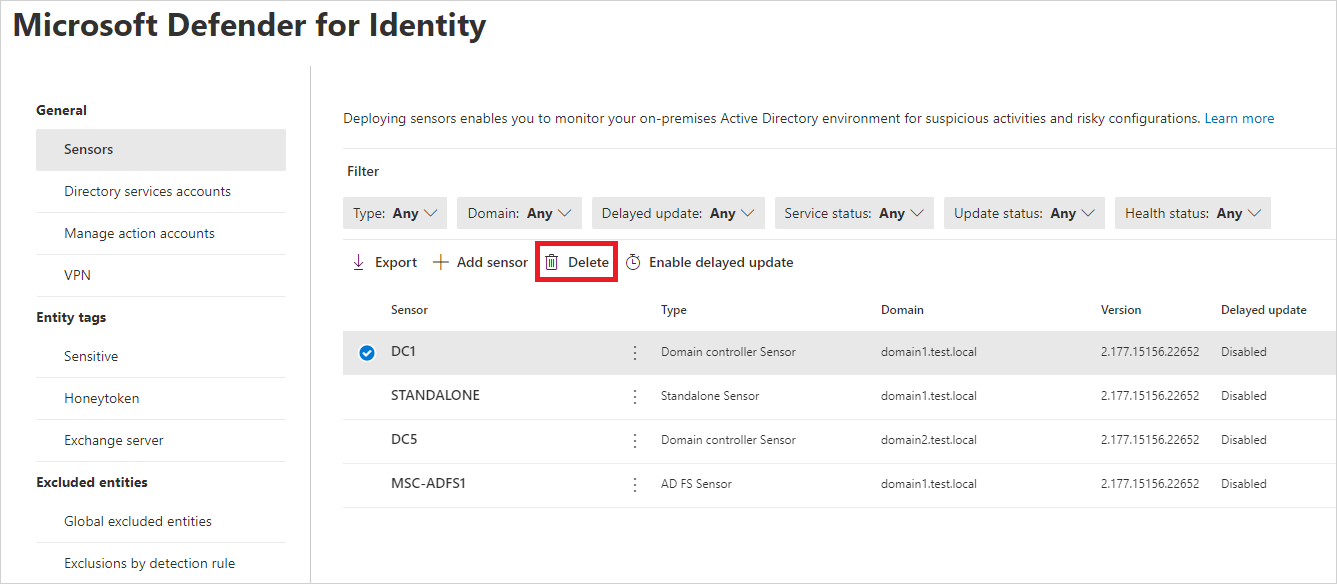
On the Sensor management tab of the On-premises page in the Microsoft Defender portal at https://security.microsoft.com/securitysettings/identities, locate the orphaned sensor and select Delete (trash can icon).
Remove a duplicate sensor
A duplicate sensor entry can appear after an in-place sensor upgrade, where the sensor is listed twice in the Microsoft Defender portal.
- On the Sensor management tab of the On-premises page in the Microsoft Defender portal at https://security.microsoft.com/securitysettings/identities, locate the duplicate sensor. It is the entry with the Unknown status.
- At the end of the row, select Delete (trash can icon).
Uninstall the Defender for Identity sensor silently
Use the following command to perform a silent uninstall of the Defender for Identity sensor:
Syntax
The following command shows the available options for removing the sensor from the command line, including optional silent and help switches.
"Azure ATP sensor Setup.exe" [/quiet] [/Uninstall] [/Help]
Installation options
| Name | Syntax | Mandatory for silent uninstallation? | Description |
|---|---|---|---|
| Quiet | /quiet | Yes | Runs the uninstaller displaying no UI and no prompts. |
| Uninstall | /uninstall | Yes | Runs the silent uninstallation of the Defender for Identity sensor from the server. |
| Help | /help | No | Provides help and quick reference. Displays the correct use of the setup command including a list of all options and behaviors. |
Examples
To silently uninstall the Defender for Identity sensor from the server:
"Azure ATP sensor Setup.exe" /quiet /uninstall