View and update CRM data in the flow of work
Sales Agent in Microsoft Copilot reduces context switching by making CRM data available in Outlook and Teams. You can review and update CRM data without leaving your current workflow.
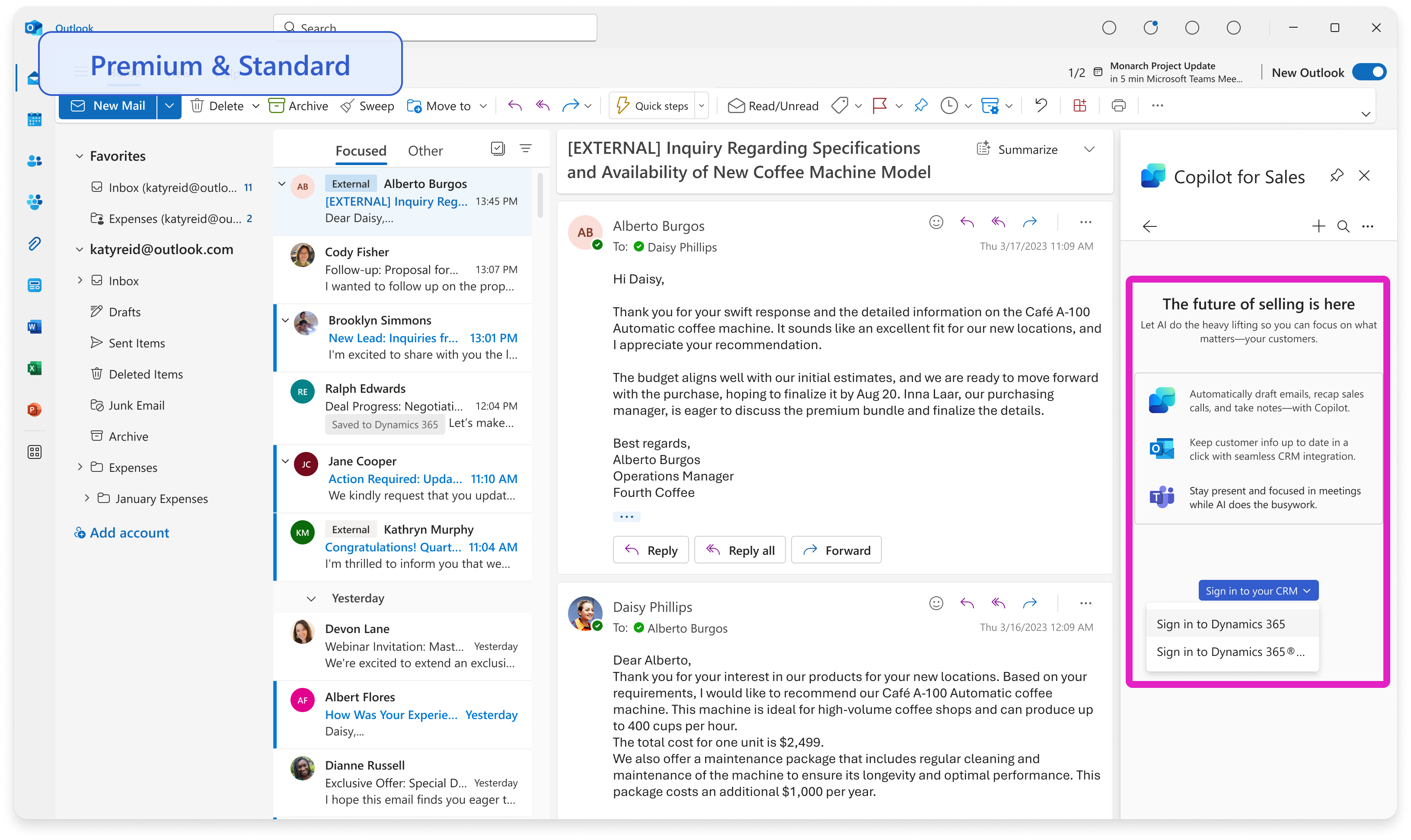
Sign in to your CRM
Sales Agent supports Dynamics 365 Sales and Salesforce. For Dynamics 365 Sales, Sales Agent uses your Microsoft Entra account. For Salesforce, sign in to your CRM from Sales Agent in Outlook or Teams.
Capture new CRM contacts or leads
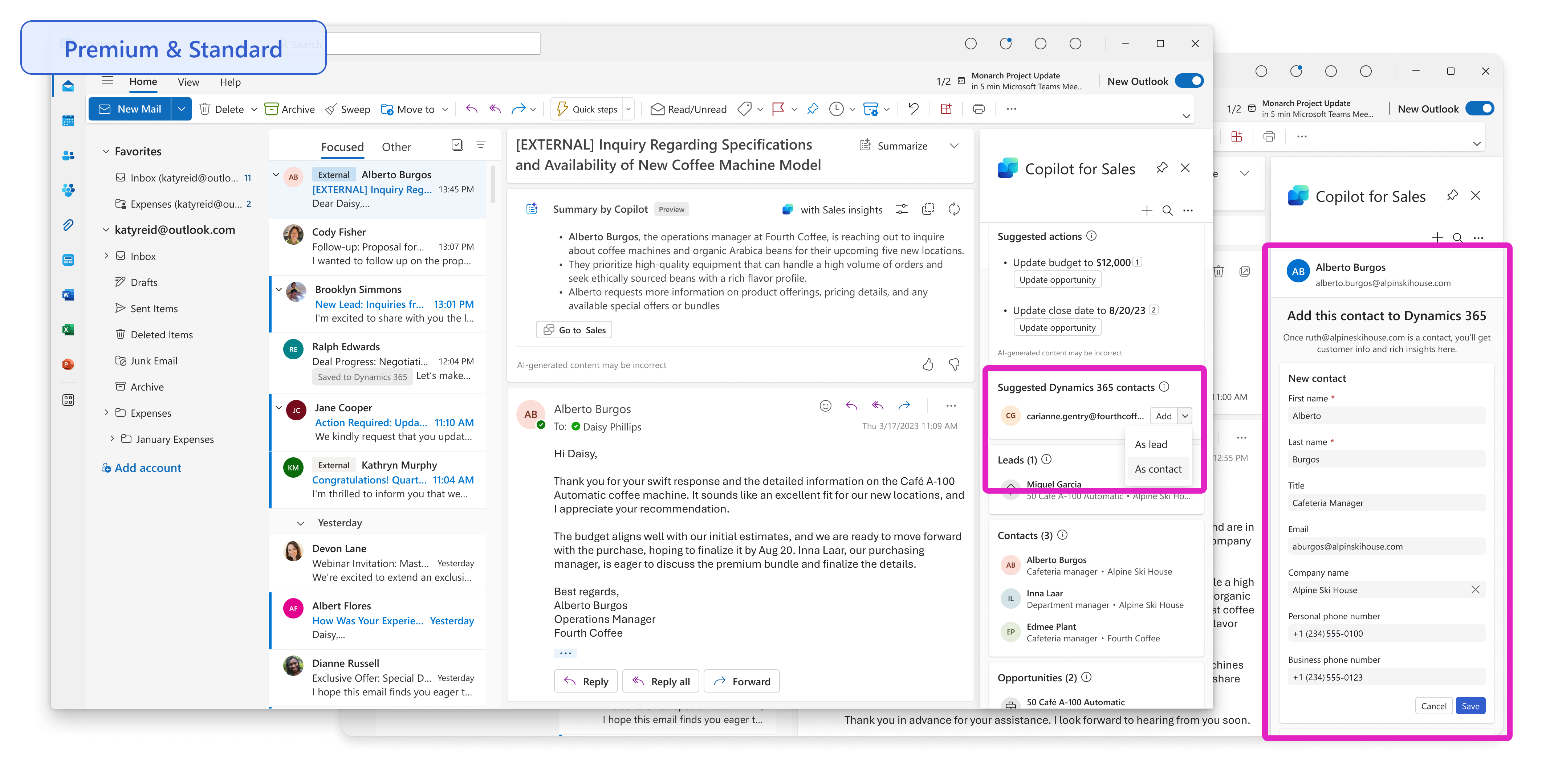
Sales Agent helps you create new contacts or leads directly from your Outlook inbox so that you can keep track of your stakeholders. When you send or receive an email from a customer who isn't tracked in your CRM, the application suggests that you add them. You can create new contacts or leads by using the customer's signature from the thread.
View and update CRM data
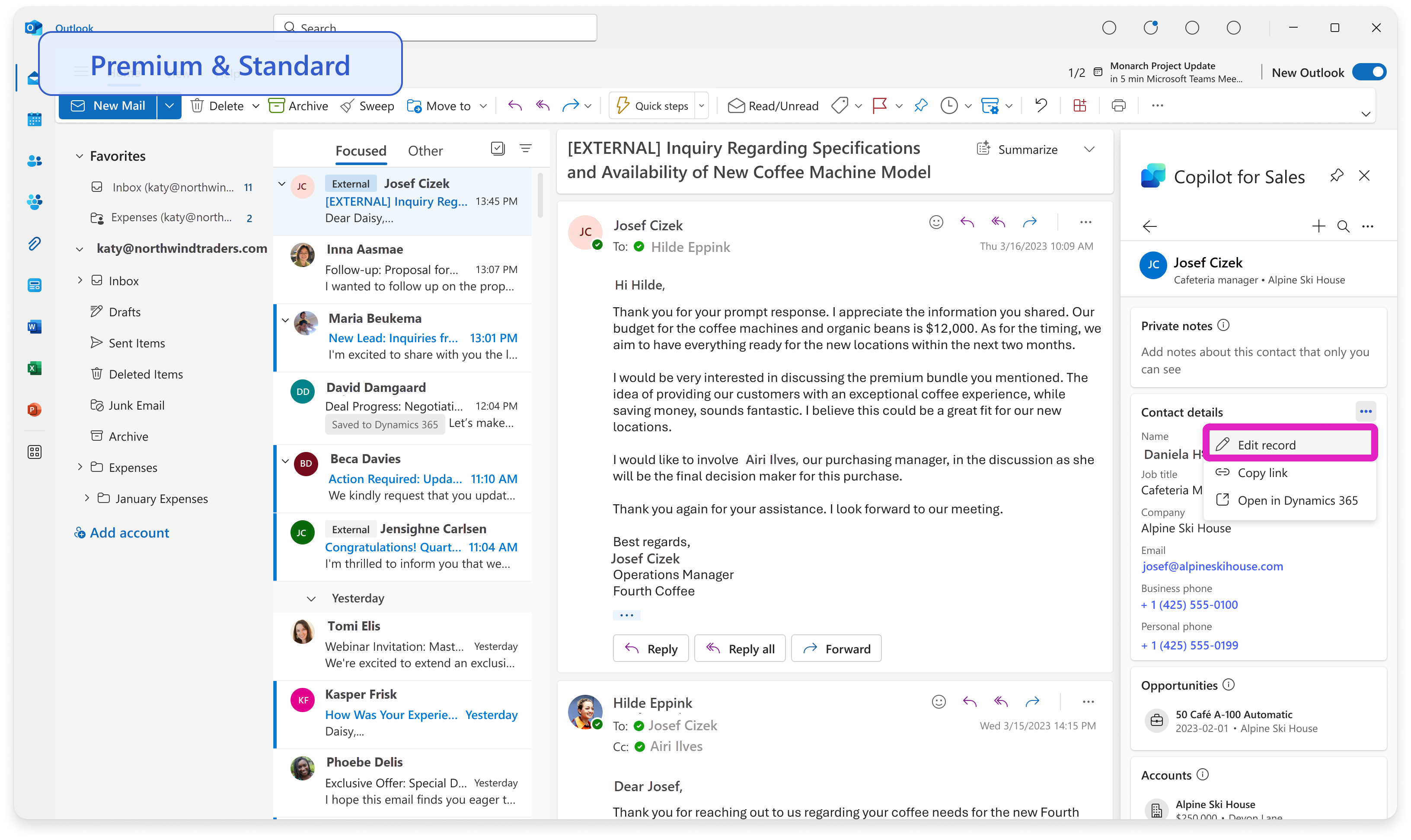
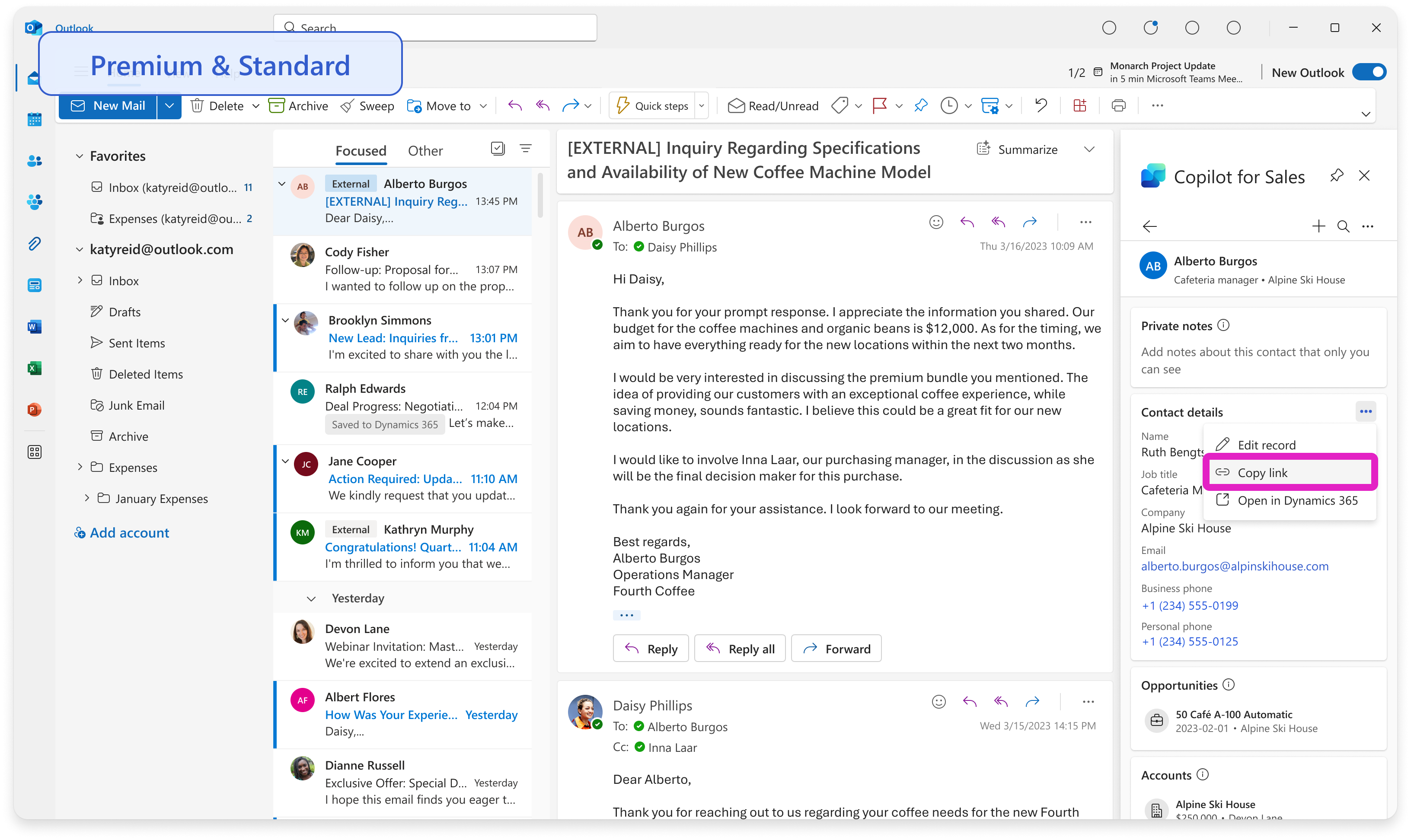
With Sales Agent, related contacts, opportunities, and account records are available in your workflow. To update a record in Outlook, select the ellipsis (...) menu on its card, and then edit the record.
Search and share CRM data
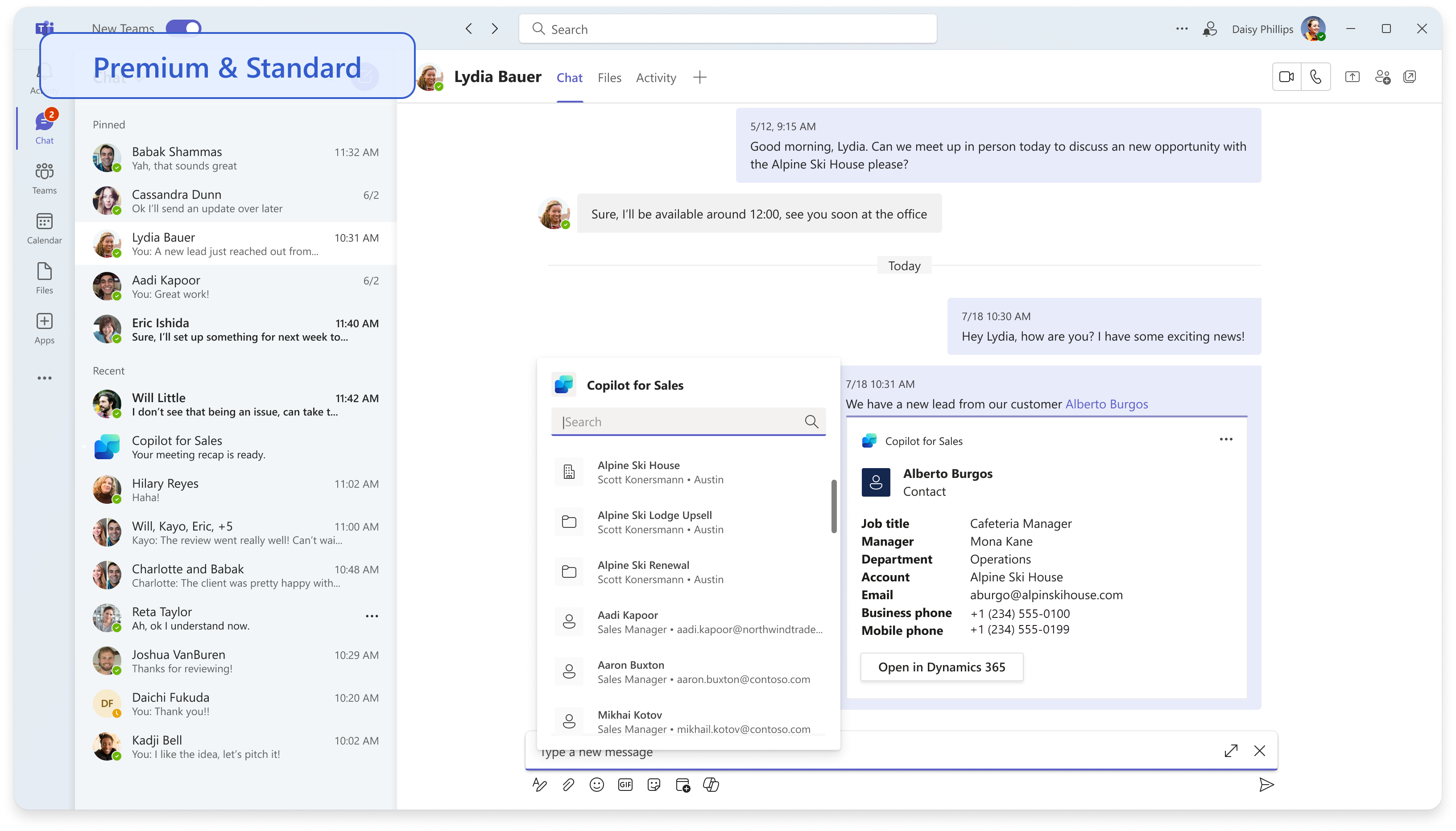
You can quickly bring your sales team up to date by sharing CRM data in Teams chats and channels.
Two ways that you can share rich adaptive cards are:
Outlook - You can copy a CRM record from Outlook through the ellipsis (...) menu and then paste it into Teams.
Teams - In a Teams chat or channel, open Message extensions (...), search for Sales, and then search for the CRM record that you want to share.
Connect and save emails and meetings to CRM
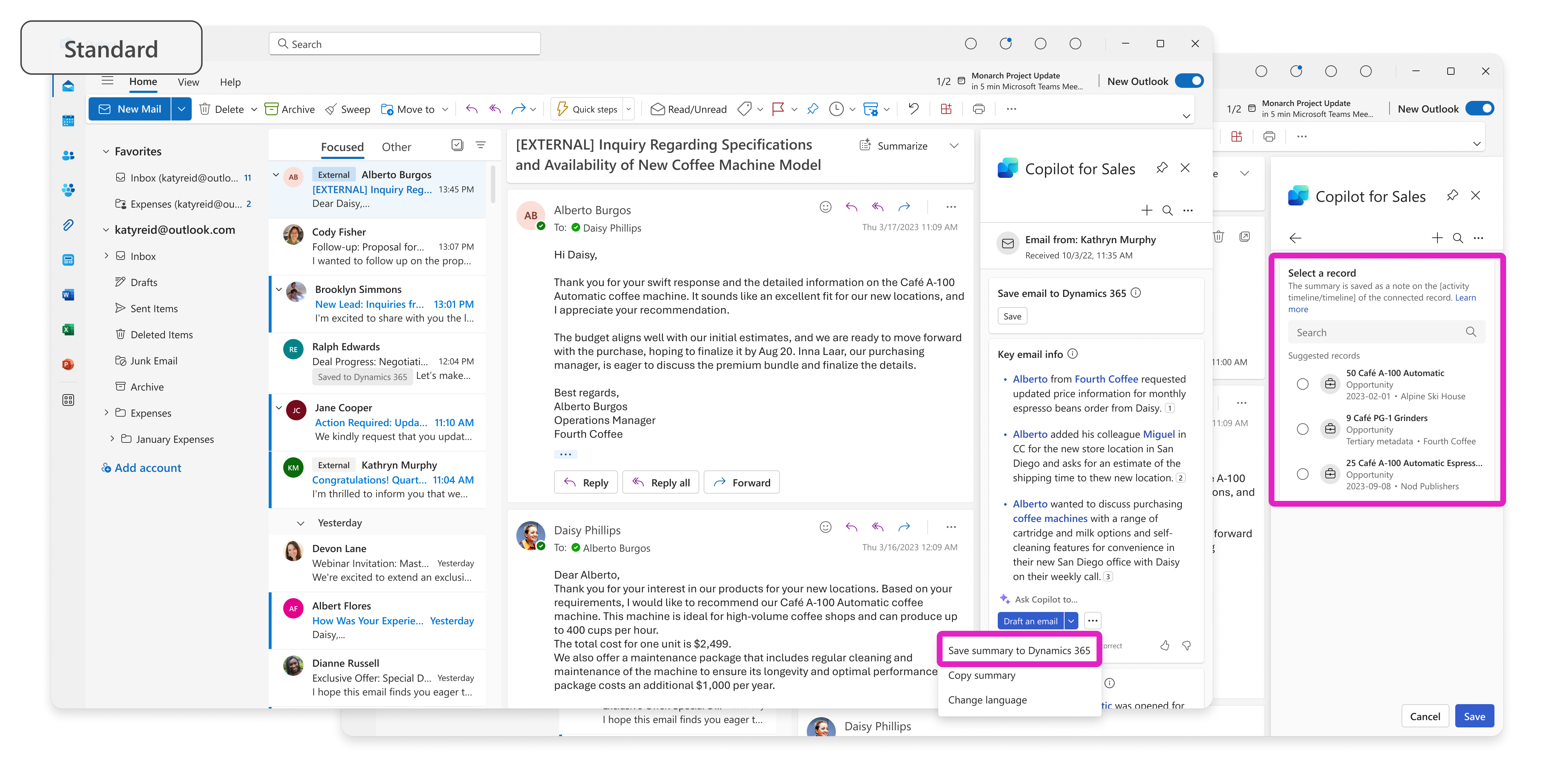
Without the need for context switching, you can keep your CRM data current while you work with the save to CRM capabilities.
Save emails and activities - You can save email threads and meetings to your CRM app and then connect them to CRM records so that your sales organization has the latest information.
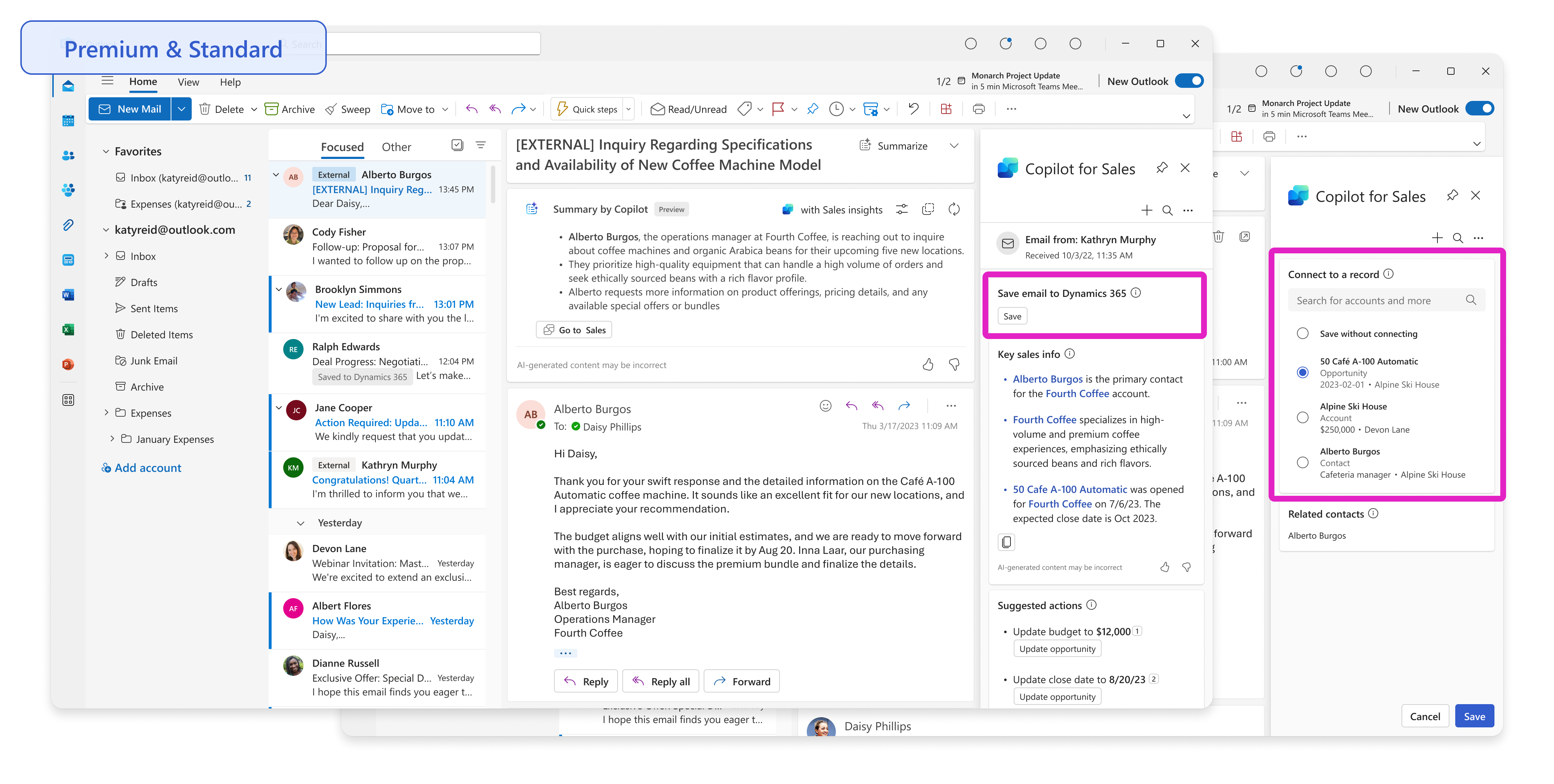
Save email thread summaries - You can save note records that include email thread summaries. As a result, sales teams can quickly consume these high-value notes.