Hinweis
Für den Zugriff auf diese Seite ist eine Autorisierung erforderlich. Sie können versuchen, sich anzumelden oder das Verzeichnis zu wechseln.
Für den Zugriff auf diese Seite ist eine Autorisierung erforderlich. Sie können versuchen, das Verzeichnis zu wechseln.
Follow these steps to discover and deploy modular agents that automate tasks like triage, remediation, and enrichment across Microsoft Security products.
Navigate to the Security Store portal.
Select Explore agents from the Security agents card on Security Store portal.
Search for agents by typing your search query and/or filter agents by Microsoft Security products or Publisher or other filters.
Select an agent to view details.
View the agent details page for information on what the agent does, inputs it needs, and its requirements. Select Get solution. This starts the agent purchase and deployment flow.
Select the Azure billing subscription with resource group and name for the agent purchase information. To purchase/deploy the agent, you need to have a contributor or owner role on the Azure subscription. See Roles and permissions for more details on the roles required to purchase and deploy offers.
Select Next to view the agent's deployment resource information. If the agent has Microsoft Sentinel data lake resources, you can select the Sentinel workspace.
Select Next to review the order and deployment details. You can view the publisher's Terms of use and Privacy policy.
Select Place order to start the purchase and deployment process.
This process creates billing resources and resources needed to run the agent, including the agent instance in Copilot, applicable Sentinel data lake notebook jobs, and Azure resources. Once it completes, select Open Microsoft Security Copilot to be directed to Security Copilot to configure and work with this agent.
Note
Setting up the agent requires a Security Copilot owner or contributor role and potentially an Entra global admin to grant the agent permissions.

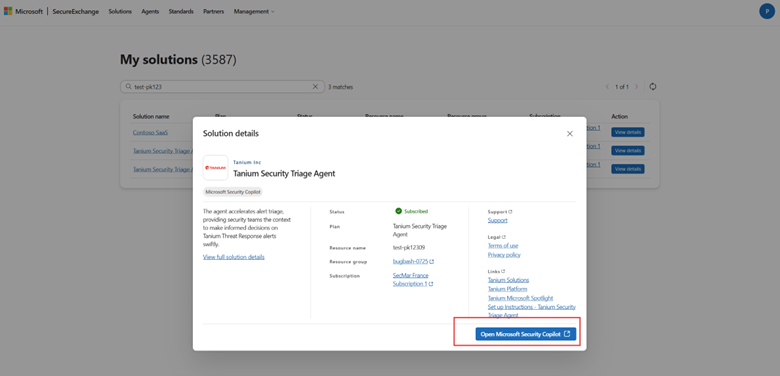
If you choose to work with this agent later, you can go to Management > My solutions, find your deployed agent, and select View details.
You can work with the agent in Security Copilot by selecting Open Microsoft Security Copilot.
You can also go to any Sentinel data lake notebook jobs by selecting Manage in Defender.
Related content
Use Microsoft Security Store to find, buy, and deploy security solutions and agents