Σημείωση
Η πρόσβαση σε αυτή τη σελίδα απαιτεί εξουσιοδότηση. Μπορείτε να δοκιμάσετε να συνδεθείτε ή να αλλάξετε καταλόγους.
Η πρόσβαση σε αυτή τη σελίδα απαιτεί εξουσιοδότηση. Μπορείτε να δοκιμάσετε να αλλάξετε καταλόγους.
Note
The Retail Interest Group by Dynamics 365 Commerce has moved from Yammer to Viva Engage. If you don't have access to the new Viva Engage community, fill out this form (https://aka.ms/JoinD365commerceVivaEngageCommunity) to be added and stay engaged in the latest discussions.
This article explains external and inline script modules and describes how to add them to templates in Microsoft Dynamics 365 Commerce.
By using external and inline script modules, you can add client-side JavaScript scripts to site pages. The scripts can be inline, or you can call them from an external file. Add external and inline script modules to a template's HTML Head, Body Begin, or Body End slot.
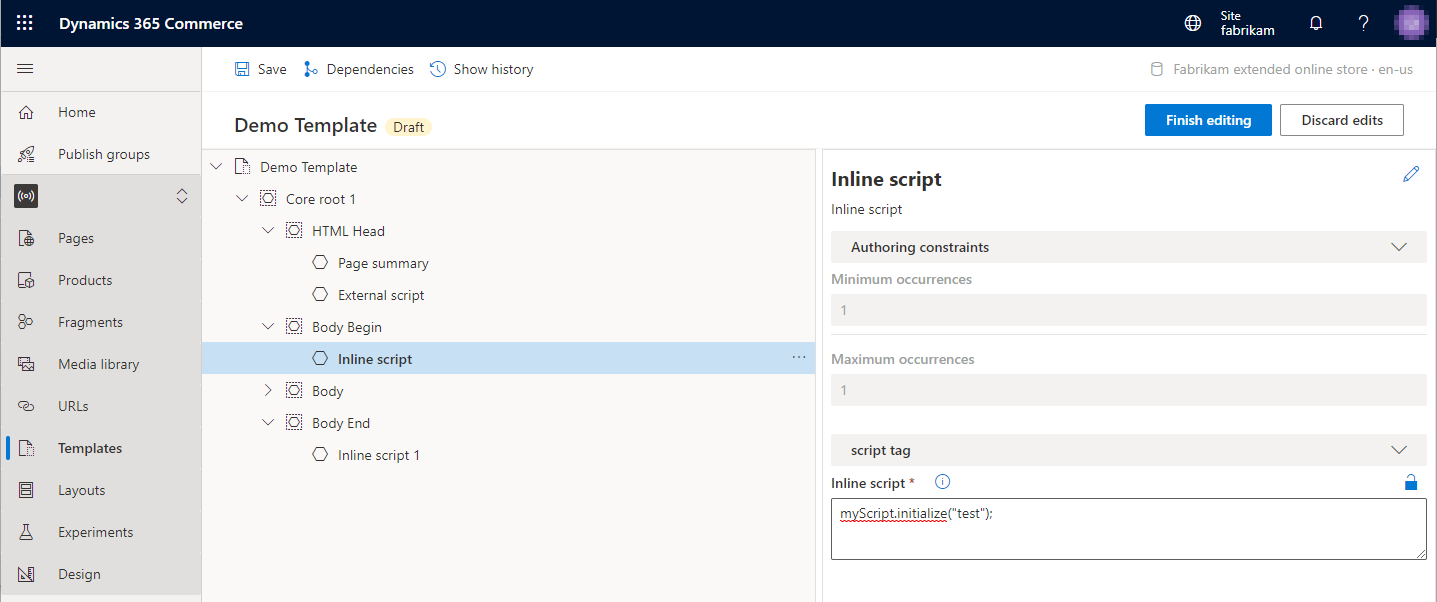
The following illustration shows an example where external and inline script modules are added to the various supported slots in a template.
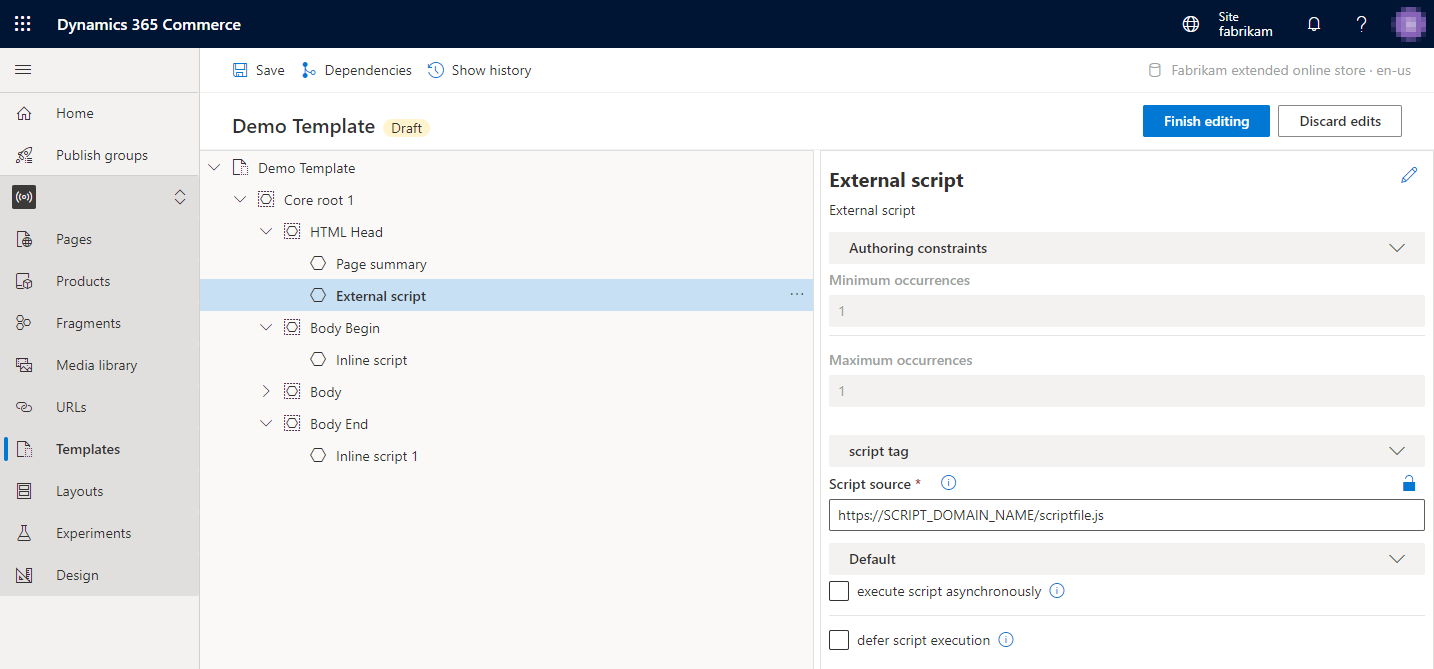
External script module properties
| Property name | Values | Description |
|---|---|---|
| Script source | Text | The URL of the script file location. |
| Execute script asynchronously | True or False | If you set this property to True, the script runs asynchronously. |
| Defer script execution | True or False | If you set this property to True, the script runs when the page finishes running. |
Inline script module properties
| Property name | Values | Description |
|---|---|---|
| Inline script | Text | The collection of scripting statements that the module inserts inline into <script> tags on the HTML page. |
Content security policy
If you enable content security policy (CSP), external scripts might not run. To enable external scripts to run, first add their domain URLs to the script-src CSP directive in Commerce site builder. For more information, see Manage Content Security Policy.
Add a script module to a template
To add a script module to a template, follow these steps:
In Commerce site builder for your site, select Templates.
Select a template, and then select Edit.
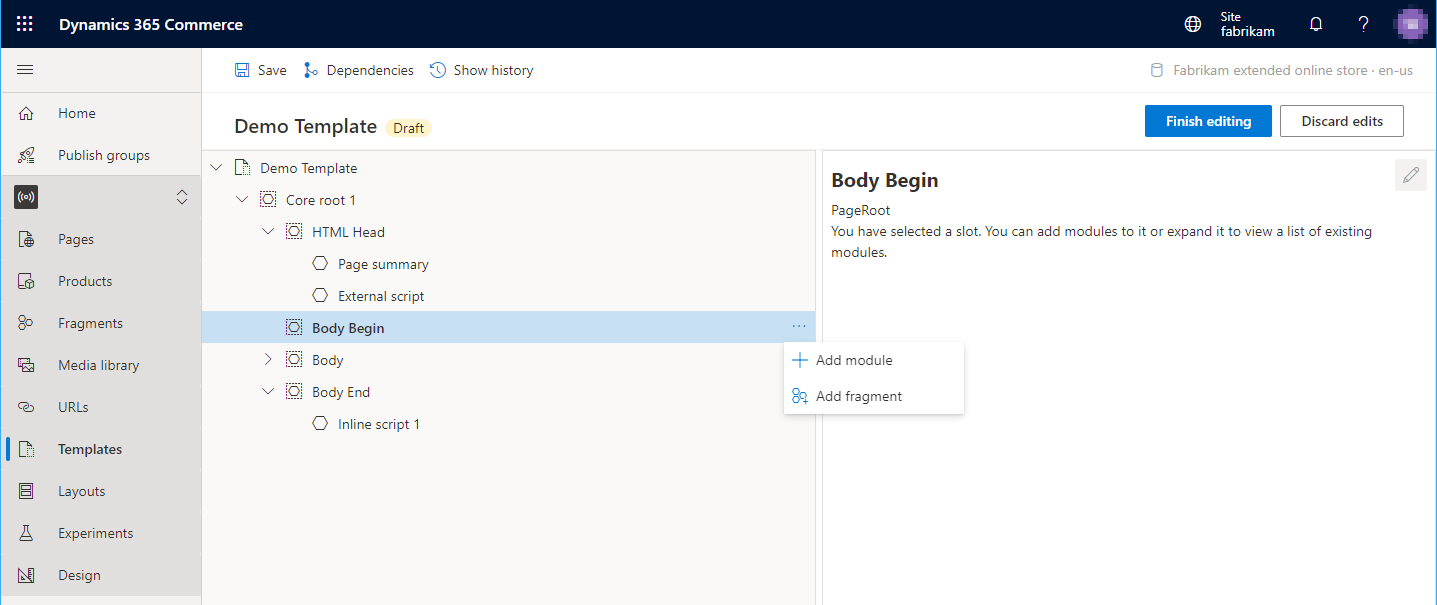
In the Body Begin slot, select the ellipsis (...), and then select Add module.
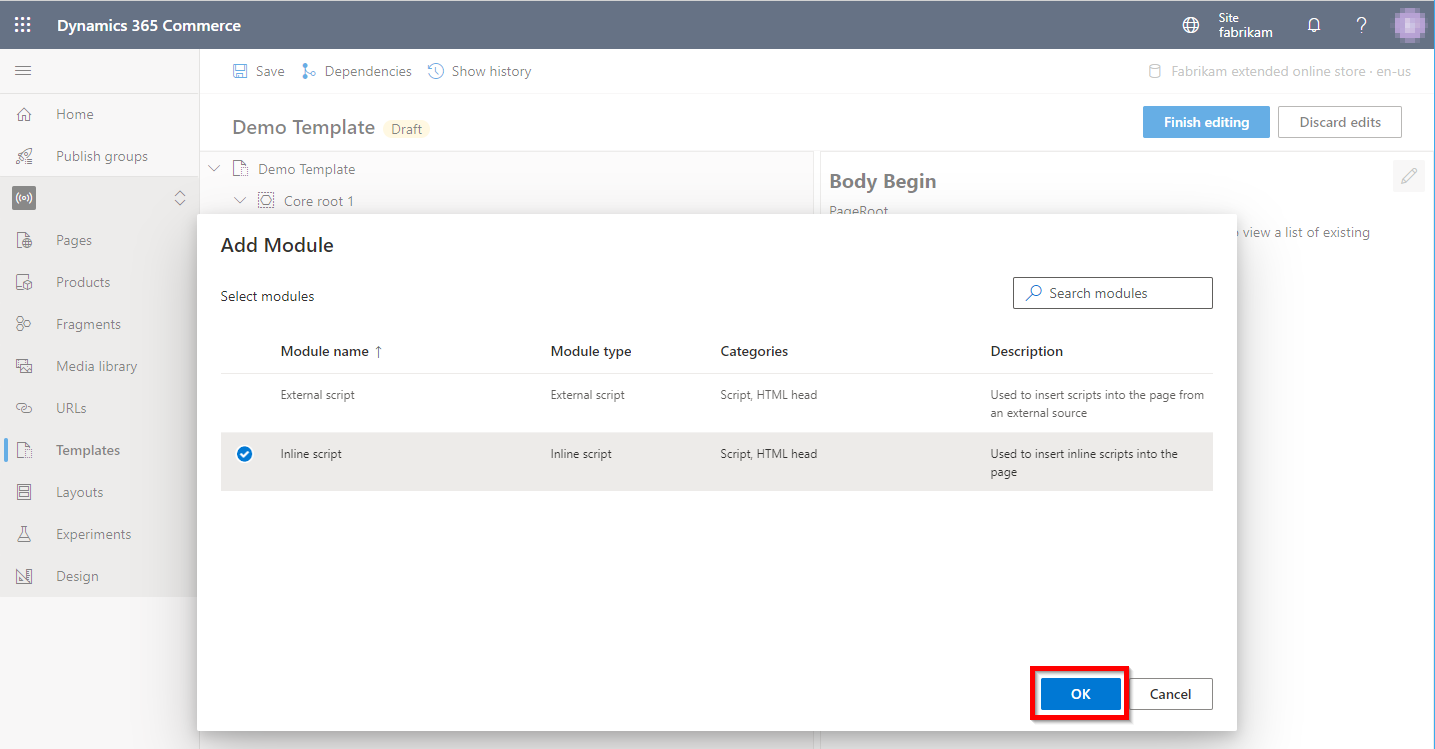
In the Select modules dialog box, select either the External script module or the Inline script module, and then select OK.
After you add the script module, it should resemble the example in the following illustration. You can now configure the module, and save and publish the template.