The use of Remote Help depends on whether you're requesting help or providing help. In this article, we cover both scenarios.
Get help
To get help, you must reach out to your support staff to request assistance. You can reach out by way of call, chat, or email, and you're the sharer during the session.
Tip
The Remote Help app needs to be installed on your device. If Remote Help isn't installed, you can install Remote Help yourself by following the download instructions in the Install and update Remote Help section.
Starting the session:
- The helper can initiate a session or you can manually start the Remote Help app and enter a session code provided by the helper.
Note
If the helper initiates the session from Intune, a notification is sent to your device. Select Open Remote Help in the notification to open the Remote Help app and continue. If your computer is in do not disturb mode, you might not see the notification. In this case, manually open the Remote Help app to continue or check the notifications center.
- Verify the helper's identity by viewing their information, including their full name, job title, company, profile picture, and verified domain. Then choose to Allow screen sharing or full control or Decline the request.
- The session is established, and the helper can then help in resolving any issues on the device.
Note
If your organization allows unattended control, a support request can appear on your device even when you aren't actively using it. If you accept the request, or if you don't respond within 30 seconds, the unattended session starts automatically. If you decline the request, the session is canceled. You can't view the session while it's in progress, but you can reclaim your device at any time by signing back in to your previous session. Your session and open work are preserved, and no data is lost. The helper is notified when you sign back in.
During the session:
You can chat with the helper using the chat window in the Remote Help app.
Helpers that have the elevation permission can enter local admin permissions on your shared device. Elevation allows the helper to run executable programs or take similar actions when you lack sufficient permissions.
Important
During a Remote Help session, when a helper has the elevation permission, the helper can perform elevated actions on the sharer's device. When the sharer ends the Remote Help session, a dialog box warns them that if they continue, they're logged off. If the helper ends the session, the sharer isn't logged off.
The helper can request to move from screen sharing to full control if the session started with screen sharing only. You can choose to Allow full control or to Decline the request.
When the issues are resolved or you're ready to end the session:
- Both the sharer and helper can end the session. To end the session, select Leave in the upper-right corner of the Remote Help app.
This section covers the steps for using the macOS native app to request Remote Help.
Tip
If you just want to share your screen and don't need the helper to be able to control your screen or you can't install the native app, you can use the web app.
To request help, you must reach out to your support staff to request assistance, and enter a code they provide to start the session.
Starting the session:
Open the Remote Help app on the device by going to Finder > Applications > Microsoft Remote Help.
When opening Remote Help for the first time, you must allow Remote Help access to control and share your screen. Select each of the required permissions to open Settings and ensure the permission is allowed for Microsoft Remote Help.
Accessibility (also available to set in Settings > Privacy & Security > Accessibility).
Screen and System Audio Recording (also available to set in Settings > Privacy & Security > Screen and System Audio Recording).
If prompted, sign in with your work credentials to authenticate to your organization.
Enter the 8-digit security code provided by the helper. After entering the code, select Share screen to continue.
When the session connection begins, a trust screen is displayed with the helper's information including their full name, job title, company, profile picture, and verified domain. At this time, the helper requests a session with full control of your device or view only-screen sharing. You can either choose to Allow or to Decline the request.
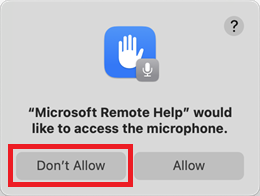
You might see a prompt to allow remotehelp.microsoft.com to use your microphone. Select Don't Allow as this permission isn't needed for screen sharing.
Select Share screen to continue. You might see a prompt to allow remotehelp.microsoft.com share your screen. Select Allow to continue.
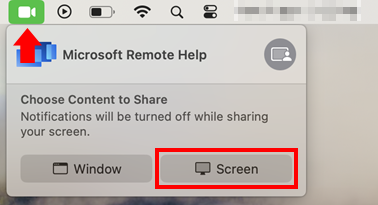
macOS shows a menu with one of two options:
Green camera icon: Choose Screen, and then move your mouse to select the screen share.
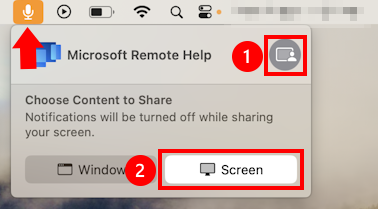
Yellow microphone icon (if you selected to allow the microphone permission): Select the microphone icon. Select the grey icon, and then select Screen. Move your cursor to the screen you want to share and select Share this screen.
After the session is established, the helper can help resolve any issues on the device.
During the session:
- You can chat with the helper using the chat window in the Remote Help app.
When the issues are resolved or you're ready to end the session:
- Both the sharer and helper can end the session. To end the session, select Leave in the Remote Help app.
Note
If Remote Help wasn't installed by your administrator, you can install Remote Help yourself by following the download instructions in the Install Remote Help apps section.
Starting the session:
On your device, you see a prompt showing a request to grant screen share or control of the device with the helpers information, including their full name and company.
If starting an attended screen sharing or full control session, you must select Accept to allow the session to begin. If you don't accept within 5 minutes, the session times out.
If starting an unattended control session, the session will begin automatically after 30 seconds if there's no response.
During the session:
- During an attended screen sharing or full control session, the device displays a floating End Session button. This button can be repositioned on the screen. Tap the button to end the session from your device.
- During an unattended control session, the screen of the device is blocked due to security and privacy reasons, and you are notified if you interact with it. If you interact with the blocked screen, you receive a notification that a helper connected. When the notification is shown, you and the helper won't be able to take any action for 30 seconds. You won't be able to end the session from your device until the helper ends the session.
During a session, there are two roles: a helper and a sharer. The helper obtains the security code, and then provides it to the sharer. After the session is established, the helper can view the sharer's screen.
Starting the session:
- Go to https://aka.ms/rh in a browser and sign in with their organization's credentials.
- Enter the code provided by the helper, and review and accept the prompts.
Remote Help displays a warning if the sharer's device isn't enrolled in Microsoft Intune. This warning doesn't block access but provides transparency about the risk of using sensitive data like administrative credentials during the session.
Provide help
To provide help, you must reach out to the user who needs assistance. You can reach out by phone, chat, or email, and you're the helper during the session.
Attended support
An attended support session requires an end user to participate and grant access to the helper. Attended sessions support view-only access, full control, and optional UAC elevation.
As a helper, after receiving a request from a user who wants assistance by using the Remote Help app:
Launch a session on the remote device from within the Microsoft Intune admin center:
Sign in to the Microsoft Intune admin center, go to Devices > All devices, and select the device on which assistance is needed.
From the remote actions bar across the top of the device view, select New remote assistance session > Remote Help > Continue.
Note
If you launch the session from Intune, sign in to the Remote Help app with the same credentials to establish the connection.
Select Initiate attended control to request view or full control of the device that requires the user to accept the session.
A notification is sent to the sharer's device, and you see an update that the notification was successfully sent. Select Open Remote Help to join the session.
If the notification is sent but not received by the user, you can resend the notification by selecting Retry.
If the sharer's device isn't connected to the internet, an error message is displayed.
If the device that you're trying to connect to is noncompliant, a warning banner is displayed.
When Remote Help opens, you must sign in to authenticate to your organization.
After the sharer opens the Remote Help app through the notification, as the helper you see information about the sharer, including their full name, job title, company, profile picture, and verified domain. The sharer sees similar information about you.
At this time, you can request a session with full control of the sharer's device or choose only screen sharing. If you request full control, the sharer can choose to Allow full control or to Decline the request.
After establishing that the session uses a shared display or full control, Remote Help displays a compliance warning if the sharer's device fails to meet the conditions of its assigned compliance policies.
During assistance, helpers that have the elevation permission can enter local admin permissions on your shared device. Elevation allows the helper to run executable programs or take similar actions when you lack sufficient permissions.
Note
When the EnableSecureCredentialPrompting policy is enabled, it blocks the elevation process during Remote Help sessions. To allow elevation, disable this policy. For more information, see Enable secure credential prompting.
After the issues are resolved, or at any time during the session, both the sharer and helper can end the session. To end the session, select Leave in the upper right corner of the Remote Help app. If a helper performs elevated actions on a user's device and the sharer ends the session, at the end of the session the sharer is automatically signed out.
Unattended support
An unattended support session allows an authorized helper to access and control an Intune-managed device without an active participant in the session.
Launch a session on the remote device from within the Microsoft Intune admin center:
Sign in to the Microsoft Intune admin center, go to Devices > All devices, and select the device on which assistance is needed.
From the remote actions bar across the top of the device view, select New remote assistance session > Remote Help > Continue.
Select Initiate unattended control to take full control of the device without an end user present.
Remote Help starts the unattended session on the target device.
- If you don't have permission to perform unattended control, you're notified.
- If the target device is marked as a personal (BYOD) device, unattended control isn't supported and you're notified.
- If the device that you're trying to connect to is noncompliant, a warning banner is displayed.
- If the target device doesn't meet the prerequisites for unattended control, you're notified which requirements are missing.
- If the sharer's device isn't connected to the internet, an error message is displayed.
A progress panel shows the real-time status as Intune orchestrates the connection. When the session is ready, select Open Remote Help to join the unattended session.
Remote Help opens a new browser tab and launches Windows App (web client). Sign in by using the same account that you used to access the Intune admin center.
When prompted, choose whether to allow access to local resources such as:
- File transfer
- Clipboard paste-through
- Remote Desktop virtual printer
After connecting to the target device, sign in within the remote session using one of the following account types:
- Local Windows account (
ComputerName\UserName)
- Active Directory domain account (
Domain\UserName)
- User principal name (UPN)
- Microsoft Entra ID account (UPN)
Least-privilege access is enforced. Signing in with a standard user account doesn't grant administrator privileges.
Note
Only one helper can establish an unattended connection to a target device at a time, and only one unattended session can be active on a device at a time.
If a user is actively signed in to the device, they're notified and can choose whether to allow the unattended session:
- Select Yes to continue the unattended connection.
- Select No to cancel the unattended connection.
If no one is signed in to the device, the unattended session starts automatically.
If the user doesn't respond, the notification is displayed for 30 seconds, and then the unattended session starts automatically. After the timeout:
- The user's current session is locked and their work is preserved.
- Remote Help connects to a separate Windows session.
- The user sees the Windows lock screen and can't view activity in the unattended session.
During an unattended session, the signed-in user can regain control of the device at any time by signing back in from the lock screen. When this occurs, they're notified and can choose to:
- Continue the unattended session.
- Disconnect the unattended session.
During the unattended session, you can use supported Remote Desktop web client features, such as clipboard and device redirection, as available in your environment.
When troubleshooting is complete, end the session.
After the session ends:
- The device returns to its previous state.
- The user's session remains available.
- The user can sign back in and resume their work.
Provide help to unenrolled Windows devices
If the device that you're trying to help isn't enrolled in Microsoft Intune, follow the process described in this section to provide help.
Open the Remote Help app on your device and sign in with your organizational account.
Under Give help, select Get a security code. Give the generated security code to the sharer requesting assistance.
The sharer opens Remote Help, signs in with their organizational account, enters the security code, and selects Submit.
Verify the sharer's identity by reviewing their information, including their full name, job title, company, profile picture, and verified domain.
Request view-only access or full control. The sharer can allow or decline the request.
When troubleshooting is complete, either participant can select Leave to end the session.
Provide help in Azure Virtual Desktop desktop and RemoteApp sessions
In an Azure Virtual Desktop (AVD) desktop session, helpers can access and control a user's entire remote desktop. In an AVD RemoteApp session, helpers can only view and interact with the published app the user is running, not the full desktop.
Although helpers can initiate Remote Help from the Intune admin center for AVD desktop sessions, the request is broadcast to all active users on the host. AVD RemoteApp sessions can't be directly targeted from the Intune admin center. In both scenarios, use the security code method to connect to the correct user session.
Open the Remote Help app on your device and sign in with your organizational account.
Under Give help, select Get a security code. Give the generated security code to the sharer requesting assistance.
The sharer enters the security code to establish the connection:
- AVD desktop session: Open Remote Help in the active AVD session and enter the security code.
- AVD RemoteApp session: Open Remote Help within the RemoteApp session and enter the security code. After the connection is established, helpers can view and interact only with the published app available in that session.
Note
The restart option isn't available for help desk agents remotely helping AVD.
The helper navigates to the device to connect to the Microsoft Intune admin center.
Sign in to the Microsoft Intune admin center and go to Devices > All devices and select the macOS device on which assistance is needed.
From the remote action bar across the top of the device view, select New remote assistance session and select Remote Help.
Select Continue.
To invite a user to a session, provide the user with the security code.
When Remote Help opens in a new tab for the first time, you must sign in to authenticate to your organization.
After the sharer either selects the link or enters the code into Remote Help for macOS, they're joined to the session. If the user isn't already signed in to the app, they're prompted to do so.
At the start of the session, the trust screen is displayed, which shows the other person's full name, job title, company, profile picture, and verified domain.
You can request a session with full control of the sharer's device or choose only screen sharing. The sharer can choose to Allow or to Decline the request.
If the sharer's device isn't compliant with your organization's policies, Remote Help displays a compliance warning that encourages the helper to be cautious.
Provide help to unenrolled macOS device
If the device that you're trying to help isn't enrolled in Microsoft Intune, follow the process described in this section to provide help.
The helper navigates to https://aka.ms/rhh in their web browser, and then signs in to authenticate with their organization.
After authenticating, a security code is shown.
Copy and share the eight-digit security code with the person to be helped.
The sharer then goes to https://aka.ms/rh and logs in with their organization's credentials.
After the sharer enters the code, and both users accept the prompts, the sessions begin.
Remote Help displays a warning if the sharer's device isn't enrolled in Microsoft Intune. This warning doesn't block access but provides transparency about the risk of using sensitive data, like administrative credentials, during the session.
Navigate to the device you're trying to help from the Microsoft Intune admin center:
a. Sign in to the Microsoft Intune admin center and go to Devices > All devices. Select the Android device on which assistance is needed.
b. From the remote action bar across the top of the device view, select New remote assistance session. Select Remote Help, and then select Continue.
c. Select the session type from the options for which you have permission: screen sharing, full control, unattended control. Then select Open Remote Help.
On the device, the user sees a prompt showing a request to grant screen share or control of the device.
a. If starting an attended screen sharing or full control session, the user must select Accept to allow the session to begin. If the user doesn't accept within five minutes, the session times out.
b. If starting an unattended control session, the session begins automatically after 30 seconds if there's no response from the user.
When the session is ongoing:
a. During an attended screen sharing or full control session, the sharer device displays a floating End Session button. You can reposition this button on the screen. Tap the button to end the session from the sharer device.
b. During an attended full control session, use the buttons on the menu bar, keyboard, or mouse input to interact with the sharer device. You can also long-press on the Power button in the menu bar to simulate a long press. For example, to open the power options menu on some devices.
c. During an unattended control session, the screen of the device you're connected to is blocked due to security and privacy reasons, and the user is notified if they interact with it. If the user interacts with the blocked screen, they'll receive a notification letting them know that you're currently accessing the device. When the notification is shown, you and the end user won't be able to take any action for 30 seconds when this screen will close.
Important
Do not perform sensitive operations during an unattended control session. On devices that use unattended access, do not install or allowlist any apps that can record or mirror the screen.
At the end of the session, select Leave to end the session from the admin console.
Note
On Android 13 devices, the device unlock UI (the PIN entry pad, or the pattern dot grid) can't be shown remotely. To unlock the device, you can still use keyboard input to enter a passcode. Android added this feature as a security measure to protect the end user from a passcode or unlock pattern being captured if the device is unlocked while screen sharing.
Note
On Samsung devices running Android 15, you might notice minor visual latency during a Remote Help session. In some scenarios, portions of the screen may appear to refresh with a slight delay. This behavior doesn't affect session connectivity.
- Sign in to https://aka.ms/rhh.
- Copy and share the eight-digit session code with the sharer that you're trying to help.
- After the sharer enters the session code, as the helper you'll see information about the sharer, including their full name, job title, company, profile picture, and verified domain. The sharer sees similar information about you.
- At this time, you can request a session with full control of the sharer's device or choose only screen sharing. The sharer can choose to Allow or to Decline the request.
Note
- Remote Help displays a compliance warning if the sharer's device fails to meet the conditions of its assigned compliance policies.
- If the tenant is configured to allow Remote Help on unenrolled devices, you receive a warning when connecting to unenrolled devices. This warning doesn't block access but provides transparency about the risk of using sensitive data, like administrative credentials, during the session.
Next steps
Get support in the Microsoft Intune admin center.
 macOS
macOS Android
 Windows from the Intune admin center
 macOS from the Intune admin center
 Windows or macOS from the web app