Hi @Robert May,
Welcome to Microsoft Q&A Forum.
Thank you for reaching out and sharing the details of your experience. I understand how challenging it can be when the mouse pointer disappears while using Outlook, as it impacts your ability to navigate, open emails, and perform essential tasks.
This issue is often related to display rendering or hardware graphics acceleration settings in Outlook or Windows. It can occur after updates or changes in drivers, even without any manual changes on your part.
You can try the following steps to find your mouse and verify the issue in Classic Outlook:
- Unhide pointer while typing
- Go to Control Panel ➜ Mouse
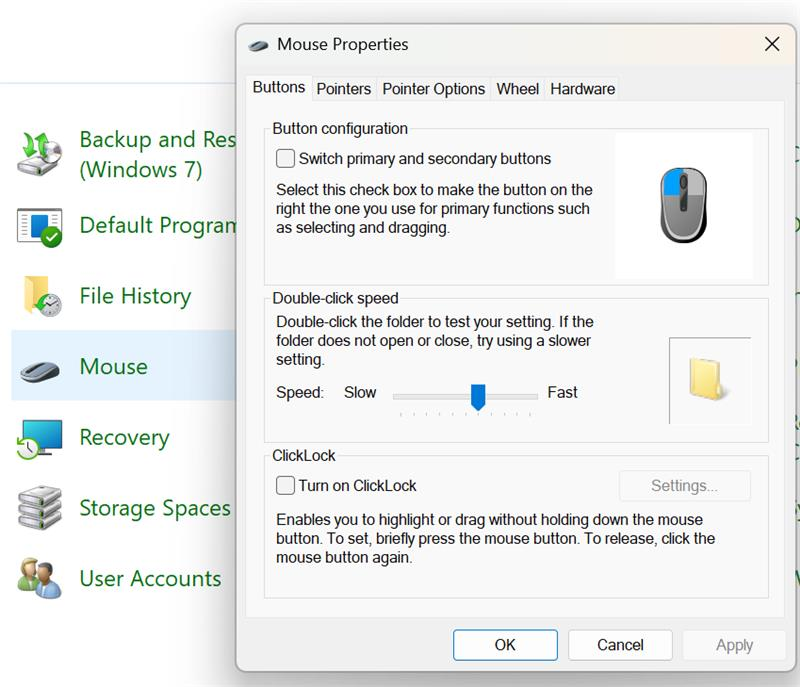
- In Pointer Options, uncheck Hide pointer while typing → Apply.
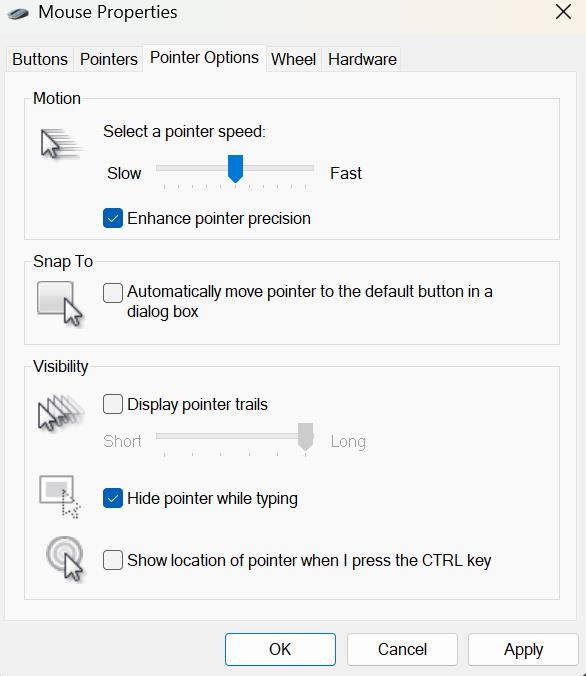
You can test around with feature such as pointer trails or press Ctrl to find mouse location to see if this feature is visible in your Outlook.
- Open Outlook in Safe Mode to see if there is any add-ins conflicts Press Windows + R, type
outlook /safe, and hit Enter. If the cursor appears, an add-in is likely the culprit. Disable add-ins under File → Options → Add-ins → Manage COM Add-ins → Go.
- Try Repair Outlook by following this guide: Repair an Office application - Microsoft Support
- Create new Outlook profile with some help from this article for more steps: Create an Outlook profile - Microsoft Support
If the issue persists, it likely presents as a complex case that required back-end logs for further troubleshoot. Given the nature of the problem, the most effective next step is use your admin credentials to submit a support request through the Microsoft 365 Admin Center. This route ensures that a Microsoft support engineer can initiate a remote session to investigate backend configurations, run advanced diagnostic tools, and, if necessary, escalate the case to specialized teams with access to internal systems and logs. These backend resources are essential for resolving issues that go beyond what’s visible in the user interface.
As community moderators, we’re here to guide you, but due to privacy and security limitations, we don’t have access to the backend tools required for a full resolution. For this reason, contacting Microsoft Support via the Admin Center is the most secure and efficient way forward.
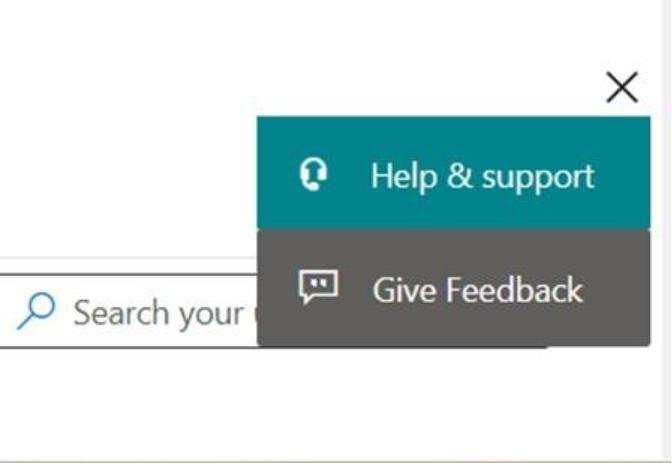
I sincerely recommend you reach out to your IT admin and ask them to create a support ticket from Microsoft 365 Admin Center > Support > Help & Support.
Microsoft also provides customer service phone numbers based on your region. You can find the appropriate contact number here: Customer service phone numbers - Microsoft Support
For your security, please do not reply to this thread with this case number information. The official support line is the only secure way to handle these details.
I hope this information is helpful. Please follow these steps and let me know if it works for you. If not, we can work together to resolve this.
Thank you for your patience and your understanding. If you have any questions or need further assistance, please feel free to share them in the comments on this post so I can continue to support you.
I look forward to continuing the conversation.
If the answer is helpful, please click "Accept Answer" and kindly upvote it. If you have extra questions about this answer, please click "Comment".
Note: Please follow the steps in our documentation to enable e-mail notifications if you want to receive the related email notification for this thread.
' cx='32' cy='32' r='32' /%3E%3Ctext x='50%25' y='55%25' dominant-baseline='middle' text-anchor='middle' fill='%23FFF' %3ERM%3C/text%3E%3C/svg%3E)

' cx='32' cy='32' r='32' /%3E%3Ctext x='50%25' y='55%25' dominant-baseline='middle' text-anchor='middle' fill='%23FFF' %3EAN%3C/text%3E%3C/svg%3E)
' cx='32' cy='32' r='32' /%3E%3Ctext x='50%25' y='55%25' dominant-baseline='middle' text-anchor='middle' fill='%23FFF' %3EAL%3C/text%3E%3C/svg%3E)
' cx='32' cy='32' r='32' /%3E%3Ctext x='50%25' y='55%25' dominant-baseline='middle' text-anchor='middle' fill='%23FFF' %3EGB%3C/text%3E%3C/svg%3E)
