Note
Access to this page requires authorization. You can try signing in or changing directories.
Access to this page requires authorization. You can try changing directories.
Note
This article describes features used in agents or agent flows powered by the standard harness.
By using a generative answers node, your agent can respond to users based on knowledge sources at the topic level. Knowledge sources provide authoritative responses based on information you provide to your agent.
Generative answers as a fallback
When your agent can't find a matching intent (defined in a topic) for the user's query, it uses generative answers to try to answer the question. This behavior is known as generative answers as a fallback. If the user's intent isn't matched to topics or generative answers, the Fallback system topic is used. System topics can escalate a query for the agent.
Generative answers knowledge sources
In a topic, you can add a generative answers node. This node allows you to specify more sources that the node searches based on the user's query. Sources defined in the generative answers node have precedence over knowledge sources you specified at the agent level, which function as a fallback. For the best results, configure your generative answers nodes with specific knowledge sources.
These sources include:
External resources:
- AI general knowledge
- Bing Web Search (doesn't require external configuration)
- Bing Custom Search (requires external configuration)
Internal resources:
- Azure OpenAI on your data
- Documents uploaded to Dataverse
- SharePoint (only specific file formats are supported)
- Custom data (internal or external): supply your own source, such as a Power Automate Flow or from Skill.
Supported knowledge sources
Different knowledge sources offer different capabilities. These capabilities include the number of inputs, the type or format of the data, and how (or if) the source requires authentication to access it.
| Name | Source | Description | Number of inputs supported in generative answers | Authentication |
|---|---|---|---|---|
| Public website | External | Searches the query input on Bing, only returns results from provided websites | Generative orchestration: 25 websites Classic orchestration: Four public URLs (for example, microsoft.com) |
None |
| Documents | Internal | Searches documents uploaded to Dataverse, returns results from the document contents | Generative orchestration: All documents Classic orchestration: Limited by the Dataverse file storage allocation |
None |
| SharePoint | Internal | Connects to a SharePoint URL, uses GraphSearch to return results | Generative orchestration: 25 URLs Classic orchestration: Four URLs per generative answers topic node |
Agent user's Microsoft Entra ID authentication |
| Dataverse | Internal | Connects to the configured Dataverse environment and uses a retrieval-augmented generative technique in Dataverse to return results | Generative orchestration: Unlimited Classic orchestration: Two Dataverse knowledge sources (and up to 15 tables per knowledge source) |
Agent user's Microsoft Entra ID authentication |
| Enterprise data using connectors | Internal | Connects to connectors where your organization data is indexed by Microsoft Search | Generative orchestration: Unlimited Classic orchestration: Two per custom agent |
Agent user's Microsoft Entra ID authentication |
Note
- Agent user authentication for knowledge sources means that when a specific user asks a question to the agent, the agent only surfaces content that the specific user can access.
- Knowledge sources in generative answers nodes currently don't support Bing Custom Search, Azure OpenAI, or Custom Data. Instead, from the generative answers node properties, use the Classic data option for Bing Custom Search, Azure OpenAI, or Custom Data sources.
- For websites, you must confirm which websites your organization owns that Bing will search.
- You can perform language-agnostic querying across all supported file types and languages.
- For unstructured data, such as individual SharePoint files and folders, OneDrive files and folders, or connectors, different limits and limitations apply. Learn more in Limits and limitations.
- Currently, citations returned from a knowledge source can't be used as inputs to other tools or actions.
Choose which knowledge sources the node searches
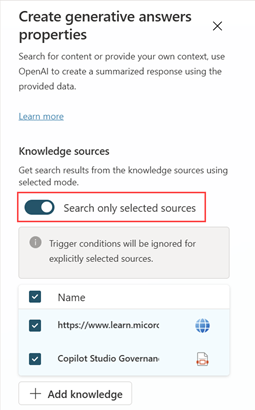
The generative answers node's Knowledge sources properties include Search only selected sources, which controls which knowledge sources the node searches. This setting applies only to that node.
Tip
If the agent should answer using only certain knowledge sources, turn on Search only selected sources and select just the sources you want. This action keeps results from the agent's other knowledge sources from affecting the quality of the answer.
When you turn off Search only selected sources (default), the node searches all the knowledge sources that are configured for the agent.
- The node uses the agent's current set of knowledge sources, so sources you add or remove at the agent level are automatically available.
- If you turn off a knowledge source, the node doesn't search it.
Choose this option when you want the node to draw on the agent's full set of knowledge.
When you turn on Search only selected sources, the node searches only the sources you select.
Choose this option when a topic needs a focused, predictable set of sources. For example, a sensitive topic that should use only one approved SharePoint site as knowledge.
Note
- The node always searches the sources you select, even if a source has trigger conditions that would otherwise limit when it's used. The node shows the note "Trigger conditions will be ignored for explicitly selected sources."
- If the sources you select don't return an answer, the node doesn't fall back to the agent's other knowledge sources. The Generative answers as a fallback section describes a different agent-level behavior.
Answer using only custom data from a variable
If you want a generative answers node to respond using only custom context that you supply from a variable, and not from any knowledge source, use the Custom data option together with Search only selected sources:
- Turn on Search only selected sources and leave all knowledge sources unselected. With nothing selected, the node doesn't search any knowledge sources.
- Under Classic data, set Custom data to the variable that holds your content.
- Keep Web search and Allow the AI to use its own general knowledge turned off so the answer relies only on your custom data.
With this configuration, the node generates its answer only from the data in your variable. Learn more in Use a custom data source for generative answers.
Add a generative answers node
Go to the Topics page and open the topic you want.
Select the Add node icon
 under the node after which you want to use generative answers, point to Advanced, and select Generative answers. A new node called Create generative answers appears.
Select the three dots (…) of the node, and then select Properties. The Create generative answers properties panel appears.
Specify and configure any new data sources you want:
Customize the agent's response
This section shows how to store the agent response in a variable instead of immediately returning it, so that you can include it on an Adaptive Card.
On the Create generative answers node, for Input, select the Activity.Text system variable.
In the Create generative answers properties panel:
Expand the Advanced section.
Create a global variable. Enter a meaningful name for the variable. This variable stores the answer generated in response to a query from the user.
Clear Send a message.
Note
Clearing this option prevents your agent from immediately returning the generated answer, which allows you to customize the answer. Limitation: If you publish this agent to Teams, you must explicitly include rendering of citations for customized answers. In Teams, Copilot Studio agents automatically return citation links only for answers without customizations.
Add either a Question node or a Message node, and add an Adaptive Card to this node.
In the Adaptive Card properties panel, switch to Formula, and replace the default content with a Power Fx formula that uses your global variable and the customizations you want.
Authentication
Some sources require authentication because the agent makes calls on behalf of the user in the chat window. The calls use the account credentials from copilotstudio.microsoft.com.
The authentication settings you configure in the agent require manual authentication with the Service Provider type of Microsoft Entra ID.
Learn more in:
- Configure user authentication in Copilot Studio.
- Configure user authentication with Microsoft Entra ID.
Include delegated permissions for Microsoft Graph:
Files.Read.AllSites.Read.All
Supported content
Generative answers get content stored in these formats:
- SharePoint pages (modern pages)
- Word documents (docx)
- PowerPoint documents (pptx)
- PDF documents (pdf)
Note
For a list of limits and supported SharePoint functionality, see SharePoint web app limits.
Content moderation
You can set content moderation settings at the node level for a generative answers node. However, with content moderation active, your generative answers node might fail to return answers. On the other hand, a lower moderation level might allow your agent to produce harmful content.
Select the three dots (…) of the node, and then select Properties.
Select the desired moderation level.
The moderation levels range from Low to High. The lowest level generates the most answers, but they might contain harmful content. The highest level of content moderation generates fewer answers, and applies a stricter filter to restrict harmful content. The default moderation level is High.
Select Save at the top of the page.