Note
Access to this page requires authorization. You can try signing in or changing directories.
Access to this page requires authorization. You can try changing directories.
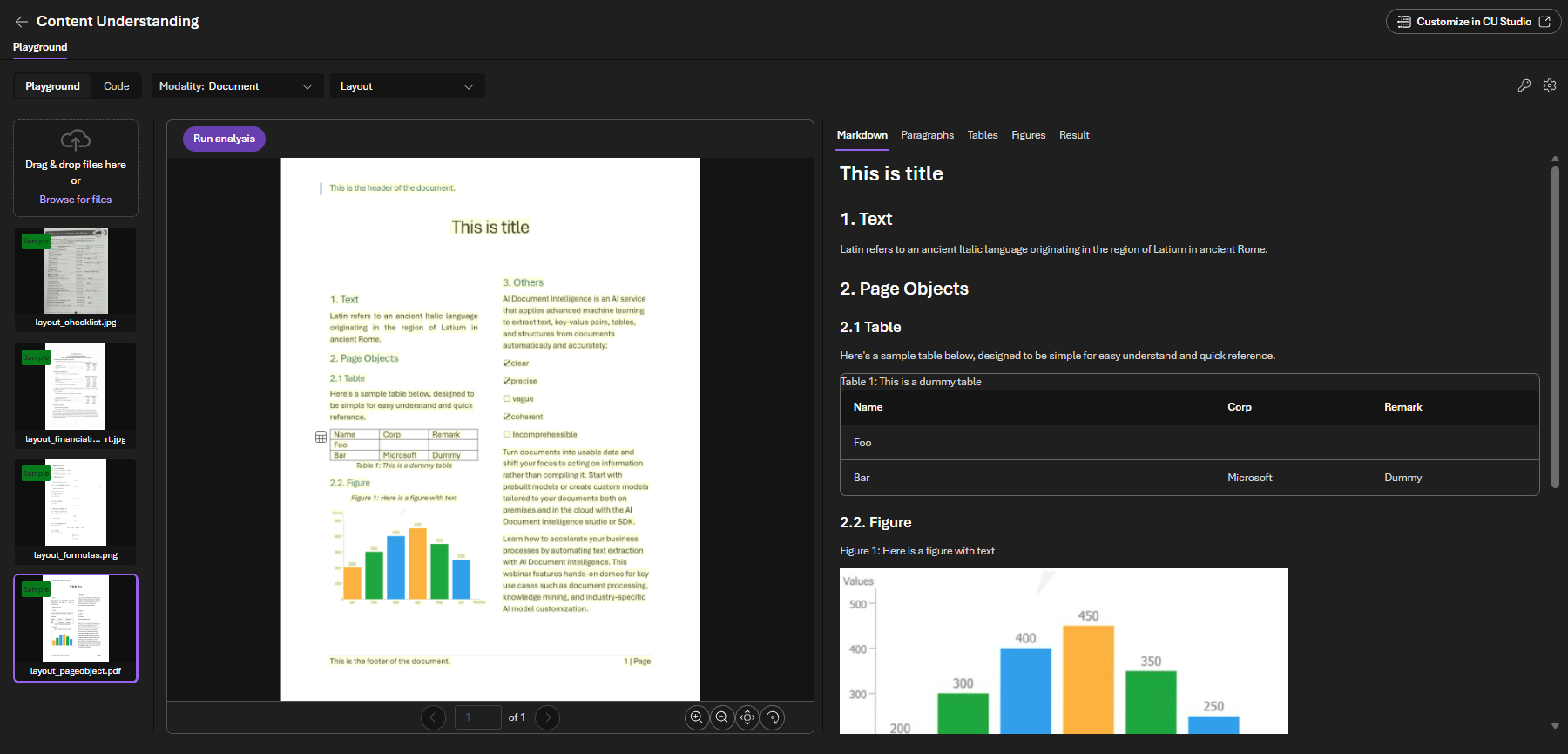
Content Understanding Studio is the primary experience for trying prebuilt and search analyzers and creating custom analyzers. In this quickstart, use Studio or Microsoft Foundry (new) to discover and run available analyzers.
Prerequisites
To get started, make sure you have the following resources and permissions:
- An Azure subscription. If you don't have an Azure subscription, create a free account.
- A Microsoft Foundry resource, created in a supported region.
Go to the Content Understanding settings page.
Select the + Add resource button in the upper left.
Select the Foundry resource that you want to use and select Next > Save.
Make sure that the Enable autodeployment for required models if no defaults are available checkbox is selected. Different analyzers require different models. For the current list, see Supported generative models.
Important
The GPT-4.1 model family (
gpt-4.1,gpt-4.1-mini,gpt-4.1-nano) is being retired in October 2026. We recommend migrating togpt-5.2, which provides improved capabilities. For the full retirement schedule, see Azure OpenAI model retirements.
By taking these steps, you set up a connection between Content Understanding and Foundry models in your Foundry resource.
Explore Content Understanding Studio
Open Content Understanding Studio and sign in with your Azure account.
Try out prebuilt analyzers
Get started by trying a prebuilt analyzer in Content Understanding Studio.
- Browse prebuilt analyzers: Select the option to view all prebuilt analyzers from the Studio home page.
- Select a prebuilt analyzer: Select an analyzer based on your data type and scenario.
- Test on sample data: Explore how the analyzer performs on provided sample data.
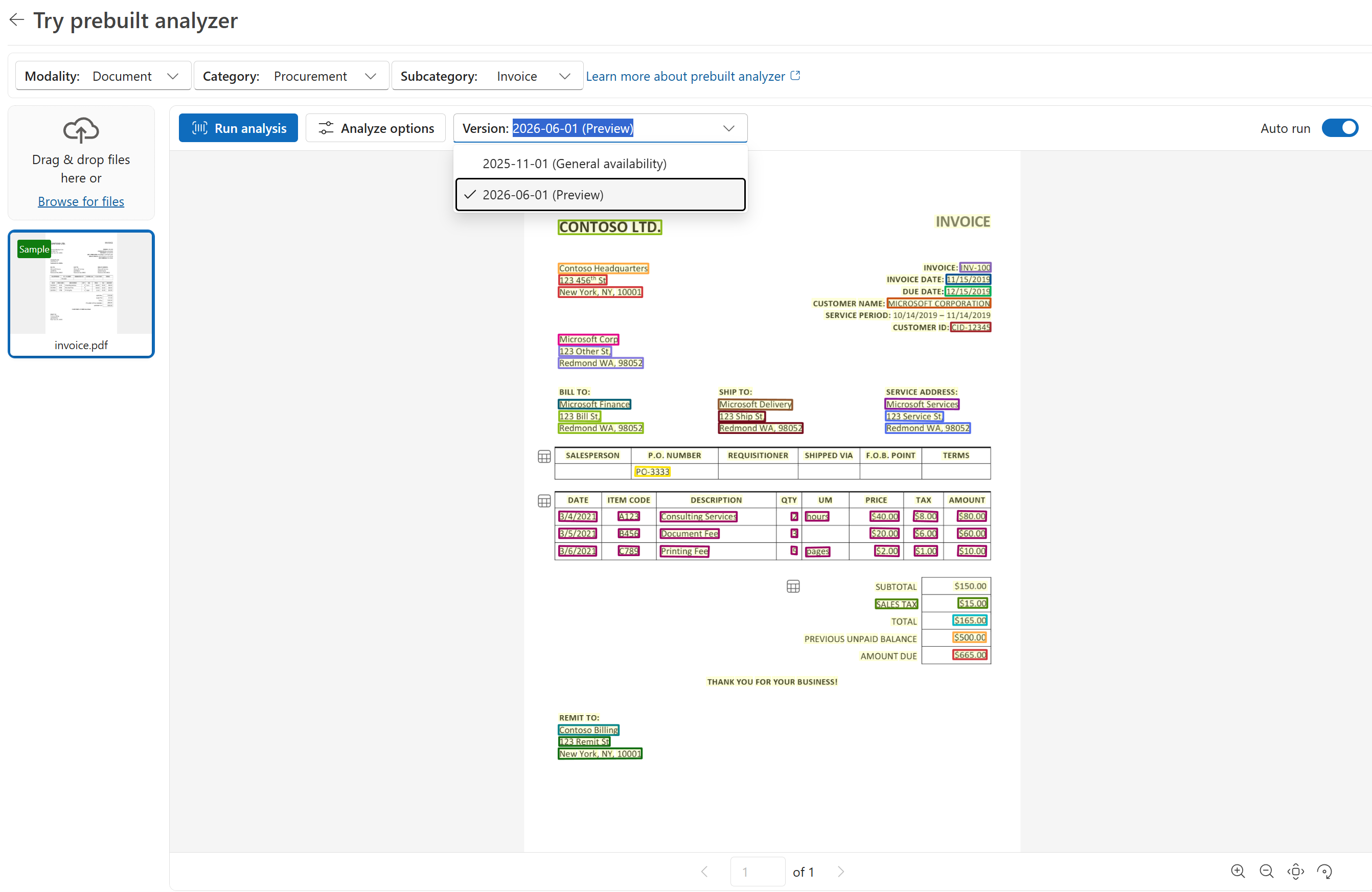
- Try out on your own data: To try out Content Understanding on your data, you need to select a deployment of both a chat completion model and an embeddings model. Learn more in Connect your Content Understanding analyzer to Foundry model deployments.
- Verify the results: After running the analyzer, review the output in the results pane. You should see extracted fields, key-value pairs, or other structured data depending on the analyzer you selected. If the output matches your expectations, you've successfully tested the prebuilt analyzer.
Create a custom analyzer (optional)
After you try a prebuilt analyzer, you can create an analyzer for your specific needs:
- Create a custom analyzer: Define a schema with the fields you want to extract. See How to build a custom analyzer in Content Understanding Studio.
- Classify data: Route documents to different processing paths. See How to classify and route with custom categories in Content Understanding Studio.