Note
Access to this page requires authorization. You can try signing in or changing directories.
Access to this page requires authorization. You can try changing directories.
Important
Items marked (preview) in this article are currently in public preview. This preview is provided without a service-level agreement, and we don't recommend it for production workloads. Certain features might not be supported or might have constrained capabilities. For more information, see Supplemental Terms of Use for Microsoft Azure Previews.
Fabric IQ (preview) is a Microsoft Fabric workload that unifies data across OneLake and organizes it according to the language of your business. It exposes that data to analytics, AI agents, and applications with consistent semantic meaning through its core items: the ontology (preview), which defines your enterprise vocabulary as entity types (such as Customer, Order, and Product), their properties, relationships, and data bindings to OneLake sources (lakehouses, eventhouses, and Power BI semantic models); the Fabric data agent, which enables conversational Q&A over ontology-grounded data; Power BI semantic models, which provide curated analytics with measures and hierarchies. The ontology includes a Natural Language to Ontology (NL2Ontology) layer that converts natural-language questions into structured queries, so agents can ask questions using business terms instead of table names or query syntax.
When you connect your Foundry agent to Fabric IQ by registering it as a server-side tool, your agent can delegate natural-language tasks to the Fabric IQ workload. For example, "Which customers placed orders above $10,000 last quarter?" Fabric IQ handles data retrieval, ontology-grounded reasoning, and response synthesis, then returns the result to your agent. Requests use the identity configured for the connection and honor Fabric permissions and governance policies.
Warning
When you connect to Fabric IQ, you may incur costs and data may be sent outside the Azure compliance boundary and processed according to the applicable service terms and data handling policies. It is your responsibility to manage whether your data will flow outside of your organization's compliance and geographic boundaries and any related implications, and that appropriate permissions, boundaries, and approvals are provisioned.
You're responsible for carefully reviewing and testing applications you build in the context of your specific use cases and making all appropriate decisions and customizations. This includes implementing your own responsible AI mitigations, such as metaprompts, content filters, or other safety systems, and ensuring your applications meet appropriate quality, reliability, security, and trustworthiness standards. See the Foundry Agent Service transparency note.
For information on optimizing tool usage, see best practices.
Prerequisites
Virtual network (VNet) support depends on the Fabric item type. For details, see Virtual network support.
Fabric IQ isn't available in regions where Power BI is the only Fabric workload. Confirm your Fabric workspace is in a region that supports the full Fabric stack. For more information, see Microsoft Fabric region availability.
Before you begin, make sure you have:
- A Microsoft Fabric license that grants access to the Fabric items your agent queries. Users who invoke Fabric IQ through your agent must also have this license.
- An active Microsoft Foundry project with a deployed model.
- For a Fabric data agent:
- A published data agent on paid F2 or higher Fabric capacity, or Power BI Premium P1 or higher capacity with Microsoft Fabric enabled.
- Cross-geo processing and storage enabled when required by your Fabric data agent tenant settings.
- At least one supported data source with data. The calling user or service principal needs read access to the data agent and each data source.
- The data agent and its data sources on capacities in the same region.
- Azure RBAC roles:
- Foundry User role on the Foundry project for the developer identity, the agent's runtime identity, and any user identity involved in OAuth flows.
- Foundry Project Manager role on the Foundry project for creating a Foundry connection to the Fabric IQ endpoint.
- Foundry Toolkit: Install Visual Studio Code and Foundry Toolkit for Visual Studio Code.
Run your first Fabric IQ query
Choose the Fabric item that matches the question your agent needs to answer. Authentication differs by item and connection path.
| Choose this item | Use it for | Authentication for the first query |
|---|---|---|
| Ontology | Questions about business entities, properties, relationships, and data bound to the ontology. | Delegated user authentication through a BYO Entra app or managed OAuth connection. |
| Power BI semantic model | Questions about curated measures, hierarchies, and analytics. | Delegated user authentication through a BYO Entra app or managed OAuth connection. |
| Fabric data agent | Conversational questions handled by a published data agent, including long-running queries. | A Foundry connection uses delegated user authentication through BYO Entra or managed OAuth. Only a direct client of the published data-agent MCP endpoint can instead use a user or service-principal token. |
To get a successful response before completing the administration sections:
- Confirm the item is published and that the connection identity can read the item and its data sources.
- Copy the endpoint for your item from Find your Fabric IQ server details.
- Create the matching connection, and then add the Fabric IQ tool to your agent.
- Ask a question that uses terms defined by the selected item, such as Which customers placed orders above $10,000 last quarter?
- Confirm the response uses the expected Fabric data. If a permitted user gets a result and a user without access doesn't, permission enforcement is working as expected.
Tip
Consider adding this tool using a toolbox. By using a toolbox, you are able to reuse the tool across agents and runtimes, as well as centralizing credential management, versioning, and policy enforcement through a managed MCP endpoint. See the toolbox quickstart.
Usage support
| Microsoft Foundry support | Python SDK | C# SDK | JavaScript SDK | Java SDK | REST API | Basic agent setup | Standard agent setup |
|---|---|---|---|---|---|---|---|
| Fabric IQ | ✔️ | ✔️ | ✔️ | — | ✔️ | ✔️ | ✔️ |
How it works
- Your agent dispatches a tool call — When the agent model identifies a task that requires Fabric data, it emits a tool call to the
fabric_iq_previewtool. - Fabric IQ processes the request — Fabric IQ receives the natural-language query and routes it based on the target item type:
- Ontology — The Natural Language to Ontology (NL2Ontology) layer converts the query into a structured ontology query against your enterprise entities, relationships, and data bindings.
- Fabric data agent — The query goes directly to the data agent for conversational Q&A over ontology-grounded data.
- Power BI semantic models — Fabric IQ queries the semantic model's measures and hierarchies to return analytics results.
- The result is returned to your agent — Fabric IQ returns the synthesized response. Your agent incorporates it into its reply to the user. Fabric enforces the permissions and governance policies assigned to the connection identity.
Connect to Fabric IQ
The following steps will guide you through the steps to connect agents to Fabric IQ, including server URL patterns and authentication methods.
Find your Fabric IQ server details
Fabric IQ exposes different MCP endpoint URLs depending on the type of Fabric item you're connecting to. The value you supply as server_url follows one of these patterns:
| Fabric item type | server_url pattern |
Supported authentication |
|---|---|---|
| Power BI semantic model | https://{host}/v1/mcp/fabricaihub/integrations/m365 |
BYO Entra app, managed OAuth |
| Ontology | https://{host}/v1/mcp/dataPlane/workspaces/{workspaceId}/items/{itemId}/ontologyEndpoint |
BYO Entra app, managed OAuth |
| Data agent | https://{host}/v1/mcp/workspaces/{workspaceId}/dataagents/{dataAgentId}/agent |
BYO Entra app, managed OAuth, or a direct user or service-principal token |
Replace the placeholders as follows:
{host}— The Fabric API host, typicallyapi.fabric.microsoft.com{workspaceId}— The GUID of your Microsoft Fabric workspace{itemId}/{dataAgentId}— The GUID of the specific Fabric item
You can find the workspace and item GUIDs in the Microsoft Fabric portal: open your workspace, select the item, and copy the IDs from the browser URL.
If the data agent's workspace uses a workspace-level private link, replace api.fabric.microsoft.com with the workspace-specific host. See Connect to a data agent over a workspace-level private link.
Among the Fabric IQ item types, only the data agent MCP endpoint supports long-running operations through background mode. Ontology and Power BI semantic model endpoints run synchronously and are subject to the standard tool-call timeout. Because the data agent endpoint is an MCP server, you run it in background mode the same way as any other MCP tool - set background to true and poll the response until it completes. For code samples, see Long-running operations.
Tip
For Power BI semantic models, we highly recommend using the latest models such as gpt-5.4 or opus 4.7. Semantic model queries involve complex measure and hierarchy reasoning that benefits significantly from the improved reasoning capability of newer models.
For server_label, use any short lowercase identifier with hyphens, for example fabriciq-ontology. This label appears in approval prompts when the model calls the tool.
Add the Fabric IQ tool to your agent
Use Foundry Toolkit for Visual Studio Code to add an existing Fabric IQ connection to a toolbox, then connect your agent to the published toolbox endpoint.
Adding a Fabric IQ (OneLake Catalog) connection from Foundry Toolkit isn't directly supported yet. Open this toolbox in the Foundry portal to create the connection, then return to Foundry Toolkit. The connection appears in the Configured list.
- Select Foundry Toolkit in the Activity Bar.
- Under My Resources, expand Your project name > Tools.
- Create a toolbox, or open an existing toolbox.
- Select Add tools.
- On the Configured tab, select Fabric IQ (OneLake Catalog).
- Select Add Tools.
- Select Publish for a new toolbox, or Save Changes for an existing toolbox.
For the full toolbox creation workflow, see Curate intent-based toolbox in Foundry.
To add the Fabric IQ tool through a toolbox by using code or the REST API, select the Python, .NET, JavaScript, or REST API tab in this section.
Install the package:
pip install "azure-ai-projects>=2.2.0"
Set the following environment variables:
FOUNDRY_PROJECT_ENDPOINT— your project endpoint, found in the Overview page of your Foundry project.FOUNDRY_MODEL_NAME— the deployment name of the model the agent uses.FABRIC_IQ_PROJECT_CONNECTION_ID— the fully qualified resource ID of the Fabric IQ project connection.FABRIC_IQ_SERVER_LABEL— a short lowercase label for the Fabric IQ MCP server.FABRIC_IQ_SERVER_URL— the Fabric IQ MCP endpoint URL for the Fabric item.
Select Prompt Agents to use the Azure AI Projects SDK to create a server-side prompt agent, or Hosted Agents to use the Microsoft Agent Framework to build an ephemeral, in-process agent that connects to the tool through a toolbox.
Prompt agents
import os
from azure.identity import DefaultAzureCredential
from azure.ai.projects import AIProjectClient
from azure.ai.projects.models import PromptAgentDefinition, FabricIQPreviewTool

endpoint = os.environ["FOUNDRY_PROJECT_ENDPOINT"]

with (
    DefaultAzureCredential() as credential,
    AIProjectClient(endpoint=endpoint, credential=credential) as project_client,
    project_client.get_openai_client() as openai_client,
):
    tool_payload = FabricIQPreviewTool(
        project_connection_id=os.environ["FABRIC_IQ_PROJECT_CONNECTION_ID"],
        require_approval="never",
    )

    agent = project_client.agents.create_version(
        agent_name="MyAgent",
        definition=PromptAgentDefinition(
            model=os.environ["FOUNDRY_MODEL_NAME"],
            instructions="Use the available Fabric IQ tools to answer questions and perform tasks.",
            tools=[tool_payload],
        ),
    )
    print(f"Agent created (id: {agent.id}, name: {agent.name}, version: {agent.version})")

    user_input = "Which customers placed orders above $10,000 last quarter?"
    response = openai_client.responses.create(
        input=user_input,
        extra_body={"agent_reference": {"name": agent.name, "type": "agent_reference"}},
    )

    print(f"Agent response: {response.output_text}")

    # Clean up the agent version so unused versions don't accumulate in the project.
    project_client.agents.delete_version(agent_name=agent.name, agent_version=agent.version)
    print("Agent deleted")
Expected output: The agent calls Fabric IQ with the user's query. Fabric IQ queries the ontology-grounded data using your business terms, synthesizes results from bound OneLake sources, and returns the answer.
Hosted agents
This sample creates the Fabric IQ tool, adds it to a toolbox, and connects a hosted Microsoft Agent Framework agent to the toolbox MCP endpoint.
import asyncio
import os
import httpx

from agent_framework import Agent, MCPStreamableHTTPTool
from agent_framework.foundry import FoundryChatClient
from azure.identity import AzureCliCredential, get_bearer_token_provider
from azure.ai.projects import AIProjectClient
from azure.ai.projects.models import FabricIQPreviewToolboxTool

endpoint = os.environ["FOUNDRY_PROJECT_ENDPOINT"]


class _ToolboxAuth(httpx.Auth):
    def __init__(self, token_provider):
        self._token_provider = token_provider

    def auth_flow(self, request):
        request.headers["Authorization"] = "Bearer " + self._token_provider()
        yield request


async def main() -> None:
    credential = AzureCliCredential()

    # 1. Create the Fabric IQ tool and add it to a toolbox. Using a toolbox is the
    #    recommended way to give agents tools: curate tools once and reuse the
    #    toolbox across agents. See /azure/foundry/agents/concepts/toolbox-overview
    project_client = AIProjectClient(endpoint=endpoint, credential=credential)
    fabric_iq_tool = FabricIQPreviewToolboxTool(
        project_connection_id=os.environ["FABRIC_IQ_PROJECT_CONNECTION_ID"],
    )
    toolbox = project_client.toolboxes.create_version(
        name="fabric-iq-toolbox",
        description="Toolbox with the Fabric IQ tool",
        tools=[fabric_iq_tool],
    )

    # 2. The toolbox exposes an MCP-compatible endpoint.
    TOOLBOX_MCP_URL = (
        f"{endpoint}/toolboxes/{toolbox.name}"
        f"/versions/{toolbox.version}/mcp?api-version=v1"
    )

    # 3. Attach the toolbox to the hosted agent as an MCP tool.
    token_provider = get_bearer_token_provider(credential, "https://ai.azure.com/.default")
    http_client = httpx.AsyncClient(auth=_ToolboxAuth(token_provider), timeout=120.0)
    mcp_tool = MCPStreamableHTTPTool(
        name="toolbox",
        url=TOOLBOX_MCP_URL,
        http_client=http_client,
        load_prompts=False,
    )

    agent = Agent(
        client=FoundryChatClient(credential=credential),
        instructions="Use the available Fabric IQ tools to answer questions and perform tasks.",
        tools=[mcp_tool],
    )

    result = await agent.run("Which customers placed orders above $10,000 last quarter?")
    print(f"Agent: {result.text}")


if __name__ == "__main__":
    asyncio.run(main())
Expected output
The hosted agent calls Fabric IQ through the toolbox MCP endpoint and returns an ontology-grounded answer.
Get an access token for the Foundry project data plane:
AGENT_TOKEN=$(az account get-access-token --scope https://ai.azure.com/.default --query accessToken -o tsv)
The recommended way to add Fabric IQ is through a toolbox, then attach the toolbox to your agent as an MCP tool. See What is a toolbox?
Step 1: Create a toolbox that contains the Fabric IQ tool:
curl --request POST \
  --url "{project_endpoint}/toolboxes/fabric-iq-toolbox/versions?api-version=v1" \
  -H "Authorization: Bearer $AGENT_TOKEN" \
  -H "Content-Type: application/json" \
  --data '{
    "description": "Toolbox with the Fabric IQ tool",
    "tools": [
      {
        "type": "fabric_iq_preview",
        "project_connection_id": "{connection-name}",
        "server_label": "{fabric-iq-server-label}",
        "server_url": "{fabric-iq-server-url}"
      }
    ]
  }'
The toolbox exposes an MCP-compatible endpoint at {project_endpoint}/toolboxes/fabric-iq-toolbox/versions/<version>/mcp?api-version=v1, where <version> is the version returned by the previous call.
Step 2: Create a remote-tool project connection that points at the toolbox endpoint, using a user Entra token so the caller's identity is passed through (audience https://ai.azure.com):
azd ai connection create fabric-iq-toolbox-conn \
  --kind remote-tool \
  --target "{project_endpoint}/toolboxes/fabric-iq-toolbox/versions/<version>/mcp?api-version=v1" \
  --auth-type user-entra-token \
  --audience https://ai.azure.com
Step 3: Create the agent with the toolbox attached as an MCP tool:
POST {project_endpoint}/agents/{agent_name}/versions?api-version=v1
Authorization: Bearer {token}
Content-Type: application/json

{
  "definition": {
    "kind": "prompt",
    "model": "gpt-4o-mini",
    "instructions": "You are a helpful assistant with access to your organization's Microsoft Fabric data through Fabric IQ. Use Fabric IQ to answer questions about business entities, relationships, and data in the ontology—such as customers, orders, products, and pipelines.",
    "tools": [
      {
        "type": "mcp",
        "server_label": "toolbox",
        "server_url": "{project_endpoint}/toolboxes/fabric-iq-toolbox/versions/<version>/mcp?api-version=v1",
        "require_approval": "never",
        "project_connection_id": "fabric-iq-toolbox-conn"
      }
    ]
  }
}
Step 4: Create a conversation session:
POST {project_endpoint}/openai/v1/conversations
Authorization: Bearer {token}
Content-Type: application/json

{}
The response includes an id field. Use it in the next step.
Step 5: Send a request to the agent:
POST {project_endpoint}/openai/v1/responses
Authorization: Bearer {token}
Content-Type: application/json

{
  "conversation": "{conversation_id}",
  "input": "Which customers placed orders above $10,000 last quarter?",
  "agent_reference": {
    "type": "agent_reference",
    "name": "{agent_name}"
  }
}
The response includes metadata about the agent execution and a text field in content with the synthesized answer.
Use token scope https://ai.azure.com/.default when getting the bearer token.
Select Prompt Agents to use the Azure AI Projects SDK to create a server-side prompt agent, or Hosted Agents to use the Microsoft Agent Framework to build an ephemeral, in-process agent that connects to the tool through a toolbox.
Prompt agents
using Azure.AI.Projects;
using Azure.Identity;

var projectEndpoint = Environment.GetEnvironmentVariable("FOUNDRY_PROJECT_ENDPOINT");
var modelDeploymentName = Environment.GetEnvironmentVariable("FOUNDRY_MODEL_NAME");
var fabricIQConnectionName = Environment.GetEnvironmentVariable("FABRIC_IQ_PROJECT_CONNECTION_NAME");

AIProjectClient projectClient = new(endpoint: new Uri(projectEndpoint), tokenProvider: new DefaultAzureCredential());

string fabricIQConnectionId =
    (await projectClient.Connections.GetConnectionAsync(fabricIQConnectionName)).Value.Id;

FabricIQPreviewTool fabricIQTool = new(projectConnectionId: fabricIQConnectionId)
{
    RequireApproval = BinaryData.FromObjectAsJson("never"),
};
DeclarativeAgentDefinition agentDefinition = new(model: modelDeploymentName)
{
    Instructions = "Use the available Fabric IQ tools to answer questions and perform tasks.",
    Tools = { fabricIQTool },
};

ProjectsAgentVersion agentVersion = await projectClient.AgentAdministrationClient.CreateAgentVersionAsync(
    agentName: "myFabricIQAgent",
    options: new(agentDefinition));
Console.WriteLine($"Agent created (name: {agentVersion.Name}, version: {agentVersion.Version})");

ProjectResponsesClient responseClient =
    projectClient.ProjectOpenAIClient.GetProjectResponsesClientForAgent(agentVersion.Name);
CreateResponseOptions responseOptions = new()
{
    ToolChoice = ResponseToolChoice.CreateRequiredChoice(),
    InputItems = { ResponseItem.CreateUserMessageItem("Which customers placed orders above $10,000 last quarter?") },
};
ResponseResult response = await responseClient.CreateResponseAsync(responseOptions);
Console.WriteLine(response.GetOutputText());

// Clean up
await projectClient.AgentAdministrationClient.DeleteAgentVersionAsync(
    agentName: agentVersion.Name, agentVersion: agentVersion.Version);
Expected output: The agent calls Fabric IQ with the user's query. Fabric IQ queries the ontology-grounded data using your business terms, synthesizes results from bound OneLake sources, and returns the answer.
Hosted agents
This sample creates the Fabric IQ tool, adds it to a toolbox, and connects a hosted Microsoft Agent Framework agent to the toolbox MCP endpoint.
using Azure.AI.AgentServer.Responses;
using Azure.AI.AgentServer.Responses.Models;
using Azure.AI.OpenAI;
using Azure.AI.Projects;
using Azure.AI.Extensions.OpenAI;
using Azure.Identity;
using Microsoft.Extensions.DependencyInjection;
using OpenAI.Chat;

var projectEndpoint = Environment.GetEnvironmentVariable("FOUNDRY_PROJECT_ENDPOINT");
var modelDeploymentName = Environment.GetEnvironmentVariable("FOUNDRY_MODEL_NAME");
var fabricIQConnectionName = Environment.GetEnvironmentVariable("FABRIC_IQ_PROJECT_CONNECTION_NAME");
var fabricIQServerLabel = Environment.GetEnvironmentVariable("FABRIC_IQ_SERVER_LABEL");
var fabricIQServerUrl = Environment.GetEnvironmentVariable("FABRIC_IQ_SERVER_URL");

var openAiEndpoint = new Uri(projectEndpoint).GetLeftPart(UriPartial.Authority);
DefaultAzureCredential credential = new();

// 1. Create the Fabric IQ tool and add it to a toolbox. Using a toolbox is the
//    recommended way to give agents tools. See /azure/foundry/agents/concepts/toolbox-overview
AIProjectClient projectClient = new(endpoint: new Uri(projectEndpoint), tokenProvider: credential);
string fabricIQConnectionId =
    (await projectClient.Connections.GetConnectionAsync(fabricIQConnectionName)).Value.Id;

FabricIQPreviewTool fabricIQToolDefinition = new(projectConnectionId: fabricIQConnectionId)
{
    ServerLabel = fabricIQServerLabel,
    ServerUrl = new Uri(fabricIQServerUrl),
};
ProjectsAgentTool fabricIQTool = ProjectsAgentTool.AsProjectTool(fabricIQToolDefinition);
ToolboxVersion toolboxVersion = projectClient.AgentAdministrationClient
    .GetAgentToolboxes().CreateToolboxVersion(
        toolboxName: "fabric-iq-toolbox",
        tools: [fabricIQTool],
        description: "Toolbox with the Fabric IQ tool");

// 2. The toolbox exposes an MCP-compatible endpoint.
string toolboxMcpEndpoint =
    $"{projectEndpoint}/toolboxes/{toolboxVersion.Name}/versions/{toolboxVersion.Version}/mcp?api-version=v1";

// 3. Attach the toolbox to the hosted agent.
var openAIClient = new AzureOpenAIClient(new Uri(openAiEndpoint), credential);
ChatClient chatClient = openAIClient.GetChatClient(modelDeploymentName);

// ToolboxMcpClient discovers tools from the toolbox MCP endpoint and calls them
// through tools/call. ToolboxHandler maps model tool calls to that MCP client.
var toolboxClient = new ToolboxMcpClient(toolboxMcpEndpoint, credential);

ResponsesServer.Run<ToolboxHandler>(configure: builder =>
{
    builder.Services.AddSingleton(new AgentConfig(chatClient, toolboxClient));
});
Expected output
The hosted agent calls Fabric IQ through the toolbox MCP endpoint and returns an ontology-grounded answer.
const { DefaultAzureCredential } = require("@azure/identity");
const { AIProjectClient } = require("@azure/ai-projects");

const projectEndpoint = process.env["FOUNDRY_PROJECT_ENDPOINT"];
const deploymentName = "gpt-5-mini";
const fabricIqProjectConnectionId = process.env["FABRIC_IQ_PROJECT_CONNECTION_ID"];
const fabricIqServerLabel = process.env["FABRIC_IQ_SERVER_LABEL"];
const fabricIqServerUrl = process.env["FABRIC_IQ_SERVER_URL"];

async function main() {
  const project = new AIProjectClient(projectEndpoint, new DefaultAzureCredential());
  const openai = project.getOpenAIClient();

  console.log("Creating a toolbox with the Fabric IQ tool...");

  // 1. Add the Fabric IQ tool to a toolbox. Using a toolbox is the recommended
  //    way to give agents tools. See /azure/foundry/agents/concepts/toolbox-overview
  const toolbox = await project.toolboxes.createVersion(
    "fabric-iq-toolbox",
    [
      {
        type: "fabric_iq_preview",
        project_connection_id: fabricIqProjectConnectionId,
        server_label: fabricIqServerLabel,
        server_url: fabricIqServerUrl,
      },
    ],
    { description: "Toolbox with the Fabric IQ tool" },
  );

  // 2. The toolbox exposes an MCP-compatible endpoint.
  const toolboxMcpUrl =
    `${projectEndpoint}/toolboxes/${toolbox.name}` +
    `/versions/${toolbox.version}/mcp?api-version=v1`;

  // 3. Create a remote-tool project connection that points at the toolbox endpoint.
  //    Use a user Entra token so the caller's identity is passed through
  //    (audience https://ai.azure.com). Create the connection once, for example
  //    with the Azure Developer CLI:
  //
  //    azd ai connection create fabric-iq-toolbox-conn \
  //      --kind remote-tool \
  //      --target "<toolboxMcpUrl>" \
  //      --auth-type user-entra-token \
  //      --audience https://ai.azure.com
  const toolboxConnectionName = "fabric-iq-toolbox-conn";

  // 4. Attach the toolbox to a prompt agent as an MCP tool.
  const agent = await project.agents.createVersion("MyAgent", {
    kind: "prompt",
    model: deploymentName,
    instructions: "Use the available Fabric IQ tools to answer questions and perform tasks.",
    tools: [
      {
        type: "mcp",
        server_label: "toolbox",
        server_url: toolboxMcpUrl,
        require_approval: "never",
        project_connection_id: toolboxConnectionName,
      },
    ],
  });
  console.log(`Agent created (id: ${agent.id}, name: ${agent.name}, version: ${agent.version})`);

  const userInput = process.env["FABRIC_IQ_USER_INPUT"] || "Summarize the available datasets";
  const response = await openai.responses.create(
    { input: userInput },
    { body: { agent_reference: { name: agent.name, type: "agent_reference" } } },
  );
  console.log(`Agent response: ${response.output_text}`);

  // Clean up the agent version so unused versions don't accumulate in the project.
  await project.agents.deleteVersion(agent.name, agent.version);
}

main().catch((err) => {
  console.error("The sample encountered an error:", err);
});
Note
Annotation chunks are returned in result.structuredContent.documents[]. Each document includes title and url fields that you can use to generate citation details in your application.
Use Fabric IQ with a hosted agent
This sample creates a Fabric IQ toolbox, then uses a hosted agent to discover and invoke Fabric IQ through the toolbox MCP endpoint.
Python
import asyncio
import os
import httpx

from agent_framework import Agent, MCPStreamableHTTPTool
from agent_framework.foundry import FoundryChatClient
from azure.identity import AzureCliCredential, get_bearer_token_provider
from azure.ai.projects import AIProjectClient
from azure.ai.projects.models import FabricIQPreviewToolboxTool

PROJECT_ENDPOINT = "https://<account>.services.ai.azure.com/api/projects/<project>"


class _ToolboxAuth(httpx.Auth):
    def __init__(self, token_provider):
        self._token_provider = token_provider

    def auth_flow(self, request):
        request.headers["Authorization"] = "Bearer " + self._token_provider()
        yield request

async def main() -> None:
    credential = AzureCliCredential()

    # 1. Create the Fabric IQ tool and add it to a toolbox. Using a toolbox is the
    #    recommended way to give agents tools: curate tools once and reuse the
    #    toolbox across agents. See /azure/foundry/agents/concepts/toolbox-overview
    project = AIProjectClient(endpoint=PROJECT_ENDPOINT, credential=credential)
    fabric_iq_tool = FabricIQPreviewToolboxTool(
        project_connection_id=os.environ["FABRIC_IQ_PROJECT_CONNECTION_ID"],
        server_label=os.environ["FABRIC_IQ_SERVER_LABEL"],
        server_url=os.environ["FABRIC_IQ_SERVER_URL"],
    )
    toolbox = project.toolboxes.create_version(
        name="fabric-iq-toolbox",
        description="Toolbox with the Fabric IQ tool",
        tools=[fabric_iq_tool],
    )

    # 2. The toolbox exposes an MCP-compatible endpoint.
    TOOLBOX_MCP_URL = (
        f"{PROJECT_ENDPOINT}/toolboxes/{toolbox.name}"
        f"/versions/{toolbox.version}/mcp?api-version=v1"
    )

    # 3. Attach the toolbox to the hosted agent as an MCP tool.
    token_provider = get_bearer_token_provider(credential, "https://ai.azure.com/.default")
    http_client = httpx.AsyncClient(auth=_ToolboxAuth(token_provider), timeout=120.0)
    mcp_tool = MCPStreamableHTTPTool(
        name="toolbox",
        url=TOOLBOX_MCP_URL,
        http_client=http_client,
        load_prompts=False,
    )

    agent = Agent(
        client=FoundryChatClient(credential=credential),
        instructions="Use the available Fabric IQ tools to answer questions about business entities, relationships, and data.",
        tools=[mcp_tool],
    )

    result = await agent.run("Which customers placed orders above $10,000 last quarter?")
    print(result.text)


if __name__ == "__main__":
    asyncio.run(main())
C#
using Azure.AI.AgentServer.Responses;
using Azure.AI.AgentServer.Responses.Models;
using Azure.AI.OpenAI;
using Azure.AI.Projects;
using Azure.AI.Extensions.OpenAI;
using Azure.Identity;
using Microsoft.Extensions.DependencyInjection;
using OpenAI.Chat;

const string AgentInstructions = "You are a helpful assistant that can access Microsoft Fabric data through Fabric IQ.";
const string AgentName = "FabricIQAgent";

string projectEndpoint = Environment.GetEnvironmentVariable("AZURE_AI_PROJECT_ENDPOINT")
    ?? "https://<account>.services.ai.azure.com/api/projects/<project>";
string openAiEndpoint = Environment.GetEnvironmentVariable("AZURE_OPENAI_ENDPOINT")
    ?? throw new InvalidOperationException("AZURE_OPENAI_ENDPOINT is not set.");
string deploymentName = Environment.GetEnvironmentVariable("AZURE_AI_MODEL_DEPLOYMENT_NAME") ?? "gpt-5-mini";
var fabricIQConnectionName = Environment.GetEnvironmentVariable("FABRIC_IQ_PROJECT_CONNECTION_NAME");
var fabricIQServerLabel = Environment.GetEnvironmentVariable("FABRIC_IQ_SERVER_LABEL");
var fabricIQServerUrl = Environment.GetEnvironmentVariable("FABRIC_IQ_SERVER_URL");

DefaultAzureCredential credential = new();

// 1. Create the Fabric IQ tool and add it to a toolbox. Using a toolbox is the
//    recommended way to give agents tools. See /azure/foundry/agents/concepts/toolbox-overview
AIProjectClient projectClient = new(
    endpoint: new Uri(projectEndpoint),
    tokenProvider: credential);
string fabricIQConnectionId =
    (await projectClient.Connections.GetConnectionAsync(fabricIQConnectionName)).Value.Id;

FabricIQPreviewTool fabricIQToolDefinition = new(projectConnectionId: fabricIQConnectionId)
{
    ServerLabel = fabricIQServerLabel,
    ServerUrl = new Uri(fabricIQServerUrl),
};
ProjectsAgentTool fabricIQTool = ProjectsAgentTool.AsProjectTool(fabricIQToolDefinition);
ToolboxVersion toolboxVersion = projectClient.AgentAdministrationClient
    .GetAgentToolboxes().CreateToolboxVersion(
        toolboxName: "fabric-iq-toolbox",
        tools: [fabricIQTool],
        description: "Toolbox with the Fabric IQ tool");

// 2. The toolbox exposes an MCP-compatible endpoint.
string toolboxMcpEndpoint =
    $"{projectEndpoint}/toolboxes/{toolboxVersion.Name}/versions/{toolboxVersion.Version}/mcp?api-version=v1";

// 3. Attach the toolbox to the hosted agent.
AzureOpenAIClient openAIClient = new(new Uri(openAiEndpoint), credential);
ChatClient chatClient = openAIClient.GetChatClient(deploymentName);

// ToolboxMcpClient discovers toolbox tools via MCP tools/list and calls them via tools/call.
ToolboxMcpClient toolboxClient = new(toolboxMcpEndpoint, credential);

ResponsesServer.Run<ToolboxHandler>(configure: builder =>
{
    builder.Services.AddSingleton(new AgentConfig(
        name: AgentName,
        instructions: AgentInstructions,
        chatClient: chatClient,
        toolboxClient: toolboxClient));
});
Run a Fabric data agent in background mode
Fabric data agent queries can take longer than the standard synchronous tool-call timeout. To let these calls run to completion, enable background mode and use a model that supports it, such as gpt-5.4 or gpt-5.5. You can enable background mode in code or in the Microsoft Foundry portal playground.
To enable background mode and run a data agent in the portal:
Open your agent, and select the Playground tab.
In the Model list, select a model that supports background mode, such as
gpt-5.4orgpt-5.5.Select the parameters icon next to the model, and turn on Background mode.
Under Tools, select Add > Browse all tools > Fabric IQ (OneLake Catalog), and then select Add tool.
In the OneLake Catalog, select a Data agent item, and then select Add.
Send a message. The agent starts a background run and shows its progress while the data agent completes the long-running query. When the run finishes, the response appears in the chat.
For code samples, see Long-running operations.
Authentication and security
Fabric IQ authentication depends on the Fabric item type. Ontology and Power BI semantic model connections use Microsoft Entra ID delegated authentication (On-Behalf-Of, OBO), so requests run in the context of the signed-in user.
A published Fabric data agent MCP endpoint accepts a token for either a user or a service principal. For direct MCP clients, request the token with the https://api.fabric.microsoft.com/.default scope. Fabric applies the permissions and governance policies assigned to that identity. This application-only support is specific to the data agent MCP endpoint.
The authentication method available depends on the Fabric item type:
- Ontology - BYO Entra app or managed OAuth. To use BYO Entra app, register a dedicated Entra application with Power BI delegated permissions.
- Data agent — BYO Entra app or managed OAuth for the Foundry connection, or a user or service-principal bearer token for a direct MCP client.
- Power BI semantic model — BYO Entra app or managed OAuth.
Set up your Entra app for ontology (one-time, per organization)
An Entra admin must complete the following one-time tenant operation before you can create a Fabric IQ connection for an ontology item in Foundry. For steps that require the Global Administrator role, use Microsoft Entra Privileged Identity Management (PIM) to activate the role just in time, and deactivate it when setup is complete. Day-to-day Fabric IQ users don't need this role.
Create the app registration
- Go to the Microsoft Entra admin center. In the left navigation, select Entra ID > App registrations.
- Select New registration. Give the app a descriptive name and set Supported account types to Accounts in this organizational directory only. Select Register.
- Copy the Application (client) ID. You need this value when creating the Foundry connection.
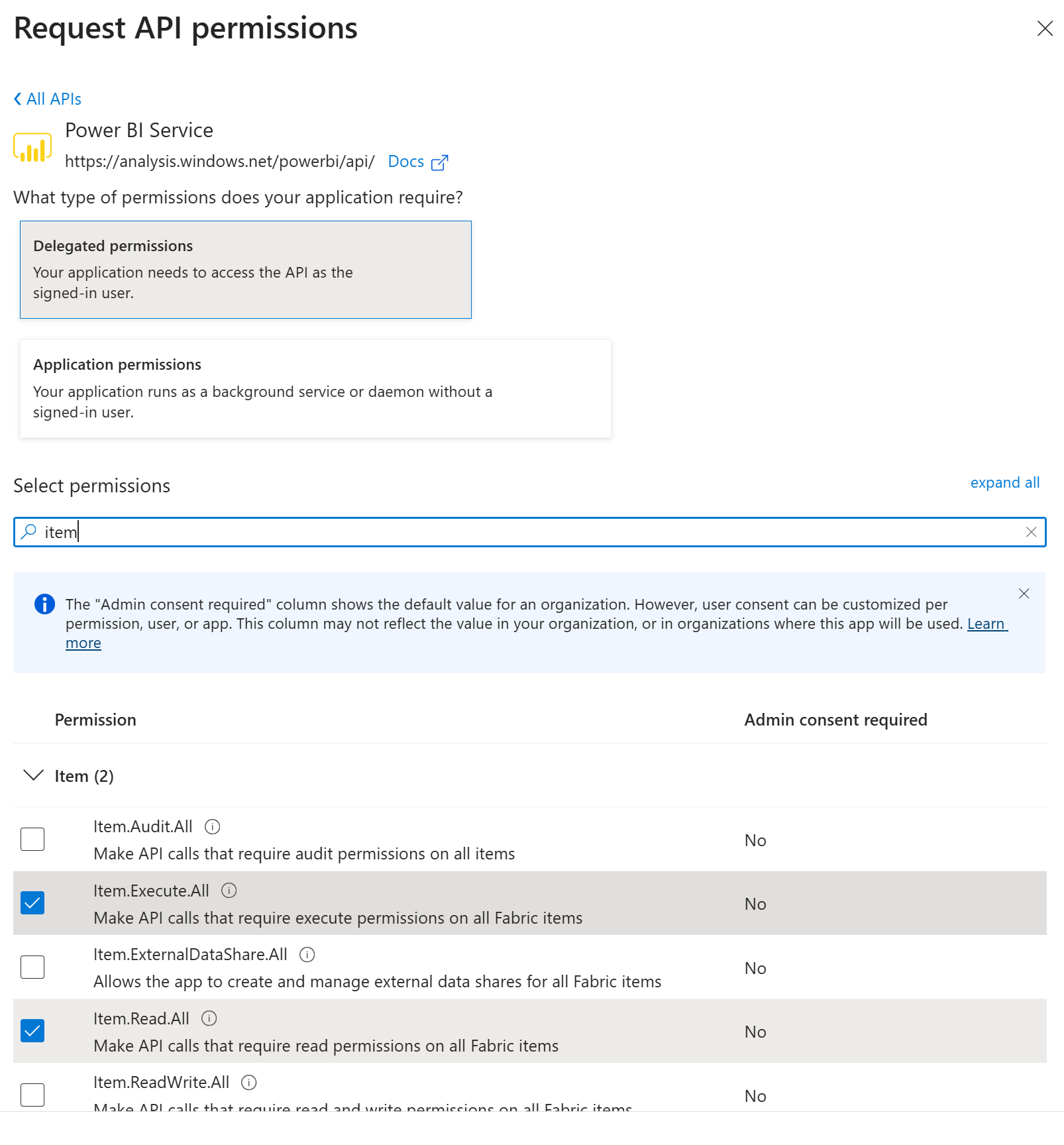
- Select API permissions > Add a permission > Microsoft APIs. Find and select Power BI Service, select Delegated permissions, and add the following permissions:
Item.Execute.AllItem.Read.All
Select Add permissions.
- Select Grant admin consent for {your-organization} in the Configured permissions panel. A Global Administrator must approve this one-time tenant operation. This step allows users in your organization to authenticate through the Fabric IQ connection.
- Select Certificates & secrets > New client secret. Add a description and expiration. Select Add, then immediately copy the secret Value — it's only shown once. Store the value in Azure Key Vault or another approved secret store. Never commit, print, or log it, and rotate it before expiration.
- Copy your Directory (tenant) ID from the Microsoft Entra ID overview page.
Fill in the Foundry connection values
In Microsoft Foundry, open your project and go to Settings > Connections > New connection > Fabric IQ. Fill in the following fields:
| Field | Value |
|---|---|
| Client ID | Application (client) ID from step 3 |
| Client secret | Client secret value from step 6 |
| Authorization URL | https://login.microsoftonline.com/{tenant-id}/oauth2/v2.0/authorize |
| Token URL | https://login.microsoftonline.com/{tenant-id}/oauth2/v2.0/token |
| Refresh URL | https://login.microsoftonline.com/{tenant-id}/oauth2/v2.0/token |
| Scopes | https://analysis.windows.net/powerbi/api/Item.Execute.All,https://analysis.windows.net/powerbi/api/Item.Read.All,offline_access |
Replace {tenant-id} with your Directory (tenant) ID from step 7. Select Save to create the connection.
For data agent connections using BYO Entra, use the DataAgent.Execute.All delegated permission instead of the Power BI scopes listed earlier. Add https://analysis.windows.net/powerbi/api/DataAgent.Execute.All as the scope in the Foundry connection, and grant admin consent for that permission in your app registration.
Add the redirect URI to your app registration
After Foundry creates the connection, it displays an OAuth redirect URL. Add this URL to your app registration:
- In the Microsoft Entra admin center, go to Entra ID > App registrations and select your app.
- Select Authentication > Add a platform > Web.
- Under Redirect URIs, paste the OAuth redirect URL from Foundry.
- Select Configure.
Virtual network support
Virtual network (VNet) support through Azure Private Link depends on the Fabric item type you connect to.
| Fabric item type | Virtual network support |
|---|---|
| Ontology | Tenant-level private link |
| Data agent | Tenant-level and workspace-level private link |
| Power BI semantic model | Public access only |
Tenant-level private links apply network restrictions across your whole tenant and don't change the server_url you configure. Data agent items also support workspace-level private links, which isolate a single workspace and require a workspace-specific endpoint and a dedicated Foundry connection, as described in the next section. Power BI semantic models support public access only.
Connect to a data agent over a workspace-level private link
When a workspace blocks public access through a workspace-level private link, you can't reach its data agent at the shared api.fabric.microsoft.com host. Use the workspace-specific private endpoint instead, and create a Foundry connection that forwards the signed-in user's Entra token to that endpoint.
Build the workspace private endpoint URL
Replace the api.fabric.microsoft.com host in the data agent server_url with the workspace fully qualified domain name (FQDN):
https://{workspaceId}.z{xy}.w.api.fabric.microsoft.com/v1/mcp/workspaces/{workspaceId}/dataagents/{dataAgentId}/agent
Where:
{workspaceId}is the workspace ID with the dashes removed.zis a literal part of the host name.{xy}is the first two characters of the workspace ID.
For example, for workspace ID 1234567890abcdef1234567890abcdef, the host is 1234567890abcdef1234567890abcdef.z12.w.api.fabric.microsoft.com. For more information, see Connecting to workspaces.
Create the Foundry connection
Create a remote tool connection that uses Microsoft Entra ID On-Behalf-Of (OBO) authentication with the user's token and connects through the workspace private endpoint. Configure the audience as the Power BI API resource https://analysis.windows.net/powerbi/api, which authorizes data agent execution using the DataAgent.Execute.All permission scope.
Azure Developer CLI
Add the connection to the resources section of your azure.yaml file, then run azd provision:
resources:
  - kind: connection
    name: fabriciq-dataagent-vnet
    category: RemoteTool
    authType: UserEntraToken
    audience: https://analysis.windows.net/powerbi/api
    target: https://{workspaceId}.z{xy}.w.api.fabric.microsoft.com/v1/mcp/workspaces/{workspaceId}/dataagents/{dataAgentId}/agent
REST API
Send a PUT request to the connections API. Replace the placeholders with your subscription, resource group, Foundry account, and project names. Supply a Microsoft Entra access token for Azure Resource Manager.
PUT https://management.azure.com/subscriptions/{subscription-id}/resourceGroups/{resource-group}/providers/Microsoft.CognitiveServices/accounts/{account-name}/projects/{project-name}/connections/fabriciq-dataagent-vnet?api-version=2025-10-01-preview
Authorization: Bearer {arm-access-token}
Content-Type: application/json

{
  "properties": {
    "category": "RemoteTool",
    "authType": "UserEntraToken",
    "target": "https://{workspaceId}.z{xy}.w.api.fabric.microsoft.com/v1/mcp/workspaces/{workspaceId}/dataagents/{dataAgentId}/agent",
    "audience": "https://analysis.windows.net/powerbi/api",
    "isSharedToAll": true
  }
}
After you create the connection, reference it from your agent tool definition through its project_connection_id. The connection's target already points to the workspace private endpoint, so requests route over the workspace-level private link.
Data governance and compliance
Fabric IQ queries involve your Fabric workspace, the Foundry project, and the identity configured for the connection. Review the data handling, regional configuration, and compliance requirements for every service in that request path with your privacy and compliance teams.
Data residency
Your Fabric workspace location determines the Fabric region. The Foundry project and other services in the request path can use different regions. Review Microsoft Fabric region availability and your organization's residency requirements before connecting the services.
Note
If your Foundry project is in a different Azure region than your Fabric workspace, query results are returned cross-region. Review Microsoft Fabric region availability and your organization's data residency requirements before connecting a Fabric workspace in a different region.
Compliance review
For compliance documentation and audit reports, use your organization's Microsoft compliance resources and confirm that they cover the complete Fabric IQ and Foundry deployment.
Admin management
Grant admin consent
A Global Administrator must grant tenant-wide admin consent for the Entra app registration as a one-time tenant operation before users can authenticate with the Fabric IQ connection. Use Microsoft Entra PIM to activate the role just in time, and deactivate it after granting consent. Day-to-day Fabric IQ users don't need this role:
- In the Microsoft Entra admin center, go to Entra ID > App registrations and select your app.
- Select API permissions.
- Select Grant admin consent for {your-organization} and approve. Each listed permission shows a green checkmark when consent is granted.
DataAgent.Execute.All also requires admin consent. If you use this permission for data agent connections, follow the same process.
Restrict network access
To restrict agent traffic to your private network, configure Foundry Agent Service with a virtual network. See Private networking for agents for setup instructions. For the Fabric-side network options that each item type supports, see Virtual network support.
Publish Fabric items before use
A Fabric admin must publish each Fabric item — ontology, data agent, or Power BI semantic model — before it can be consumed through Fabric IQ. Unpublished items aren't reachable at the MCP endpoint, and requests against them fail. Confirm that the item is published in the Microsoft Fabric portal before configuring the Foundry connection.
Troubleshoot
| Symptom | Likely cause | Fix |
|---|---|---|
404 or Not Found error when connecting |
The server_url is incorrect or the Fabric item isn't published. |
Verify the workspace and item GUIDs in the Fabric portal URL. Confirm the item is published. |
| 401 Unauthorized | Admin consent hasn't been granted or the Entra app is misconfigured. | Verify admin consent was granted for all required API permissions. Check that the client ID, secret, and scopes match what you configured in Foundry. |
CONSENT_REQUIRED error at runtime |
The signed-in user hasn't completed the OAuth flow for the connection. | Open the consent URL returned in the error, complete the OAuth flow in a browser, then retry. |
| Empty or incorrect results from ontology queries | Ontology entities, properties, or data bindings are incomplete. | Verify the ontology item is published and that entity types, properties, and data bindings are fully configured in Fabric IQ. |
| Poor-quality answers from Power BI semantic models | The model doesn't have strong enough reasoning for complex measure queries. | Use a latest-generation model such as gpt-5.4 or opus 4.7. These models handle semantic model complexity significantly better than older models. |
| Agent never calls the Fabric IQ tool | The model doesn't recognize when to delegate to Fabric IQ. | Add guidance in the system prompt, for example: "Use the Fabric IQ tool for any question about business data, entities, metrics, or organizational knowledge." |