Note
Access to this page requires authorization. You can try signing in or changing directories.
Access to this page requires authorization. You can try changing directories.
Real-Time hub is the central place to discover and manage all streaming data across your organization. Every Microsoft Fabric tenant automatically includes Real-Time hub, with no extra steps needed to set up or manage it. This article provides guidance on getting started with Fabric Real-Time hub.
Prerequisites
- A Microsoft Fabric account. If you don't have an account, sign up for a free trial.
- Read the Real-Time hub overview.
Navigate to Real-Time hub
Use the following steps to navigate to Real-Time hub in Microsoft Fabric.
Sign in to Microsoft Fabric.
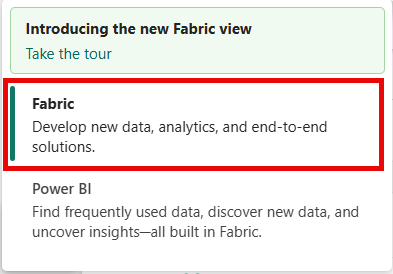
If you see Power BI at the bottom-left of the page, switch to the Fabric workload by selecting Power BI and then selecting Fabric.
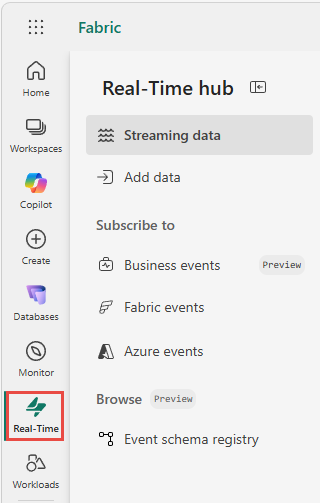
Select Real-Time on the left navigation bar.
Main pages
Real-Time hub organizes streaming data, data sources, and events across several pages. Each page focuses on a specific task, from discovering streams to managing event schemas. Here are the main pages:
Streaming data page
The Streaming data page is the home page of Real-Time hub. It shows all the streams that you already created and the Kusto Query Language (KQL) tables that are available to you. From this page, you discover existing data, connect to common sources, try samples, and take actions on your streams and tables.
For a stream, you can preview data, endorse data, open the underlying eventstream, and set alerts. For a KQL table, you can explore data, open the underlying KQL database, endorse data, detect anomalies (preview), create real-time dashboards (preview), and add the table to a data agent. For more information, see Streaming data page.
Add data page
On this page, you bring data into Real-Time hub from streaming sources, Azure services, and diagnostic data. You connect to a source to create a data stream, which makes the incoming data available in Real-Time hub. After a stream is available, you can set conditions on the data and configure alerts that notify you or trigger actions when those conditions are met. You can also try out sample scenarios to explore how streaming data flows through Real-Time hub. For more information, see Add data page.
Business events page
Business events are events that applications and analytics generate in Microsoft Fabric to represent something meaningful to your business, such as an order being placed or a threshold being crossed. You define and publish these events from sources such as user data functions and notebooks, so they carry the business context that matters to you. This context differs from Fabric events and Azure events, which are system events that the platform generates automatically to signal changes in Fabric workspace items or Azure services.
On this page, you define, discover, publish, and consume business events across Fabric. After you publish a business event, you can use it to trigger alerts, automate workflows, run analytics, or provide real-time context to AI systems. For more information, see Business events page.
Fabric events page
Fabric events are system events that Microsoft Fabric generates automatically to signal changes to items in your workspaces, such as a job completing or a OneLake file being created. Unlike business events, which you define to capture business context, Fabric events come directly from the platform so you can react to what's happening inside Fabric.
On this page, you discover the Fabric events that you can access and subscribe to them by creating an eventstream. After you subscribe to an event, you can route it to downstream destinations or configure alerts that send notifications through email, Teams, and other supported channels when an event occurs. For more information, see Fabric events page.
Azure events page
Azure events are system events that Azure services generate, such as changes to blobs in Azure Blob Storage. Like Fabric events, they're produced by the platform rather than defined by you, which lets you bring signals from your Azure resources into Real-Time hub alongside your Fabric data.
On this page, you discover the Azure events that you can access and subscribe to them by creating an eventstream. After you subscribe to an event, you can route it to downstream destinations or configure alerts that send notifications through email, Teams, and other supported channels when an event occurs. For more information, see Azure events page.
Event schema registry page
The Event schema registry page provides a central view of event schemas registered through Fabric Real-Time hub or Fabric event schema sets. An event schema defines the structure of the events in a stream, such as the fields each event contains and their data types. Real-Time hub and Fabric event schema sets register these schemas so that producers and consumers agree on the shape of the data. Where the other pages help you work with the events themselves, this page helps you manage the definitions behind them.
On this page, you get a central view of the event schemas registered across your workspaces. You can search and filter schemas by name, schema set owner, schema set name, or workspace, and review details such as the owner, containing schema set, and endorsement status. From here, you can also create an event schema, open the schema set that contains a schema, or endorse a schema. For more information, see Event schema registry page.
Next step
Go to the Streaming data page to discover streams and KQL tables, connect to common sources, try samples, and take actions on streaming data.