Hi @Joe Al Achkouty,
Welcome to Microsoft Q&A forum.
Thank you for reaching out to us. I understand how important it is for you to access PowerPoint, Word, and Excel without interruption.
To assist you better, could you please confirm if you see any specific error message or code? This will help us identify the best next steps to resolve the issue.
In the meantime, here are some troubleshooting suggestions you can try:
1. Check your subscription status
- Ensure your subscription is active by visiting https://portal.office.com and checking that your license appears under your profile.
- If your school recently updated licenses, please contact your IT Help Desk to confirm your account is properly assigned.
2. Restart apps and your PC
- Close all Office applications, restart your computer, and try opening Word, Excel, and PowerPoint again.
3. Test in Safe Mode
Press Win + R, then run each command:
winword /safe
excel /safe
powerpnt /safe
If apps open in Safe Mode, disable add-ins: File > Options > Add-ins → COM Add-ins (Go) → uncheck all → restart the apps.
If the issue persists, please try the following steps:
1. Repair Microsoft 365
- Go to Settings > Apps > Installed apps (or Apps & features).
- Find Microsoft 365 (or Office), click Modify.
- Choose Quick Repair → Repair. If issues persist, repeat and select Online Repair (this takes longer but fully resets Office).
2. Update Office
- Open any Office app → File > Account > Update Options > Update Now.
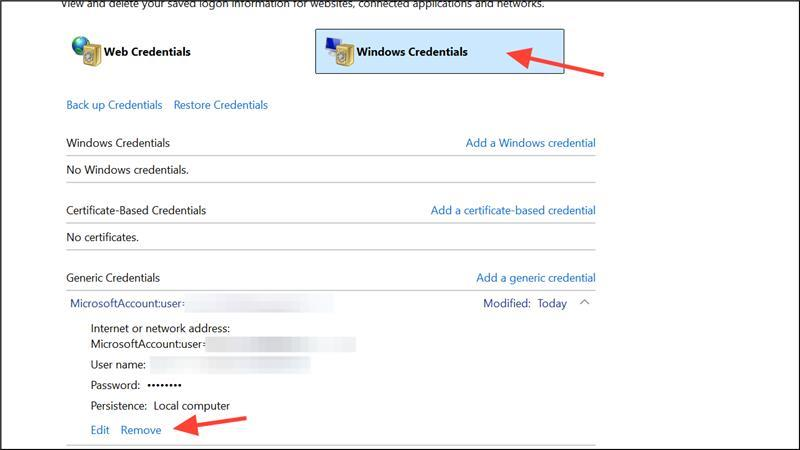
3. Clear cached credentials (if sign-in loops)
- Open Control Panel → User Accounts > Credential Manager.
- Under Windows Credentials, remove entries starting with MicrosoftOffice, ADAL, or MSOID. Restart your PC and sign in again.
I hope this information is helpful. Please follow these steps and let me know if it works for you. If not, we can work together to resolve this.
Thank you for your patience and your understanding. If you have any questions or need further assistance, please feel free to share them in the comments on this post so I can continue to support you.
I look forward to your thoughts on this.
If the answer is helpful, please click "Accept Answer" and kindly upvote it. If you have extra questions about this answer, please click "Comment".
Note: Please follow the steps in our documentation to enable e-mail notifications if you want to receive the related email notification for this thread.
' cx='32' cy='32' r='32' /%3E%3Ctext x='50%25' y='55%25' dominant-baseline='middle' text-anchor='middle' fill='%23FFF' %3EJA%3C/text%3E%3C/svg%3E)

' cx='32' cy='32' r='32' /%3E%3Ctext x='50%25' y='55%25' dominant-baseline='middle' text-anchor='middle' fill='%23FFF' %3EKL%3C/text%3E%3C/svg%3E)