Hi @Emad Alsarraf - عماد الصراف,
Welcome to the Microsoft Q&A forum.
Thank you very much for reaching out regarding the issue you’re experiencing with your PowerPoint files saved on OneDrive. I truly appreciate your patience and the details you provided.
From what you described, it seems that when you click to open a file, the content disappears and PowerPoint opens as if it’s a new blank presentation.
This behavior usually happens when OneDrive hasn’t finished syncing the file, when the file is opened through a broken shortcut or link, when there are version conflicts or corrupted cache from edits on multiple devices, or when the file is damaged or its permissions have changed.
Here are my recommendations to help prevent this problem from happening again:
1/ Verify OneDrive sync status
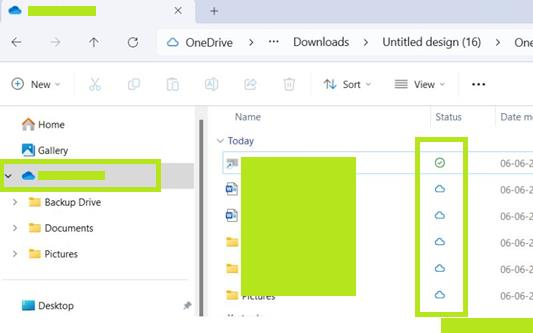
- Please ensure OneDrive is fully synced and your internet connection is stable.
- Look for the green checkmark on the file in OneDrive to confirm it’s up to date.
-
3/ Mark the file or folder as “Always keep on this device”
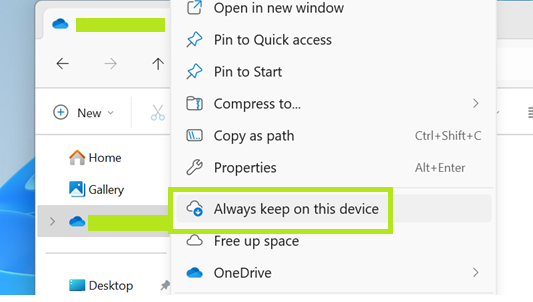
This ensures the file is always available offline and reduces issues caused by incomplete sync, please:
- Navigate to your OneDrive folder in File Explorer:
- Right-click the file or folder you want to keep offline.
- Select Always keep on this device.
- A green checkmark will appear, confirming the file is fully downloaded.
-
4/ Clear cache
Clear PowerPoint and OneDrive cache to remove any corrupted temporary data that might cause conflicts.
Clear PowerPoint cache
- Close PowerPoint completely.
- Press Windows + R to open the Run dialog.
- Type: %localappdata%\Microsoft\Office\16.0\PowerPoint
(Replace 16.0 with your Office version if different.)
- Delete all files in this folder. These are temporary cache files.
- Restart PowerPoint.
Reset OneDrive (Clear cache and reconfigure)
- Press Windows + R to open the Run dialog box.
- Type the following command and press Enter: %localappdata%\Microsoft\OneDrive\onedrive.exe /reset
- Wait a few seconds, then reopen OneDrive from the Start Menu or find the OneDrive icon in the taskbar.
- Sign back into your account if prompted.
Note: Resetting will clear the cache and reconfigure OneDrive, but it will not delete your files stored in the cloud.
5/ Check Version history
- On OneDrive, please right-click the file and select Version History to restore a previous version if the content was lost.
-

For detailed guidance, you can refer to this article: PowerPoint opens a blank presentation
Note: Microsoft provides this information only as a convenience to users. These websites are not controlled by Microsoft, and Microsoft does not guarantee the quality, security, or suitability of any software or information on them. It is important to fully understand the risks involved before using any of the suggestions in the links above.
I hope this information is helpful. Should you have any further questions or need additional assistance, feel free to reach out.
I look forward to hearing your thoughts on this.
If the answer is helpful, please click "Accept Answer" and kindly upvote it. If you have any extra questions about this answer, please click "Comment".
Note: Follow the steps in our documentation to enable email notifications if you want to receive email notifications related to this topic.
' cx='32' cy='32' r='32' /%3E%3Ctext x='50%25' y='55%25' dominant-baseline='middle' text-anchor='middle' fill='%23FFF' %3EEA%3C/text%3E%3C/svg%3E)

' cx='32' cy='32' r='32' /%3E%3Ctext x='50%25' y='55%25' dominant-baseline='middle' text-anchor='middle' fill='%23FFF' %3ECD%3C/text%3E%3C/svg%3E)